When you reply to a question about a pre-order item, first check that order's estimated ship date, payment status and sent emails, then put those values into a standard template. You can reuse the wording, but if the date doesn't match the order, the customer will write again.
If you use the Shopify app SellRules, two screens give you the values for the reply:
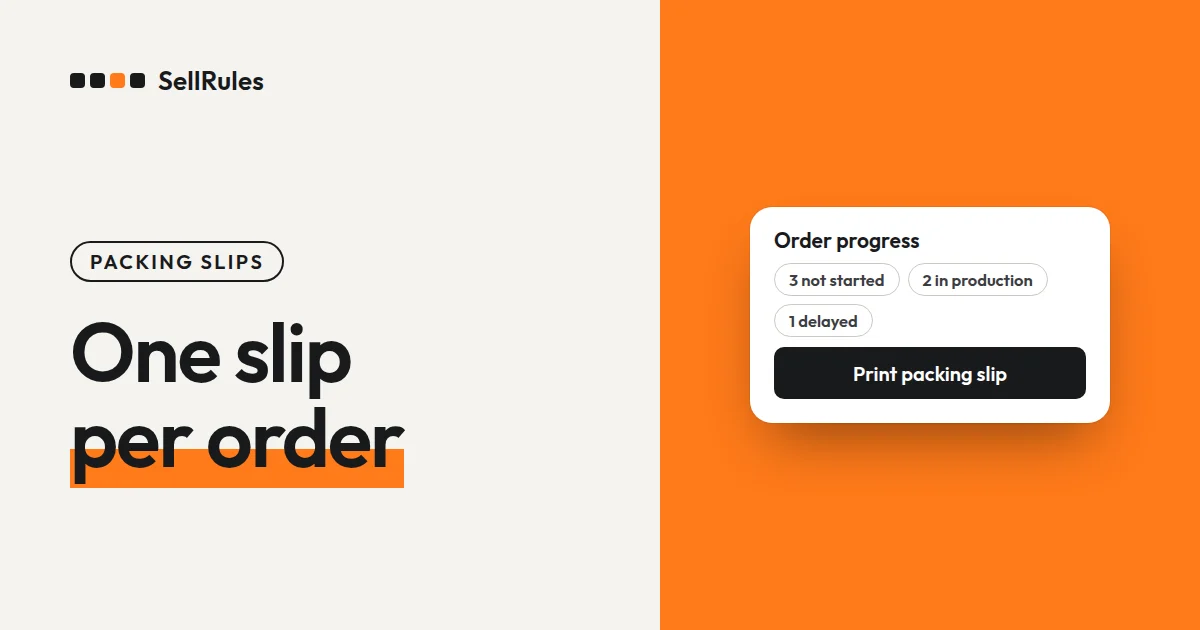
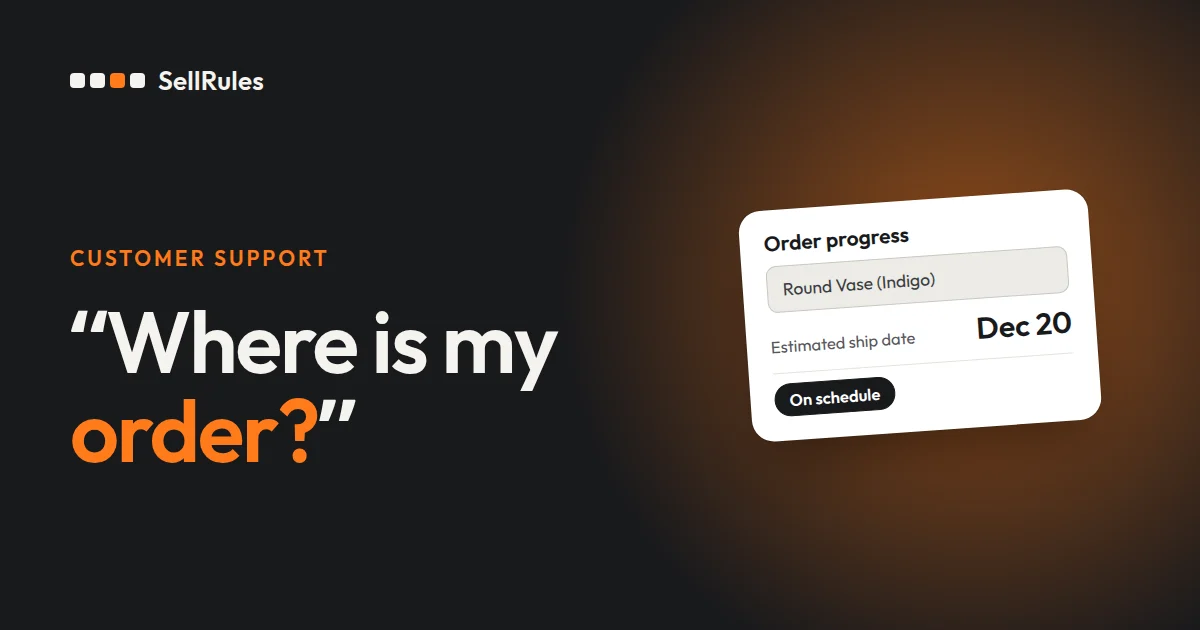
- “Order progress”: each order's estimated ship date, progress and payment status
- “Email log”: the type of each email sent for that order, when it was sent, and whether it went through
In the templates below, replace the bracketed placeholders, such as [date], with the values from these two screens.
Screens to check before you reply

“Order progress” lists “Pre-order” and “Made to order” orders, one per row. Filter by progress or order type, find the row with the order number the customer gave you (for example, #1019) in the “Order” column, and look at these values:
| Column | How you use it in the reply |
|---|---|
| Estimated shipping date | The answer to “When will it arrive?” |
| Progress | Whether the order is “Not started” or “Preparing” for shipment |
| Payment | For a “Deposit now, balance later (partial payment)” order, when the balance will be charged |
“Email log” lets you check each email SellRules sent to the customer. It lists the type, such as “Pre-order confirmation”, “Delay notice” or “Shipped notice”, with the date and time sent, and shows a reason for any email that didn't go through.
Replying to “When will it arrive?”
Give the estimated ship date exactly as it appears under “Order progress”.
Hi [name],
Thanks for getting in touch. The [item] in your order #[order number] is scheduled to ship around [date]. Once it ships, we'll send you an email with tracking information. If the schedule changes, we'll email you again.
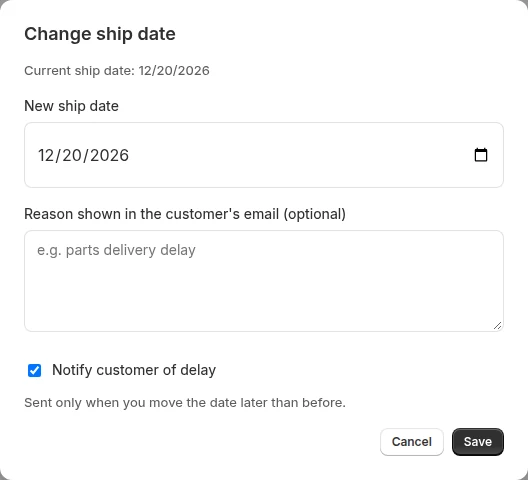
For an order whose estimated ship date you've pushed back, check in “Email log” whether a delay notice went out, and if it did, add “as mentioned in our email of [date]”. If the order looks likely to run late and you haven't changed the date yet, fix it with “Change ship date” under “Order progress” before you reply. Check “Notify customer of delay” there and the customer gets an email with the reason for the change and the new date.
Replying to “I want to cancel”
Whether you accept cancellations is your store's policy. Here is a template for when you do.
Hi [name],
Thanks for letting us know. We've canceled your order #[order number]. The amount you paid will be refunded to the payment method you used for the order. You'll get a cancellation email from our store once it has been processed.
You cancel a pre-order on the Shopify order page. For a deposit order, use “Cancel this order” in the order's details in SellRules: the amount received is refunded and the balance is no longer charged. Shopify sends the customer a cancellation email.
Replying to “Can you ship the in-stock items first?”
This question comes up when a pre-order item and an in-stock item are in the same order.
Hi [name],
Thanks for getting in touch. We'll ship the [item] from your order #[order number] first. The pre-order [item] will ship separately around [date].
When a pre-order item and an in-stock item are in the same order, SellRules splits them into separate fulfillments and puts a fulfillment hold on the pre-order item only. You can fulfill the in-stock item first on the Shopify order page as usual. An order that includes a deposit pre-order stays on hold as a whole until the balance is paid, so you can only ship ahead after the payment.
Replying to “I didn't get the confirmation email”
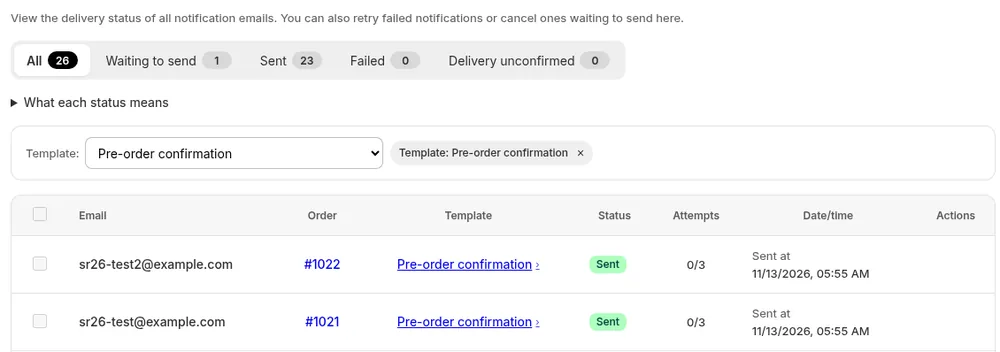
Find the “Pre-order confirmation” for that order in “Email log” and check its status before you reply.
| Status in Email log | Reply |
|---|---|
| Sent | Ask the customer to look in their spam folder |
| Failed | Read the reason shown, and if the address is invalid, ask for the correct email address |
| Delivery unconfirmed | Ask the customer to check whether it arrived |
| Not found | Check the order number and whether the order contains a pre-order item |
Hi [name],
Thanks for getting in touch. We sent the confirmation email for your order #[order number] to [email address] on [date]. Could you check whether it ended up in your spam folder?
You can send a “Failed” email again with “Retry” in “Email log”. If the address was invalid, retrying gives the same result, so ask for the correct email address and include the pre-order details in your reply. A “Delivery unconfirmed” email has no retry button, to keep the customer from getting it twice.
Replying to “When will the balance be charged?”
Stores that take pre-orders with a deposit get this one. Give the charge date shown in the payment column under “Order progress”.
Hi [name],
Thanks for getting in touch. The balance of $[amount] on your order #[order number] will be charged to the payment method you used for the order when it's ready to ship. We'll charge it by [date] at the latest. We'll email you once the charge has gone through.
For an order whose payment column shows “Due [date]”, write that date in as “We'll charge it on [date]”. For an order whose payment status is “Can't auto-charge”, the customer has been sent an email with a payment link. In that case, reply “Please pay using the link in the email we sent on [date]”. The payment flow is explained in Deposits and charging the balance.
Pricing
“Order progress” is available from the Free plan. On the Free plan you can take up to 10 pre-order and made-to-order orders in total. “Email log” and editing the email text are available on the Launch plan (US$7.99 per month).
Start with the next question that comes in: look up the estimated ship date under “Order progress”, put it into the template and reply. You can install SellRules from the Shopify App Store, where you can also check pricing and trial terms.
Frequently asked questions
Can I save reply templates in SellRules?
No, SellRules has no place to save them. Keep the templates as saved replies in the email app or help desk you already use to answer customers.
What should I do when the same question keeps coming in?
Answer it up front in the pre-order confirmation email. In SellRules, go to “Settings” → “Email templates” and add how the ship date is decided or how you handle cancellations to the body of “Pre-order confirmation”.
What do I say about an order that has no estimated ship date yet?
Reply “We'll email you as soon as the ship date is set”, and once it is, enter the date with “Change ship date” under “Order progress”. Make sure the date you give the customer matches the date you enter there.
Related articles:
- What to tell pre-order customers from checkout to delivery: Pre-order customer communication
- Editing the emails customers receive: Pre-order and back-in-stock email text and the email log
- When to take payment for pre-orders: When to charge for pre-orders that ship a month or more out
- Choosing how to sell, such as early access or limited quantities: Early-access and limited sales
- When a pre-order and an in-stock item are bought together: Pre-orders and in-stock items in one order
The names, dates and amounts in the templates are examples.