What pre-order customers need to hear changes over time: before they buy, right after they order, while they wait, and when the item ships.
SellRules shows the pre-purchase information on the product page and in the cart, and sends the post-order updates to customers as pre-order and shipping emails. The estimated shipping line on the product page, the “Pre-order confirmation” email and the “Delay notice” email all use the estimated ship date you enter in the sales schedule.
This article is written by the developer of SellRules.
What to tell customers at each stage, and where they see it
Customers want to know different things at different points while they wait. The right-hand column of the table below shows where SellRules tells them.
| Stage | What to tell the customer | Where SellRules tells them |
|---|---|---|
| Viewing the product page | That the item is a pre-order, and when it's expected to ship | The “Pre-order Now” button and the estimated shipping line below it |
| Viewing an item sold with a deposit | How much they pay now, and when the balance is due | The payment details below the buy button, and the due date at checkout |
| Added it to a cart with in-stock items | That the items have different ship dates | The cart notice |
| Just placed the order | That the pre-order was received, and the estimated ship date | The “Pre-order confirmation” email |
| Balance due date coming up | The due date, and how the balance will be charged | The “Balance payment reminder” email |
| Ship date pushed back | The new estimated ship date (plus the reason, if you changed it in “Order progress”) | The “Delay notice” email |
| Order canceled | That the cancellation is complete, and the refund | The “Cancellation confirmation” email |
| Item shipped | That it has shipped | The “Shipped notice” email |
The first 3 rows are what customers read before they order. The emails sent after the order use the same estimated ship date, and the pre-order confirmation shows the date from “Estimated ship date”. If that date is blank, it shows the wording from “Estimated shipping (text)” instead.
Before purchase, tell customers on the product page and in the cart
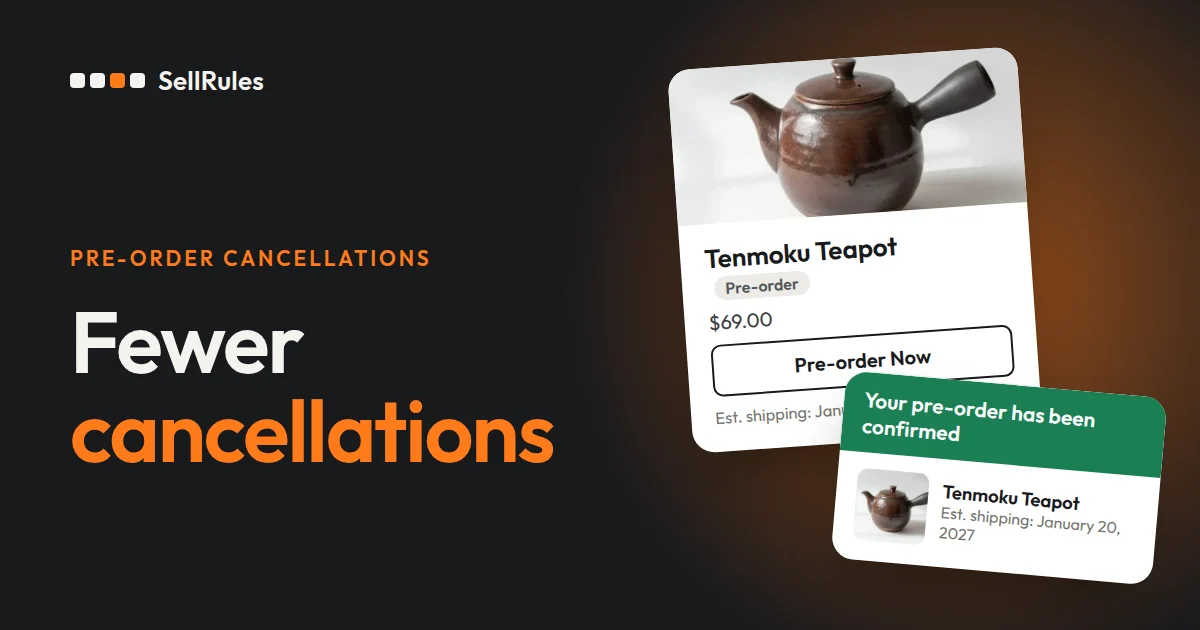
Tell customers that an item is a pre-order, and when it will ship, before they click the buy button. When you give a product a pre-order sales schedule in SellRules, its buy button changes to “Pre-order Now” and the estimated shipping date appears below it.
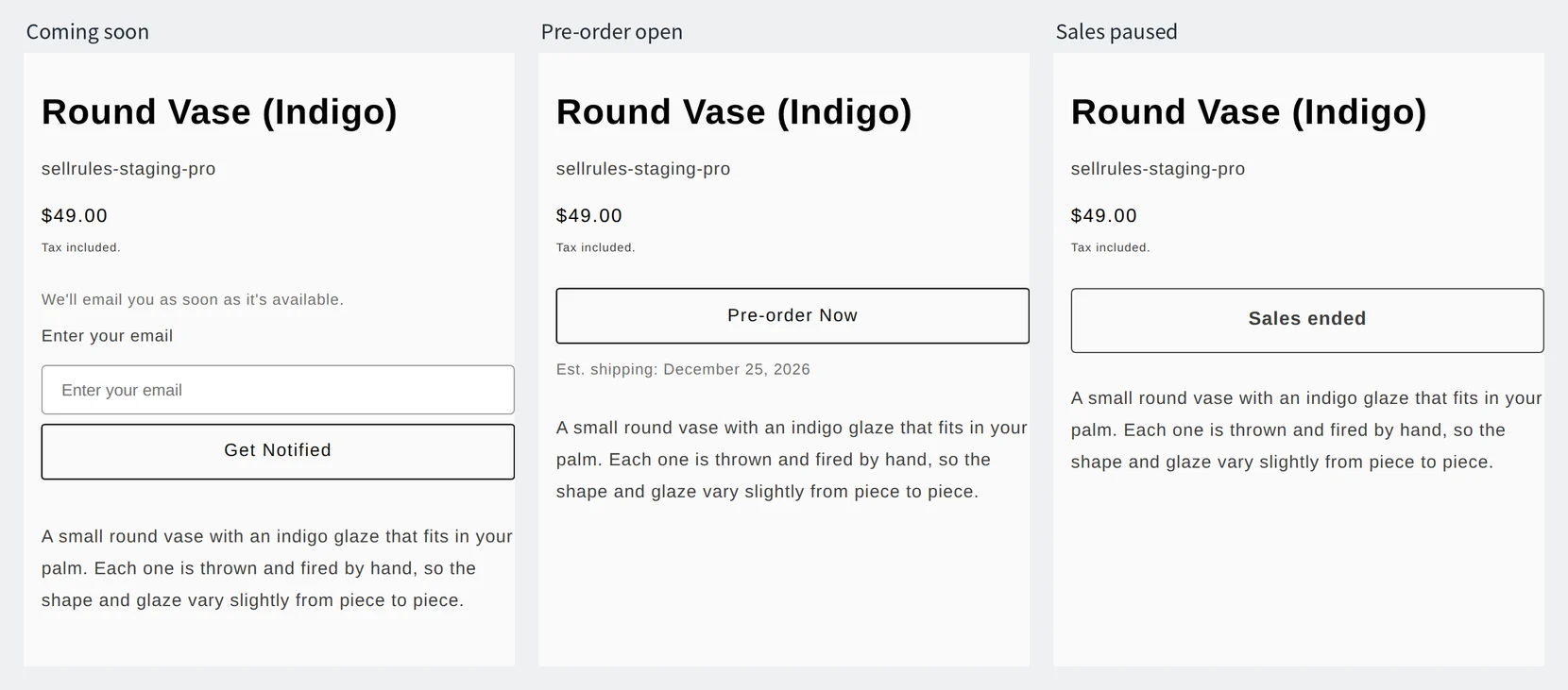
The estimated shipping line comes from two fields in “Sales schedules”: “Estimated shipping (text)” and “Estimated ship date”. If you enter wording such as “late December” in the text field, that wording is shown. If the text field is empty, the line is built from the date.
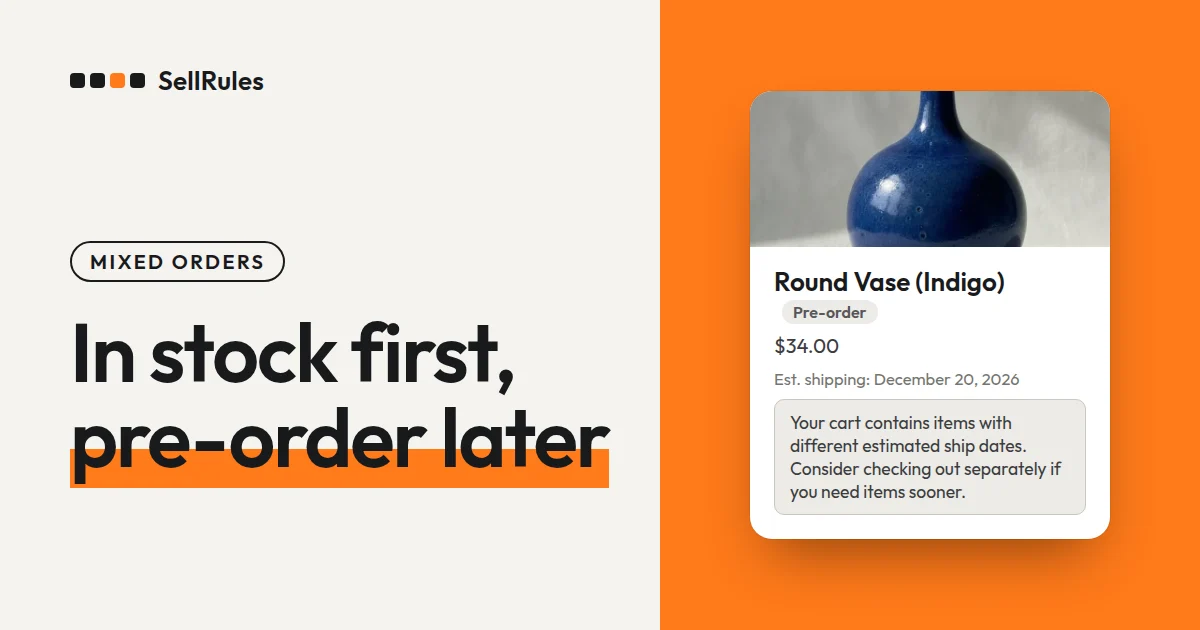
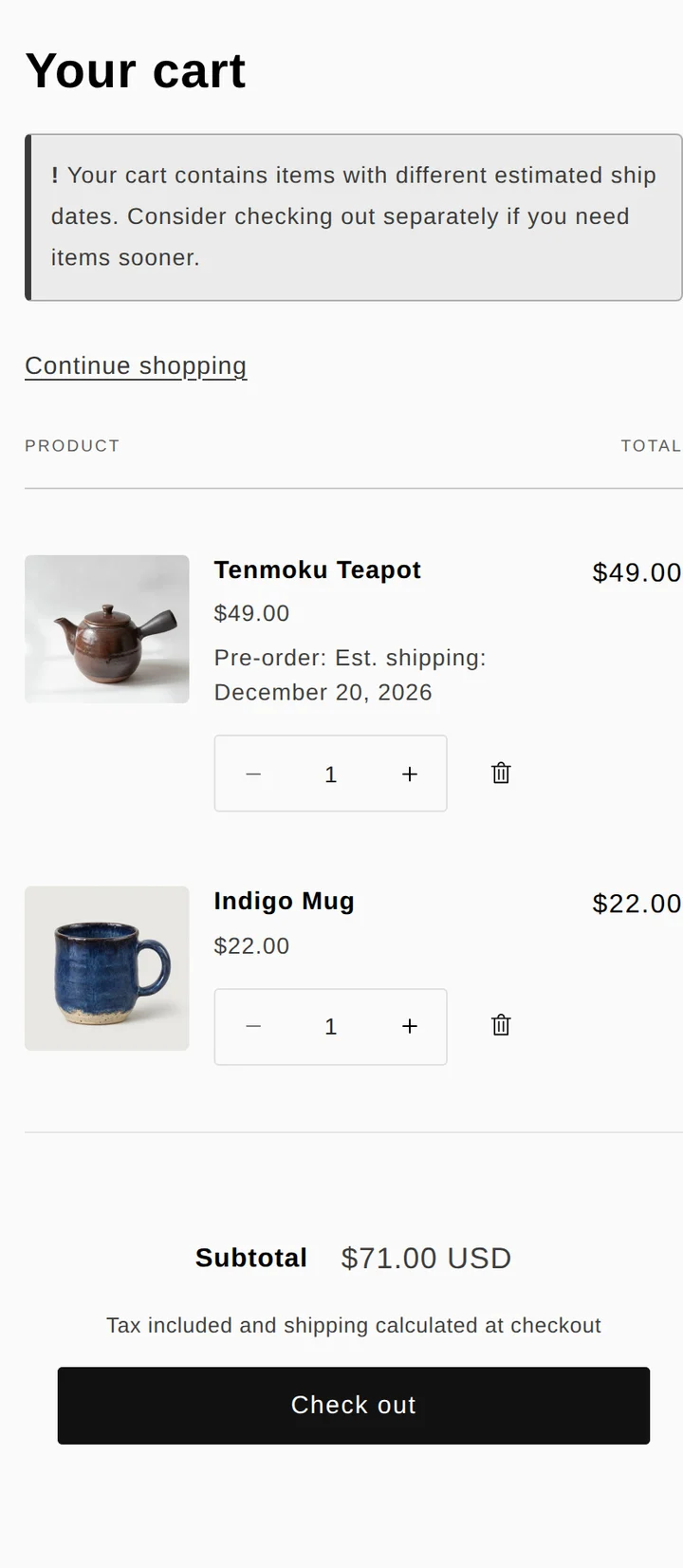
When a customer adds a pre-order item to a cart that also has in-stock items, the cart shows “Your cart contains items with different estimated ship dates. Consider checking out separately if you need items sooner.” That way, customers learn how the 2 items will arrive while they're still in the cart, not after they've ordered.
For items you sell with “Deposit now, balance later (partial payment)”, the area below the buy button shows what share of the price is paid now and when the balance is due. Checkout also lists the amount due today and the amount due on the due date separately.
After the order, tell customers by email
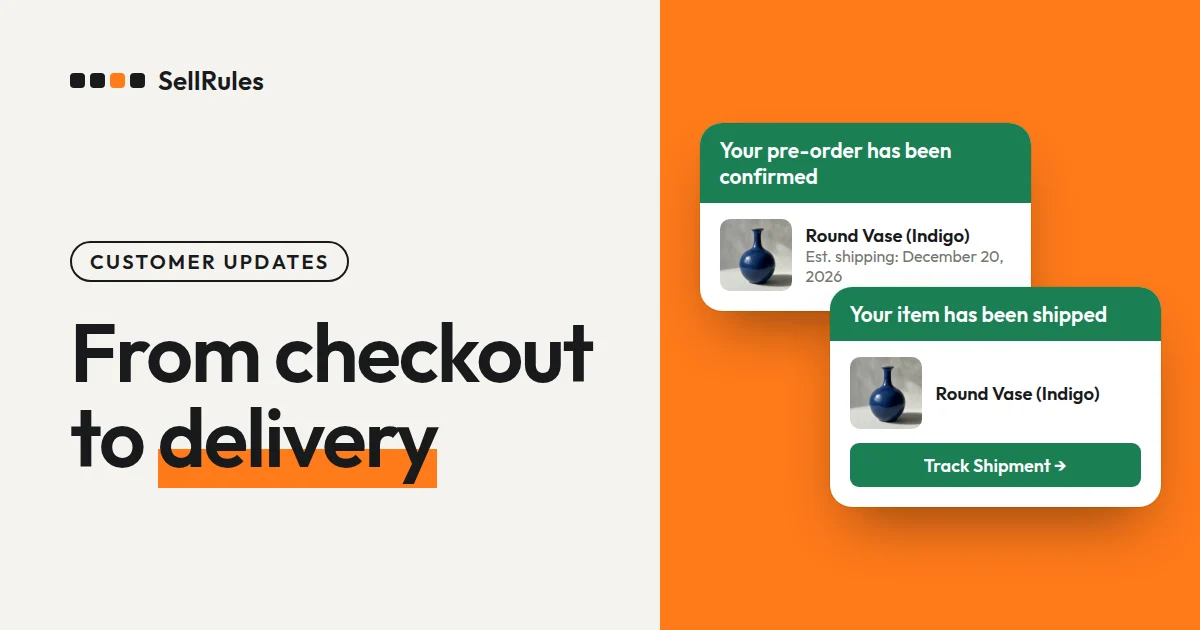
After the order, SellRules emails customers when each event happens. When a pre-order comes in, the customer gets SellRules' “Pre-order confirmation” in addition to Shopify's “Order confirmation”. Shopify's email covers the order details, and the SellRules email covers the estimated ship date and what happens next.
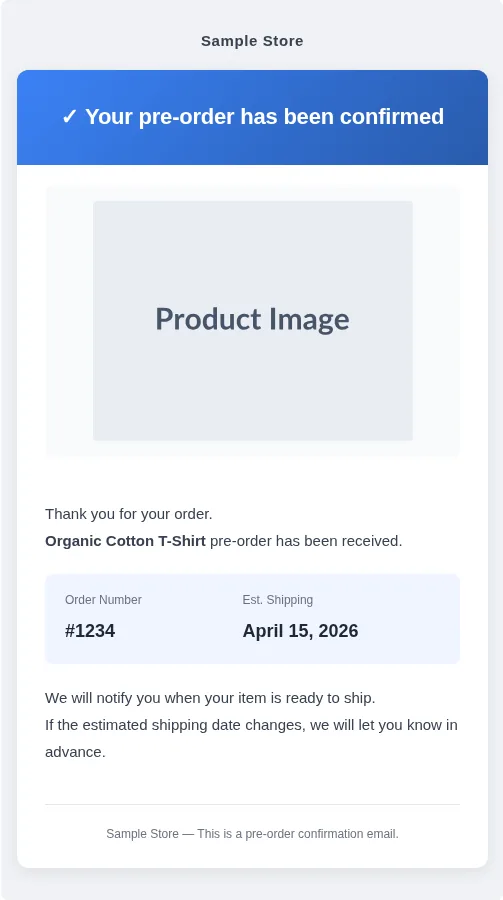
While customers wait, these emails go out when the following happens.
- Balance payment reminder: on a deposit order, before the balance due date and again after it has passed
- Delay notice: when you push the estimated ship date back, to customers whose orders haven't shipped yet
- Cancellation confirmation: when an order cancellation is complete
- Shipped notice: when a pre-order item has shipped
On deposit orders, the balance payment reminder includes a “Cancel this order” link. The page it opens shows the customer how much will be refunded, and they can cancel the order before paying the balance.
When the ship date slips, change the date and let customers know
If the ship date slips, update the estimated ship date in SellRules to the new date. Once you do, the delay notice goes out to customers. There are 2 ways to make the change, depending on how many orders are affected.
| What's delayed | Where to change it | What customers receive |
|---|---|---|
| Every pre-order for that product | “Estimated ship date” in the sales schedule | A delay notice goes to customers whose orders haven't shipped yet |
| Only some orders | “Edit ship date” in “Order progress” | A delay notice goes to customers on the orders where you checked “Notify customer of delay” |

When you change the date in “Order progress”, you can enter a reason such as “parts delivery delay” in “Reason shown in the customer's email (optional)”, and it appears in the delay notice. The delay notice only goes out when you move the date later than it was.
To send delay notices, make sure the sales schedule has a date in “Estimated ship date”. Even for products that show a range such as “late December”, put the last day of that range in the date field.
If you decide not to release the product at all, cancel the orders you've received and refund them. Customers whose orders are canceled get the cancellation confirmation.
What Shopify does on its own
Shopify's “Customer notifications” send an email for each order and delivery event, such as “Order confirmation”, “Shipping confirmation” and “Order canceled” (Shopify Help Center, checked November 14, 2026). If you turn on “Continue selling when out of stock” in a product's inventory settings, you can take orders even when inventory is at 0 (Shopify Help Center, checked November 14, 2026).
| What to tell customers | Shopify on its own | SellRules |
|---|---|---|
| That the item is a pre-order, and when it ships | The buy button stays the usual “Add to cart”. You write the shipping timeframe in the product description | The “Pre-order Now” button and the estimated shipping line below it |
| A later ship date | Not in the list of customer notifications | Sends a delay notice |
| The balance due date | Not in the list of customer notifications | Sends a balance payment reminder |
Shopify's order confirmation covers the order details. If you want to show that an item is a pre-order before customers buy it, and spend less time telling each customer about ship date changes and balance due dates, set that up in SellRules.
Setup guides for each stage
These articles walk through the setup for each stage.
- Pre-orders and the estimated shipping line: how to start pre-orders on Shopify
- When pre-orders are bought with in-stock items: shipping pre-orders and in-stock items in one order
- Deposits and balance reminders: how to take a deposit on Shopify pre-orders
- The wording of pre-order and shipping emails: how to customize pre-order and back-in-stock emails
- When a launch slips or the item is canceled: how to notify customers, cancel orders and issue refunds
- Adjusting product page and email wording for each language: the guide's “Storefront wording and languages” section
- Keeping cash on delivery off pre-order items: how to hide cash on delivery for pre-orders
Pricing
On the Free plan, you can take pre-orders for up to 10 orders in total. The estimated shipping line on the product page, the cart notice and the pre-order and shipping emails all work on the Free plan too, with the standard wording.
SellRules plans and pricing
| Monthly price | LaunchEvery feature included | FreeStart with one product |
|---|---|---|
| Monthly price | US$7.99 per month | Free |
| Free trial | 10 days | None |
| Pre-order and made-to-order orders | Unlimited | Up to 10 in total |
| Back-in-stock and sale-start emails (Notify Me) | Unlimited | Up to 15 in total (not refilled monthly) |
| Purchase limits | No limit on products | Up to 1 product |
| Customizable notification emails | Yes | No |
| Deposit payments | Yes | No |
Pre-orders, made-to-order, back-in-stock alerts, purchase limits, stockout switching, deposit payments and order processing are all included in the Launch plan.
The first 10 days of the Launch plan are free. If you remove the app during the trial, you are not charged.
On the Launch plan, back-in-stock and sale-start emails have no sending cap. Required messages such as order confirmations, shipping updates and balance reminders are sent on every plan regardless of the cap.
The Standard and Pro plans are closed to new sign-ups. Shops already on them keep their current terms.
Editing the email wording and taking deposits are available on the Launch plan (US$7.99 per month). Start by creating 1 pre-order item, placing a test order yourself, and checking the estimated shipping line on the product page and the pre-order confirmation email. You can install SellRules from the Shopify App Store and check its pricing and free trial terms there.
Frequently asked questions
What should I put on an FAQ page for pre-order items?
Cover 4 things: how you set the estimated ship date and how you'll let customers know if it changes, when you charge for the order, how items arrive when ordered together with in-stock items, and when you accept cancellations and how refunds work. Say the same things your product page and emails say, in the same words.
Related articles:
- Choosing how to sell: how to run early-access and limited sales
- When to charge for pre-orders: when to charge for pre-orders that ship a month or more out
- Reducing cancellations by customers: how to reduce pre-order cancellations
- Managing made-to-order orders through to shipping: how to sell made-to-order products
- Setting deadlines and order caps around holidays: Mother's Day, Valentine's Day and Christmas pre-orders
- Showing the estimated ship date on the product page, in the cart and at checkout: How to show the estimated ship date on pre-order products
- Replying to pre-order questions: Reply templates for pre-order questions
The product names and dates are examples for illustration and don't come from a real store.