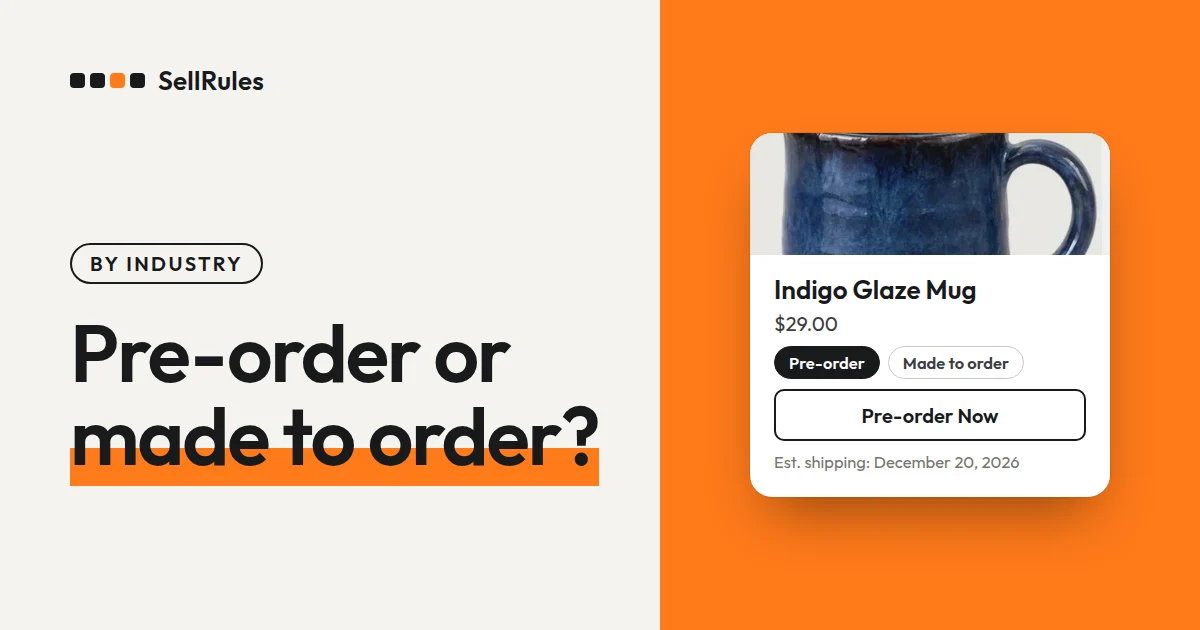
If you know how many you'll make or receive before orders come in, sell the product as a pre-order. If you start making it after the order comes in, sell it made to order. Clothing, music and books, farm produce and food are usually pre-orders, and merch, handmade goods and art are usually made to order. What changes from one industry to the next is how you set the order cap and how you show the ship date.
In the Shopify app SellRules, both ways of selling are set up for each product in “Sales schedules”, where you enter the cap and the ship date together. This article is written by the developer of SellRules.
How to sell in each industry, and the setting that matters most
Find your industry in the table below. Rows with a linked industry name have their own guide with the setup steps.
| Industry | How to sell | Setting that matters most |
|---|---|---|
| Apparel | Pre-order | Put only the sizes and colors at 0 inventory on pre-order |
| Merch and fan goods | Made to order | Start and end of the order window, and a per-customer limit |
| Music, books and video | Pre-order | A cap on the variant with the bonus, and switching over on release day |
| Farm produce | Pre-order | A cap based on the expected harvest, and a “late July” ship date |
| Food and desserts | Pre-order | A deadline worked back from the delivery day, and a cap on how many you can make |
| Handmade goods and custom furniture | Made to order | A cap on how many you can make, and the number of days from the order |
| Art and prints | Made to order | Use the edition size as the cap |
Pre-orders and made to order differ in when you decide how many to make. If you settle the quantity first, such as a factory order or a baking count, and then take orders, use pre-orders. If you start making each piece after the order comes in, use made to order. Food like Christmas cakes, where you decide the baking day and quantity first and ship everything on the same day, is a pre-order.
The three settings that change by industry
SellRules asks for the same settings whatever you sell. What changes is the values you enter for these three.
- What goes on pre-order: for products like clothing, where stock is split by size and color, put only the variants that reach 0 inventory on pre-order. For a product with a single version, or one you make in full before shipping, put the whole product on pre-order or made to order.
- The order cap: enter whichever runs out first (incoming stock, how many you can make, the expected harvest, the number of bonus items or the edition size) as the “Total quantity limit”. If the number differs by variant, use “Limit for this variant only”.
- How to show the ship date: if you know the date, choose “Estimated ship date”. If you can only give a range, choose “Estimated shipping (text)”. If you start making the item after the order, choose “Ship within X days of order”.
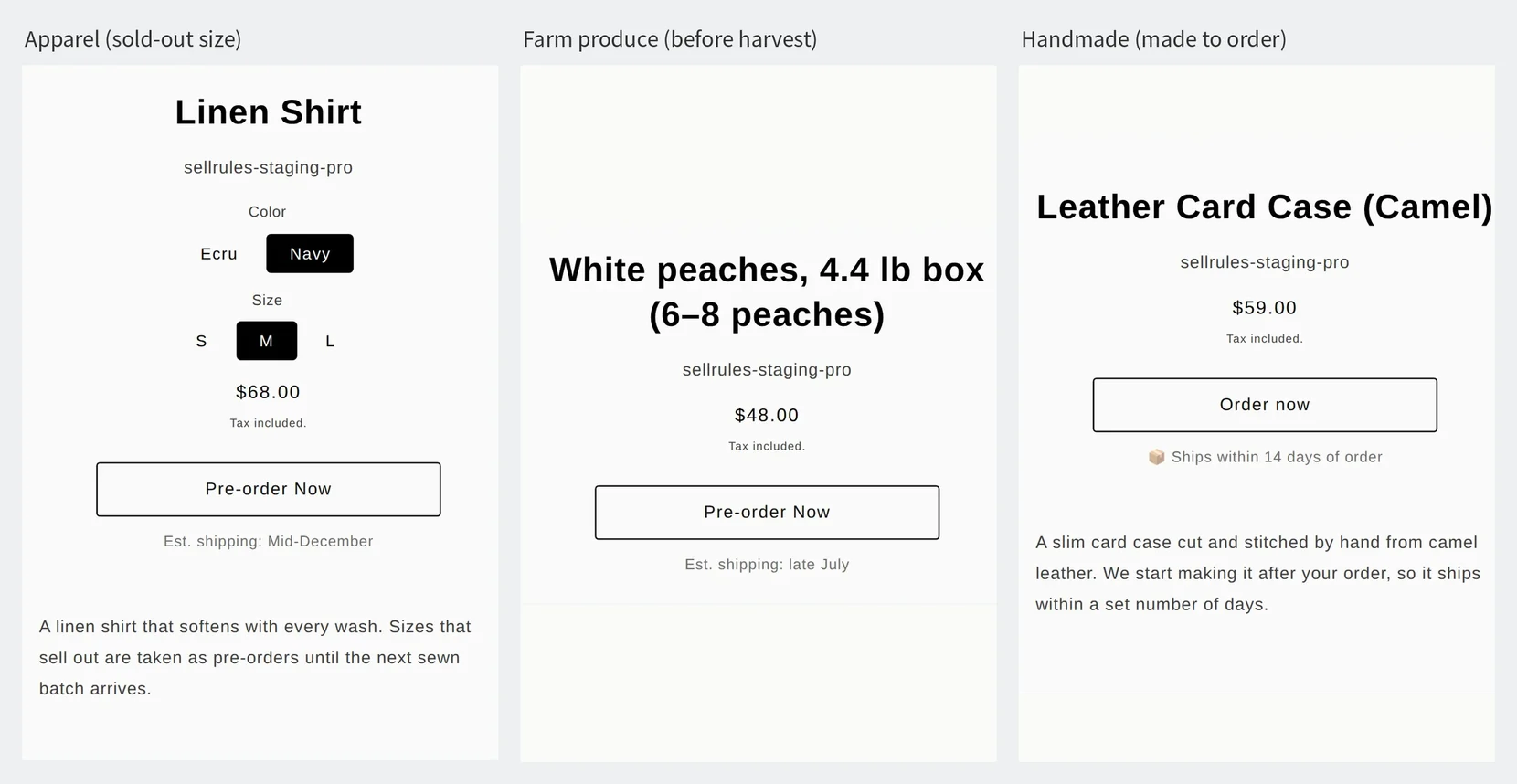
Customers see the ship date below the buy button. The screenshot above shows how it looks on apparel, farm produce and handmade product pages.
Settings for each industry
For industries that have their own guide, this section covers only the key points and leaves the steps to that guide. Handmade goods, custom furniture and art don't have their own guide, so this section goes as far as the values to enter.
Apparel
Clothing sells unevenly across sizes and colors, so instead of the whole product, put only the sizes and colors that reach 0 inventory on pre-order. Create a “Sold-out switch” for the product, and each variant moves to pre-order automatically when its inventory reaches 0, then returns to regular sales when stock arrives. How to ship orders that also include in-stock clothing is covered in apparel pre-orders.
Merch and fan goods
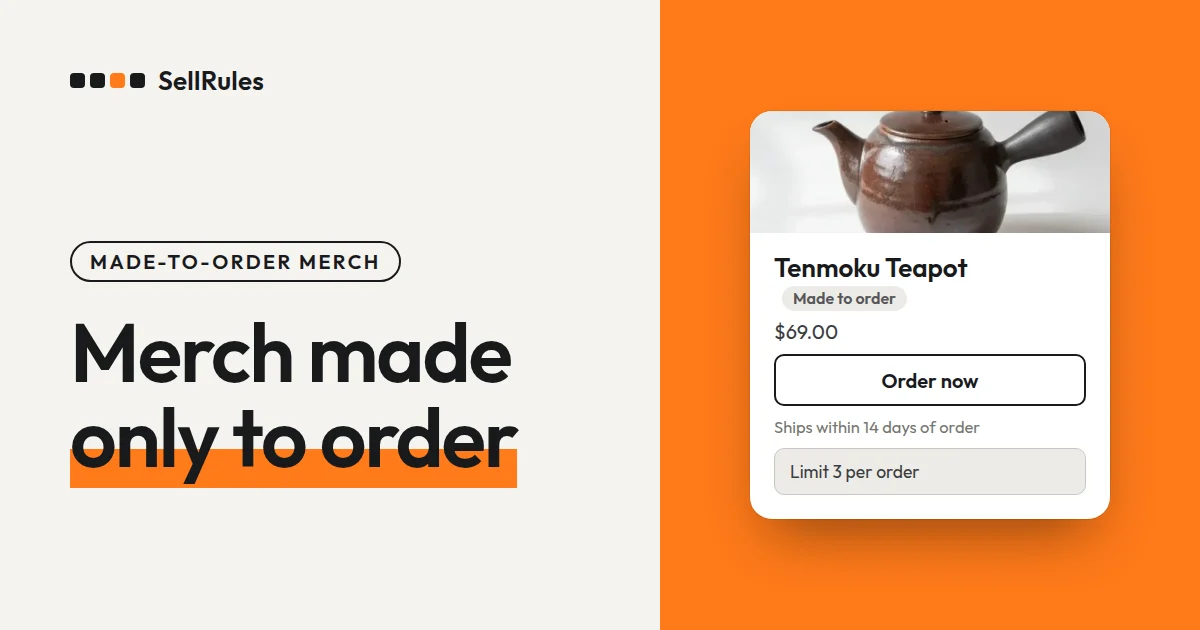
For merch like acrylic stands, open orders for a set window and make only as many as you sell in it. In a made-to-order sales schedule, enter the “Order start date” and the “Date sales end”, and set “Max per customer (cumulative)” to limit how many one customer can buy. How to handle orders that look like resale is covered in made-to-order merch.
Music, books and video
For products with a release date, take pre-orders with the release date as the ship date. Put a first-come pre-order bonus on its own “with bonus” variant and enter the number of bonus items in “Limit for this variant only”. On release day, “Switch to regular sales” brings back the regular buy button. The steps are in pre-orders for music and books.
Farm produce
For orders taken before the harvest, enter a number of boxes a bit below the expected harvest as the “Total quantity limit”. Show the ship date as a range like “late July” with “Estimated shipping (text)”. How to stop orders when bad weather cuts the harvest is covered in pre-harvest pre-orders for farm produce.
Food and desserts
For food that has to arrive on a set day, like Christmas cakes or Thanksgiving pies, set the deadline by counting back the days for shipping and baking from the delivery day. For example, to take up to 60 cakes that ship on December 23, you'd enter the following (an example for illustration):
- “Estimated ship date”: December 23
- “Total quantity limit”: 60 cakes
- “When the pre-order ends”: “End sales and show "Sales ended"”
- “Date sales end”: December 18
Once 60 cakes are ordered, the product shows as sold out, and from 0:00 on December 18 it shows “Sales ended”. How to set deadlines that change with each holiday, such as Mother's Day, Valentine's Day or Christmas, is covered in holiday pre-orders.
Handmade goods and custom furniture
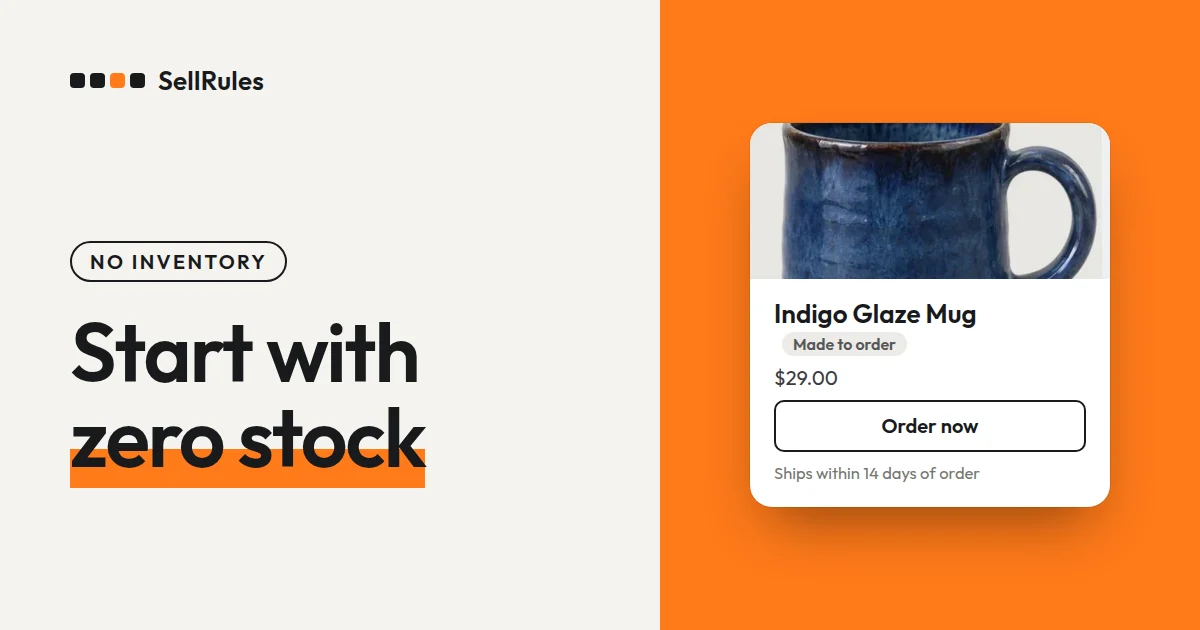
Sell items you make one at a time as made to order, and enter how many the maker can finish in the period as the “Total quantity limit”. For example, if you can make up to 30 leather card cases per round of orders and ship every order within 14 days, set the “Limit count” to 30, and under “Estimated shipping date” choose “Ship within X days of order” with 14 days. The buy button on the product page becomes “Order now”, with “Ships within 14 days of order” below it. For a custom dining table, you might set the cap to 4 tables and the days to 60 to match the build time.
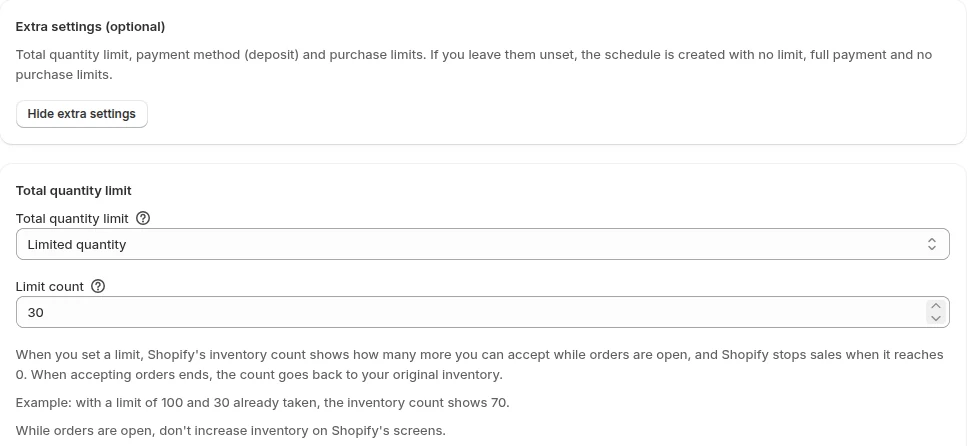
With a cap in place, Shopify's inventory count shows how many more orders you can accept while orders are open, and Shopify stops sales when it reaches 0. The cap counts all orders taken so far, so raise the “Limit count” when you open the next batch. For high-priced items like furniture, choose “Deposit now, balance later (partial payment)” under “Payment” to take part of the price at checkout and charge the balance on a due date you set (how to take a deposit). How to get started is covered in how to start selling made to order on Shopify.
Art and prints
If you print a limited-edition print after the order comes in, enter the edition size as the “Total quantity limit”. Sales stop when the cap is reached, so you never sell more than the edition. If the edition size differs by print size, make A3 and A2 separate variants and enter each edition size in “Limit for this variant only”. To limit each customer to one print, use “Max per customer (cumulative)” and “Login required”, the same as in made-to-order merch.
What Shopify can do on its own
In Shopify, if you turn on “Continue selling when out of stock” in a product's or variant's inventory settings, you can take orders at 0 inventory (Shopify Help, checked November 14, 2026). If you enter how many you can make as the inventory count, sales also stop when it reaches 0.
| What you want to do | Shopify on its own | SellRules |
|---|---|---|
| Stop orders at how many you can make or expect to harvest | Edit the inventory count and stop sales at 0 | Stops at the “Total quantity limit” and restores your original inventory count when orders close |
| Show a ship date that fits your industry | Write it in the product description | Shows a date, a range like “late July” or the days from the order below the buy button |
In SellRules, the buy button reads “Pre-order Now” or “Order now”, so customers know before they order that the item won't arrive right away. How this differs from Shopify on its own when you put only sold-out sizes on pre-order is explained in apparel pre-orders.
Pricing
In SellRules, pre-orders, made to order, the sold-out switch and purchase limits are all available on the Free plan. On the Free plan you can take up to 10 pre-order and made-to-order orders in total. Partial payment is available on the Launch plan.
SellRules plans and pricing
| Monthly price | LaunchEvery feature included | FreeStart with one product |
|---|---|---|
| Monthly price | US$7.99 per month | Free |
| Free trial | 10 days | None |
| Pre-order and made-to-order orders | Unlimited | Up to 10 in total |
| Back-in-stock and sale-start emails (Notify Me) | Unlimited | Up to 15 in total (not refilled monthly) |
| Purchase limits | No limit on products | Up to 1 product |
| Customizable notification emails | Yes | No |
| Deposit payments | Yes | No |
Pre-orders, made-to-order, back-in-stock alerts, purchase limits, stockout switching, deposit payments and order processing are all included in the Launch plan.
The first 10 days of the Launch plan are free. If you remove the app during the trial, you are not charged.
On the Launch plan, back-in-stock and sale-start emails have no sending cap. Required messages such as order confirmations, shipping updates and balance reminders are sent on every plan regardless of the cap.
The Standard and Pro plans are closed to new sign-ups. Shops already on them keep their current terms.
Start by picking one product you'll sell next as a pre-order or made to order, and enter its cap and ship date following your industry's row in the table. You can install SellRules from the Shopify App Store, where you can also check pricing and the free trial terms.
Frequently Asked Questions
Can one store sell products from different industries in different ways?
Yes. In SellRules you create a sales schedule for each product, so you can sell clothing as a pre-order and leather goods made to order, each with its own cap and ship date. When products with different ship dates are in the same cart, the cart shows “Your cart contains items with different estimated ship dates. Consider checking out separately if you need items sooner.”
Can I raise the order cap after orders have opened?
Yes. Raise the “Limit count” in the sales schedule, and orders continue up to the new number. Even after orders have stopped because the cap was reached, raising it reopens orders.
Related articles:
- Choosing a way to sell from what you want to do: how to run early-access and limited sales
- Starting a brand without inventory: choosing between made to order and pre-orders
- Deciding how many to make from pre-orders: how many to make or restock from pre-orders
- When a pre-order and an in-stock item are bought together: pre-orders and in-stock items in one order
- Reducing resale and bulk buying of limited items: settings to reduce resale and bulk buying
Products and dates are examples for illustration, not from a real store.