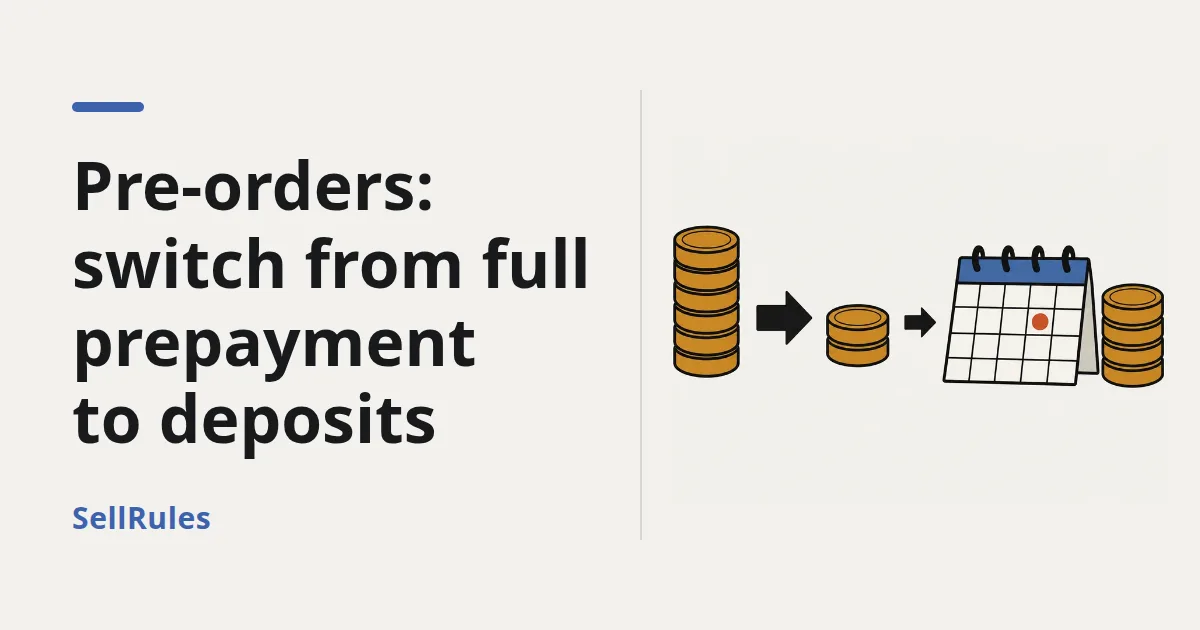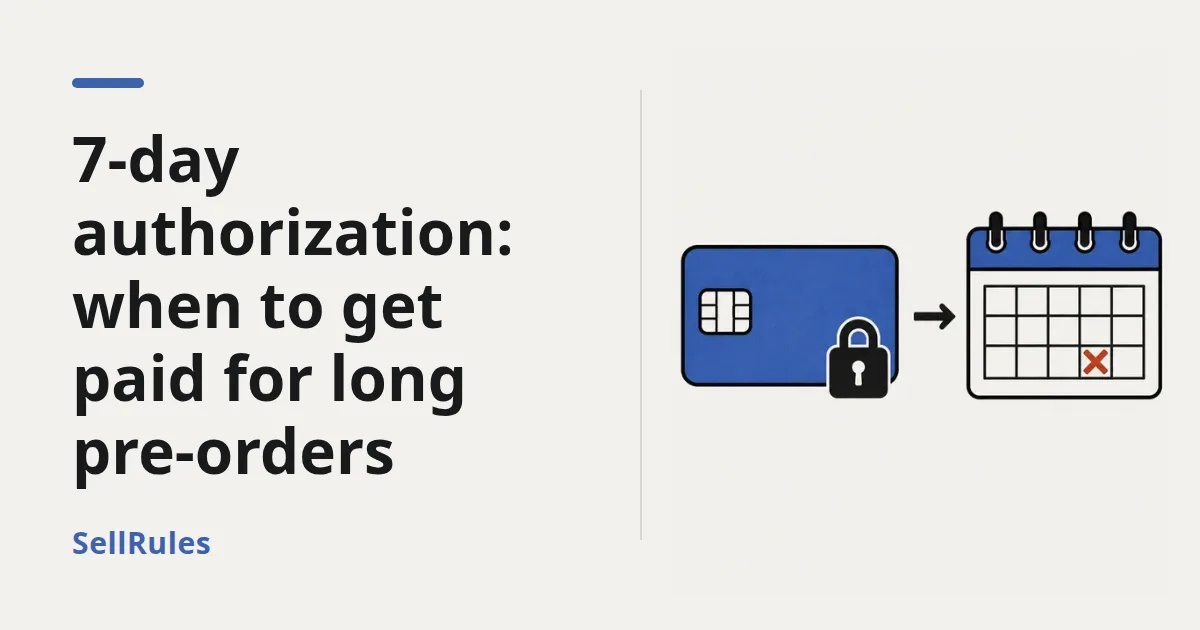
If you ship within 7 days of the order, you can authorize the card at checkout and capture when you ship, and you'll still get paid. For pre-orders that ship later than that, this approach doesn't work. On Shopify Payments, an authorization lasts 7 days, and if you don't capture within that window, you can't collect the payment (Shopify Help Center: Payment authorization and capture, checked October 19, 2026).
For pre-orders that are a month or more away from release, you'll be choosing between three options:
- Take the full amount at checkout (full payment up front)
- Take a deposit at checkout and charge the balance to the saved payment method on a due date (deposit and balance)
- Save only the payment method at checkout and charge when you ship (charge at shipment)
This article starts with a table that tells you, based on your store's payment capture method and the number of days from order to shipping, whether an authorization alone is enough. If it isn't, you decide between the three options by working out, with your own numbers, how much money you'll have on hand and what fees you lose when an order is cancelled.
Check your capture method and lead time to see if an authorization is enough
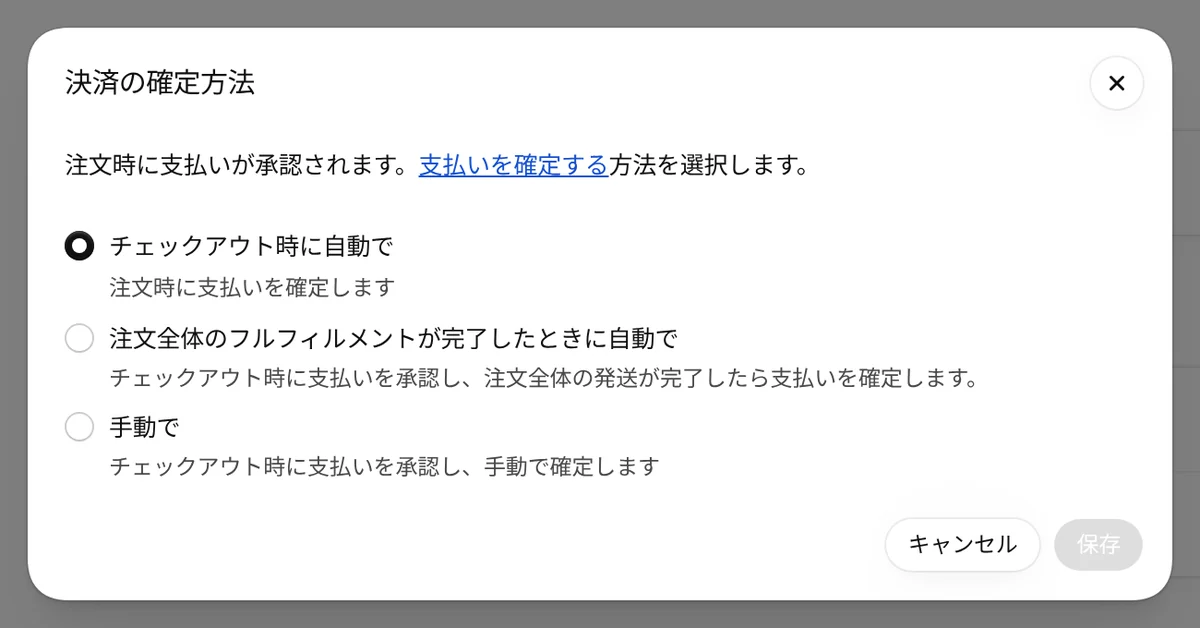
You only need to check two things: what's selected under "Payment capture method" in Settings > Payments, and how many days pass between the order and shipping. Those two together decide whether a pre-order payment can safely sit as an authorization.
First, the terms. A card payment happens in two steps: authorization and capture. Authorization checks that the card can be used and holds the amount. Capture actually charges the held amount, and that's the step that puts money in your store's account.
Open "Payment capture method" and you choose from three options. "Automatically at checkout" is the default for new stores, and Shopify Plus stores also get "Automatically capture per fulfillment." Shopify's Help Center may describe this setting and its options with slightly different names than your admin.
| Payment capture method | Shipping within 7 days | Shipping in 8–30 days | Shipping in more than 30 days |
|---|---|---|---|
| Automatically at checkout (default) | Paid at checkout | Paid at checkout | Paid at checkout |
| Automatically when the entire order is fulfilled | Paid when you ship | Authorization expires, no payment (for the Shopify Plus extension, see the table below) | Authorization expires, no payment |
| Automatically capture per fulfillment (Shopify Plus only) | Paid when you ship | Authorization expires, no payment (extension in the table below) | Authorization expires, no payment |
| Manually | Paid when you capture | Authorization expires, no payment (extension in the table below) | Authorization expires, no payment |
If you've kept the default, even pre-orders paid in full are captured the moment the customer buys, so the authorization deadline isn't something you need to worry about. The stores that need to pay attention are the ones that switched to "Automatically when the entire order is fulfilled" or "Manually" for their regular products. The capture method is a store-wide payment setting, so before you open pre-orders, place one test order and look at its payment status on the order page. "Paid" means the payment was captured at checkout. If it stays "Authorized," that pre-order is sitting on an authorization alone until you ship.
The authorized amount keeps using up the customer's available credit until it's captured. Depending on the bank, the hold can stay on the customer's statement for up to 30 days from the original authorization, even after capture or cancellation. If a customer asks about a charge they don't recognize, you can point to this hold as a possible explanation.
Once the 7-day authorization expires, you can't collect payment with it
On Shopify Payments, if you don't capture within the authorization period, you can't collect payment for that order. If you use another payment provider, its authorization period may differ, so check your provider's terms.
For example, say a pre-order comes in on October 1 and ships on November 15. With the capture method set to "Automatically when the entire order is fulfilled," the authorization expires around October 8, and shipping on November 15 doesn't capture anything. The same happens if you chose "Manually" and planned to capture on release day. The customer receives the product, but you never receive the money.
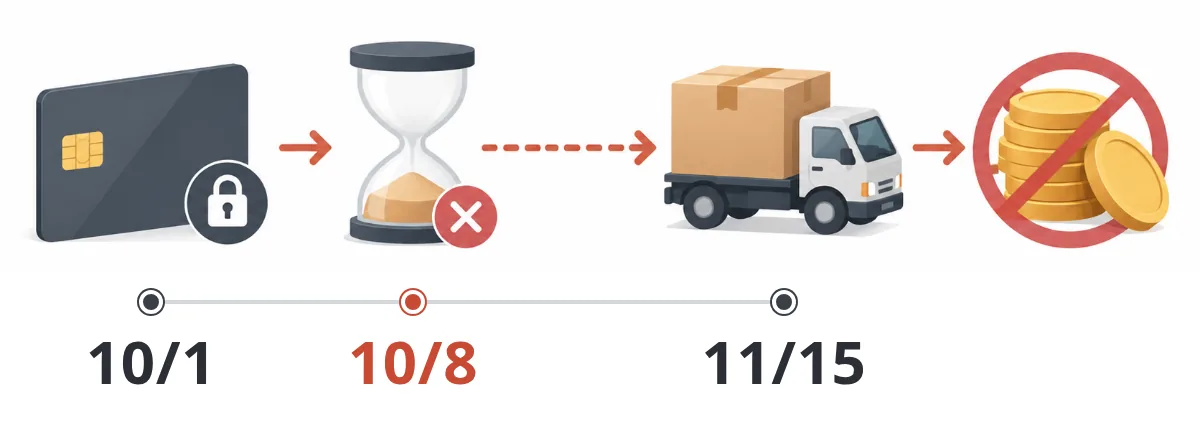
The authorization's expiry date is shown on the order page, and Shopify Payments can send you an email reminder one day before it expires. But when the ship date is already set for after the deadline, the only thing a reminder lets you do is capture before it expires, which is no different from charging up front in the first place.
An expired authorization can't be captured, so the only way to get paid is to have the customer pay again. That's extra work for the customer, and their card may not go through the second time. Rather than trying to recover the money afterwards, it's safer to review your capture method before you start taking orders.
Even the Shopify Plus extension falls short for pre-orders a month or more out
On Shopify Plus stores using Shopify Payments, the authorization period is extended depending on the card the customer paid with.
| Card type | Authorization period (Shopify Plus extension) |
|---|---|
| Visa, Mastercard, American Express | Up to 30 days |
| Discover, JCB | Up to 10 days |
| Diners Club, China Union Pay | 7 days |
However, if you capture manually after the standard 7 days, you pay a 1.75% fee on top of the usual card fee. Shopify's help center suggests canceling the order and creating a new one if you want to avoid that fee. The extended period also varies by issuing bank, and some cards don't support the extension at all. You can't choose which cards your customers pay with: an order paid by JCB, for example, can't be captured after 10 days, even on Plus. Taking pre-orders more than a month out on an "authorize now, capture later" basis isn't realistic, even for Plus stores.
Three ways to get paid for pre-orders a month or more out
When you can't rely on the authorization, you either collect money at checkout or save the payment method and create a new charge later. Neither is tied to the 7-day deadline.
Shopify's pre-order setup (purchase options) lets you collect the full amount, part of it, or nothing at checkout, and it saves the customer's payment method so the rest can be charged later (Shopify Help Center: Pre-orders).
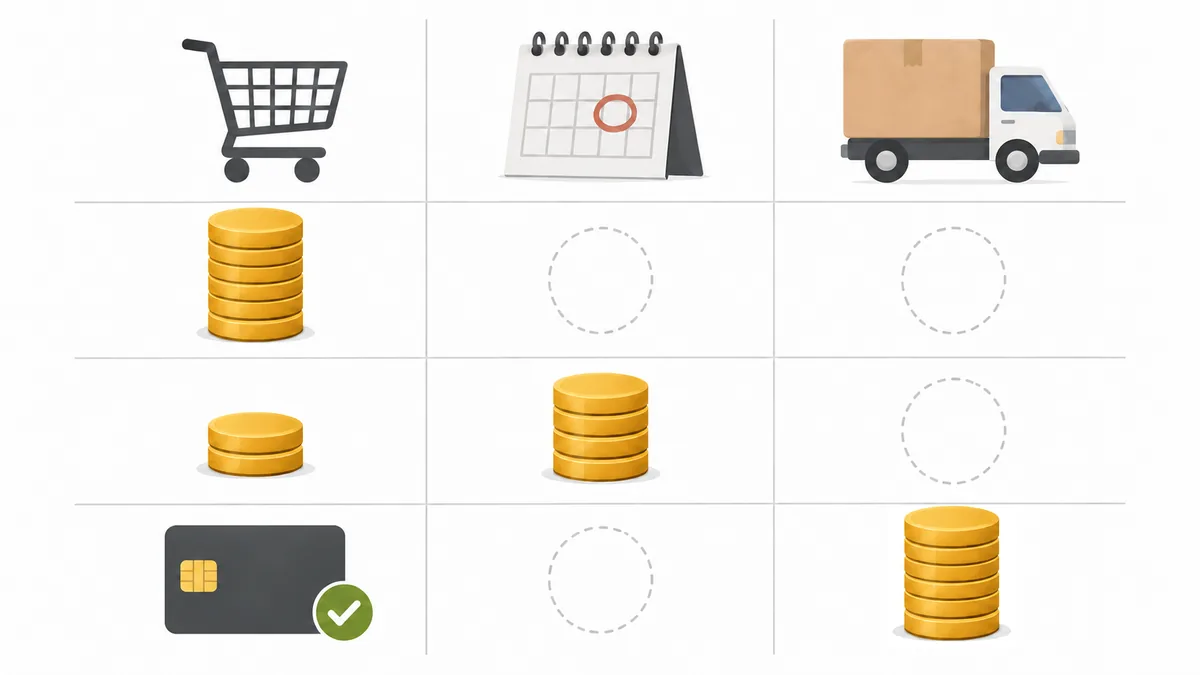
| Point of comparison | Full payment up front | Deposit and balance | Charge at shipment |
|---|---|---|---|
| Money received at checkout | Full amount | Deposit only | None (payment method saved) |
| When the rest is collected | — | Charged on the due date you set | Charged when you ship |
| Money in hand before you make or buy stock | Full amount | The deposit | None |
| What the customer pays at checkout | Large | Small | None |
| Risk of a later charge failing | None | Possible on the balance | Possible on the full amount |
| Supported payment methods | Whatever your store accepts (for pre-orders using purchase options, Shop Pay, Apple Pay, Google Pay and similar aren't available) | Only payments that can save a payment method (Shop Pay, Apple Pay, Google Pay and similar aren't available) | Only payments that can save a payment method (Shop Pay, Apple Pay, Google Pay and similar aren't available) |
| Best suited to | Low-priced products with little money going out up front | High-priced products, or products you buy materials for and make | Products that don't need materials or stock prepared in advance, or testing demand |
| In SellRules | Available on all plans | Available on the Pro plan | Not supported |
Pre-orders taken through Shopify's pre-order setup can't be bought with express checkouts such as Shop Pay, Apple Pay and Google Pay, or with local payment methods like Klarna (Shopify Help Center: Set up pre-orders). If many of your regular orders come in through these methods, expect that some customers will find a pre-order harder to buy. SellRules only uses purchase options for deposit-and-balance products. Pre-orders paid in full aren't tied to a purchase option and go through the same checkout as your regular products.
Full payment up front: the least work for you, but customers carry the wait
Full payment up front follows the same flow as a regular order and is the option with the least work for your store. The payment is captured at checkout, so you don't have to think about authorization deadlines or collecting a balance.
The trade-off is that customers have paid and are waiting until the item arrives. For pricier products, some people hesitate to order, and some change their minds while they wait and cancel. When you refund an order processed through Shopify Payments, the credit card fee isn't returned (Shopify Help Center: Refunding orders, checked October 19, 2026). If the release slips and cancellations pile up, those fees come out of your store's pocket.
Deposit and balance: get money before you make it, and lower the amount to order
With deposit and balance, you take only the deposit at checkout, and the rest is charged on the due date you set, to the payment method saved at purchase. The balance is a new charge, so the 7-day authorization deadline doesn't apply. You can cover materials or a supplier down payment with the deposit, while customers commit with a smaller amount.
On the order's timeline, the deposit taken at checkout and the balance collected on the due date show up as two separate payments. In the order below, the ¥960 deposit payment and the note that new payment terms were added to the order were recorded at checkout, and the ¥6,638 balance payment was added on the due date. While you've received only the deposit, the order's payment status is "Partially paid"; once the balance comes in, it changes to "Paid."
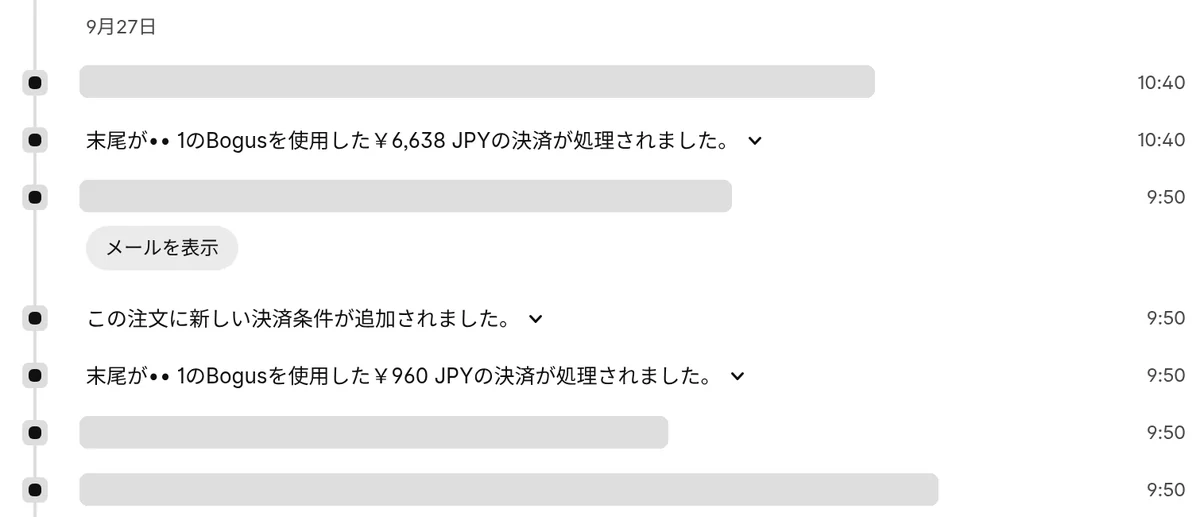
The thing to watch is that a balance charge can fail if the card has expired or there aren't enough funds. Don't set the due date right before the ship date; leave enough days for the customer to update their payment method. Also note that SellRules' deposit and balance payments can't be used with manual payment methods such as cash on delivery or bank transfer.
Charge at shipment: easy for customers, but you wait with nothing in hand
When you charge at shipment, the customer pays nothing at checkout, so it's the easiest option for them to sign up for.
On the other hand, you fund materials and stock yourself and wait without receiving anything. If the full charge fails when you ship, you're left holding a finished product. This option suits products that don't need materials or stock prepared in advance, or products where you want to test demand. SellRules doesn't support this option.
Work out your cash on hand and cancellation fees with your own numbers
Choosing between full payment up front and deposit and balance comes down to two questions: can the money you receive cover what you pay out before shipping, and how much in fees do you lose when an order is cancelled? Plug your own numbers into these formulas.
- Money going out up front = materials and supplier down payment per order × number of pre-orders
- Money in hand from deposits = price × deposit percentage × number of pre-orders
- Minimum deposit percentage = money going out up front per order ÷ price
- Fees you don't get back per cancellation = amount collected × your payment processing rate
For example, say you take 30 made-to-order pre-orders for a ¥20,000 bowl, and each one costs ¥8,000 in materials and outsourced work before it ships (these are hypothetical numbers for illustration).
- The money going out up front is ¥8,000 × 30 = ¥240,000.
- With full payment up front, ¥20,000 × 30 = ¥600,000 comes in, which covers the ¥240,000.
- With a 30% deposit, ¥20,000 × 30% × 30 = ¥180,000, which leaves you ¥60,000 short.
- The minimum deposit percentage is ¥8,000 ÷ ¥20,000 = 40%.
Processing rates depend on your Shopify plan and payment provider, so use your own. If it's 3%, the fee you don't get back when one full-payment order is cancelled is ¥20,000 × 3% = ¥600. For an order taken with a 40% deposit (¥8,000), it's ¥8,000 × 3% = ¥240.
In this example, taking a 40% deposit covers your materials while keeping both the amount customers pay at checkout and the fees you lose on cancellations smaller. On the other hand, for products you've already bought in and that need almost no money up front, full payment up front works fine. For a decision table that sets the deposit percentage and balance due date by price range, see how to set the deposit percentage and balance due date.
Three things to decide before you open pre-orders
Whichever option you choose, changing settings partway through can mean orders placed before and after the change are handled differently. For example, the "Automatically when the entire order is fulfilled" capture method only applies to orders placed after you turn it on (Shopify Help Center: Payment authorization and capture). Decide these three things before you start.
-
Review your capture method. Check "Payment capture method" under Settings > Payments. If it's set to "Automatically when the entire order is fulfilled" or "Manually," either switch back to "Automatically at checkout" or decide how you'll capture pre-orders right after purchase.
-
Show when the product will arrive on the product page. Shopify expects you to have a reasonable basis for being able to ship pre-order products within a set period. If you don't state a clear date, you need to expect to ship within 30 days of purchase. If you can't ship within the promised period, tell customers the revised delivery date and that they can ask to cancel or get a refund (Shopify Help Center: Set up pre-orders). For pre-orders a month or more out, stating a delivery date or period is a given.
If you set different balance due dates for different products, there's one more thing to know. With Shopify's pre-order setup, when pre-order products with different payment due dates end up in the same cart, the earliest due date applies to all of them (same help article, "Set up pre-orders"). If you sell pre-order products with very different due dates at the same time, plan for what the due date will be when they're bought together.
-
Decide how you'll handle cancellations. Whether you took full payment or a deposit, a cancellation means a refund. If you won't accept cancellations once you've started making a made-to-order item, say so on the product page. Even so, as noted above, if you can't ship within the promised time, you must tell customers they can ask to cancel or get a refund. Also, with SellRules' deposit and balance payments, customers can cancel the order themselves from the cancel link in the balance reminder email (except for orders bought together with other products). If you don't want to accept cancellations, set your terms with that in mind.
For how to get started with pre-orders in the first place, see the steps to start selling pre-orders.
What this article can't decide for you
Authorization periods and fees in this article are based on Shopify Payments' terms. Other payment providers, and the country your store is in, can have different terms. For how to account for deposits you receive (for example, as customer prepayments), check with your accountant. Whether the Shopify Plus extension applies to a given order depends on the issuing bank, so before you rely on it, check the authorization's expiry date on the order page.
With SellRules, you can take full payment up front or a deposit and balance
In SellRules, you choose for each schedule whether pre-order and made-to-order products are sold with "Full payment at checkout" or "Deposit & balance payments." There's no option to charge at shipment. Pre-orders paid in full are available from the Free plan and go through the same flow as a regular Shopify order. Deposit and balance payments are a Pro plan (US$19.90 per month) feature.
For products sold with deposit and balance payments, payments come in this order.
- At checkout, only the deposit is charged. The product page and checkout show the amount due now and the balance due date.
- From 3 days before the due date, the customer receives a balance reminder email.
- On the due date, the balance is charged automatically to the saved payment method.
While the balance is unpaid, a fulfillment hold is placed on the Shopify order, and it's released automatically once the balance is paid or the order is cancelled. That keeps you from accidentally shipping before you've received the balance. For setup steps, see the SellRules guide, "Take a deposit now, the balance later (partial payments)". To check whether your payment setup works, see payments that do and don't work with deposits, and for what to do when a charge fails, see what to do when the balance isn't paid.
SellRules plans and pricing
| Monthly price | FreeStart with one product | StandardRun it at full scale | ProAdd deposit and balance payments |
|---|---|---|---|
| Monthly price | Free | US$9.90 per month | US$19.90 per month |
| Pre-order and made-to-order orders | Up to 10 in total | Unlimited | Unlimited |
| Back-in-stock and sale-start emails (Notify Me) | Up to 15 in total (not refilled monthly) | 1,000 per month | 5,000 per month |
| Purchase limits | Up to 1 product | No limit on products | No limit on products |
| Customizable notification emails | No | Yes | Yes |
| Deposit and balance payments | No | No | Yes |
| Extra sends (email) | No | Yes (within the budget you approve) | Yes (within the budget you approve) |
Pre-orders, made-to-order, back-in-stock sign-ups, purchase limits, stockout switching and order processing are available from the Free plan.
Standard and Pro have no free trial; the Free plan takes its place.
The Free plan counts are totals since you installed the app. Required messages such as order confirmations, shipping and balance reminders are not counted.
The earlier Launch plan is closed to new sign-ups, but if you are on it your current terms stay as they are.
Standard and Pro have no free trial; the Free plan takes its place. A natural path is to check the pre-order display and order flow on the Free plan first, then switch to Pro once you've decided to take deposits.
Frequently asked questions
Can't I just set the payment capture method to "Manually" and capture on release day?
That works if you can ship within 7 days of the order. Shopify Payments authorizations expire after 7 days (excluding the Shopify Plus extension), and if you don't capture within the authorization period, you can't collect the payment, so it doesn't work if release day is the 8th day or later. For pre-orders that arrive a month or more out, either capture the full amount at checkout or use a method that charges the saved payment method later, such as deposit and balance payments.
Can I extend the authorization period on Shopify Plus?
On Shopify Plus stores using Shopify Payments, the authorization period is extended depending on the card. Visa, Mastercard and American Express get up to 30 days, Discover and JCB up to 10 days, and Diners Club and China Union Pay stay at 7 days. Capturing manually after the standard 7 days costs 1.75% on top of the usual card fee. That isn't enough for pre-orders longer than a month, so weigh it against the other ways to get paid.
If a pre-order paid in full is cancelled, do I get the payment processing fee back?
No. When you refund an order processed through Shopify Payments, the credit card fee isn't returned (checked October 19, 2026 in the Shopify Help Center article "Refunding orders"). If you cancel an order taken with a deposit and refund the deposit, assume the fee on the deposit isn't returned either. For other payment providers, check how fees are handled under their own terms.
Can SellRules take pre-orders that charge nothing at checkout and bill when the item ships?
No. SellRules offers two ways to get paid: "Full payment at checkout" and "Deposit & balance payments" on the Pro plan. If you want to keep the amount customers pay at checkout low, you can set a small fixed deposit. If charging at shipment is essential for you, look at other pre-order apps that support it.
Pick one slow-to-arrive product and try deposit and balance
For pre-orders that ship more than 7 days after the order, "authorize now and capture when you ship" doesn't work. For low-priced products with little money going out up front, full payment up front is enough. For high-priced products, or products you buy materials for and make, use the formulas above to find your minimum deposit percentage and consider deposit and balance.
How to take deposits on Shopify pre-orders walks through how deposit and balance payments work, how to turn them on with the Pro plan, and how to check them with a test purchase. Start by switching just one slow-to-arrive product to deposit and balance, and check the product page and checkout in a test purchase. For the bigger picture, including pre-order windows and purchase limits, see how to set rules for advance and limited sales, and for how SellRules compares with other pre-order apps, see how to choose a pre-order app.
Checked: October 19, 2026. Shopify's authorization periods, extension, fees and capture methods were checked in Shopify Help Center: Payment authorization and capture, the pre-order setup and its conditions in "Pre-orders" and "Set up pre-orders", and fees on refunds in "Refunding orders". Authorization periods and fees can change, and terms vary by payment provider and country. SellRules features were checked by JizaiDev, the app's developer, against the app's code and the SellRules guide. The admin screenshots in this article were taken from the Shopify admin in Japanese on October 19, 2026, with customers' personal details hidden. You can check current pricing on the Shopify App Store listing.