
"Asking for full payment up front makes customers hesitate to order. But letting them pay later means worrying about whether you'll ever get paid." With pre-orders and made-to-order work, the more expensive the item, or the more months it takes to arrive, the bigger this dilemma gets.
Since its September 27, 2026 update (1.1.0), SellRules lets you sell pre-order and made-to-order products with a deposit and balance. Customers are charged only the deposit at checkout, and the balance is collected automatically on the due date you set, from the payment method saved at purchase. Customers get a reminder email three days before the due date, and if the balance can't be collected, for example because the card is declined, both the customer and your store are notified by email.
There is a catch, though: deposit products can no longer be bought with cash on delivery, bank transfer, Shop Pay, Apple Pay and similar methods. This article walks through how to tell which products suit a deposit and balance, how to choose the deposit and the due date, the setup steps, how to check everything with a test purchase, and what to do when the balance can't be collected or an order is cancelled. For how to start pre-orders in the first place, see our article on setting up pre-order sales.
Products that suit a deposit and balance, and products that should stay on full payment
A deposit and balance helps with products where "paying everything up front is a big ask, but taking reservations with no payment at all would be a problem." On the other hand, for low-priced products that arrive quickly, full payment is less work for both you and your customers.
Here is a rough guide:
| Your situation | Payment that fits | Why |
|---|---|---|
| High-priced pre-order items that take a month or more to ship | Deposit and balance | A smaller amount at checkout means fewer customers hesitate to order |
| Made-to-order items where you buy materials after the order comes in | Deposit and balance | You can receive the cost of materials as a deposit before you start making it |
| Low-priced items, or shipping within a few days to about two weeks | Full payment | It only adds balance collection and reminder emails, with little benefit to the customer |
| Many customers pay by cash on delivery or bank transfer | Full payment (or offer both) | Deposit products can't be bought with these payment methods |
| Many customers check out with Shop Pay or Apple Pay | Keep full payment, or check the impact first | These fast payment options can't be used on deposit products |
For example, a made-to-order leather tote bag (¥36,000, six weeks to make) is a good fit for a deposit and balance. A pre-order for a small item priced in the ¥2,000 range that launches in about 10 days is better off with full payment.
Note that splitting pre-order payments on Shopify requires a pre-order app that uses Shopify's "purchase options" mechanism. Shopify's built-in features alone can't take a deposit and a balance separately (Shopify Help Center: Pre-orders).
What happens to the customer and your store, from purchase to balance collection
With a deposit and balance, the customer pays twice: the deposit at checkout and the balance on the due date. The customer doesn't need to do anything for the balance; it is collected automatically from the payment method saved at purchase.
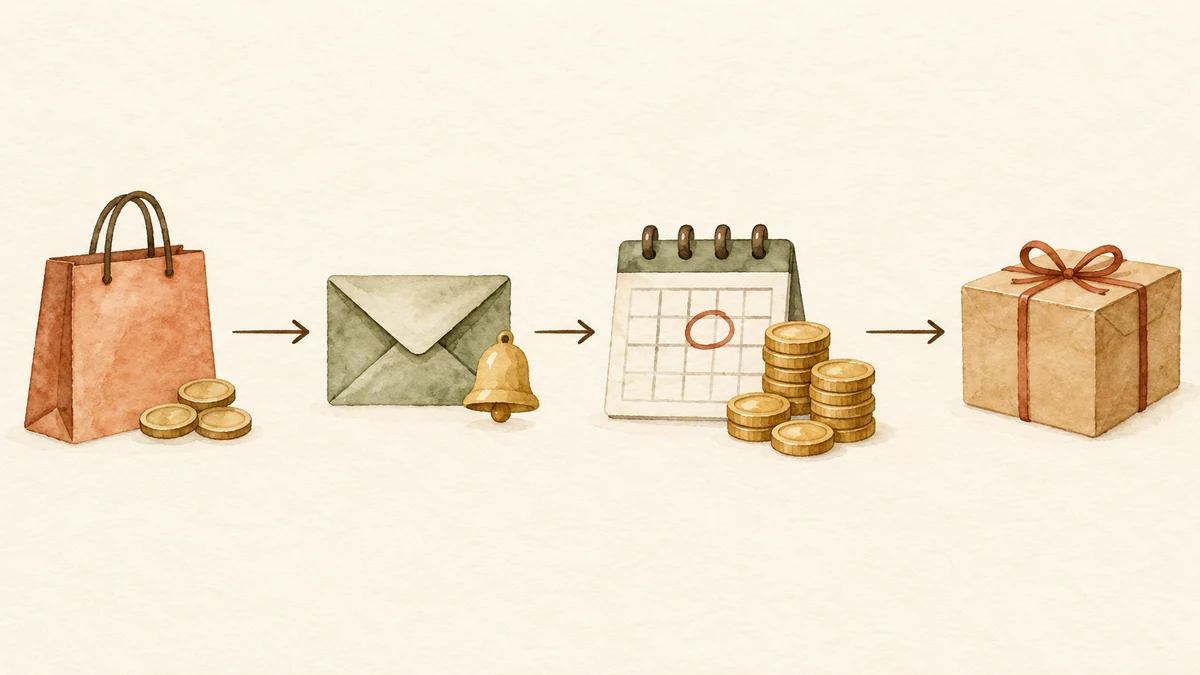
Here is how it works (SellRules guide: Take a deposit now, the balance later):
| When | What happens for the customer | What happens for your store |
|---|---|---|
| At purchase | They pay only the deposit. The product page shows the deposit due now and the balance due date, and checkout shows the amount paid today separately from the balance due later | The Shopify order is recorded with only the deposit paid |
| From three days before the due date | They receive the "Balance payment reminder" email, with the balance amount and due date, a link to pay the balance and a link to cancel the order | Nothing to do |
| On the due date | The balance is charged to the saved payment method, and they receive the "Balance payment received" email | The order is fully paid |
| If the balance can't be collected (for example, the card is declined or the retry limit is reached) | They receive the "Balance payment failed" email with a payment link | Your store also receives a notification email. You can retry collection from "Order progress" |
| If you change the due date | They receive the "Balance due date changed" email | — |
Customer emails are sent in the language the customer is using. You can edit the wording under "Settings → Email templates", just like the other notifications.
The other thing to know is the fulfillment hold. While the balance is unpaid, the Shopify order is placed on a fulfillment hold and can't be fulfilled. The hold is released automatically once the balance is paid or the order is cancelled. It exists to stop you from shipping by mistake before the balance has been collected. However, because the fulfillment of a pre-order or made-to-order item gets the pre-order or made-to-order hold first when the order is placed, no balance hold is attached at that point. When you release that hold with an action such as "Start shipment preparation", the order can be fulfilled even with the balance unpaid until the next automatic reconciliation (every few minutes) applies the balance hold. Always check before fulfilling that the "Payment" column in "Order progress" shows "Paid". Fulfillment holds in general are covered in detail in our article on releasing fulfillment holds on pre-orders.
Before you start: which payment providers work, and which payment methods drop out
Because the balance is collected automatically, a deposit and balance only works with payment providers that can save the payment method at purchase. If your setup doesn't meet this, you can configure it but still won't be able to sell with a deposit, so check this first.
Shopify's Help Center lists Shopify Payments and PayPal Express as the providers that support pre-order payments (Shopify Help Center: Pre-orders). SellRules' settings screen also lists Adyen and Stripe (only for some stores), among others, as supported. Whether it works depends on the payment provider, region and payment method, so once you've turned it on, check with a test purchase.
On top of that, deposit products come with the following restrictions (Shopify Help Center: Setting up pre-orders):
- Payment methods that can't be used: accelerated checkouts such as Shop Pay, Apple Pay and Google Pay, and local payment methods such as Klarna.
- Sales channels: the online store and custom storefronts only.
- Checkout customization: not available on stores that have rebuilt their checkout (stores using a customized checkout).
- Discounts: discounts such as "buy X, get Y free" can't be used.
- Customer consent: on the payment step, customers must agree to buying a product with a purchase option before they can complete the purchase.
Separately, manual payment methods such as cash on delivery and bank transfer can't be used on deposit products either, because the balance can't be collected automatically ("Not supported" on SellRules' settings screen). For other payment methods you normally offer, such as convenience-store payment, check on the payment step of a test purchase whether they still appear.
In short, switching a product to a deposit means customers who want to pay with a fast checkout option or cash on delivery can no longer buy it. If many of your customers pay that way, it's safest to try one product first and widen it once you've seen how orders come in.
How to set up a deposit and balance
Setup has two parts: turning the feature on for your store once, and then choosing the deposit and due date for each product. The guide's estimate is about two minutes to turn it on, then about three minutes per product. As a prerequisite, the product needs a pre-order or made-to-order schedule.
- Turn it on for your store. In SellRules, go to "Settings → Deposits and balance payments" and press "Enable". A Shopify approval screen opens for the permissions to handle payment schedules and saved payment methods. Once you approve, the status changes to "Enabled". If you close the screen without approving, it isn't turned on, so press "Enable" again.
- Choose how the schedule takes payment. Open the pre-order or made-to-order schedule, and under "Payment", set "Payment collection" to "Deposit now, balance later (partial payment)". The same field also appears when you create or edit a rule that switches products to pre-order or made-to-order when they sell out.
- Set the deposit. Choose "Percentage of product price" or "Fixed amount". A fixed amount is per item and must be less than the product price.
- Set the balance due date. Choose "Days after checkout" (1–365 days) or "Specific date". Dates use your shop's time zone.
- Save. The product page and checkout pick up the change at the next automatic sync. The guide puts this at about every 5 minutes.
If you choose a deposit in a schedule before completing step 1, you'll see the notice "Partial payments are currently disabled for this shop." The setting is saved, but until you turn the feature on for your store, customers pay in full at purchase.
When you're done, you should see these four things:
- "Settings → Deposits and balance payments" shows the status "Enabled"
- The product page shows the deposit due now and the balance due date
- Checkout shows the amount paid today separately from the balance due later
- After a purchase, the "Payment" column in "Order progress" shows the balance status and due date
Work back from the ship date to set the deposit and the balance due date
Set the deposit by asking "does it cover the money I need before I start?" and "is it an amount customers will commit to without hesitation?", and set the due date by asking "will the balance be collected in time for shipping?" Both are easier to decide if you work back from the planned ship date and the product's cost.
First, one thing to be clear on: a deposit does not protect you from losses on cancellations. When an order is cancelled in SellRules, whether by the customer or by your store, the deposit already paid is refunded in full. The deposit's role is to confirm the customer's intent to buy at the time they order, and to receive the money for materials or stock up front.
Percentage or fixed amount
| Option | When it fits | Example (hypothetical figures) |
|---|---|---|
| Percentage of product price | You want the same logic applied across products and variants with different prices | A ¥36,000 bag at 30% means a ¥10,800 deposit and a ¥25,200 balance |
| Fixed amount (per item) | You want an easy-to-explain amount, like "a ¥5,000 reservation fee" | ¥5,000 per item, and buying two means a ¥10,000 deposit |
A percentage applies the same ratio to variants whose price differs by color or material. A fixed amount is easier to advertise as "a reservation fee of ¥X", but keep in mind that the deposit becomes a larger share of the price on lower-priced variants.
"Specific date" or "Days after checkout" for the balance
- Pre-orders with a fixed launch date: "Specific date" fits. For example, if you plan to ship on December 10, setting the balance due date to December 1 means every balance is in before you ship.
- Made-to-order items you start making per order: "Days after checkout" fits. If an item takes six weeks to make, setting the due date to 35 days after the order means collection is done about a week before it's finished.
Leave some margin rather than setting the due date right before the ship date. Until the balance is paid, every item in the order is on a fulfillment hold, and if collection fails, customers need time to update their payment method. The "about a week before" in the example above is only a guide; set it to match how your store prepares shipments.
Check the display and the order status with a test purchase
Once you've saved the settings, place a test purchase yourself before real orders come in. There are two things to check: what customers see, and the order status recorded in Shopify.
- Product page: wait about 5 minutes after saving, open the product page, and check that the deposit amount and the balance due date are shown.
- Checkout: add the product to the cart and proceed, and check that the amount paid today is shown separately from the balance due later. Also check that the payment step asks for consent to the purchase option.
- Shopify order: after completing the purchase, check that the Shopify order shows only the deposit as paid.
- Order progress: in SellRules' "Order progress", open "Details" and check that the balance due date and a status such as "Scheduled" are shown.
If the deposit doesn't appear, first check that "Settings → Deposits and balance payments" is "Enabled" and that at least 5 minutes have passed since you saved. If SellRules' display doesn't appear on the product page at all, work through our checklist for when the pre-order button doesn't show.
What to do when the balance can't be collected
If the balance can't be charged because of a temporary error, SellRules retries automatically. Your store only needs to step in for orders showing "Collection failed" or "Action required", and orders marked "Collection paused".
In "Order progress", open "Details" in the "Payment" column to see the balance status, due date and collection history. Here's what to do for each status:
| What "Payment" shows | Cause | What your store does |
|---|---|---|
| Retry scheduled | A temporary card error or similar | Nothing. Wait for the automatic retry |
| Action required (payment method needs updating) | The customer needs to act, for example for card authentication | Ask the customer to update it from the order status page or the link in their purchase confirmation email, then press "Retry collection" once they have |
| Action required (payment not confirmed) | It couldn't be confirmed in Shopify whether the balance payment went through | To avoid charging twice, it isn't retried automatically. Check in the Shopify order that it's unpaid, then press "Retry collection" |
| Collection failed | The automatic retry limit was reached, among other causes | Follow the cause and next step shown in "Details". If the retry limit was reached, the customer still automatically receives an email with a payment link. If the balance stays unpaid, ask the customer to check their payment method, then press "Retry collection" |
| Marked "Collection paused" (no saved payment method) | There is no saved payment method | Request the balance from the order in Shopify, or cancel the order. Collection resumes automatically once a payment method is saved |
| Needs review | The result of the balance collection hasn't been received from Shopify | Nothing. SellRules reconciles automatically and updates the status. If it doesn't change after a while, check the payment status on the order in Shopify |
Whether collection fails because, for example, the card is declined, or because automatic retries after temporary errors reach their limit and the status becomes "Collection failed", the customer automatically receives an email with a link to pay the balance, and your store receives a notification email too. You don't have to contact the customer yourself. If you do, there's no need to repeat what the automatic email already says; adding how you'll handle a balance that isn't paid by the due date is enough. The exception: if the order has no customer email address, or you've turned off the "Balance payment failed" email template, the customer gets no email. In that case, contact the customer yourself and ask them to pay the balance.
You can also collect the balance from the order in Shopify. SellRules checks the Shopify order's payment status before collecting and won't charge a balance that has already been paid.
Cancellations and refunds work differently depending on who cancels
Deposit orders can be cancelled by the customer themselves or by your store. Either way, the deposit already paid is refunded to the original payment method, and the balance isn't charged.
- The customer cancels: customers can cancel the order themselves from the cancellation link in the balance reminder email. Orders that include other products can't be cancelled from this link, though; the customer has to contact your store directly.
- Your store cancels: in "Order progress", open "Details" and press "Cancel this order". You'll see the estimated refund (the amount received minus anything already refunded) before you confirm. Cancellation applies to the whole order, so if regular products were bought in the same order, everything, including the regular products, is cancelled and refunded.
When your store cancels, you can choose whether to return the cancelled items to stock. This option was added in the October 1, 2026 update (1.2.0), and "Return the cancelled items to stock" is selected by default. For made-to-order items where you've already used the materials and can't pass the same stock to the next customer, untick it before cancelling. The customer receives one cancellation email from Shopify (SellRules doesn't send an extra one).
Cancellations can't be undone. If a balance collection is in progress, the cancellation runs once the result is confirmed. The restock choice only applies when your store cancels, so if a customer cancelled from the link and you want to pass that stock to the next customer, adjust the inventory in Shopify.
For made-to-order items, there's one more thing worth checking. The cancellation link page says "If the store has already started preparing your order, please contact the store instead.", but customers can still go ahead and cancel from the link even after you've started making the item. If your policy is not to accept cancellations once production has started, state that condition on the product page, and review the wording of the balance reminder email under "Settings → Email templates" as well.
Stopping, and what to check before uninstalling the app
You can stop using a deposit and balance per product or for the whole store. Either way, balances on orders you've already accepted are still collected on their due dates.
- Stop for one product: set "Payment collection" in its schedule back to "Full payment at checkout".
- Stop for the whole store: press "Disable" under "Settings → Deposits and balance payments". New orders can no longer be paid with a deposit, and the affected products go back to full payment at checkout.
Be careful if you uninstall the app while balances are still uncollected. Once uninstalled, automatic collection stops and the collection records are deleted. The "Before you uninstall the app" section on the settings screen shows how many orders have an uncollected balance and the total, so always check it before uninstalling. Any balances left after uninstalling have to be collected manually with "Collect payment" on the Shopify order page.
Frequently Asked Questions
How much should the deposit be?
There is no single right answer. Decide based on two things: whether the deposit covers the money you need before you start (materials, a supplier down payment and so on), and whether it is an amount customers will commit to without hesitation. For example, if materials account for about 30% of a made-to-order item's price, a deposit of the same percentage gives you the money to buy materials up front. Note that cancelling an order refunds the deposit in full, so a deposit does not protect you from losses on cancellations.
Can customers who pay by cash on delivery or bank transfer buy deposit products?
No. Collecting the balance automatically requires a payment method that can be saved at purchase. Shopify's Help Center lists Shopify Payments and PayPal Express as the providers that support pre-order payments, and accelerated checkouts such as Shop Pay, Apple Pay and Google Pay, as well as local payment methods such as Klarna, can't be used either. If many of your customers pay these ways, keep full-payment products alongside deposit products.
What happens if someone buys a deposit product together with a regular product?
It is recorded as a single order, and every item in the order stays on a fulfillment hold until the balance is paid (except for a few minutes right after the pre-order or made-to-order hold is released). The regular product can't ship until the balance is paid either, so if customers want urgent items sent first, ask them on the product page to place separate orders.
Can I stop using it after turning it on?
Yes. To stop for one product, set Payment collection in its schedule back to Full payment at checkout. To stop for the whole store, press Disable under Settings → Deposits and balance payments. Either way, balances on orders you have already accepted are still collected on their due dates.
Pricing and what we checked for this article
Deposit and balance payments are included in SellRules' Launch plan (US$7.99 per month, introductory price), with no extra charge per feature. Pricing may change, so check the Shopify App Store listing for the current amount. There's a 10-day free trial, and charges appear on your Shopify bill. Transaction fees on the deposit and the balance depend on your payment provider's terms.
If you want to try it, switching one test pre-order product to a deposit and balance and checking the product page, checkout and Order progress from start to finish is the easiest way to judge whether it fits your store. For the overall decisions on pre-orders and intake, see how to plan advance and limited sales, and for tracking made-to-order orders through to shipping, see managing made-to-order orders. The settings screens are explained in detail in the SellRules user guide.
Features and pricing checked: October 9, 2026. Based on SellRules' What's new, the user guide, the FAQ, the Shopify App Store listing and the Shopify Help Center (Pre-orders, Setting up pre-orders).