When you ship a pre-order item on Shopify, the packing slip should list only what is in this package. If an order contains both in-stock and pre-order items, a list of the whole order doesn't tell the customer which items are in the box.
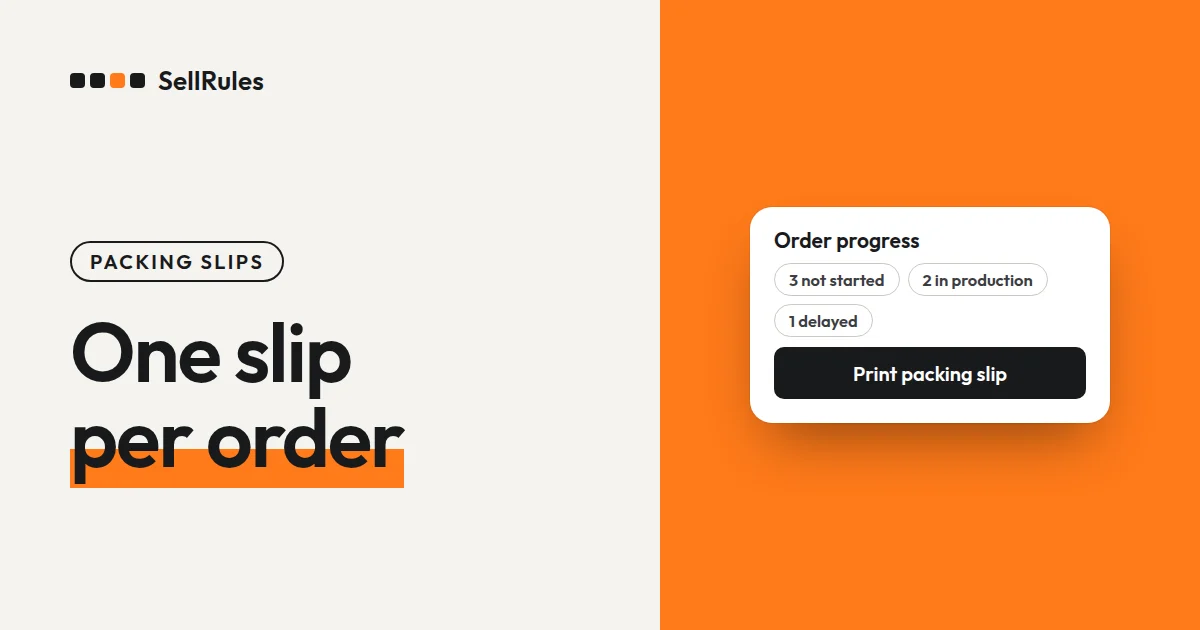
With the Shopify app SellRules, you click “Start shipment preparation” on the order under “Order progress”, then click “Print packing slip”. You get one packing slip per order, split into two parts:
- The item table: the pre-order and made-to-order items you're shipping now
- “Items not on this slip”: the other items in the same order, each with a status such as “Shipped” plus the date it shipped (2026/11/14 in the example) or “Expected to ship around” plus the estimated date (2026/11/28 in the example)
To print slips for several orders at once, select the orders and click “Print selected packing slips”.
What the customer sees
The packing slip below is for an order where an in-stock teacup shipped first and a pre-order vase ships now. The item table lists only the vase, and the teacup appears under “Items not on this slip” as shipped.
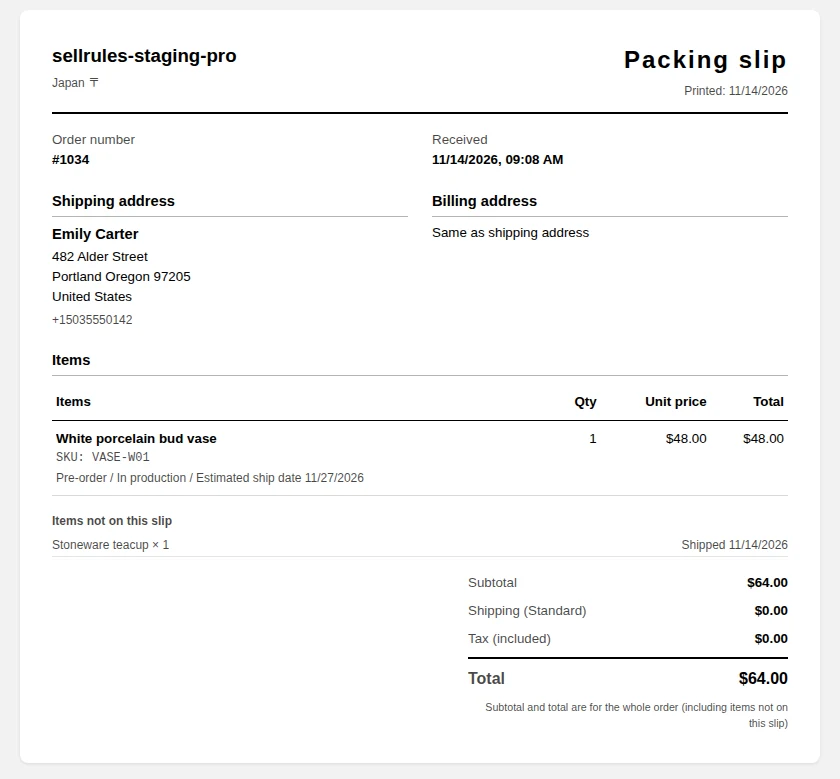
The top of the packing slip shows your shop name and address, the order number, the date and time the order was received, and the shipping address. Under each item you see the color or size, the SKU, and a status such as “Pre-order / In production / Estimated ship date” followed by the date (2026/11/20 in the example).
The subtotal and total are for the whole order. When some items are not on the slip, a line below the total says so: “Subtotal and total are for the whole order (including items not on this slip)”.
Where each item in the order appears depends on its status:
| Item in the same order | Where it appears | What it shows |
|---|---|---|
| A pre-order or made-to-order item you've started preparing | Item table | Status and “Estimated shipping date” |
| An item that has already shipped | Items not on this slip | “Shipped” and the date it shipped (2026/11/14 in the example) |
| A pre-order item with an estimated ship date that you haven't started on | Items not on this slip | “Expected to ship around” and the estimated ship date (2026/11/28 in the example) |
| A pre-order item with no estimated ship date yet | Items not on this slip | Ships later |
| An in-stock item that hasn't shipped yet | Items not on this slip | Shipped separately |
How it differs from Shopify's own packing slip
Shopify's packing slip and the SellRules packing slip
Shopify's packing slip
SellRules packing slip
Shopify's order page can print packing slips too. Open an order and click “Print” → “Print packing slips” to get a slip for the items in that shipment. You can also select several orders in the order list and print them together (Shopify Help Center, checked November 14, 2026).
For orders with no pre-order items, use this standard Shopify packing slip.
The SellRules packing slip is the one you print after you start preparing a pre-order or made-to-order order for shipment. It lets the customer see, right in the package, when the rest of their order will arrive.
How to print it in SellRules
Before you start, add your logo under “Packing slip logo” in the SellRules “Settings”. You can use a PNG, JPEG, WebP or SVG image of up to 300KB, and a wide logo fits best. Without a logo, the packing slip starts with your shop name.
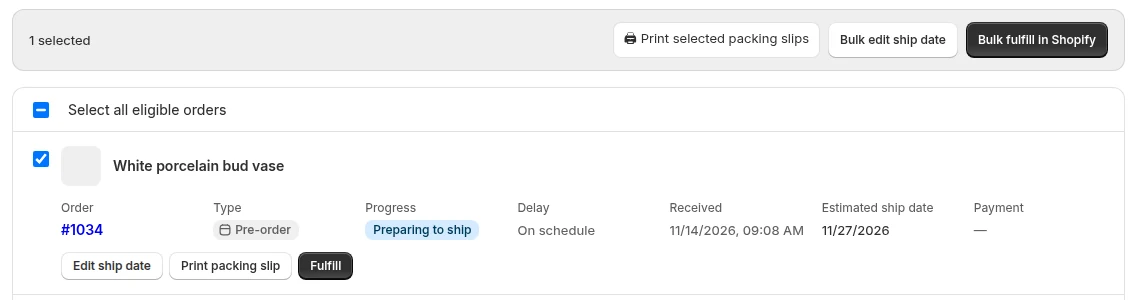
- Under “Order progress” in SellRules, check the orders you're shipping and click “Start production / prepare shipment”. For a single order, click “Start shipment preparation” on that order (“Start production” for made to order).
- Once the order changes to “Preparing to ship” (“In production” for made to order), “Print packing slip” appears on its row.
- Click “Print packing slip”. If you've selected several orders, click “Print selected packing slips”.
- The packing slips open in a new tab, one per order. Check the items and “Items not on this slip”, then click “Print”. The paper size is A4.
Clicking “Start shipment preparation” releases the fulfillment hold SellRules placed on the order, so you can fulfill it in Shopify. Pack the order with the slip inside, then fulfill it on the Shopify order page as usual.
Pricing
“Order progress” and packing slip printing are available from the Free plan. On the Free plan you can take up to 10 pre-order and made-to-order orders in total. Try it on your next pre-order: start shipment preparation and print one packing slip.
To take more orders than that, switch to the Launch plan (US$7.99 per month). You can install SellRules from the Shopify App Store, where you can also check pricing and trial terms.
Frequently asked questions
Can I print packing slips for made-to-order items the same way?
Yes. Click “Start production / prepare shipment” on a made-to-order order and it changes to “In production”, and “Print packing slip” appears. On the packing slip, the line under the item reads “Made to order / In production”.
Do order notes appear on the packing slip?
Yes, if the Shopify order has a note, it appears at the bottom of the packing slip under “Note”. Notes the customer wrote at checkout and notes you added on the order page go in the same place.
Does printing start as soon as I open the packing slip?
No. The packing slip opens in a new tab, so you can check it first and then click “Print” at the top. The paper size is A4.
Related articles:
- Seeing what else SellRules does: SellRules features
- When in-stock and pre-order items are in the same order: Pre-orders and in-stock items in one order
- Moving made-to-order orders along: Managing and shipping made-to-order orders
- Choosing how to sell, such as early access or limited quantities: Early-access and limited sales
The vase, the teacup and the dates are examples.