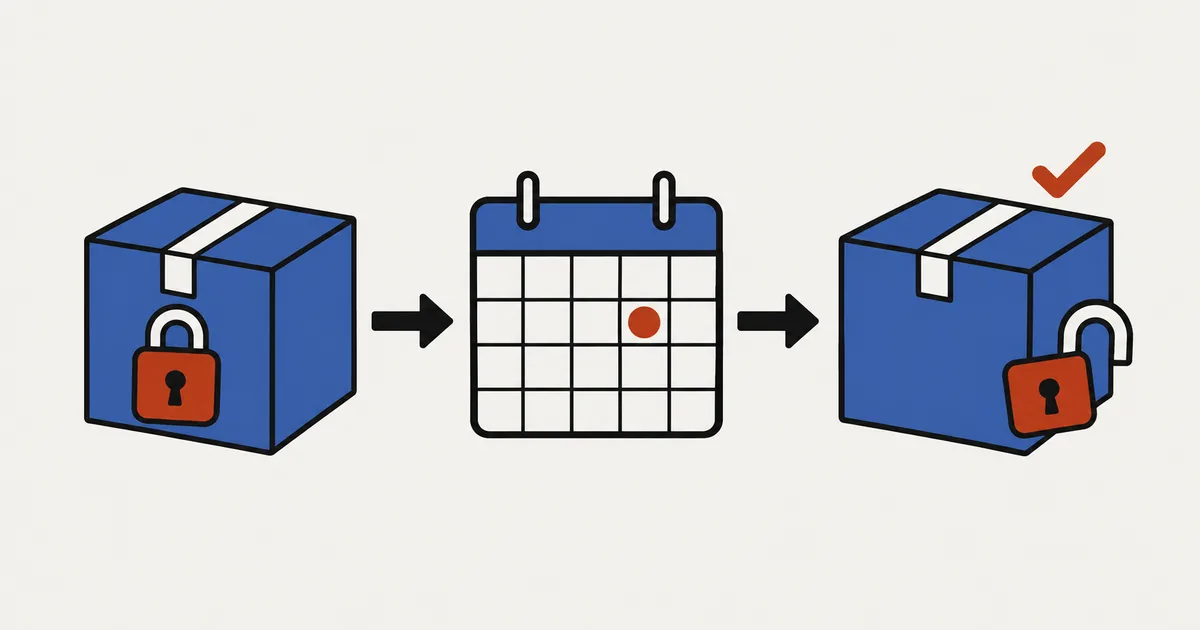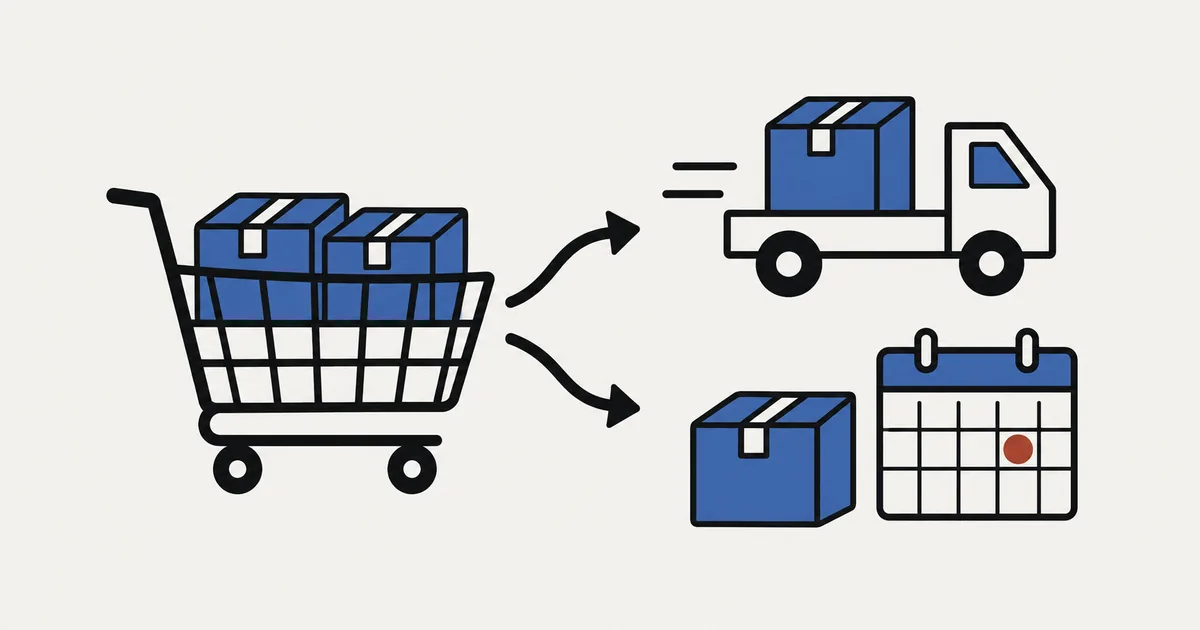
When pre-order and regular items share a Shopify order, regular items can ship first if the order is fully paid. SellRules moves the pre-order items into a separate fulfillment within the order and places a hold only on that fulfillment. The regular items remain outside the hold, so you can fulfill them as usual from the Shopify order page.
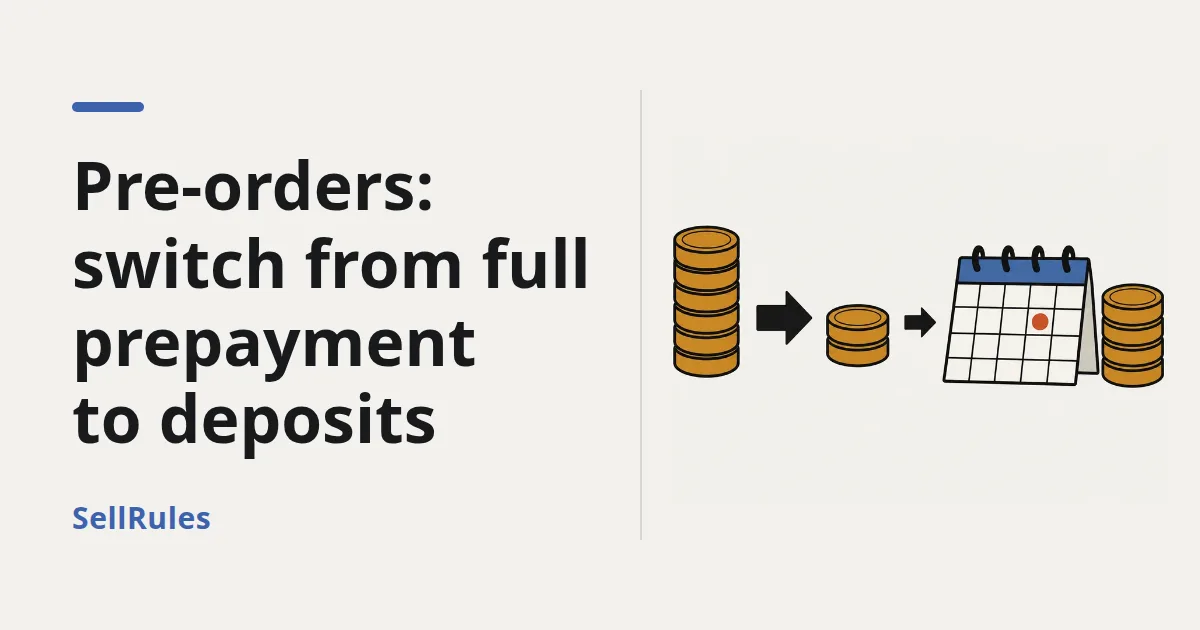
By contrast, deposit and balance orders, including No deposit, hold the entire order until the balance is paid. Regular items in that order cannot ship first either.
SellRules does not split a mixed order into two orders or automatically charge for extra shipping. Before taking orders, decide whether to ship together or separately, who pays the shipping costs and how you will explain this to customers. Below, we cover how each payment method works, checkout shipping fees, sample wording and what to check in a test order.
Which orders let you ship regular items first?
Whether regular items can ship first depends on how you charge for the pre-order. Full payment holds only the pre-order items; deposit and balance holds the entire order.
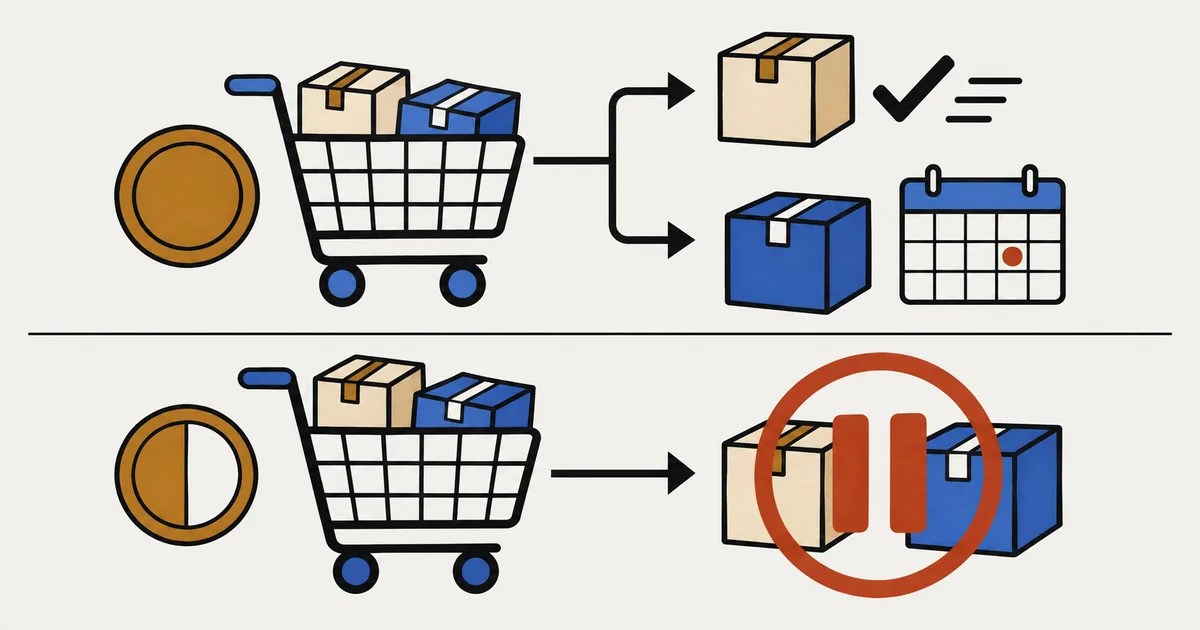
| Order status | What SellRules puts on hold | When regular items can ship |
|---|---|---|
| Fully paid, with pre-order and regular items | Only the pre-order fulfillment | Immediately |
| Deposit and balance, including No deposit, with an unpaid balance | The entire order, including regular items | After the balance is paid |
| Tagged with “SellRules:” followed by Japanese text meaning “could not place a fulfillment hold because the items ship with regular items; manual hold needed” | Nothing | Immediately, but the pre-order items can also be fulfilled |
If pre-order and regular items share a fulfillment in a fully paid order, SellRules first moves just the pre-order items into a separate fulfillment, then holds that fulfillment. On the Shopify order page, regular items appear under “Unfulfilled” and pre-order items under “On hold”.
With deposit and balance, an unpaid-balance hold applies to the regular-item fulfillment, stopping the whole order. The pre-order fulfillment is blocked by holds such as “Unknown delivery date”, which Shopify automatically applies to orders sold with deposit and balance. Paying the balance automatically releases the unpaid-balance hold, but you need to release the holds on the pre-order fulfillment separately. Once the balance is paid, “Payment” shows “Paid” and the pre-order items are ready, press “Start shipment preparation” in SellRules' “Order progress”. If an “Unknown delivery date” hold remains on the Shopify order page, use “Release hold” to remove it before shipping.
If you release the holds on the pre-order fulfillment before the balance is paid, however, the pre-order items may be available for fulfillment while still unpaid until the next automatic check, which runs every few minutes, applies the balance hold. Before shipping any deposit and balance order, always check that “Payment” in “Order progress” shows “Paid”. See how to release a pre-order fulfillment hold for the steps and the precautions for deposit and balance orders.
The tag in the third row of the table appears when the pre-order items could not be moved into a separate fulfillment. SellRules skips the hold to avoid stopping regular items too, and adds the order tag instead. The pre-order items remain available for fulfillment. Copy the actual tag from the order page, paste it into the tag filter in Shopify's order list and check these orders yourself to avoid accidentally shipping a pre-order item.
Ship everything together or send regular items first?
For fully paid orders, your store can choose to ship everything together or send the regular items first. Base the decision on the wait until the pre-order ship date and how soon customers need the regular items.
| Ship together | Send regular items first | |
|---|---|---|
| When customers receive their items | Everything ships together on the pre-order ship date | Regular items ship now; pre-order items on their ship date |
| Your store's shipping costs | One parcel | Two parcels, so actual shipping costs increase |
| Shipping fee paid by the customer | The amount shown at checkout | The same; splitting fulfillment does not automatically change it |
| When it makes sense | Pre-order shipping is a few days to a week away | Pre-order shipping is a month or more away, or regular items are seasonal goods or consumables |
If you're unsure, use your store's situation as a starting point.
| Your situation | Suitable policy |
|---|---|
| Pre-order shipping is a few days to a week away | Ship together. Giving a clear date for the whole shipment makes the wait easier to accept |
| Pre-order shipping is a month or more away | Send regular items first. A long wait for items already in stock is more likely to frustrate customers |
| You want to avoid higher shipping costs | Ship together. If you ship separately, decide who pays the extra cost beforehand |
| You take pre-orders with deposit and balance | You can only ship together. Ask customers to place a separate order for regular items they need sooner |
Deciding afresh for every order makes it harder to keep customer messages and actual fulfillment in step as orders grow. Start with a default, such as “ship together unless the customer asks us to send regular items first”. That also gives you a clear basis for product descriptions and emails.
Checkout shipping fees differ for full payment and deposits
The shipping fee customers see at checkout depends on the pre-order payment method. Fully paid pre-orders are expected to be charged like regular products, with a single shipping fee. Deposit and balance pre-orders may appear as a separate shipment and incur additional shipping fees.
Shopify's help page on split shipping at checkout says that orders containing pre-orders, products from different shipping profiles or products shipping from different locations can be divided into multiple shipments (Shopify Help: Split shipping at checkout, checked October 25, 2026). Here, pre-orders means Shopify's pre-order purchase option. The page also says that flat rates for the same delivery method across shipments are combined into a single rate, but shipping fees are added together for orders containing pre-orders and items ready to ship, even with the same delivery method.
Applied to SellRules' two payment methods, this means:
- Full-payment pre-orders: SellRules accepts these as regular products without using a purchase option. They therefore do not fall under the help page's pre-order condition. With the same shipping profile and fulfillment location, checkout is expected to calculate shipping as a single shipment. Confirm the actual display using the test order described below.
- Deposit and balance, including No deposit: These are sold using Shopify's pre-order purchase option. They meet the condition in the help page, so the pre-order may appear as a separate shipment at checkout and shipping fees may be added together.
For example, take a store with just one delivery method charging a flat 800 yen nationwide in Japan. This is a hypothetical example. For a fully paid pre-order bought with a regular item, the reasoning above suggests a checkout shipping fee of 800 yen. Sending the regular item first creates two parcels, but the customer's fee stays at 800 yen, leaving your store to cover the second parcel. For a deposit pre-order bought with a regular item, Shopify's explanation suggests two charges of 800 yen, totaling 1,600 yen. Even so, the whole order is held until the balance is paid, so you cannot send the regular item first.
With this deposit combination, a customer may pay for two shipments but receive one parcel. Adding “Please order regular items separately” to the deposit pre-order description can help avoid that misunderstanding.
Splitting fulfillment after an order is placed does not automatically recalculate its checkout delivery method or shipping fee. To charge the customer for the extra cost, obtain their agreement, add shipping through Shopify order editing and send an invoice (Shopify Help: Editing an order's shipping fees). If doing this for each order is too much work, you can instead decide that the store covers additional shipping costs. Explain whichever policy you choose before purchase.
How to fulfill just the regular items in Shopify
For a fully paid order, fulfill the regular items from their fulfillment section on the Shopify order page. That section is not on hold, so you can leave the pre-order items untouched.
- Open the order in Shopify admin. Regular items appear in an “Unfulfilled” section and pre-order items in an “On hold” section.
- In the regular-item section, click “Mark as fulfilled”, enter the tracking number and carrier, and complete fulfillment. If you have the customer's email address, you can also send a shipping confirmation at this point (Shopify Help: Fulfilling orders).
- The pre-order items stay in “On hold”. Fulfilling the regular items does not release the pre-order hold.
- When the pre-order items are ready, press “Start shipment preparation” in SellRules' “Order progress” to release the hold, then fulfill them in Shopify.
Fulfilling only the regular items does not change the pre-order records in SellRules' “Order progress”. That screen tracks pre-order and made-to-order items, not fulfillment of regular items. The records become shipped when you fulfill the pre-order items. Even if you ship only part of the quantity ordered for the same pre-order item, its line is marked as shipped and removed from Order progress. For example, if a customer orders 2 units of the same pre-order item and you send just 1 first, the remaining 1 does not stay in Order progress. Track it under “Partially fulfilled” in the Shopify order list.
If both types of item share the same section in step 1, the pre-order items could not be separated. These orders often carry the tag described earlier, but even without the tag, the pre-order items still have no hold. When choosing quantities in Shopify's fulfillment screen, take care not to include the pre-order items.
What to tell customers before they buy
Once you've chosen a shipping policy, put it where customers can read it before buying. The estimated shipping date SellRules displays on the product page applies to the pre-order item itself; it does not tell customers when regular items bought alongside it will ship.
Add the information in two places.
- The pre-order product description: Customers can read it before adding the item to their cart.
- The pre-order confirmation email: SellRules sends this automatically when a pre-order comes in. Edit the wording under “Settings → Email templates”.
You can adapt the examples below. Replace [date] with the pre-order item's expected ship date.
- Shipping together: “This item is available for pre-order and is due to ship on [date]. If you order it with in-stock items, we will ship everything together on [date]. Please order separately if you need other items sooner.”
- Sending regular items first: “This item is available for pre-order and is due to ship on [date]. Any in-stock items bought with it will be sent first.”
- Deposit pre-orders: “This item is available to pre-order with a deposit. If you buy it with other items, we will hold all items until the balance is paid. Please order in-stock items separately if you need them sooner.” For No deposit, replace the first sentence with “This is a pre-order item that will be charged at a later date”, and replace “the balance is paid” with “payment is complete”.
Adding “Please order separately” to whichever example you use reduces mixed orders and helps prevent misunderstandings about shipping fees. If you offer cash on delivery, also explain that an order containing a pre-order cannot use cash on delivery for the regular items either. See how to hide cash on delivery for pre-order items for setup and checks.
Test checkout shipping fees and fulfillment holds
After writing your customer messages, place a mixed order yourself before real orders arrive. Choose a testing method that fits your store's payment setup, such as Shopify's test payments. Check these four things.
- Shipping at checkout: Add a pre-order item and a regular item to the cart. Check how many shipments appear and the total shipping fee. If you offer deposit pre-orders, test that combination too.
- Where the hold applies: On the Shopify order page, check that only the pre-order items are under “On hold” and the regular items are under “Unfulfilled”. The pre-order line item has an
_Pre-orderproperty containing the estimated ship date if you set one. - Fulfilling only the regular items: Mark just the regular-item section as fulfilled and check that the pre-order items remain on hold.
- SellRules' display: Check that the order's pre-order items appear in “Order progress” and that the pre-order confirmation email contains the policy you added.
If both types of item share a section in step 2 and the order has the manual-hold-needed tag, SellRules could not separate the pre-order items for that combination. It can happen with real orders too. Before shipping, routinely copy the actual tag from the order page, paste it into the tag filter in the order list and check the matching orders.
When customers ask to ship sooner or cancel just the pre-order
Even with a clear policy, customers may ask to change shipping after placing an order. For fully paid orders, you can usually handle this from the Shopify order page.
- An order was due to ship together, but the customer wants regular items first: If it's fully paid, fulfill just the regular items using the steps above. Explain any extra shipping costs according to your store's policy.
- The customer wants regular items first on a deposit order: You cannot ship until the balance is paid. If it's urgent, discuss options with the customer, such as refunding the regular items and having them reorder those separately.
- The customer wants to cancel only the pre-order items: Remove those items through Shopify order editing. Editing alone does not issue a refund, so process the refund too (Shopify Help: Editing orders).
- The pre-order ship date is delayed: In SellRules' “Order progress”, open “Edit ship date”, tick “Notify the customer of the delay” and save. This sends a delay email, but only when you move the date later than the previous ship date. Customers who already received their regular items can receive the new pre-order date through this email too.
What SellRules handles and what your store handles
The app handles pre-order holds and progress, while your store decides its shipping policy. Here is how the responsibilities divide up.
- SellRules handles: Accepting and displaying pre-orders; separating and holding just the pre-order fulfillment on fully paid orders; holding the whole order until the balance is paid on deposit and balance orders; management in Order progress; and emails such as pre-order confirmations and delay notices.
- SellRules does not handle: Turning a mixed order into two orders, automatically charging customers for extra shipping, or displaying “This order will arrive in two shipments” at checkout.
- Handled in Shopify: Fulfillment, order editing, charging additional shipping fees and refunds.
Shopify's shipping settings determine how shipping fees are calculated. Separate shipping profiles can change the calculation, but do not explain when items will ship. Give customers that information separately in product descriptions and emails.
Frequently Asked Questions
Can I ship regular items before the pre-order items?
Yes, if the order is fully paid. SellRules separates the pre-order items into their own fulfillment and holds only that fulfillment, so you can ship regular items immediately from the Shopify order page. However, if the order has a tag starting with “SellRules:” followed by Japanese text meaning “could not place a fulfillment hold because the items ship with regular items; manual hold needed”, the pre-order items are not on hold either. Check that order yourself so you do not accidentally fulfill them.
Can regular items ship first if the pre-order uses deposit and balance?
No. Deposit and balance orders hold the entire order, including regular items, until the balance is paid. The same applies to No deposit, where the full amount is charged on the due date. Before purchase, tell customers who need regular items sooner to order those separately.
Will customers pay shipping twice when they buy pre-order and regular items together?
It depends on the payment method. Fully paid pre-orders are treated as regular products at Shopify checkout, so a single shipping fee is expected when the shipping profile and fulfillment location are the same. Deposit and balance products use Shopify's pre-order purchase option, so pre-order items may appear as a separate shipment at checkout and shipping fees may be added together even for the same delivery method. Check the actual amount with a test order.
Does SellRules split a mixed order into two Shopify orders?
No. SellRules separates fulfillments within an order; it remains a single order. If you want two orders, ask customers to check out separately for pre-order and regular items.
Pricing and testing with a pre-order and a regular item
Accepting pre-orders, placing fulfillment holds on just the pre-order items, Order progress, pre-order confirmation emails and delay notices are available from the Free plan. The Free plan allows a lifetime total of 10 pre-order and made-to-order orders. Pre-order confirmations and delay notices do not count toward the notification email limit. Deposit and balance, including No deposit, requires Pro.
SellRules plans and pricing
| Monthly price | LaunchEvery feature included |
|---|---|
| Monthly price | US$7.99 per month |
| Free trial | 10 days |
| Pre-order and made-to-order orders | Unlimited |
| Back-in-stock and sale-start emails (Notify Me) | Unlimited |
| Purchase limits | No limit on products |
| Customizable notification emails | Yes |
| Deposit payments | Yes |
Pre-orders, made-to-order, back-in-stock alerts, purchase limits, stockout switching, deposit payments and order processing are all included in the Launch plan.
The first 10 days are free. If you remove the app during the trial, you are not charged.
Back-in-stock and sale-start emails have no sending cap. The same goes for required messages such as order confirmations, shipping updates and balance reminders.
The Free, Standard, and Pro plans are closed to new sign-ups. Shops already on them keep their current terms.
To try it, create a test pre-order product with full payment and order it together with a regular item. Check the checkout shipping fee, that only the pre-order items are on hold on the order page, and that you can fulfill just the regular items. These three checks will show whether it fits how your store ships orders.
For the full instructions, see the SellRules guide. To get started, follow the pre-order setup checklist. For the wider decisions about pre-orders and taking orders, see planning advance and limited sales. If you ship several parcels, see managing tracking numbers for multiple packages.
Features checked on October 25, 2026 by JizaiDev, the developer of SellRules, against the code of the app available on that date and the wording in its settings screens. Shopify shipping fees and fulfillment behavior are based on Shopify Help: Split shipping at checkout, Fulfilling orders, Editing shipping fees and Editing orders, checked October 25, 2026. Shipping amounts are hypothetical examples. Check the Shopify App Store listing for current pricing.