To find out whether a pre-order app has increased your sales on Shopify, look at numbers that count only the orders that came through the app. Sales in Shopify Analytics cover every order, so pre-orders and regular orders are mixed together.
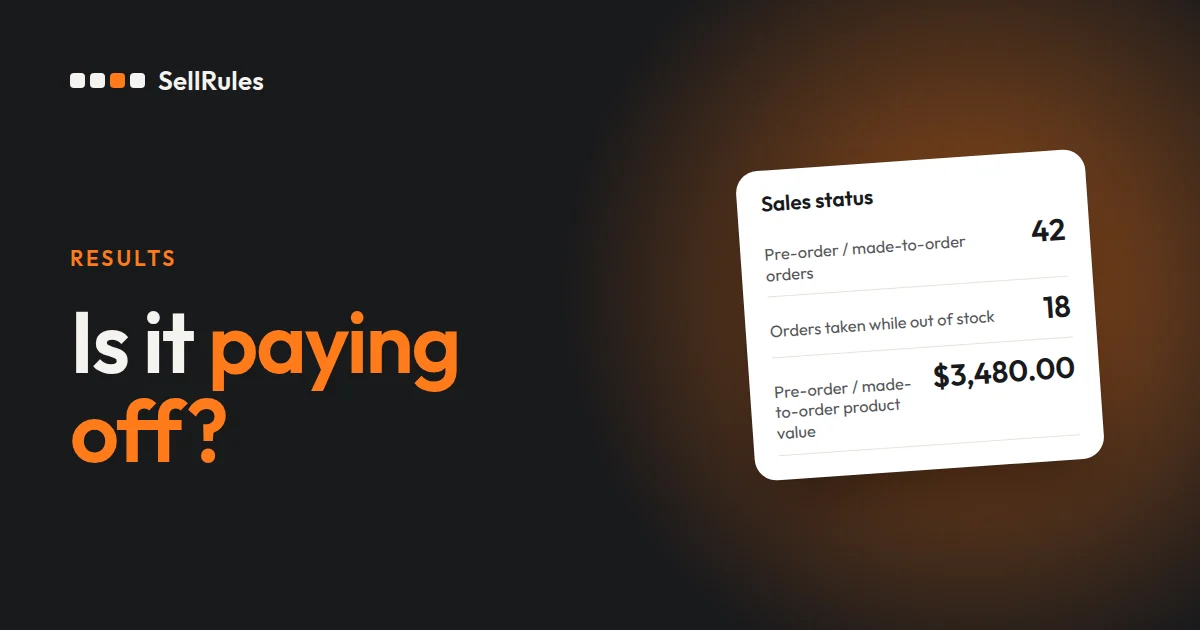
With the Shopify app SellRules, “Pre-orders and made-to-order orders through SellRules (last 30 days)” on the Home screen shows five things:
- The number of pre-order and made-to-order orders
- The product value of pre-order and made-to-order items (excluding discounts, tax and shipping)
- The number of orders taken while out of stock
- The number of back-in-stock sign-ups, emails sent and purchases
- Balance collection (only for stores that use “Deposits and balance payments”)
If you also had pre-orders in the previous 30 days, a change such as “↑3 orders (vs previous 30 days)” appears under the counts and amounts.
Orders taken while out of stock are orders for products that switched to pre-order when inventory hit 0. You couldn't have taken them if the product had stayed marked as sold out.
What Home shows

The numbers are counts and amounts only. SellRules doesn't show estimates such as projected extra sales. A column that is still at zero shows “Recording since” followed by the date counting began (10/18 in the example), so you can tell it apart from the time before recording started.
For a store with no pre-order orders and no back-in-stock records, the section reads “Once your first pre-order comes in, your results will appear here.”
How to read the five numbers
| Column | What it counts | What to look at |
|---|---|---|
| Pre-order / made-to-order orders | Orders that contain a pre-order or made-to-order item | The “Pre-order 22 · Made to order 0” breakdown and the change from the previous 30 days |
| Pre-order / made-to-order product value | Unit price × quantity for those items | The amount, which excludes discounts, tax and shipping |
| Orders taken while out of stock | Orders for products a sold-out switch moved to pre-order | The count and the latest order number |
| Back-in-stock alerts | Sign-ups → Emails sent → Purchases | Emails sent and purchases compared with sign-ups |
| Balance collection | Collected (last 30 days), plus waiting for due date or retry, needs action and failed (as of now) | The needs-action and failed counts |
When one order contains both pre-order and made-to-order items, it counts as one pre-order. The breakdown adds up to the number of orders.
“Purchases” under back-in-stock alerts is the number of orders placed through the link in the alert email. Orders from customers who saw the email but found the product on their own, without using the link, are not included.
“Collected” under balance collection is what SellRules collected automatically in the last 30 days. “Waiting for due date or retry”, “Action required” and “Failed” are the counts still outstanding when you open Home.
How it differs from Shopify Analytics
Shopify Analytics and the SellRules Home screen
Shopify Analytics
SellRules Home
Shopify Analytics shows total sales and order counts day by day. That is where to follow sales for the store as a whole.
The SellRules Home screen counts only the orders SellRules took as pre-orders or made to order. SellRules records whether the product was out of stock, and whether the purchase came from a back-in-stock email, at the moment it receives the order, so Home can show those separately.
Settings to adjust after you've looked at the numbers
If a column is low, review the matching setting:
| Number on Home | Setting to check |
|---|---|
| Pre-order and made-to-order orders are at 0 | Whether “Sales schedules” has a schedule that is active |
| Orders taken while out of stock says “None yet” | Whether “Purchase limits & sold-out” has a sold-out switch |
| Back-in-stock sign-ups are at 0 | Whether the sign-up field appears on sold-out product pages |
| Balance collection has payments that need action | The customer's payment status, on the order |
Orders taken while out of stock stays at 0 until you create a sold-out switch. If you have products that sell out often, create a rule that switches them to pre-order when inventory reaches 0.
“Action required” under balance collection covers orders that need something from the customer or a check by you, such as a card waiting for authentication. The payment flow is explained in Deposits and charging the balance.
Pricing
The results section on Home is available from the Free plan. On the Free plan you can take up to 10 pre-order and made-to-order orders in total and send up to 15 back-in-stock and “Sale start” emails in total. Once your first pre-order comes in, check the count on Home.
To handle more orders or emails than that, switch to the Launch plan (US$7.99 per month). You can install SellRules from the Shopify App Store, where you can also check pricing and trial terms.
Frequently asked questions
Can I see numbers from more than 30 days ago?
No. The results section on Home shows the numbers for the last 30 days and the change from the 30 days before that.
What happens to the amounts when orders from international customers come in different currencies?
Each currency is shown separately and the amounts are not added together. If you have orders in US dollars and in euros, the product value column shows a dollar amount and a euro amount side by side.
When are the numbers updated?
They are recounted from the records at that moment each time you open Home. Reopen Home after SellRules has received an order and that order is included in the count.
Related articles:
- Seeing what else SellRules does: SellRules features
- Deciding whether to take pre-orders on a sold-out product: Pre-order or back-in-stock alerts
- Getting started with back-in-stock alerts: How to set up back-in-stock emails
- Deciding how many to order from sign-up counts: How many to make, based on pre-order counts
- Choosing how to sell, such as early access or limited quantities: Early-access and limited sales
The counts and dates are examples.