To reduce pre-order cancellations, match what you show on the product page and how you take payment to the reasons customers cancel. In a survey of people who had bought pre-order items online, the most common reasons for canceling were a long wait, being charged in full at checkout, a delayed release or shipment, and not knowing when the item would arrive.
With SellRules, a Shopify app, each pre-order schedule can address those four reasons with these settings:
- Show the ship date on the product page and in the cart, so customers know how long they'll wait and when the item arrives before they order
- Charge nothing at checkout, and charge the full amount when you start preparing the shipment
- Email customers the new date when the ship date moves
Why customers cancel and what your store can do
Here are the top four reasons from the survey, with what your store can do about each one.
| Reason for canceling (share of respondents) | What your store can do |
|---|---|
| The wait was long (45.3%) | Show the ship date on the product page so customers order knowing how long they'll wait |
| Being charged in full at checkout (32.5%) | Don't charge at checkout; charge when you start preparing the shipment |
| The release or shipment was delayed (28.9%) | Send the new date as soon as you know the ship date will move |
| Not knowing when the item would arrive (27.9%) | Give the ship date as a date, and include it in the order confirmation email |
In the same survey, the things most often named as easing worries during the wait were a specific delivery date (56.0%) and advance notice when plans change (48.0%).
The survey was run online in Japan by Recustomer Inc. on June 28, 2026, among 663 people who had bought pre-order items online (PR TIMES, published July 10, 2026, checked November 14, 2026). Recustomer is a company that provides services for pre-order sales.
What customers see
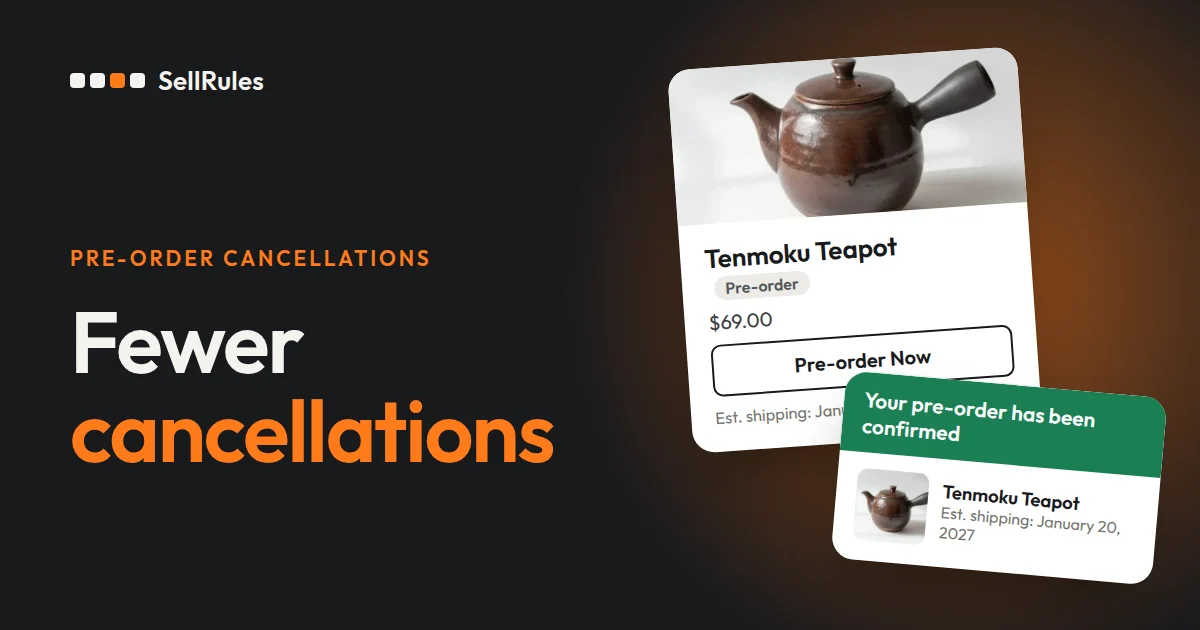
On the product page, the buy button changes to “Pre-order Now”, and below it customers see the ship date, what they pay today and when the full amount is charged.
The screen below shows a $59.00 tote bag with the ship date set to January 20, 2027 and the full amount charged when you prepare to ship.
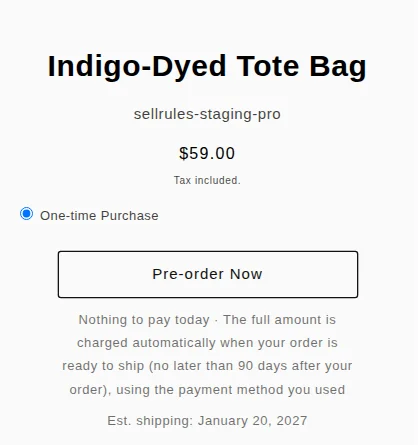
The note under the button reads:
Nothing to pay today · The full amount is charged automatically when your order is ready to ship (no later than 90 days after your order), using the payment method you used
At checkout, too, the amount due today and the amount charged later are shown separately. The date for the later charge is the latest possible charge date, worked out from the number of days in “Charge the full amount no later than (days after the order)”.
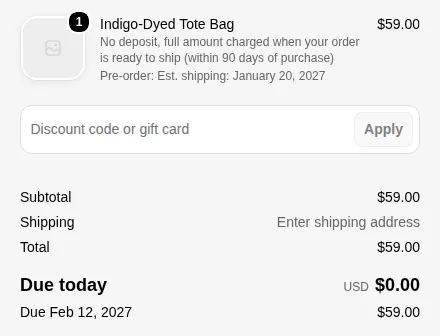
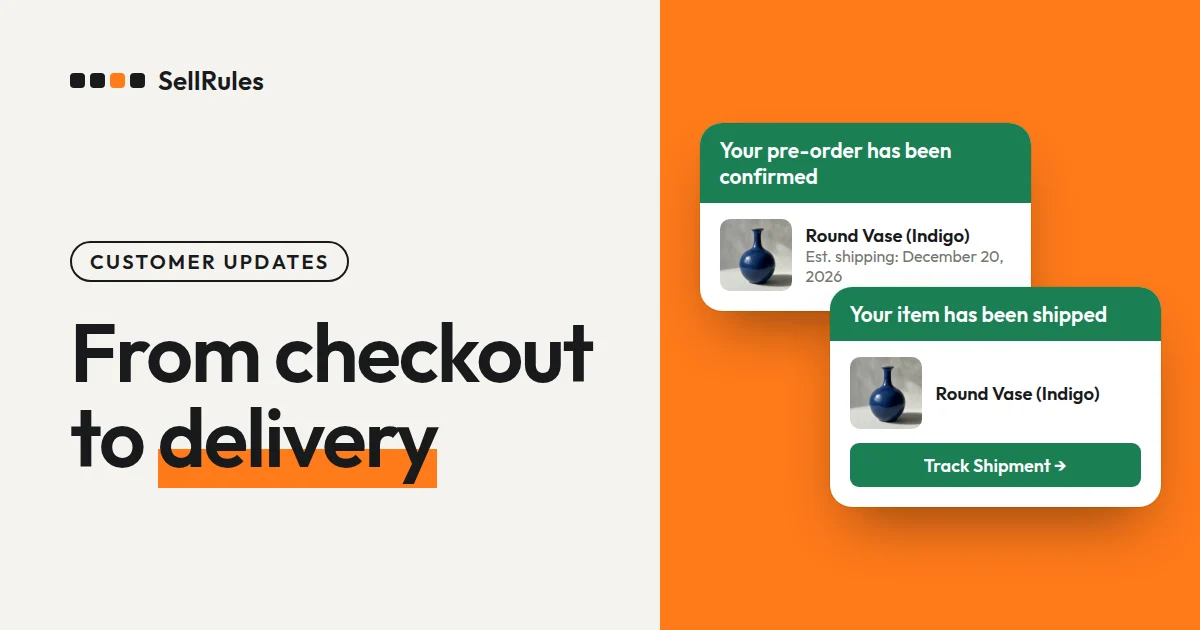
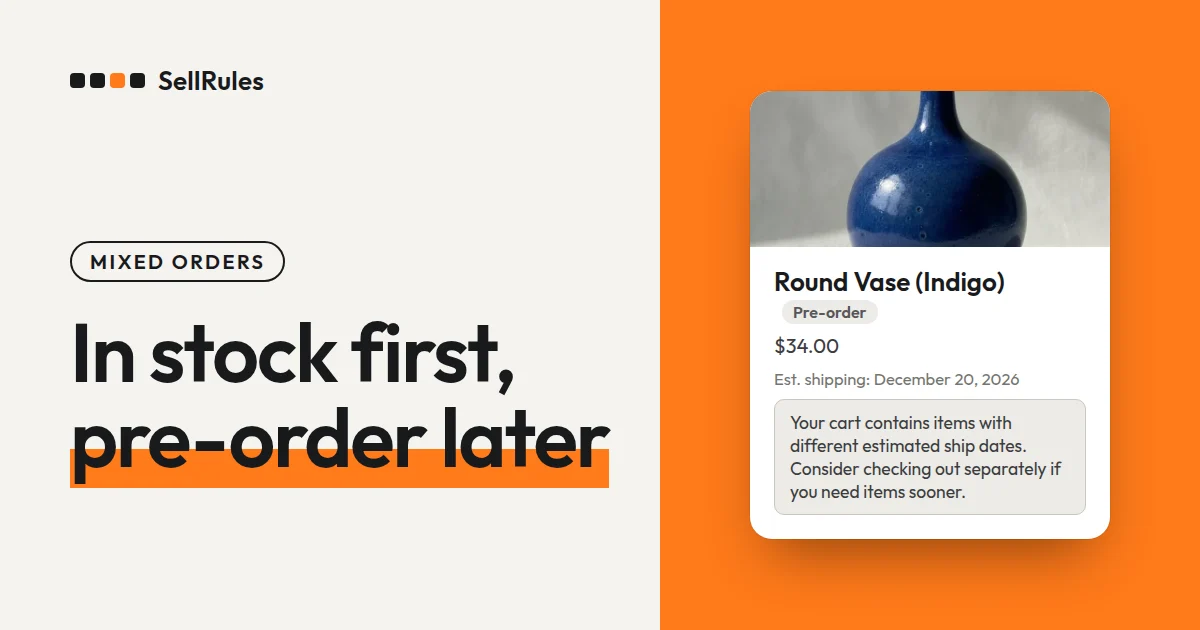
After ordering, customers get a “Pre-order confirmation” email with the order number and the ship date. If they put items with different ship dates in the same cart, the cart shows “⚠️ Your cart contains items with different estimated ship dates. Consider checking out separately if you need items sooner.”
How to set it up in SellRules
Show the ship date and charge when you prepare to ship
- In SellRules, go to “Settings” → “Deposits and balance payments”, click “Enable” and approve the Shopify permissions screen. Taking no payment at checkout also uses this feature.
- Create (or edit) a pre-order in “Sales schedules” and enter a date in “Estimated ship date”. If the date isn't decided yet, enter text such as “late January 2027” in the “Est. shipping” text field.
- Click “Show extra settings”, then set “Payment” to “Deposit now, balance later (partial payment)” and “Deposit type” to “No deposit (charge the full amount on the due date)”.
- Set “Full payment due date” to “When you start production or prepare to ship”, enter a number of days in “Charge the full amount no later than (days after the order)” and save.
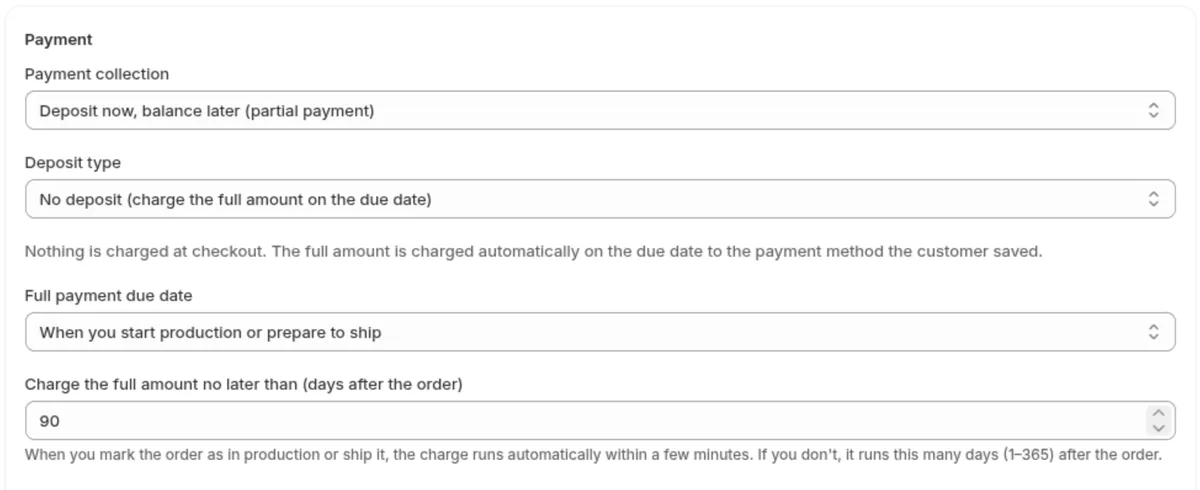
Choose a number of days that, counted from the order date, lands after the ship date. If that many days pass before you start preparing the shipment, the full amount is charged on that day.
If you want to take part of the price at checkout, choose a percentage or an amount in step 3. How to set the deposit amount is covered in setting up deposits. How taking no payment at checkout works, and how it compares with other ways to get paid, is covered in when to charge for pre-orders.
When the stock arrives, start preparing the shipment
When the stock arrives, select the orders to ship in SellRules “Order progress” and click “Start shipment preparation”. The full amount is charged automatically within a few minutes, and once it's paid the order can be shipped. Until payment goes through, the order's fulfillment is on hold.
When the ship date moves, tell your customers
As soon as you know you'll miss the ship date, click “Edit ship date” on the order in “Order progress”. To change several orders for the same product at once, use “Bulk edit ship date”. Enter the new date, check “Notify customer of delay” and save, and customers get a delay notice showing both the original and the new date.
If shipping is delayed for the whole product, you can also move the schedule's “Estimated ship date” to a later date. Customers whose orders now fall after the date they were given at checkout get a delay notice.
If a customer still asks to cancel
For orders charged in full when you prepare to ship, you haven't taken any money from the customer until that charge. If you cancel before then, there's nothing to refund.
You can cancel from the order page in Shopify or from “Cancel this order” in SellRules “Order progress”. In “Order progress”, the expected refund amount is shown, and “Return the cancelled items to stock” is on by default.
If you cancel from the Shopify order page, SellRules sends the customer a “Cancellation confirmation”. If you cancel from “Order progress”, Shopify sends its cancellation email. Whichever screen you cancel from, for products with a “Total quantity limit” the canceled order frees up its place, and the next customer can pre-order.
Pricing
“No deposit (charge the full amount on the due date)” and “When you start production or prepare to ship” are available on the Launch plan (US$7.99 per month). Showing the ship date and the pre-order confirmation, delay notice and cancellation confirmation emails are included in the same plan at no extra cost.
The Launch plan comes with a free trial. Start by putting one product on pre-order, place a test order with a test payment, and check the ship date and payment note on the product page. You can install SellRules from the Shopify App Store, where you can also check the pricing and free trial terms.
Frequently asked questions
What happens to the payment if I never click “Start shipment preparation”?
The full amount is charged automatically once the number of days set in “Charge the full amount no later than (days after the order)” has passed since the order. You can set 1 to 365 days, and the default is 90.
How do I show the ship date if it isn't decided yet?
Enter text such as “late January 2027” in the schedule's “Est. shipping” text field, and that text shows on the product page instead of a date. Once the date is set, enter it in “Estimated ship date”.
Related articles:
- What to tell pre-order customers from checkout to delivery: Pre-order customer communication
- Choosing how to sell, such as pre-orders, made to order or limited quantities: planning early-access and limited sales
- Taking part of the price at checkout and charging the rest later: setting up deposits
- When to get paid for pre-orders that ship a month or more out: when to charge for pre-orders
- The emails customers receive: SellRules customer emails
The tote bag and amounts are examples.