
Once you start taking pre-orders, one worry tends to follow: "Someone pre-ordered with cash on delivery two months before launch, and then refused the parcel on the day it arrived." When a delivery is refused, the shipping both ways and the cash-on-delivery fee come out of your pocket, and with made-to-order work, the item you made has nowhere to go.
The short answer: SellRules can hide cash on delivery at checkout only when a pre-order or made-to-order product is in the cart. The October 1, 2026 update (1.2.0) added "Do not show cash on delivery (recommended)" to the screen where you create a pre-order or made-to-order schedule. Save with the box left ticked and it turns on for your whole store, while orders with only regular products can still choose cash on delivery as before.
This article covers how to decide whether to stop cash on delivery for pre-order items, what gets hidden and what stays, the setup steps, how to check with test orders, and what to check, in order, when cash on delivery still shows.
Deciding whether to stop cash on delivery for pre-orders and made-to-order
Cash on delivery means the customer pays when they receive the item. With pre-orders and made-to-order work, there's a long gap between ordering and receiving, and if a customer changes their mind in the meantime and refuses the parcel, your store doesn't get paid. The longer the wait, and the harder the item is to remake or resell, the stronger the case for stopping cash on delivery.
| Your situation | Cash on delivery for pre-orders and made-to-order | Why |
|---|---|---|
| Made-to-order items no one else can buy, such as engraved or custom-sized items | Stop it | If the delivery is refused, you can't resell what you made |
| Pre-orders launching a month or more away | Stop it | People are more likely to change their mind while waiting, and the shipping and fees for refused deliveries fall on your store |
| Products sold with a deposit and balance | No setting needed | Under Shopify's rules, cash on delivery can't be used for them in the first place |
| Launching in a few days, with many regulars who pay by cash on delivery | Consider keeping it | The wait is short, and stopping cash on delivery would leave some customers unable to buy |
If you're unsure, look at how many cash-on-delivery refusals you've had in the past and how many customers pay by cash on delivery, by checking payment methods in your Shopify order list. That makes the decision easier.
Cash on delivery is hidden only when a pre-order or made-to-order product is in the cart
Cash on delivery is hidden when the cart contains at least one product with a "Pre-order" or "Made to order" status. Orders with only regular products, and other payment methods, are not affected.
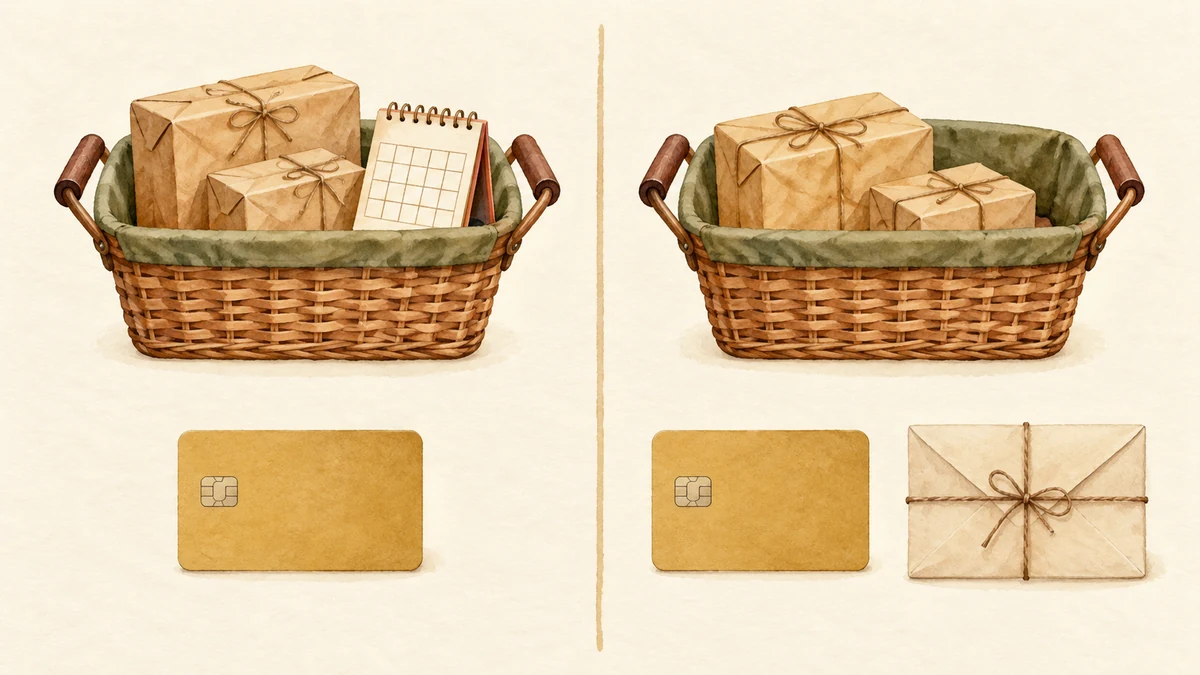
Here's what happens depending on what's in the cart:
| What's in the cart | Cash on delivery | Notes |
|---|---|---|
| Regular products only | Shown | Same as before |
| Pre-order or made-to-order products only | Not shown | — |
| A mix of pre-order and regular products | Not shown | The payment method applies to the whole order, so cash on delivery can't be used for the regular products either |
| A variant on regular sale of a product that is on pre-order | Shown | When you set status per variant, the check uses the variant's status |
| A product after it has switched to regular sale | Shown | The check uses the status at that moment |
| Products sold with a deposit and balance | Not shown | Not usable under Shopify's rules, not because of SellRules |
The fact that cash on delivery becomes unavailable for the regular products in a mixed order can easily catch customers by surprise. If you mention in the pre-order product's description that customers who want to pay for regular products by cash on delivery should order them separately, you'll get fewer questions. How to decide on shipping for mixed orders is covered in our article on pre-order and regular items bought together.
Payment method names treated as cash on delivery
SellRules decides whether a payment method is cash on delivery by its name. By default, a payment method is targeted if it matches either of the following:
- Its name contains "Cash on Delivery", "Pay on delivery" or a similar term (including the usual Japanese terms and common terms in other languages)
- Its name contains "COD" as a standalone word ("Cash on Delivery (COD)" is targeted; something like "QR code", where the letters are part of another word, is not)
Terms that are also used with another meaning are left out of the standard matching: for example, the Japanese word for "pay on arrival" is also used for shipping paid by the recipient. If your store has set up cash on delivery under a name the standard matching doesn't cover, such as "Pay at the door", specify the name as described next.
Specifying names yourself
If you enter payment method names, separated by commas, in "Payment method names to hide" on the settings screen, then instead of the standard matching, only payment methods whose name contains what you entered are hidden. Upper and lower case, and spaces before or after, are ignored.
For example, if you've created two manual payment methods in Shopify, "Pay at the door (cash)" and "Bank transfer", and want neither to be available for pre-order products, enter "Pay at the door, Bank transfer". The standard matching is no longer used at that point, so if you also have a payment method named "Cash on Delivery", enter that too. Short terms such as "COD" can match the names of unrelated payment methods, so it's safest to enter the payment method names in full.
How to set up hiding cash on delivery
There are two ways in. If you're about to create a pre-order or made-to-order schedule, use the checkbox on the creation screen; if you already have products set up, turn it on from the settings screen. Either way, it applies to your whole store and can't be set per product.
Turning it on when you create a pre-order or made-to-order schedule
- Create a new pre-order or made-to-order schedule from "Pre-orders & made to order". The same applies when you create a rule that switches products to pre-order or made-to-order when they sell out.
- Under "Cash on delivery" on the creation screen, there's an option labelled "Do not show cash on delivery when a pre-order or made-to-order product is in the cart (recommended)". For stores that haven't set it yet, and stores that already have it on, it appears ticked.
- Save with the box left ticked, and it's on.
This field is a store-wide setting. If you untick it on the creation screen and save, your store stops hiding cash on delivery everywhere, including for other pre-order and made-to-order products, not just that one. Once a store has turned it off, the box appears unticked from then on. You can't keep or stop cash on delivery per product, so if you're unsure, check the current state on the settings screen before saving.
Turning it on or changing it from the settings screen
- Open "Settings" in SellRules and go to the "Hide cash on delivery" section.
- Turn on "Hide cash on delivery when a pre-order or made-to-order product is in the cart".
- To change which names are matched, enter them in "Payment method names to hide". Leave it blank to use the standard matching.
- Press "Save". When you see "Saved. The listed payment methods will be hidden when a pre-order or made-to-order product is in the cart.", you're done.
To turn it off, switch it off in the same section and save. When you see "Saved. No payment methods will be hidden.", cash on delivery will show on every order.
Check with test orders when it's hidden and when it stays
Once it's set up, try three scenarios at a real checkout. You only need to get as far as the screen that lists payment methods, so there's no need to place the order.
- Pre-order product only: add a product that is taking pre-orders to the cart, proceed to checkout, and check that cash on delivery doesn't appear in the list of payment methods.
- Regular products only: proceed to checkout with only regular products and check that cash on delivery appears. If it's missing here, you've stopped it for more than just pre-order products.
- Pre-order and regular products: add both to the cart and check that cash on delivery doesn't appear.
While you're at it, check that payment methods other than cash on delivery (credit cards and so on) still appear in a cart with pre-order products. That way you can confirm you haven't ended up with no way to pay at all.
What to check, in order, when cash on delivery still shows
If cash on delivery still appears with a pre-order product in the cart, check the setting, the payment method name and the product's status, in that order.
| What to check | Where to look | How to fix it |
|---|---|---|
| Is the feature on? | Settings → "Hide cash on delivery" | Turn it on and save. Stores that have used SellRules since before 1.2.0 stay off until they choose |
| Does the payment method name match? | Payment method names in Shopify's "Settings → Payments" | If the name isn't covered by the standard matching (such as "Pay at the door"), enter it in "Payment method names to hide" |
| If you entered names, did you include the cash on delivery name too? | Settings → "Payment method names to hide" | Once names are entered, the standard matching isn't used. Add the cash on delivery name as well |
| Is the product on pre-order or made to order? | Status in the schedule list | Not targeted before pre-orders open, or after switching to regular sale |
| Is it set per variant? | The schedule's target | Variants other than the ones you put on pre-order are treated as regular sale |
The first item is the most common stumbling block for stores that have used SellRules for a while. Before 1.2.0, cash on delivery was hidden automatically, but since the update it's hidden only when the merchant turns it on. Stores that haven't set it yet will see the field with the box ticked the next time they create a pre-order or made-to-order schedule. If you untick it on the creation screen and save, the store-wide setting is turned off as well.
Why Shopify's standard settings aren't enough
On the screen in Shopify's payment settings where you manage manual payment methods such as cash on delivery, you decide whether each payment method is turned on or off (Shopify Help Center: Manual payment methods). There's no option there to show or hide a method depending on what's in the cart.
With the standard settings alone, you're left with one of these:
- Turn off cash on delivery for the whole store: this prevents refused pre-order deliveries, but regular products can no longer be paid by cash on delivery either.
- State "No cash on delivery for pre-orders" on the product page, and contact customers individually about pre-orders placed with cash on delivery: you can keep cash on delivery, but it takes work to contact customers who missed the notice and to cancel orders.
If you have few pre-orders and hardly any customers who pay by cash on delivery, either standard option will do. If you sell pre-order and regular products side by side and want to keep cash on delivery for the regular products, you need an app feature that shows or hides it based on what's in the cart.
Note that pre-orders accepted with cash on delivery before you turned the setting on stay as they are. To find any pre-orders you accepted unknowingly while it was off after the 1.2.0 update, check the payment method on pre-order and made-to-order orders in Shopify's order management screen. For those orders, decide case by case whether to contact the customer to change the payment method, or cancel and have them order again.
Frequently Asked Questions
Does cash on delivery disappear for orders with only regular products too?
No. Cash on delivery is hidden only when the cart contains a product that is currently on pre-order or made to order. Orders with only regular products can choose cash on delivery as before.
Can I also block bank transfer for pre-order products?
Yes. Enter the name of your bank transfer payment method in Payment method names to hide on the settings screen. Once you enter names, though, the standard matching is no longer used, so enter the name of your cash on delivery payment method as well.
Does cash on delivery come back once a pre-order ends and the product switches to regular sale?
Yes. The check uses the product's status at that moment. A product that has switched to regular sale on schedule no longer triggers hiding cash on delivery, even if it is in the cart.
Cash on delivery used to be hidden automatically, but now it shows up.
Since the October 1, 2026 update (1.2.0), cash on delivery is hidden only when the merchant has chosen to hide it. Stores that haven't chosen yet don't have it hidden. Turn it on under Hide cash on delivery on the settings screen, or leave the box ticked and save the next time you create a pre-order or made-to-order schedule.
Pricing and what we checked for this article
Hiding cash on delivery is included in SellRules' Launch plan (US$7.99 per month, introductory price), with no extra charge per feature. Pricing may change, so check the Shopify App Store listing for the current amount. There's a 10-day free trial, and charges appear on your Shopify bill.
If you want to try it, create one test pre-order product, save it with "Do not show cash on delivery (recommended)" left ticked, and run the three scenarios above at checkout. That makes it easy to judge whether it fits how your store works. If you want to split the payment itself into a deposit and a balance, see how to set up deposit and balance payments; for how to start pre-orders, see setting up pre-order sales; and for the overall decisions on pre-orders and intake, see how to plan advance and limited sales.
Features and pricing checked: October 9, 2026. Based on SellRules' What's new, the user guide, the FAQ, the Shopify App Store listing and the Shopify Help Center (Manual payment methods, Setting up pre-orders).