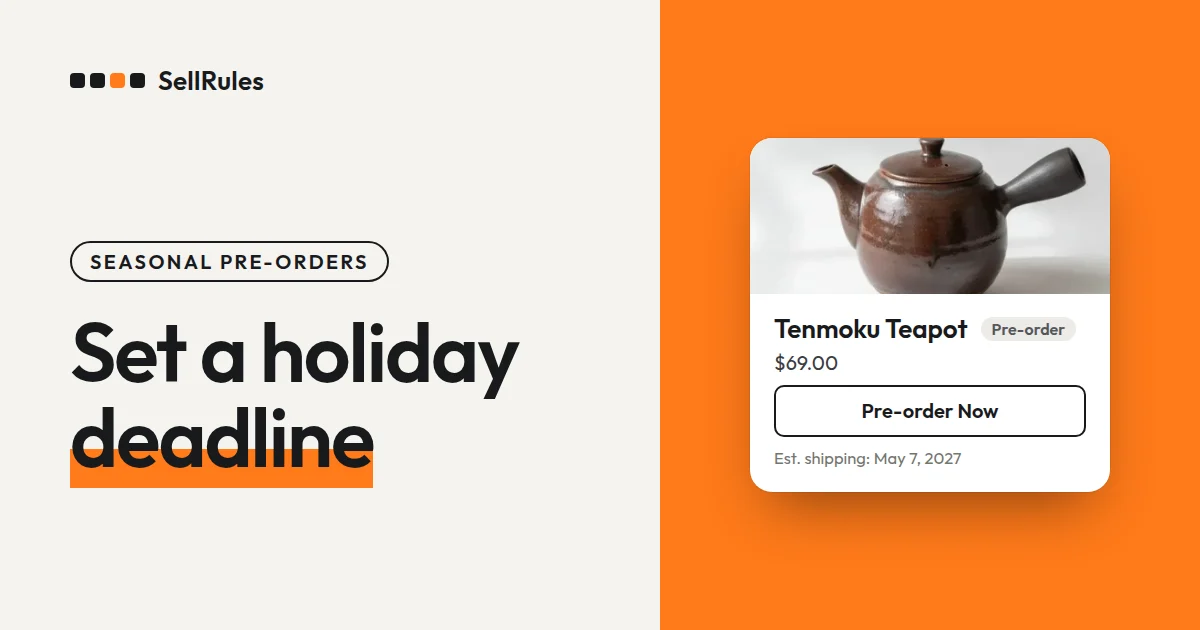
For Mother's Day, Valentine's Day or Christmas pre-orders, set the deadline product by product: start from the delivery day and subtract the shipping and prep time. Cap orders at the number you can have ready by the last ship date. In SellRules, a Shopify app, you enter a “Date sales end” and a “Total quantity limit” in each product's schedule, and orders close on their own at the deadline or when the cap is reached.
Say you're taking pre-orders for Mother's Day 2027 (May 9) on two products: a gift set you buy from a supplier, and a mug you personalize with a name after the deadline. If shipping takes 2 days, the last ship date for both is May 7. Subtract each product's prep time from there, and the deadline and cap come out differently for each product.
| Product | Last order day | Order cap |
|---|---|---|
| Gift set (from a supplier) | May 6 | The 50 you're buying |
| Personalized mug (made to order) | May 1 | The 40 you can make |
If you use May 1 as the deadline for both, you stop taking gift set orders 5 days earlier than you need to, even though the gift set ships right away. If you use May 6 for both, you can't finish personalizing the mugs ordered on the last day in time for Mother's Day.
For everything you need to decide for early-access and limited sales, not just holidays, start with how to run early-access and limited sales on Shopify.
What your customers see
Until the deadline, the buy button on the product page reads “Pre-order Now”, with the ship date shown below it. Once the “Date sales end” arrives, “Sales ended” appears where the buy button was, and the product can no longer be bought. The screenshots below show the product page for the same gift set before and after the deadline.
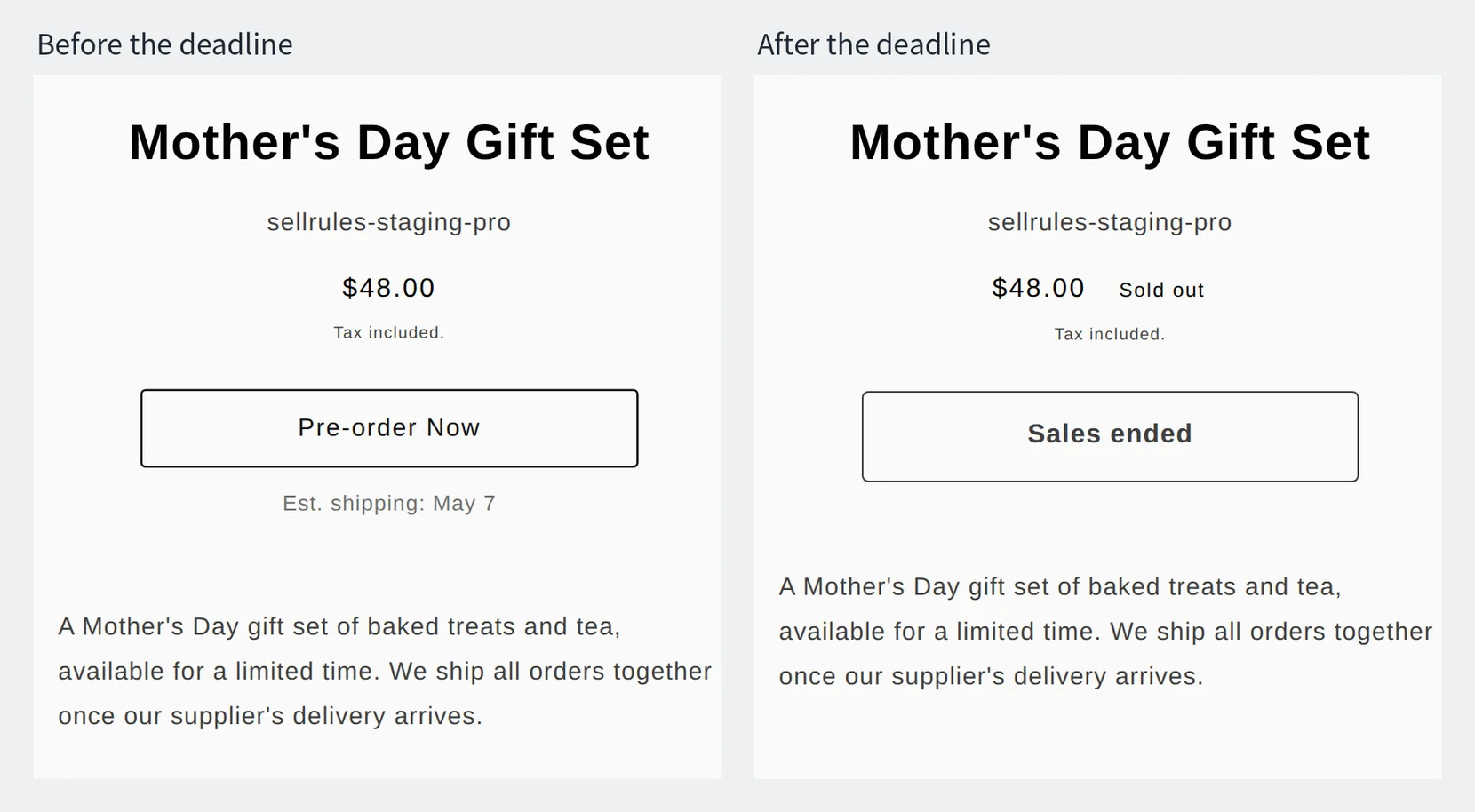
The page on the left has “May 7” entered in the schedule's “Estimated shipping (text)”.
When a product reaches its order cap, the “Pre-order Now” button disappears even before the deadline, and the page switches to your theme's sold-out display. After that, the product goes back to its original inventory count in Shopify, so a product with 0 in stock stays sold out and can't be bought.
How this differs from using only Shopify's built-in features
Shopify's built-in features vs. SellRules
Shopify's built-in features only
SellRules
With Shopify's built-in features, you can also stop selling at a set number: set inventory to the number of orders you want and leave “Continue selling when out of stock” unchecked. But you still have to stop orders at the deadline yourself and tell customers when it ships.
If you only have one or two holiday products and can get into the Shopify admin on the deadline day, the built-in features are enough.
Count each product's deadline back from the delivery day
Your starting point is the last ship date that still arrives in time for the holiday. Subtract the time it takes to get the product ready, and you get the last day you can take orders for that product.
In the Mother's Day example above, here's how each product gets ready:
- Gift set: arrives from the supplier on May 6, and you ship all orders together the next day
- Personalized mug: you start personalizing once orders close, and it takes 5 days to finish them all
Shipping takes 2 days, so the last ship date for a May 9 delivery is May 7. Work out the last order day as “last ship date − prep days − 1 day”. You subtract 1 day because orders placed on the deadline day are prepared starting the next day.
- Gift set: May 7 − 0 days − 1 day = May 6
- Personalized mug: May 7 − 5 days − 1 day = May 1
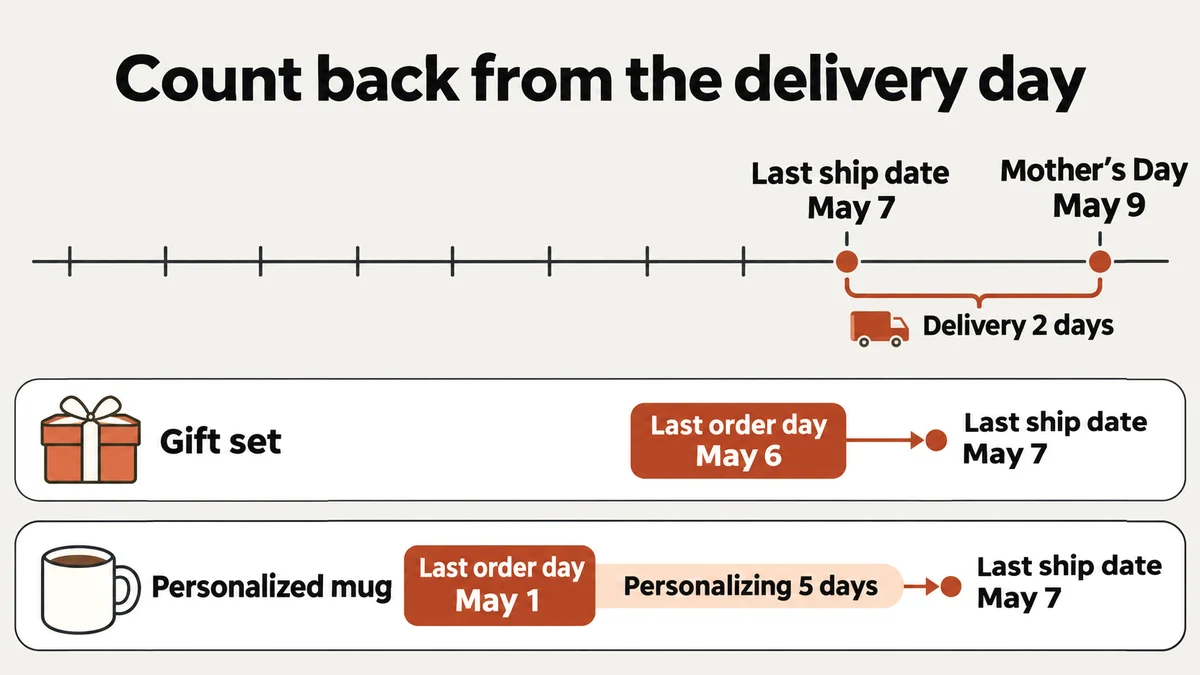
Open orders on the day your estimated ship date and order cap are settled. For the gift set, that's the day the supplier confirms the delivery date and quantity. For the personalized mug, it's the day you have the materials for personalizing.
Set the order cap at what you can have ready by the last ship date
For a product you buy from a supplier, the order cap is the number you're getting. For a product you make after the deadline, it's the number you can make. If you take orders with no cap, more orders come in than you can fill, and you end up messaging customer after customer to say their order won't arrive by Mother's Day and refunding them.
For example, if you can personalize up to 8 mugs a day, you make them over the 5 days from the day after the deadline (May 2) to the day before the last ship date (May 6), so the cap is 8 mugs × 5 days = 40 mugs.
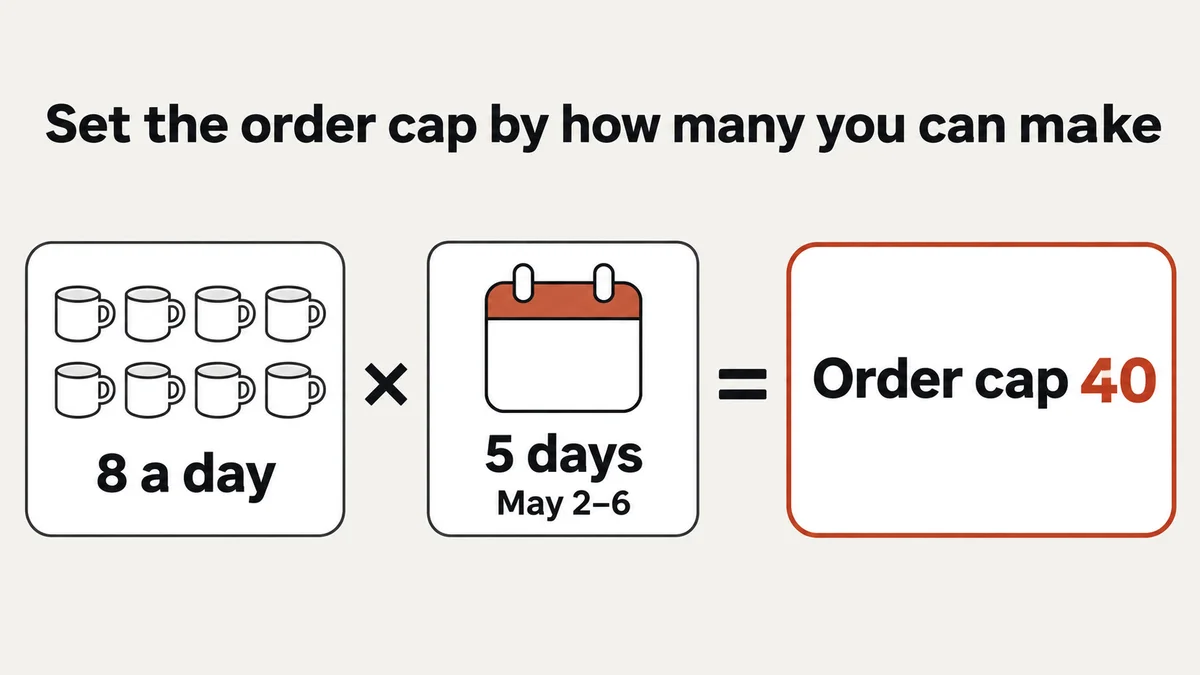
For the gift set, the cap is the number you're getting from the supplier. If you're buying 50 sets, the cap is 50. Don't add inventory in Shopify while orders are open. Add what arrives after orders close.
SellRules counts the cap across all variants combined, and an order for 2 counts as 2. If you set the gift set's “Total quantity limit” to 50, here's what happens:
| Already taken | New order | Result |
|---|---|---|
| 47 | 2 | Accepted (49 total) |
| 49 | 1 | Accepted (50 total). Orders stop here |
| 50 | 1 | Not accepted. The product shows as sold out |
With a cap set, Shopify's inventory count shows how many more orders you can take (cap − orders taken) while orders are open, and Shopify stops sales when it hits 0. Because it's Shopify's checkout that stops the sale, online store orders don't go over the cap even if many customers buy at once.
If the number you can make differs by color or size, choose “Limit for this variant only” for each variant. Variants that share the same materials can stay on “Share the whole-product limit (default)”. To also cap how many each customer can buy, use purchase limits.
How to set the deadline and cap in SellRules
Once you've settled the deadline and cap, create a schedule for each holiday product in SellRules' “Sales schedules”. Use a pre-order for products you buy from a supplier, and made to order for products you make after the deadline.
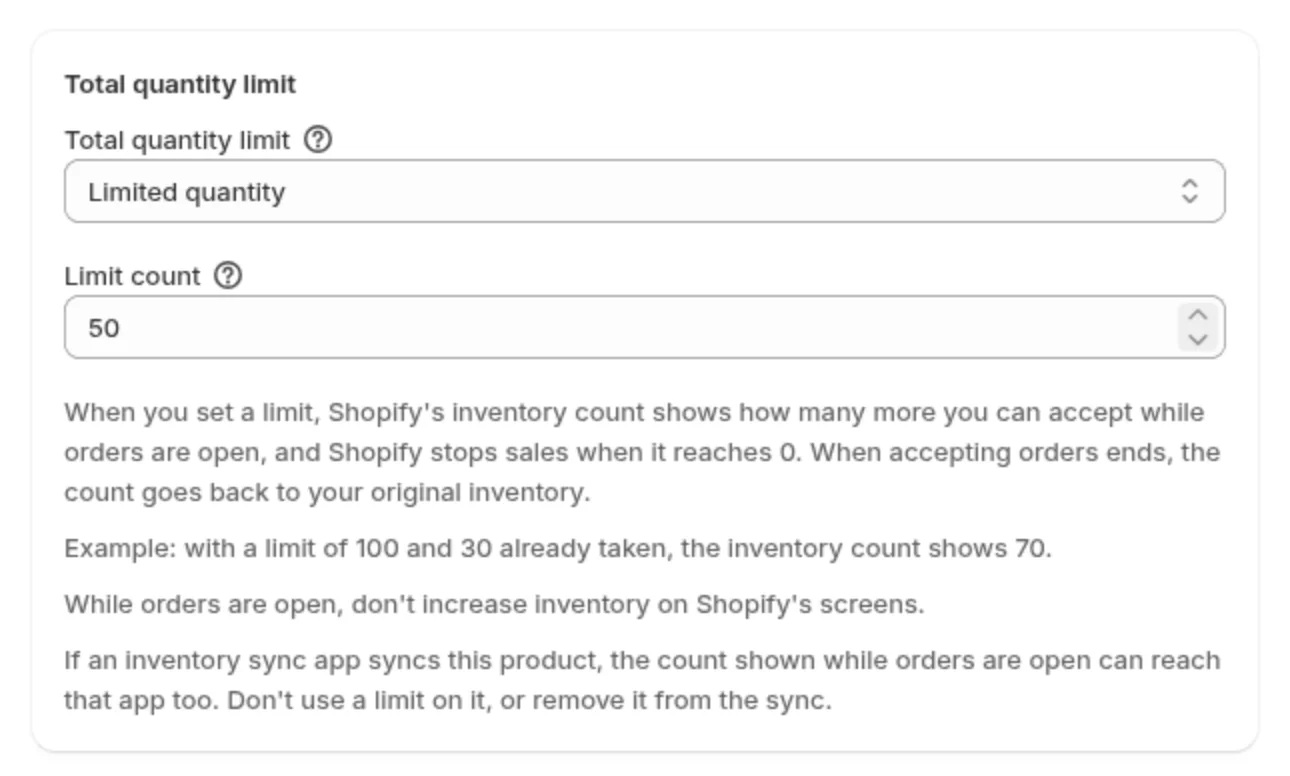
- In “Pre-order start date” (“Order start date” for made to order), enter the day your estimated ship date and order cap are settled
- Under “When the pre-order ends” (“When made-to-order ends” for made to order), choose “End sales and show "Sales ended"”
- Set “Date sales end” to the day after your last order day. From 0:00 on that day (store time), the product shows “Sales ended”
- Type something like “May 7” in “Estimated shipping (text)”. “Est. shipping: May 7” appears below the buy button
- Under “Total quantity limit”, choose “Limited quantity”, enter the “Limit count”, and save
For the gift set, you want to take orders through May 6, so set “Date sales end” to May 7. To close orders at 17:00 on May 6 instead, open the edit screen after creating the schedule and set “Date sales end” to May 6 and the time next to it to 17:00.
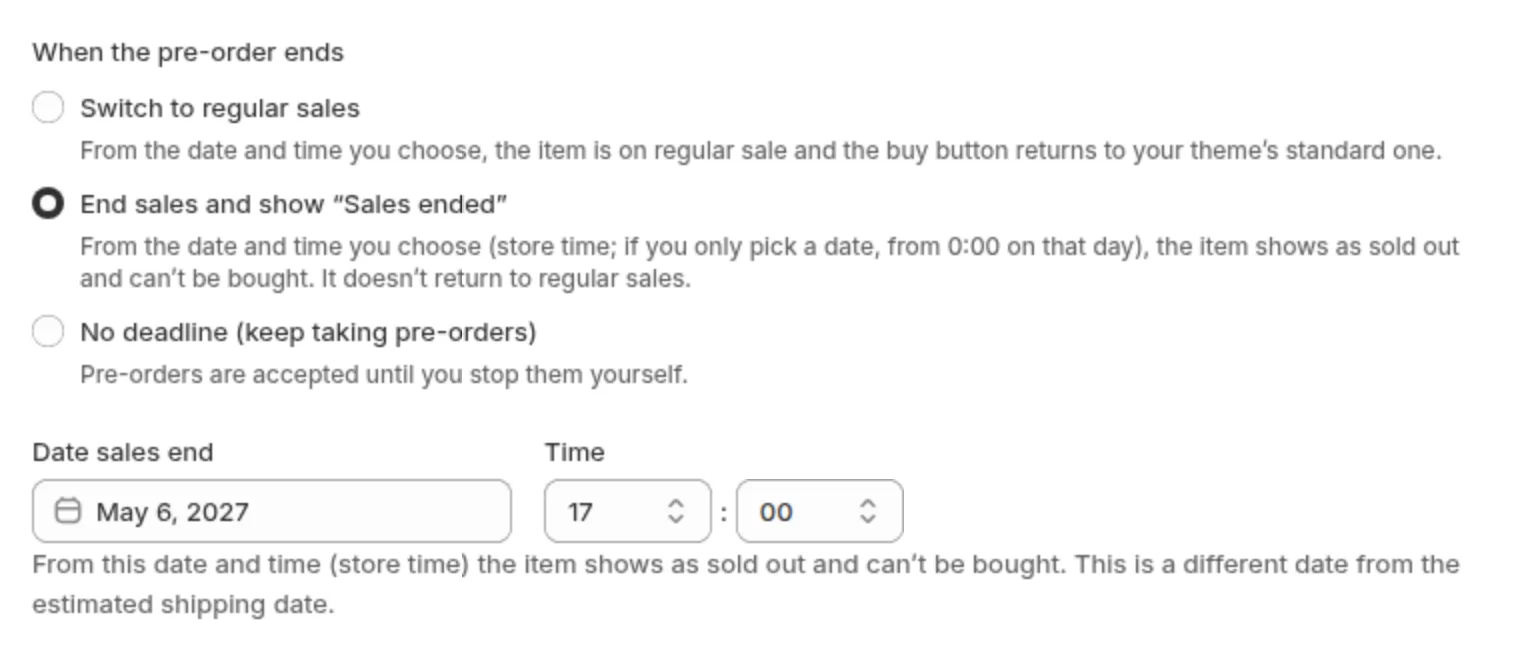
If you have several products for the same holiday, use “Calendar view” in the schedule list to see each product's order window side by side. To set the same value on several, such as the estimated ship date, select the products in the list and open “Bulk edit”. Only the fields you check are overwritten. You can select pre-order products together or made-to-order products together, but not both at once.
Here's the Mother's Day example as settings:
| Setting | Gift set (pre-order) | Personalized mug (made to order) |
|---|---|---|
| “Date sales end” | May 7 | May 2 |
| “Estimated shipping (text)” | May 7 | May 7 |
| “Limit count” | 50 | 40 |
For a screen-by-screen walkthrough of switching sales dates, see how to switch sales dates automatically.
If more than 7 days pass between order and shipping, decide on “Payment” first
With Shopify Payments, card authorizations generally last 7 days (Shopify Help: Payment authorization and capture, checked November 9, 2026). Holiday pre-orders often run more than 1 month from order to shipping, so under “Payment” in the schedule, choose “Full payment at checkout” or “Deposit now, balance later (partial payment)”. How to choose is covered in when to collect payment for a pre-order.
What shows after the deadline, and common mistakes
How the product page looks after the deadline depends on whether you'll keep selling the product after the holiday. For a holiday-only item, choose “End sales and show "Sales ended"”. For a product you'll keep selling, choose “Switch to regular sales”, and after the deadline your theme's regular buy button comes back. Both products in the Mother's Day example are made for Mother's Day, so both end with “Sales ended”.
These are the most common mistakes with deadlines and caps:
| Symptom | Cause | Fix |
|---|---|---|
| Customers can't buy on the last order day | “Date sales end” stops orders at 0:00 on that day | Enter the day after your last order day |
| Sales stopped on the estimated ship date | The estimated ship date and “Date sales end” were set to the same day | Set “Date sales end” to the day after the deadline |
| After hitting the cap, customers can still buy with the regular buy button | At the cap, the product goes back to regular sales, and if Shopify's original inventory is left it can still be bought | Don't add inventory in Shopify while orders are open. Add what arrives after orders close |
Pricing
You can create pre-order and made-to-order schedules on the Free plan too. The Free plan covers up to 10 pre-order and made-to-order orders in total since you installed the app. Pick one product for your next holiday and create a schedule with its deadline and order cap.
For holiday products with lots of orders, or ones you want to sell with a partial payment, use the Launch plan (US$7.99 per month). You can install SellRules from the Shopify App Store, where you can also check the pricing and the number of free trial days.
SellRules plans and pricing
| Monthly price | LaunchEvery feature included | FreeStart with one product |
|---|---|---|
| Monthly price | US$7.99 per month | Free |
| Free trial | 10 days | None |
| Pre-order and made-to-order orders | Unlimited | Up to 10 in total |
| Back-in-stock and sale-start emails (Notify Me) | Unlimited | Up to 15 in total (not refilled monthly) |
| Purchase limits | No limit on products | Up to 1 product |
| Customizable notification emails | Yes | No |
| Deposit payments | Yes | No |
Pre-orders, made-to-order, back-in-stock alerts, purchase limits, stockout switching, deposit payments and order processing are all included in the Launch plan.
The first 10 days of the Launch plan are free. If you remove the app during the trial, you are not charged.
On the Launch plan, back-in-stock and sale-start emails have no sending cap. Required messages such as order confirmations, shipping updates and balance reminders are sent on every plan regardless of the cap.
The Standard and Pro plans are closed to new sign-ups. Shops already on them keep their current terms.
Frequently Asked Questions
Do I need a separate schedule for Mother's Day and Valentine's Day?
Schedules are created per product. If you sell different products for Mother's Day and Valentine's Day, create a schedule for each of those products.
How do I keep taking orders after the deadline from customers who know it won't arrive in time?
For a product you stock, like the gift set, choose “Switch to regular sales” under “When the pre-order ends” and set the “Sale start date” to the day after your last order day. For a made-to-order product, like the personalized mug, open its schedule, change “Estimated shipping (text)” to a date after the holiday, and push the “Date sales end” later. Orders open again. If orders stopped because the cap was reached, raise the “Total quantity limit” too.
What if I hit the order cap and then find I can make more?
Raise the “Total quantity limit” and orders open again. The deadline date and time stay the same, so decide how much to raise it based on how many more you can make and how many days are left before the deadline.
Related articles:
- Everything to decide for launches and holidays: how to plan a product launch or holiday sale
- Choosing how to sell: how to plan early-access and limited sales
- Setting up the date switch: how to switch sales dates automatically
- When to collect payment: when to collect payment for a pre-order
The gift set, personalized mug and quantities are examples for illustration.