With made-to-order products, the work really starts when an order arrives. When did you promise to ship that order? Will the delayed materials arrive in time? Once you have 10 or 20 orders, notes and memory alone become hard to rely on.
You can manage made-to-order orders with 3 habits. Make the orders with the nearest promised ship dates first. Release the fulfillment hold when you start making them. If you cannot meet a date, tell the customer the new one before the original date arrives. SellRules Order progress lists only made-to-order orders and pre-orders that have not yet shipped. Every row left there is a promise still to keep. As before, you record fulfillment on the Shopify order page.
This article covers setting ship dates before taking orders, choosing each day's work, releasing holds with Start production, handling delays, checking what remains after shipment and troubleshooting. For the setup that lets you accept made-to-order orders, see the SellRules guide.
The 4 stages from made-to-order purchase to shipment
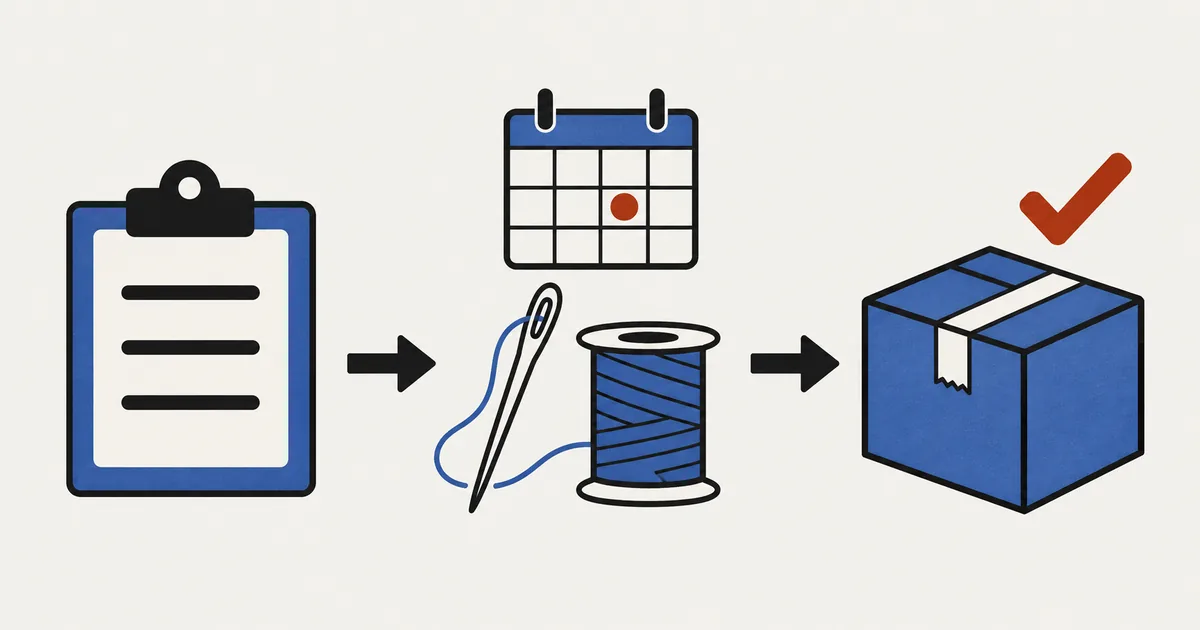
Made-to-order orders follow this sequence: order received → production starts → item finished → item shipped. SellRules blocks fulfillment when the order arrives and releases that hold when you click Start production. You record the shipment itself in Shopify.
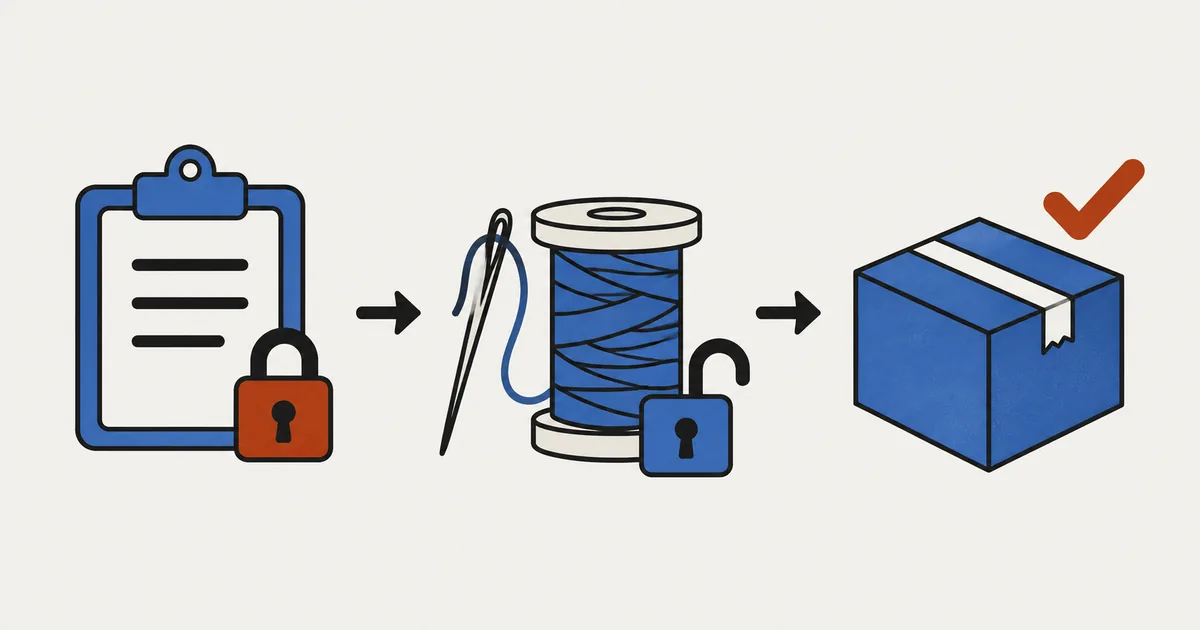
Here is what changes on screen and what the customer receives at each stage.
| Stage | Order progress | Shopify order | What the customer receives |
|---|---|---|---|
| Order received | Progress: Not started | Made-to-order items are on fulfillment hold and cannot ship yet | Made-to-order confirmation email |
| Production starts (you click Start production) | Progress: In production | SellRules hold released (fulfillment is available if no other holds remain) | Nothing |
| Expected ship date moved later | Marked Delayed | No change | Delay notification only if Notify customer of delay is selected |
| Order shipped | Removed from the list | Fulfilled, or Partially fulfilled if only part shipped | Shipping notification |
Made-to-order orders receive the Made to order tag in Shopify; pre-orders receive Pre-order. Filter the Shopify order list by this tag to see made-to-order orders without opening SellRules.
Choose how to set ship dates before taking orders
There are 2 ways to set an expected ship date. Your choice determines whether customers automatically receive a delay notification when you move the date later. In the made-to-order schedule, use Shipping pattern to choose Ship within X days of order or Ship on fixed date.
| Shipping pattern | Product page display | Order's expected ship date | Delay notification |
|---|---|---|---|
| Ship within X days of order | Ships within X days of your order | Order date plus the number of days, calculated in the store's time zone | Not automatic; change the date and send a notification for each order |
| Ship on fixed date | The expected ship date you set | Expected ship date from the schedule | Sent automatically at the next check if you move the schedule's ship date later than the date given at purchase |
For example, if you sew canvas bags individually and finish them in 2 weeks, choose Ship within X days of order and enter 14 days. Each new order gets an expected ship date 14 days after purchase. Ship on fixed date suits products that all ship on the same day regardless of when they were ordered, such as pottery fired together at the end of the month. If the kiln schedule slips by 1 week, move the schedule's date back by 1 week to send a delay notice to customers who were given that date. Those orders are then marked Delayed in Order progress, but their expected ship date fields still show the original date from purchase. Check the schedule for the new date. Orders without a customer email address receive no notification and are not marked Delayed. After changing the schedule, find orders for the same product without the Delayed marker and contact those customers individually.
Neither option sends anything merely because the expected ship date has passed. If you expect to miss a promise, change the date yourself using the steps below.
For products you can only make in limited quantities, set an order cap in the same schedule. Once the accepted quantity reaches the cap, orders close and the product page returns to regular purchasing; if Shopify inventory is 0, it shows as sold out. Orders placed at almost the same time can slightly exceed the cap, though. If you cannot accept more than your production capacity, leave a buffer of 1–2 items below it.
Each morning, choose work by the nearest ship date
Choose what to make by the promised ship date, not by when an order arrived. Made-to-order orders have different deadlines, so an older order is not necessarily the most urgent.
The top of Order progress shows counts for orders not started, in production and delayed. The list displays newest orders first and cannot be sorted by expected ship date, so check the date in each row. You can filter by Progress, Order type (pre-order or made-to-order), Delayed only and other criteria. Each time you open the page, it reflects orders fulfilled or cancelled in Shopify.
Use this sequence for your morning check.
- Find orders due to ship today or earlier, and orders marked Delayed. An overdue date does not automatically mark an order Delayed, so check the expected ship date field. Orders marked Delayed have already had their dates moved back, and customers have usually been told the new date. Fixed-date orders still show the old date in the field, so compare it with the new date in the schedule. For overdue orders, decide first whether you can ship today. For orders marked Delayed, check whether you can meet the new date; if you can, move them forward in your production queue. Change the date and notify the customer only if you cannot meet it.
- Compare orders not started by their expected ship dates. Allow for the time needed to make them and choose those you must start today to meet the promise.
- Start production for today's work. For an individual order, click Start production. For several, select them and click Start production / prepare shipment. This releases the fulfillment hold placed by SellRules, as explained in the next section.
- Take packing slips to the workshop. Select orders in production and click Print selected packing slips to print their slips together. You can replace the logo on the slips in Settings (PNG, JPEG, WebP or SVG, up to 300KB).
Leave orders awaiting materials as Not started. They stay on the list, ready to pick up when materials arrive. If you start making an order but forget to click Start production, you cannot distinguish it from work that has not begun. Its fulfillment hold also stays in place, so you cannot ship it even when it is finished.
Start production releases the SellRules fulfillment hold
SellRules places a Shopify fulfillment hold on made-to-order items when the order arrives. You cannot fulfill them until you click Start production. This prevents you from accidentally marking them as shipped before making them.
Only fulfillment units containing made-to-order items are held. If the same order includes regular items and Shopify can separate the fulfillment units, SellRules puts the regular items in a separate unit and holds only the made-to-order side. The regular items can ship first. If the units cannot be split, SellRules skips the hold to avoid blocking regular items too and adds a tag beginning with SellRules: whose Japanese text says that regular items in the same shipment prevented an automatic hold and a manual hold is required. Place a manual hold on tagged orders from the Shopify order page. For shipping choices and customer messages for mixed orders, see pre-order and regular items bought together.
To release the hold:
- In Order progress, click Start production on the order you are about to make. For several orders, select them and click Start production / prepare shipment.
- For a bulk action, a confirmation screen appears. Continue. The individual Start production action takes effect immediately without a confirmation screen.
- When progress changes to In production, you are done.
Only holds placed by SellRules are released. Holds placed by other apps or staff remain, so check the hold reason on the Shopify order page if you still cannot fulfill the order. A SellRules hold is identified by “Made to order: on hold until production starts”. If you see “Updated, but the shipping hold in Shopify could not be released”, only the progress has changed to In production. Click Release hold on the Shopify order page. For causes and checks, see how to release a pre-order fulfillment hold.
Orders taken with deposits and balance payments on Pro have another hold to watch for. While the balance is unpaid, an awaiting-balance-payment hold applies to the entire order, including regular items. Start production does not release it. Before shipping, check that the payment status in Order progress is Paid. This hold is released automatically once the balance is paid. Shopify also places a separate Unknown delivery date hold on deposit-and-balance orders, including orders with no deposit. SellRules adds a purchase option with no set shipping date to products using deposit-and-balance payment. Shopify automatically applies this hold to orders bought through that purchase option. SellRules does not release it. Once payment is Paid and you have clicked Start production, check whether this hold remains when you are ready to ship. If it does, click Release hold in the On hold section of the Shopify order page. See how to charge a deposit and balance separately for details.
Change the date and notify the customer before you miss it
Notify the customer as soon as you know you cannot meet the promised ship date. Before that date, your message gives them a new plan; after it, you are apologizing for a missed promise. Aim to contact them before they have to ask where their order is.
An order already marked Delayed has had its date moved back before. The customer has usually been told the new date, so first check whether you can meet it. If you can, keep the date and move the order forward in your production queue so it ships on time. Moving the date back again and sending a notification gives the customer a 2nd delay notice. To avoid repeated changes, choose a date you can reliably meet whenever you postpone shipment.
To change dates for individual orders, use Edit ship date in Order progress.
- Open Edit ship date for the delayed order. If several orders share the same reason for delay, select them and click Bulk edit ship date. Orders already marked Delayed are excluded from a bulk change when selected alongside orders without a delay. Check the count in Apply to X orders, and change already-delayed orders individually.
- Enter the New ship date.
- If needed, fill in Reason shown in the customer's email (optional), up to 500 characters. A short explanation the customer can understand, such as a late fabric delivery, can reduce inquiries.
- Select Notify customer of delay and save.
- For an individual order, completion is confirmed by “Ship date updated and customer notified”. For a bulk change, it is “Updated ship date for X orders (X notified)”.
Delay notifications are sent only when you move the date later than the previous expected ship date. An order moved later is marked Delayed even if you leave the notification box unchecked. Use Delayed only to find those orders. Moving the date earlier because work finished sooner removes the Delayed marker.
If an order has no customer email address, saving with Notify customer of delay selected sends no delay notification and does not mark the order Delayed. Any existing Delayed marker is also removed. To keep the order in the Delayed only filter, clear the checkbox before saving. The confirmation then reads “Ship date updated”, rather than “Ship date updated and customer notified”; for bulk changes, the “X notified” count is lower accordingly. Check the contact details on the Shopify order page and contact these customers individually.
These limits apply:
- You cannot enter a date in the past. The change makes a new promise rather than rewriting a missed one.
- You cannot enter a date more than 2 years ahead.
- You cannot change fulfilled or cancelled orders.
You can leave the box unchecked and change only the date. From the customer's perspective, though, that changes a promise without telling them. Making notification the default whenever you move a date later helps avoid misunderstandings.
Edit delay messages in the email templates under Settings, and send a test to your own address to check them. Email templates and the Delivery log, where you check sent messages, are available on Standard and above. For individual contact unrelated to delays, such as confirming an address or discussing production details, use the Shopify order page (Shopify Help: Viewing and managing order details).
Record fulfillment in Shopify and check remaining orders weekly
Record fulfillment in Shopify. In Order progress, select orders in production and click Bulk fulfill in Shopify. This opens the Shopify order list filtered to those orders, where you can record fulfillment. Once fulfillment is recorded, the customer receives a shipping notification and the order leaves Order progress. Cancellations processed in Shopify also send a cancellation email and remove the order from the list. Process refunds in Shopify too.
There is a detail to watch: Order progress has a separate row for each order and product variant. When fulfillment is recorded for an item, its row is treated as shipped and removed even if you shipped only part of the quantity. For example, if a customer orders 2 of the same bag and you ship 1 first, the remaining 1 will not stay in Order progress. When splitting a quantity of the same item across shipments, track the remainder under Partially fulfilled in Shopify's order list (Shopify Help: Understanding your order statuses).
Once a week, compare these 2 lists to catch omissions early:
- Shopify orders tagged Made to order that remain unfulfilled, partially fulfilled or on hold
- Orders remaining in SellRules Order progress
If an order has left Order progress but still has unfulfilled items in Shopify, check whether you shipped part and forgot the rest. In Shopify, held orders have the fulfillment status On hold and are excluded from the Unfulfilled list. Look for orders whose holds remain under On hold (Shopify Help: Marking your order as on hold). For older orders missing from a shipping app, also see checking old orders that do not appear in a shipping app.
What to check when something goes wrong
An order does not appear in Order progress
Order progress shows only unfulfilled, uncancelled made-to-order orders and pre-orders. First check for the Made to order or Pre-order tag in Shopify. Without a tag, the order was purchased as a regular sale. If it has a tag but is missing, check whether filters at the top are still applied.
I clicked Start production but still cannot fulfill the order
A hold placed by another app or staff member, or an unpaid balance hold, may remain. Shopify also places an Unknown delivery date hold on deposit-and-balance orders, so check whether it remains. Check the hold reason on the Shopify order page. For a balance hold, check the payment status and wait for the customer's payment. If payment is Paid but Unknown delivery date remains, remove it with Release hold. If a message said the hold could not be released, click Release hold on the Shopify order page.
A customer says a delay or shipping notification did not arrive
On Standard and above, check the notification in the Delivery log. Its status will be Scheduled, Retry scheduled, Sending, Sent, Failed, Delivery unconfirmed, Cancelled or Sent by Klaviyo. For Failed, check the recipient and click Retry. For Sent, sending is complete, so ask the customer to check their spam folder. Delivery unconfirmed is not automatically resent to avoid duplicates; check whether the customer received it before taking action. Also check in Settings that the relevant email template has not been disabled. Free does not include the Delivery log. First ask the customer to check spam; if the message is still missing, send the shipping details individually from the Shopify order page.
I cannot change the expected ship date
You cannot edit fulfilled or cancelled orders, enter a past date or choose a date more than 2 years ahead.
What this process does not cover
SellRules handles made-to-order progress, fulfillment holds and customer notifications. The following work remains with your store.
| Task | Who handles it |
|---|---|
| Making, packing and arranging shipping | Your store |
| Recording fulfillment, tracking numbers, partial shipments and refunds | Your store, on the Shopify order page |
| Individual contact other than delays, such as checking an address or discussing production | Your store, on the Shopify order page |
| Tracking the remainder when the same item is split across shipments | Your store, using Partially fulfilled in Shopify |
| Finding orders past their expected date | Your store; passing the date does not trigger an automatic alert |
Uninstalling SellRules leaves fulfillment holds on Shopify orders in place. When ready to ship, click Release hold on the Shopify order page. SellRules data is deleted 48 hours after uninstalling; reinstalling before then restores it.
What to review once the process is running
Once you can handle an order from purchase to shipment, review these 2 areas: your order cap and whether to take deposits. This can reduce work and customer inquiries further.
- Match the order cap to what you can actually make. If orders not started keep piling up in your morning checks, the cap exceeds your capacity.
- Consider deposits and balance payments. For products that require materials before work starts, Pro lets you take a deposit so you do not have to pay those costs out of pocket (charging a deposit and balance separately).
To plan how you take orders across products, including those not yet released, see planning advance and limited sales.
Frequently asked questions
Does Start production send anything to the customer?
No. Start production changes your internal progress to In production and releases the fulfillment hold placed by SellRules. Customers receive the made-to-order confirmation when they order, plus delay, shipping and cancellation notifications. If you want to tell a customer that work has started, contact them individually from the Shopify order page.
What happens if an order is still unfulfilled after its expected ship date?
Nothing happens automatically. Passing the date alone does not mark an order Delayed, send a delay notification or release the fulfillment hold. First check when you can ship. If an order is already marked Delayed and you can meet its new date, make and ship it without changing the date. If you cannot, use Edit ship date in Order progress, enter a new date and select Notify customer of delay. Orders whose dates you move back are marked Delayed and can be found with Delayed only. Orders without a customer email address receive no delay notification, so contact the customer individually from the Shopify order page.
Can I ship the regular items in the same order first?
If the order is fully paid and Shopify can split the fulfillment units, the regular items are not held and can ship first. If the units cannot be split, no hold is placed and the order receives a tag beginning with “SellRules:” whose Japanese text says that regular items in the same shipment prevented an automatic hold and a manual hold is required. Place a manual hold in Shopify to prevent the made-to-order items from shipping. For deposit and balance orders with an unpaid balance, the entire order is held, including regular items.
Can I recall a delay notification sent by mistake?
You cannot recall an email that has already been sent. On Standard and above, you can use Cancel in the Delivery log only for notifications marked Scheduled. If the notification has already arrived, send a correction from the Shopify order page.
What happens to held orders if I uninstall SellRules?
The fulfillment holds on Shopify orders remain. When you are ready to ship, click Release hold on the Shopify order page. SellRules data is deleted 48 hours after uninstalling; reinstalling before then restores it.
Plans and testing: try the process with a test order
Made-to-order sales and Order progress are available from Free. Before real orders arrive, place a single test order for a made-to-order product; keep it to that order to avoid using up the Free plan's lifetime allowance. Run through Not started, Start production and recording fulfillment. Checking that the SellRules hold releases and fulfillment becomes available means you know what to do when a real order arrives.
SellRules plans and pricing
| Monthly price | LaunchEvery feature included |
|---|---|
| Monthly price | US$7.99 per month |
| Free trial | 10 days |
| Pre-order and made-to-order orders | Unlimited |
| Back-in-stock and sale-start emails (Notify Me) | Unlimited |
| Purchase limits | No limit on products |
| Customizable notification emails | Yes |
| Deposit payments | Yes |
Pre-orders, made-to-order, back-in-stock alerts, purchase limits, stockout switching, deposit payments and order processing are all included in the Launch plan.
The first 10 days are free. If you remove the app during the trial, you are not charged.
Back-in-stock and sale-start emails have no sending cap. The same goes for required messages such as order confirmations, shipping updates and balance reminders.
The Free, Standard, and Pro plans are closed to new sign-ups. Shops already on them keep their current terms.
Free allows a lifetime total of 10 pre-orders and made-to-order orders from installation, and does not include the Delivery log or email template editing. Made-to-order confirmations, delay notices, shipping notifications and cancellation emails do not count toward the back-in-stock and sales-start email allowance. Standard and Pro do not have free trials; Free is how you try the app. Move to Standard at US$9.90 per month when you approach the lifetime order limit, want to write emails in your store's own voice or need to check delivery in the log. Choose Pro when you want to take deposits and balance payments.
See SellRules made-to-order sales and order management
If you already know how you want to use it, try Free from the Shopify App Store.
Features checked on October 25, 2026 by JizaiDev, the developer of SellRules, against the code and interface wording of the app published on that date. Shopify fulfillment holds and order statuses follow Shopify Help, checked on October 25, 2026. Product and lead-time examples are hypothetical illustrations, not real stores. Check the Shopify App Store listing for current pricing.