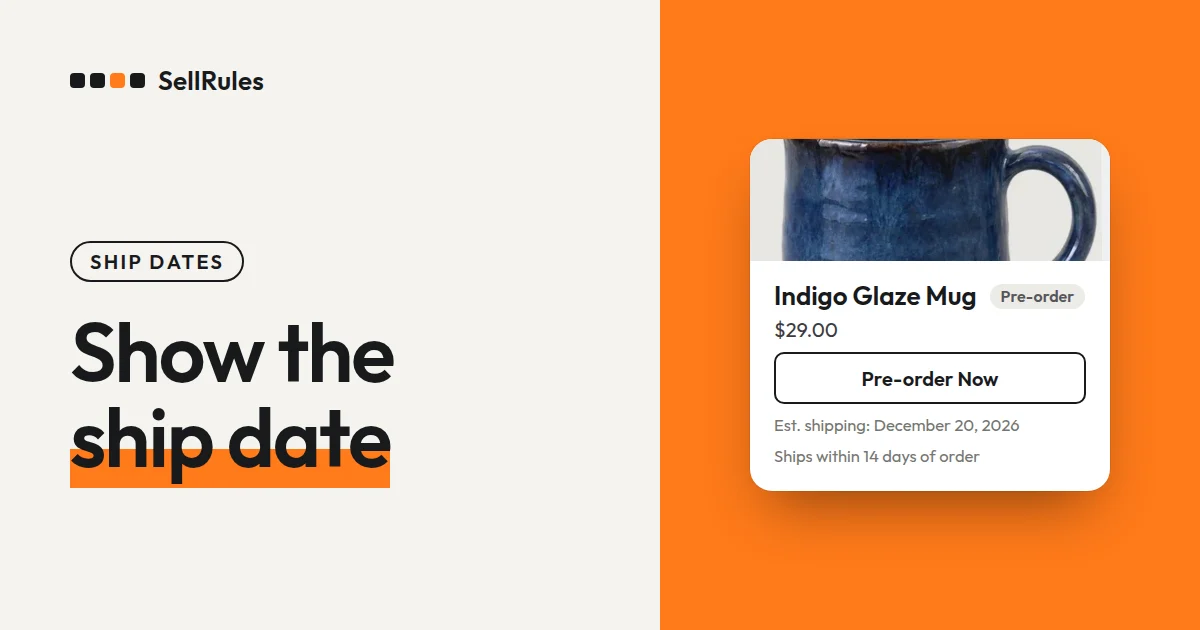
For pre-order products, show the estimated ship date in the same words in 3 places: right under the buy button, on the item's line in the cart, and in the order summary at checkout. Customers see it before they buy and again just before they pay. With the SellRules app, you enter it once on the pre-order's sales schedule and it appears in all 3 places automatically.
How you word it depends on how firm the ship date is. If you don't have a date yet, show a time frame such as “late March” and enter a target date as well. With a date on file, SellRules can send customers a delay notice if shipping slips.
What customers see
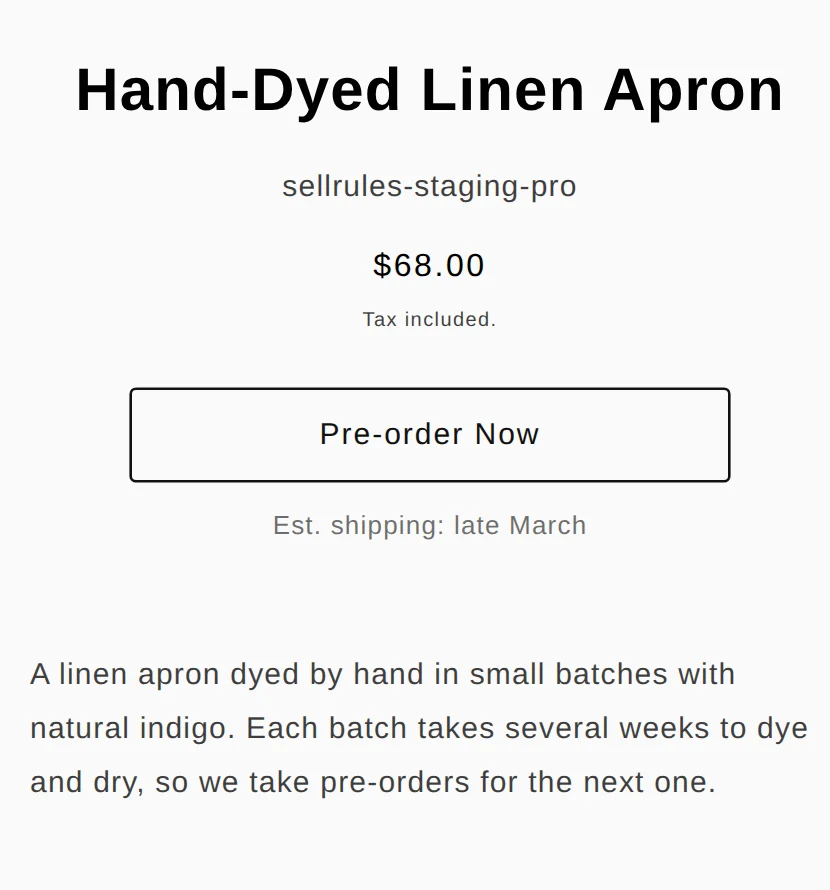
On the product page, the estimated ship date appears under the “Pre-order Now” button. The screen below shows a hand-dyed linen apron sold as a pre-order with “Est. shipping: late March”.
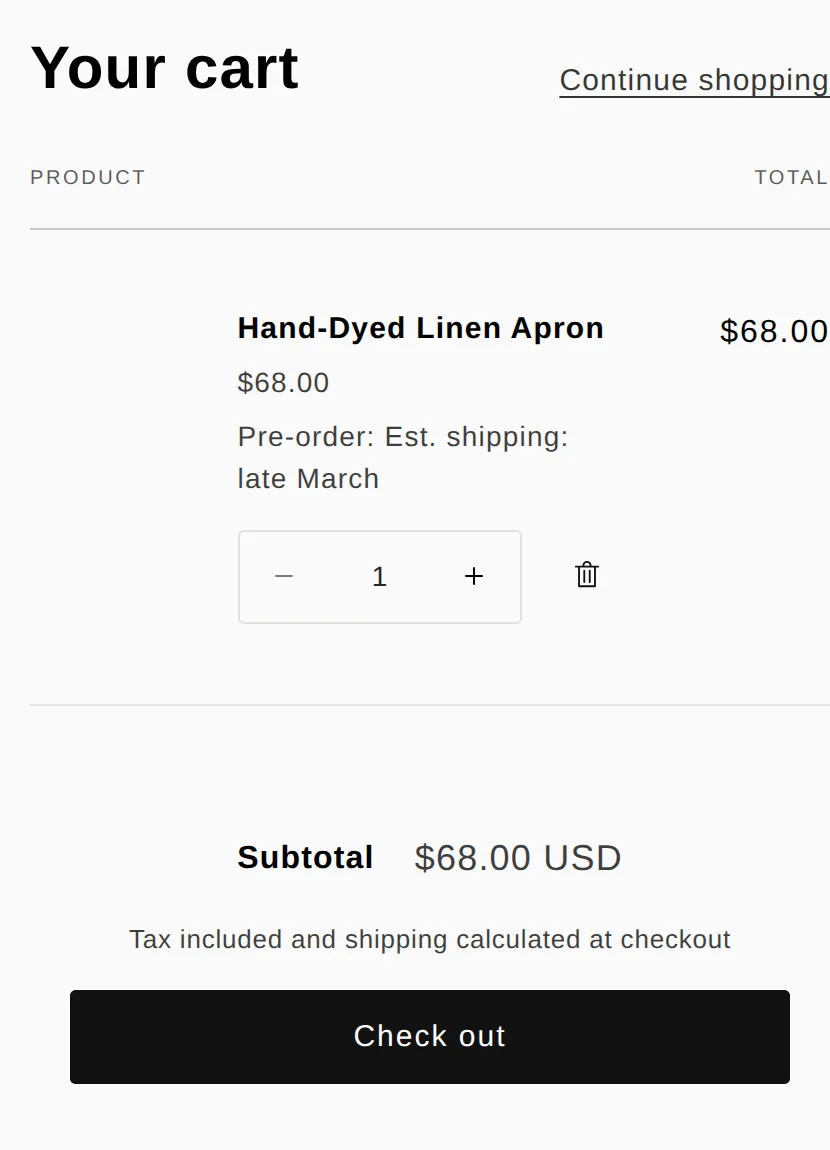
When the customer adds it to the cart, a line under the product name reads “Pre-order: Est. shipping: late March”. A customer who never read the product description can still tell it's a pre-order here.
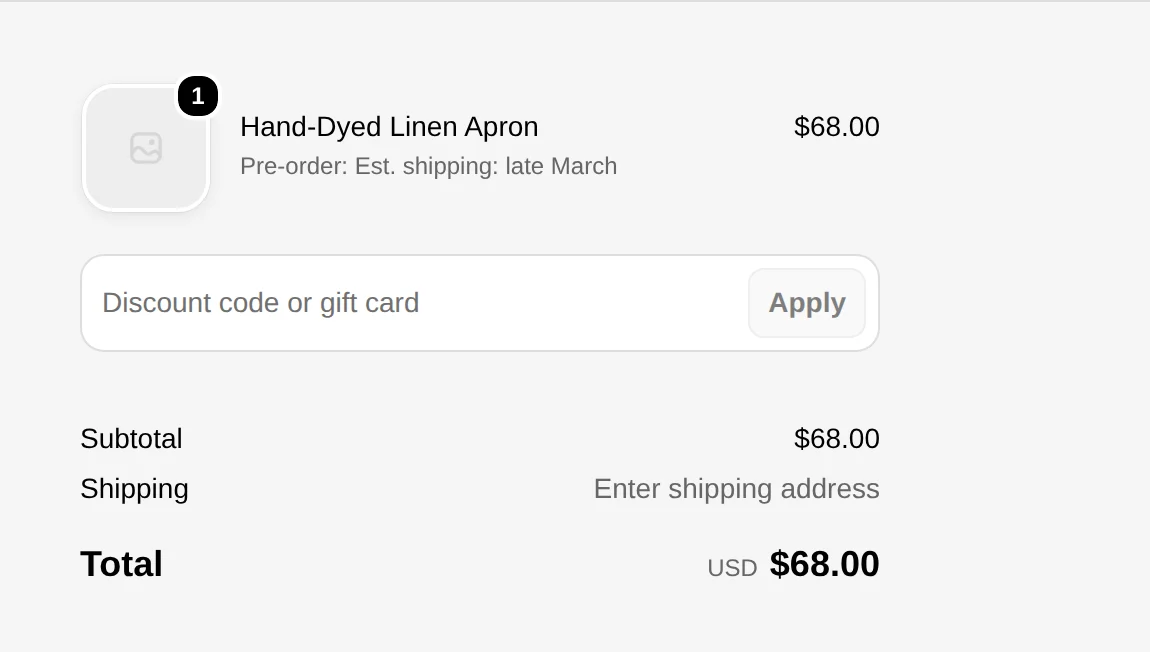
The same line shows in the order summary at checkout, so customers can check the estimated ship date once more right before paying. The line is also saved on the order, so in your Shopify admin you can see which estimated ship date each order was placed under.
If the customer's cart also holds in-stock items, the cart shows a notice: “Your cart contains items with different estimated ship dates. Consider checking out separately if you need items sooner.” How to ship an order that mixes both is covered in how to ship pre-order and in-stock items bought together.
Choose how to word the estimated ship date
A pre-order's schedule has 2 fields for the estimated ship date: “Estimated shipping (text)” and “Estimated ship date”. If you put words in the text field, the product page shows those words. If you leave it empty, the product page shows a display built from the date. Choose based on how firm your ship date is.
| What you know | Field to fill in | Product page display |
|---|---|---|
| The day you'll ship | Date only | Est. shipping: March 26, 2027 |
| The month, and roughly early, mid or late | Text and date | Est. shipping: late March |
When the arrival or finish date may still move, a time frame like “late March” is the safer choice. Promise a specific date and even a few days' slip looks like a delay to the customer.
Even with a time frame, enter a target date in “Estimated ship date”. The date doesn't appear on the product page, but if you move it later, SellRules can send a delay notice to customers whose orders haven't shipped yet (see “When the estimated ship date slips” below).
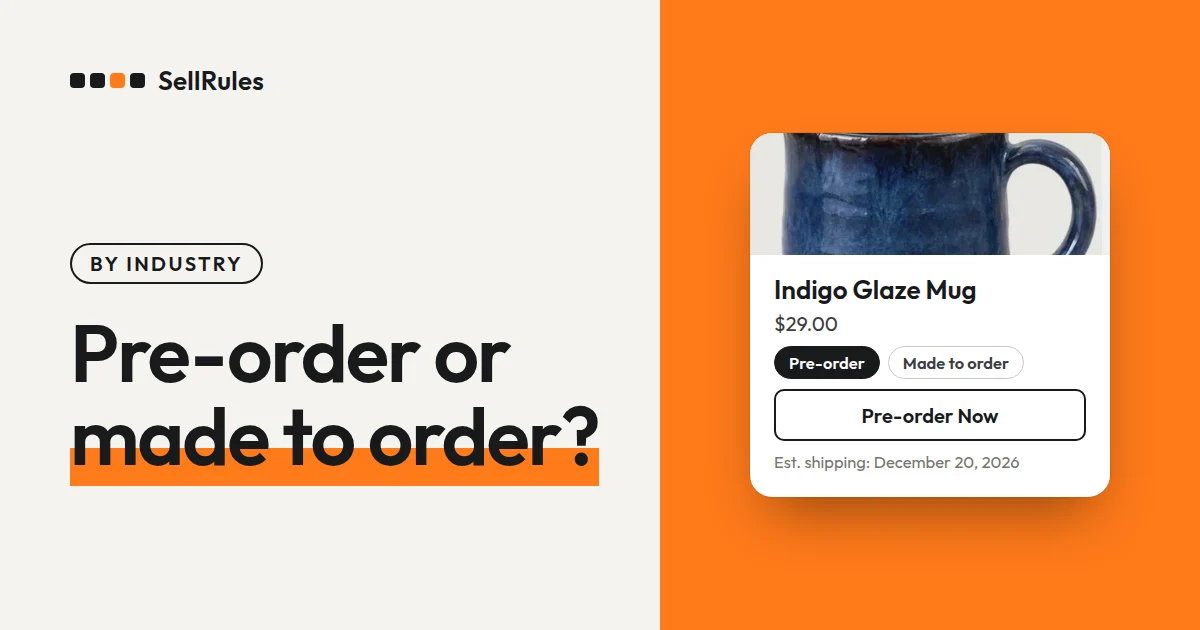
Products you make after the order comes in belong in a “Made to order” schedule, not a pre-order. For “Made to order”, choose “Ship within X days of order” under “How to set the shipping date”, and the product page shows something like “Ships within 14 days of order”. When you set it by days, no delay notice is sent automatically.
What to add to the product description
SellRules shows when you'll ship the item. What customers want to know is when it will arrive, so add to the product description how many days delivery takes after shipping.
For the hand-dyed linen apron, for example:
We ship in late March. On the day it ships, we'll email you a tracking number. Delivery usually takes 2–3 days after shipping. If the dyeing takes longer and shipping is delayed, we'll email you as soon as we know the new date.
A line like the second one, saying how you'll reach customers if shipping is delayed, lets them see before they buy what happens if it slips. You can choose what the emails to pre-order customers say in SellRules notification emails.
How this differs from Shopify's standard setup
Showing the estimated ship date: Shopify standard vs. SellRules
Shopify standard
SellRules
With Shopify's standard setup, you give the estimated ship date by writing it in the product description. The description doesn't show in the cart or at checkout, so a customer who buys without reading it only learns it's a pre-order after the order is placed.
If you have many pre-order products, or sell items whose ship dates change, managing the date on the schedule takes less work. When you end the pre-order and switch to regular sales, the estimated ship date on the product page goes away too, so there's no old description to forget to rewrite.
What US rules say about stating a ship time
For online orders in the US, the FTC's Mail, Internet, or Telephone Order Merchandise Rule covers when you ship. If you state a shipping time, it has to be clearly and conspicuously displayed, and you need a reasonable basis to expect to ship by then. If you state none, you need a reasonable basis to expect to ship within 30 days of the order. If you can't ship on time, you have to send the customer a notice offering a choice: agree to the delay or cancel and get a prompt refund (FTC: Business Guide to the Mail, Internet, or Telephone Order Merchandise Rule, checked November 14, 2026).
For pre-orders, the estimated ship date on the product page and at checkout appears to be where you state that time. Pre-orders often ship after more than 30 days, so the time you state, and your reason to expect to meet it, is what matters.
On the Shipping policy page of your Shopify store (under Settings, then Policies), add how pre-orders are handled too, for example: “Pre-order items ship in the estimated ship window shown on the product page.”
Set it up in SellRules
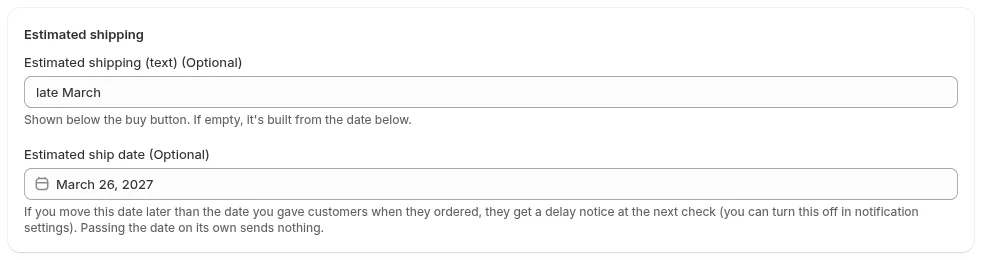
You enter the estimated ship date on each pre-order schedule.
- In SellRules, open “Sales schedules” and open the schedule for the pre-order product. If it doesn't have one yet, choose the product and create one.
- Enter a time frame such as “late March” in “Estimated shipping (text)” and a target date in “Estimated ship date”. To show a date instead, leave the text field empty.
- Save, open the product page, and check that the estimated ship date shows under the buy button.
- Add the product to your cart and check that the same date shows on the item's line and in the order summary at checkout.
When the estimated ship date slips
When you learn shipping will slip, change the schedule's “Estimated ship date” to the new date and update “Estimated shipping (text)” to the new time frame. Once you save, the product page shows the new time frame, so customers who order from then on see it.
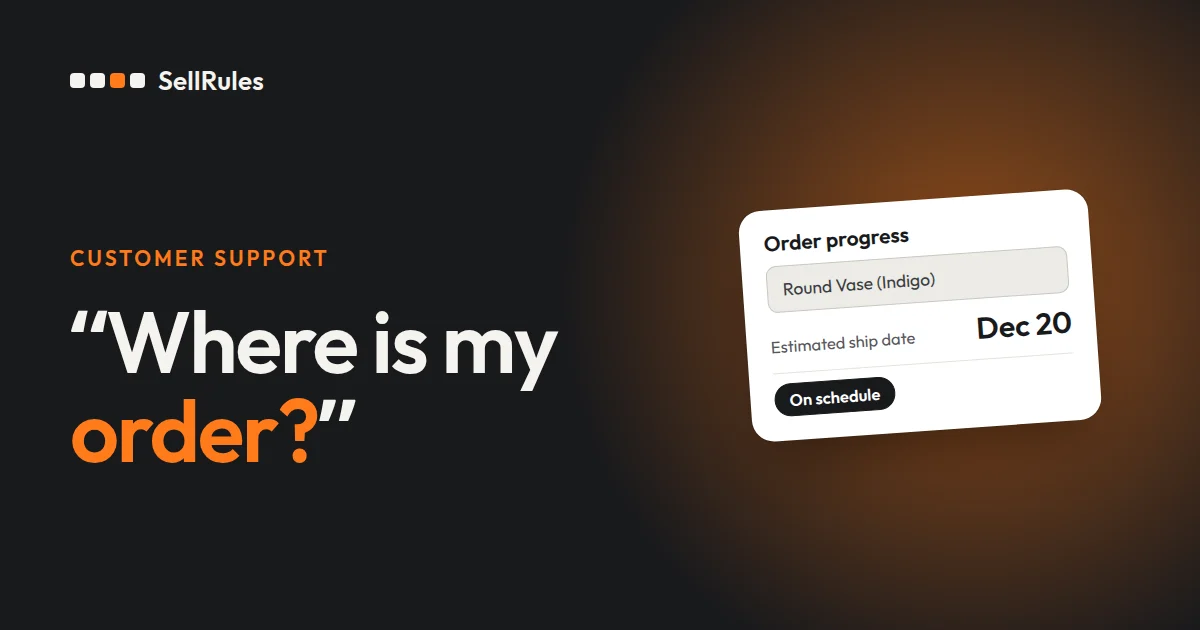
Orders already placed keep the estimated ship date from when they were made. If you move the date later, SellRules sends a “Shipping Date Change Notice” at its next check to customers whose orders haven't shipped. To change the date for a single order and notify that customer, use “Edit ship date” on the order in SellRules.
Pricing
Showing the estimated ship date on pre-orders works on the Free plan. The Free plan covers up to 10 pre-order and made-to-order orders in total. Pick one product you'll sell as a pre-order next, enter an estimated ship date, and check how it looks in the cart and at checkout.
To take pre-orders with no cap on the number of orders, switch to the Launch plan (US$7.99 per month). You can install SellRules from the Shopify App Store, where you can also check the pricing and the free trial terms.
Frequently Asked Questions
Can I set a different estimated ship date for each color or size?
Yes. Set the schedule's scope to “Variant-specific settings” and you can enter a separate estimated ship date for each color or size. On the product page, the date switches to match the variant the customer selects.
Does SellRules email customers when the estimated ship date passes?
No, nothing is sent just because the date has passed. A notice goes out only when you move the schedule's date later than the date you gave customers when they ordered.
Related articles:
- Choosing how to sell: pre-order, made-to-order, limited quantity or members-only: how to set up early-access and limited sales
- What to decide before you start taking pre-orders: how to start pre-orders on Shopify
- Selling items you make after the order comes in: how to start a brand with made-to-order and no inventory
- What to tell pre-order customers from checkout to delivery: Pre-order customer communication
The apron and dates are examples for illustration.