To start your own brand without holding inventory, take orders before you make the finished product, and make only as many as you sold. If you can make one item at a time yourself, sell it made to order. If a factory makes it in batches, take pre-orders first and place the factory order once enough have come in.
Either way, you need to decide 4 things before you start taking orders:
- How many orders to accept
- The order window
- The ship date
- When to collect payment
Once you've decided them, set them up for each product in SellRules, a Shopify app. This article is written by the developer of SellRules.
One note on terms: "selling without inventory" here means making your own brand's products after the order comes in. It is not dropshipping, where another company's products ship straight from the supplier to your customer. This article doesn't cover dropshipping.
Choose by how your product is made
Whether made to order or pre-orders fits better depends on how many orders you need before you can start making the product.
| What to compare | Made to order | Pre-order |
|---|---|---|
| Products it fits | Products you can make one at a time yourself (leather goods, ceramics, jewelry and so on) | Products you order from a factory in batches (custom T-shirts, printed goods and so on) |
| When you start making it | As soon as 1 order comes in, you can make that one item | You place the factory order once orders reach the factory's minimum order quantity |
| How you show the ship date | “Ship within X days of order”, or a fixed date | A period such as “late September”, or a date you can keep |
For example, a leather card case you sew yourself can go on sale as made to order. When an order comes in, you can sew that one case and send it.
If you're having custom T-shirts made at a factory, on the other hand, take pre-orders first. A factory has a minimum number of pieces it will make per order (the minimum order quantity, or MOQ), and you can't place the order until you have orders for that many shirts.
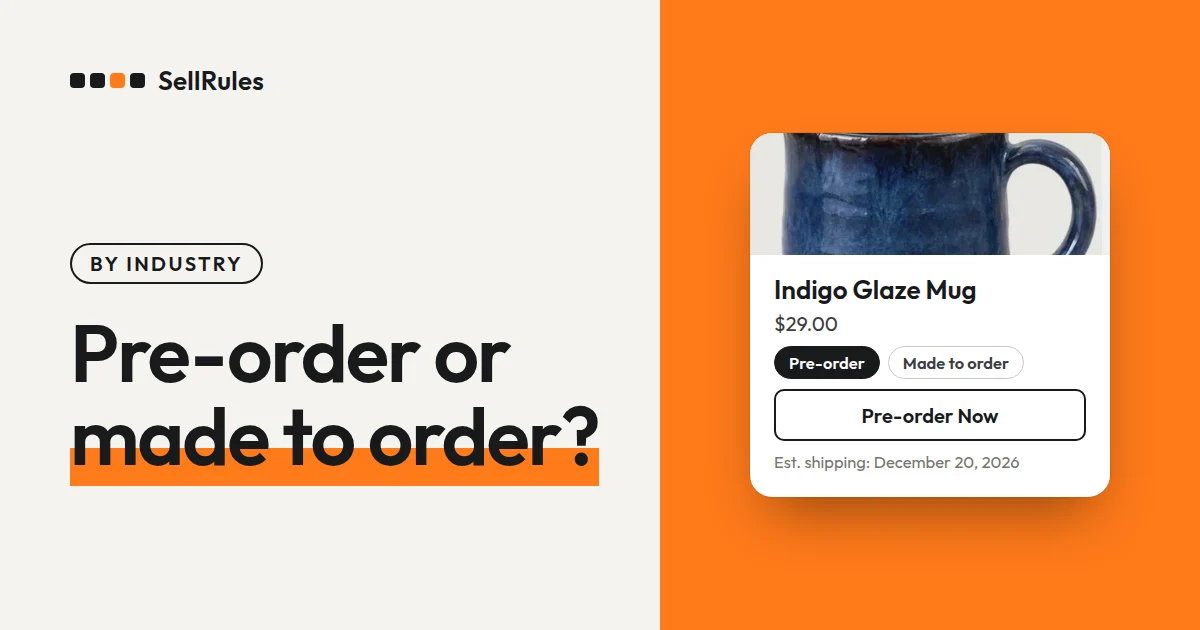
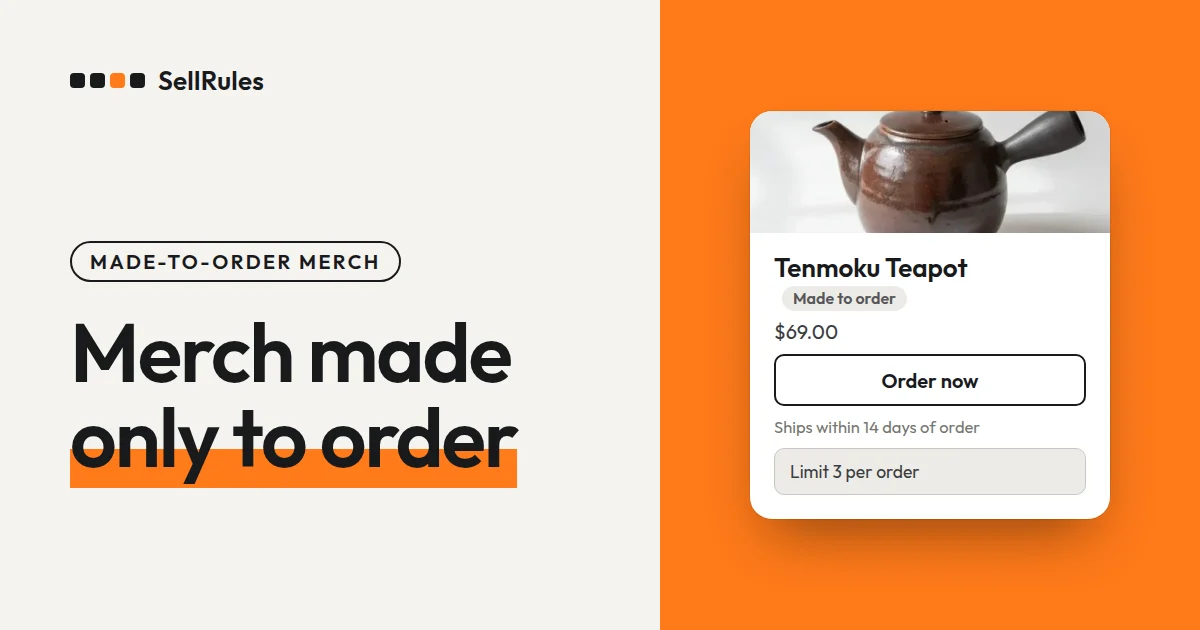
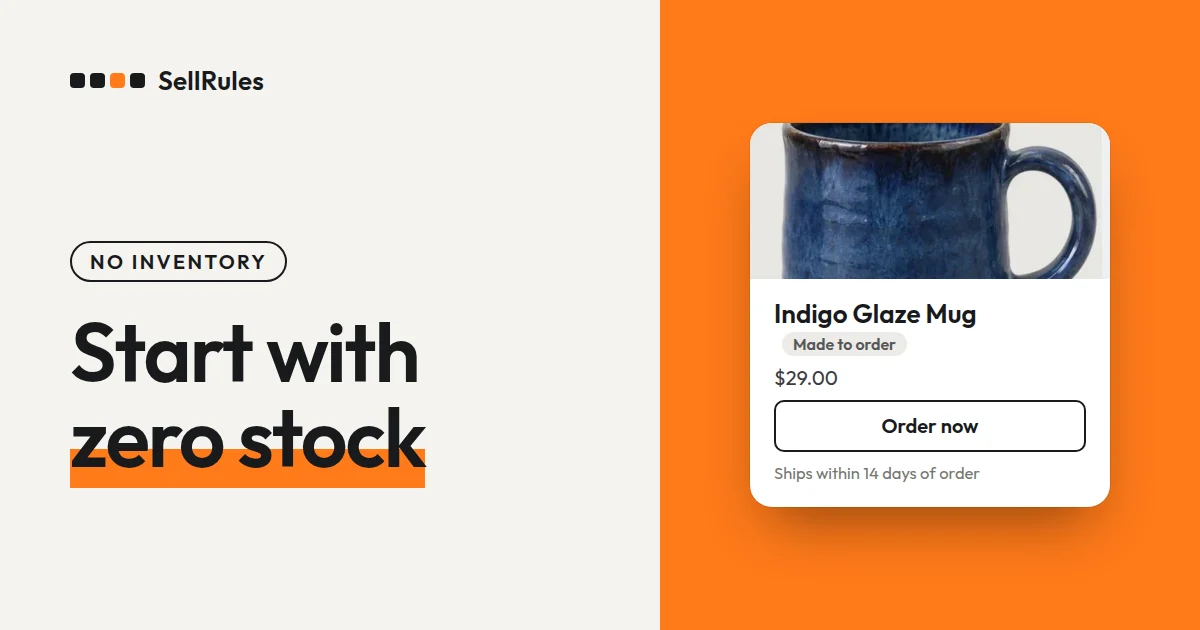
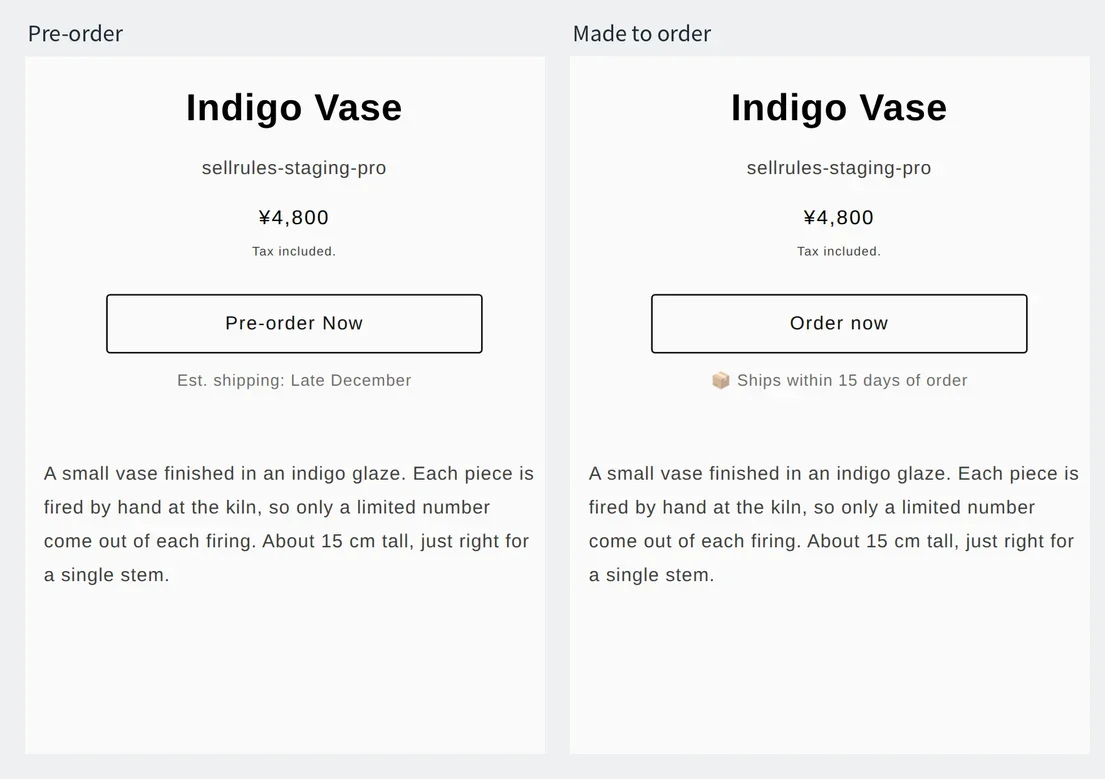
Customers can see which way you're selling on the product page. The buy button changes to “Order now” for made to order and to “Pre-order Now” for pre-orders, and the ship date appears below the button.
Made to order: set an order window or keep taking orders
Made to order lets you start from a single item, but there are two ways to take the orders.
- Take orders for a set window, then make them all after you close: good for products where you want to buy materials in bulk, or set aside days to make everything at once.
- Keep taking orders with no deadline, and make each one as it comes in: good for products where you know how many days one item takes.
If your brand is just starting out, a set window makes production easier to plan. When you close orders, you know exactly how many to make, so you can arrange materials and schedule your production days from there.
4 things to decide before you start taking orders
Here is how you might decide all 4 for the leather card case and the T-shirts (the numbers and dates are examples for illustration). Assume the factory's minimum order quantity for the T-shirts is 100 shirts.
| What to decide | Made to order (leather card case) | Pre-order (T-shirts) |
|---|---|---|
| How many orders to accept | 20, the number you can sew in a month | Up to 200 shirts, the size of one factory order |
| Order window | June 1 to June 14 | June 1 to June 30 |
| Ship date | Ships by July 31 | Ships in late September |
| When to collect payment | Full amount at checkout | Nothing at checkout; full amount on July 1, the day after orders close |
How many orders to accept
Set your limit to the number you can make (for made to order) or the number you'll order from the factory (for pre-orders). If you take more orders than you can make, you'll have to turn customers away later.
Count the limit across all colors and sizes combined. If you can make a different number of each color, set a limit for each color as well. In SellRules, you can choose “Limit for this variant only” for any color, and colors without one count toward the product's overall “Total quantity limit”.
Order window
Your order window runs from the day you open orders to the day you close them. Put the closing date in the product description so customers know when they need to order by.
Ship date
For the ship date, put a date you're sure you can meet. Customers will be waiting until their order arrives, so it helps to give the reason in the product description, such as "each one is sewn by hand after orders close".
When to collect payment
The standard approach is to collect the full amount at checkout. For a product you haven't committed to making yet, though, you can collect payment later instead.
| How you collect | Amount collected at checkout | When it fits |
|---|---|---|
| “Full payment at checkout” | The full amount | Products you will make for every order you take |
| “Deposit now, balance later (partial payment)” | Part of the price; the rest is charged on the due date | Higher-priced products, or products that take a long time to arrive |
| “No deposit (charge the full amount on the due date)” | Nothing; the full amount is charged on the due date | Pre-orders that might not reach the minimum order quantity |
In the T-shirt example, the full amount is charged the day after orders close so you can confirm on the closing day that you reached the minimum order quantity before anyone is charged.
If you don't reach the factory's minimum order quantity
With pre-orders, the order window can close before orders reach the minimum order quantity. Decide before you open orders which of these you'll do in that case, and say so on the product page:
- Don't place the factory order, and cancel the customers' orders
- Cover the shortfall yourself and place the factory order anyway
If you decide not to place the factory order, cancel the orders before the full payment due date. If you took payment with “No deposit (charge the full amount on the due date)”, customers whose orders you cancel are not charged anything.
To cancel an order in SellRules, go to “Order progress”, open “Balance collection details” and click “Cancel this order”. If the customer also ordered an in-stock item along with the T-shirt, the whole order is canceled, including that item.
Set it up in SellRules
Enter the 4 things you decided for each product under “Sales schedules” in SellRules. For made to order, start from “Create made to order”. For pre-orders, start from “Create pre-order”.
| What you decided | Field in SellRules |
|---|---|
| How many orders to accept | “Total quantity limit” |
| Order window | “Order start date” or “Pre-order start date”, and “Date sales end” |
| Ship date | “Days to ship”, or “Estimated ship date” |
| When to collect payment | “Payment” |
For “Date sales end”, enter the day after you close. If you take orders through June 14, enter June 15. From midnight at the start of that day (or from the time you entered, if you set a date and time), the buy button on the product page shows “Sales ended” and can't be clicked.
Once the total quantity ordered reaches the “Total quantity limit”, SellRules stops taking orders automatically.
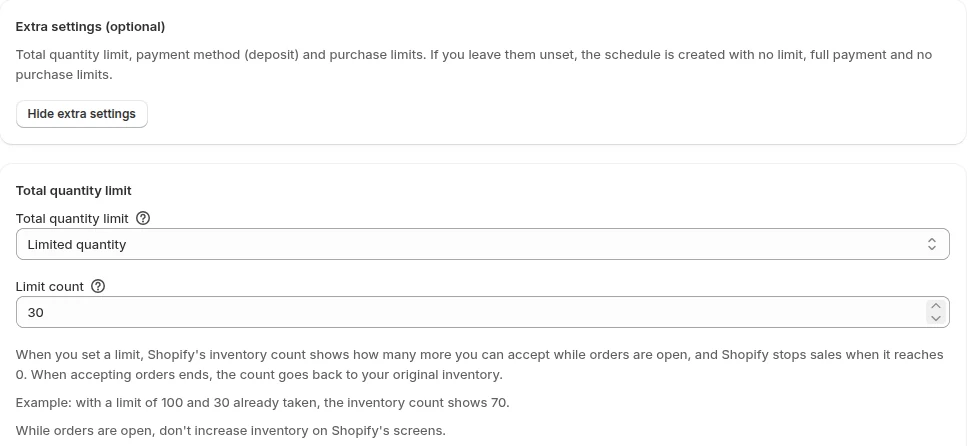
To charge the full amount on July 1 in the T-shirt example, choose “No deposit (charge the full amount on the due date)”, set “Full payment due date” to “Specific date” and enter July 1.
These articles walk through each screen step by step and show how to check it with a test order.
- Made to order: How to sell made-to-order products on Shopify
- Pre-orders: How to start pre-orders on Shopify
- Deposit percentage, due date and payment methods: how to take a deposit on pre-orders
If a product you launched without inventory sells out, Sold out: pre-order or back-in-stock alerts? helps you choose between pre-orders, made to order and back-in-stock alerts. For choosing how to sell overall, including early access, limited quantities and members-only sales, see How to run early-access and limited sales.
Pricing
Made to order and pre-orders are available on the SellRules Free plan. The Free plan covers up to 10 pre-order and made-to-order orders in total. That is enough to run your first product from taking orders through shipping.
To take orders with no limit on the number of orders, use the Launch plan (US$7.99 per month). You also need it to take a partial deposit at checkout, or to charge nothing at checkout and bill the full amount later.
SellRules plans and pricing
| Monthly price | LaunchEvery feature included | FreeStart with one product |
|---|---|---|
| Monthly price | US$7.99 per month | Free |
| Free trial | 10 days | None |
| Pre-order and made-to-order orders | Unlimited | Up to 10 in total |
| Back-in-stock and sale-start emails (Notify Me) | Unlimited | Up to 15 in total (not refilled monthly) |
| Purchase limits | No limit on products | Up to 1 product |
| Customizable notification emails | Yes | No |
| Deposit payments | Yes | No |
Pre-orders, made-to-order, back-in-stock alerts, purchase limits, stockout switching, deposit payments and order processing are all included in the Launch plan.
The first 10 days of the Launch plan are free. If you remove the app during the trial, you are not charged.
On the Launch plan, back-in-stock and sale-start emails have no sending cap. Required messages such as order confirmations, shipping updates and balance reminders are sent on every plan regardless of the cap.
The Standard and Pro plans are closed to new sign-ups. Shops already on them keep their current terms.
You can install SellRules from the Shopify App Store, where you can also check the pricing and trial terms.
Frequently Asked Questions
Can I switch to selling from stock once orders pick up?
Yes. In the made-to-order settings, set “When made-to-order ends” to “Switch to regular sales”. From the date and time you enter in “Sale start”, the product page goes back to your theme's regular buy button. Add the stock you make ahead of time to the product's inventory quantity in Shopify and sell it from there.
What happens if a customer buys a made-to-order item and an in-stock item together?
They go through as one order. When items with different estimated ship dates are in the same cart, the cart shows “Your cart contains items with different estimated ship dates. Consider checking out separately if you need items sooner.”
The leather card case, the T-shirts, and the dates and quantities are examples for illustration.