When an AI such as ChatGPT or Claude helps with your Shopify pre-order or purchase limit settings, a person should look at each change before it goes live. That way you can check that the settings match what you asked for before anything changes.
The Shopify app SellRules has “AI connections”, which links it to an AI app. You can ask the AI to do two things:
- Read: sales schedules, purchase limits, sold-out switches, and order count totals
- Propose: creating, changing or pausing schedules, and creating or changing purchase limits and sold-out switches
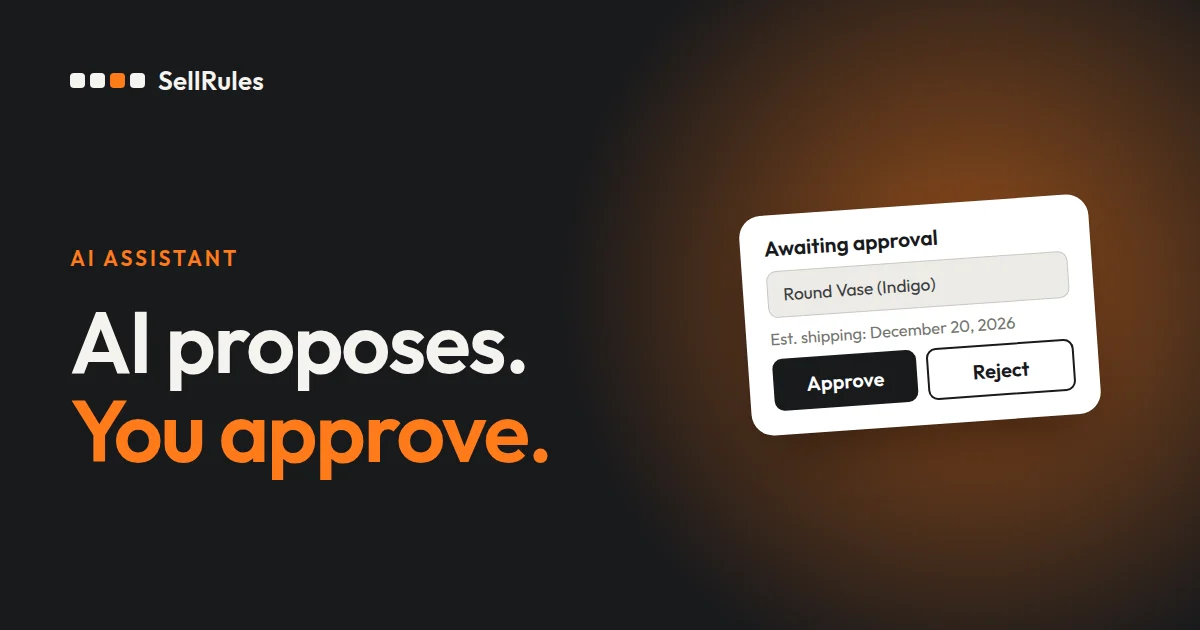
The AI's proposals wait for approval under “AI change operations” in SellRules. Until a staff member compares before and after and clicks “Approve”, neither your product pages nor your orders change.
What happens when you ask the AI
Say you tell the AI, “Start pre-orders for the new vase next Friday at 20:00, shipping December 15.” The AI reads your current sales schedules and proposes creating a schedule for the vase.

The proposal's details list the following:
- “Changes”: before and after, field by field
- “Warnings”: anything else the change affects (shown only when there is something)
- “Also performed”: follow-up steps such as updating the product page
- “Approval deadline”: after this date and time, the change is not carried out
If it matches what you asked for, click “Approve”. If not, click “Reject”. Approving lets the AI carry out the change. After the AI runs it, “Execution results” shows the “Saved settings” and “Product page” status for each target.
How it differs from changing settings by hand in the admin
Setting things by hand in the admin vs. asking through AI connections
By hand in the admin
SellRules AI connections
If you only need to fix one specific schedule, doing it on the “Sales schedules” screen as before is quicker.
AI connections help when a request in plain words has to become a batch of changes. When you set up pre-orders for dozens of products at a seasonal changeover, or review sold-out switches product by product, the AI reads your current settings and comes back with a list of changes. For changes across several products, SellRules shows “Choose the target products”, so you pick the products and click “Confirm these targets”. Only the products you pick on screen are included in the batch.
Approved changes stay under “AI change operations”, so you can check later who requested each one and who approved it when.
What the AI never gets
The AI can read only what falls within the operations your staff have allowed. On top of that, the following is never passed to the AI:
| Not passed to the AI | What the AI can read |
|---|---|
| Customer names and addresses | Order counts and status totals |
| Email addresses of back-in-stock subscribers | Sign-up counts and totals |
Operations that are hard to undo, such as sending notifications to customers, acting on orders, or running bulk actions, are labeled “High risk” under “Staff permissions”. If you don't want to hand those over, uncheck them in the staff permissions or on the permission screen.
How to connect in SellRules
How to connect an AI app to SellRules and approve its proposals
- 1. Set staff permissions
- 2. Add the URL to your AI app
- 3. Choose the operations to allow
- 4. Approve the proposal
- As the store owner, open “Settings” → “AI connections” → “Manage AI connections” in SellRules.
- If staff will use it too, go to “Staff permissions”, enter that person's Shopify user ID, choose a role and the operations to allow, and click “Save permissions”. The roles are “Viewer”, “Operator” and “Approver”.
- Copy the MCP connection URL under “How to connect” and add it to the MCP server settings in your AI app.
- A permission screen in the Shopify admin opens in your browser. Choose the operations you want to hand to the AI and click “Approve”.
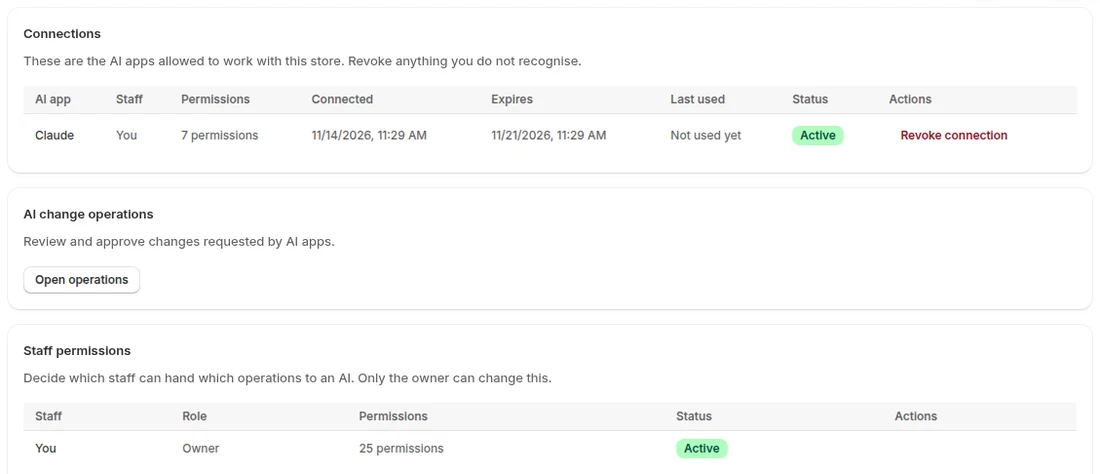
- Once the AI app has connected, the connection appears under “Connections” in SellRules.
- To approve a proposal from the AI, open it from “Open operations” under “AI change operations”.
The Shopify user ID is the number at the end of the URL when you open a staff member under “Settings” → “Users” in the Shopify admin.
The owner and staff with the “Approver” role can approve proposals. Apart from the owner, nobody can approve a change they requested themselves. If the person who asks the AI and the person who approves are different, every change gets a second pair of eyes before it happens.
Pricing
Connecting an AI app, and having the AI read your sales schedules, purchase limits and sold-out switches, are available from the Free plan.
For the AI to propose changes that you approve and apply, you need the Launch plan (US$7.99 per month). Start by asking the AI to “list my current pre-order schedules” and check that it can read them. You can install SellRules from the Shopify App Store, where you can also check pricing and trial terms.
Frequently asked questions
Can the AI read my customers' names or addresses?
No. The AI can read order counts and status totals only, and customer names and addresses are not passed to it. For back-in-stock subscribers it also gets counts and totals only, not email addresses.
What happens if I never approve a proposal from the AI?
It expires. Every proposal has an approval deadline, and once that passes it is marked “Expired” and is not carried out. If you still want the change, ask the AI to propose it again.
How do I stop a connection I'm no longer using?
Click “Revoke connection” for that connection under “Connections” in “AI connections”. The AI on a revoked connection can no longer work with SellRules from that moment. To use it again, connect again from the AI app.
Related articles:
- Seeing what else SellRules does: SellRules features
- Setting up a pre-order in one go: Switch from pre-order to regular sales automatically at launch time
- Choosing a pre-order app: How to choose a Shopify pre-order app
- Choosing how to sell, such as early access or limited quantities: Early-access and limited sales
The vase and the dates and times are examples.