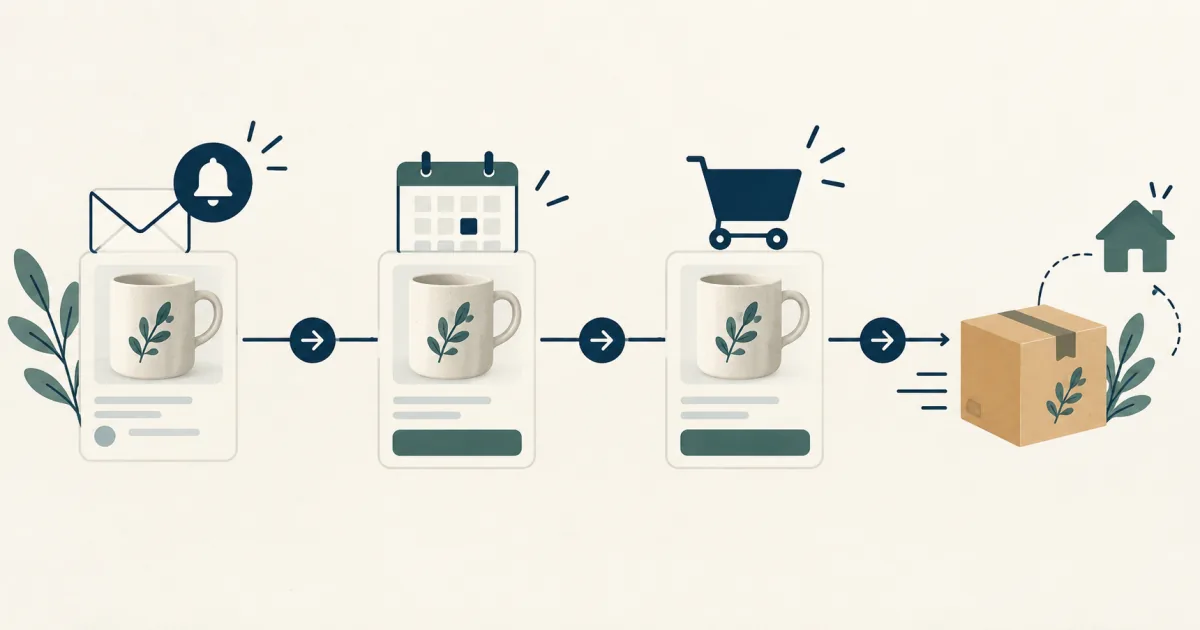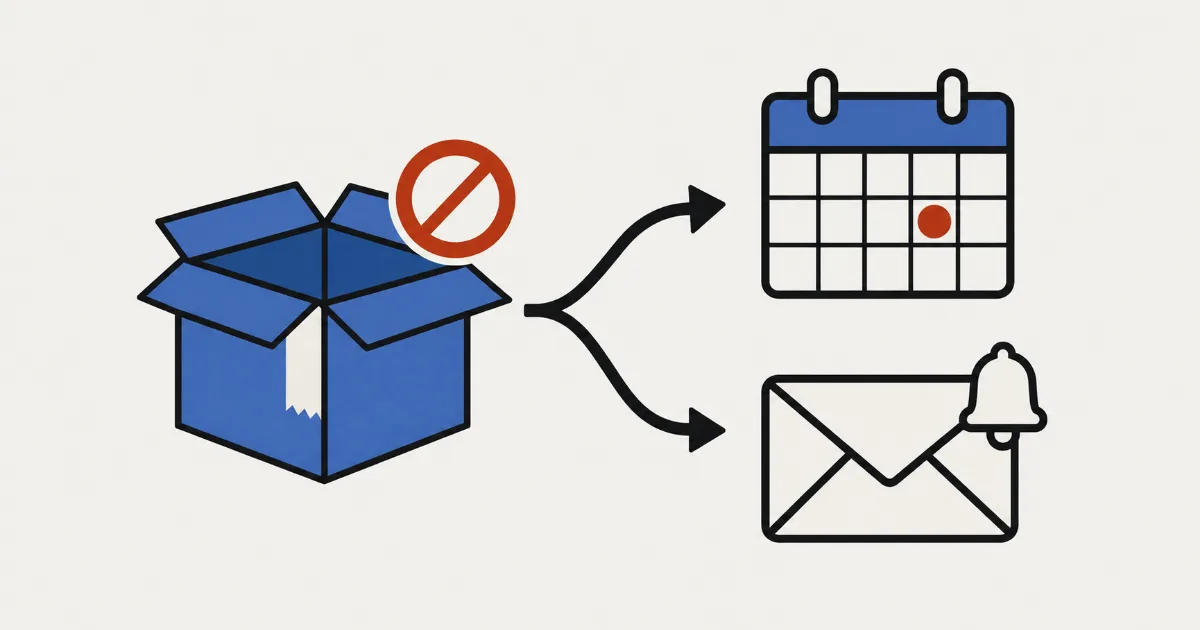
After a popular product sells out, do you keep getting asked “When can I buy this again?” If the page just says “Sold out,” customers who wanted it cannot tell whether to wait or look elsewhere. But if you take orders before you know when stock is coming, you end up holding orders you cannot give a ship date for.
The deciding question is whether you can promise a ship date. If you can name the ship date and how many you can fill, take pre-orders. If you can make the item once it is ordered, take made-to-order orders. If you cannot see when stock will come back, collect signups for back-in-stock alerts. And a product that starts on alerts can switch to pre-orders once the date is known. Switching alone does not notify subscribers that pre-orders are open; you need to send that announcement yourself.
Below, we compare five ways to handle a sold-out product, give you questions for choosing per product, walk through what customers see, show how to set up the switch in SellRules, and cover what to check when it does not switch as expected. For products that have not launched yet, see how to plan early-access and limited sales.
Five ways to handle a sold-out product
Your options are not just “pre-order or back-in-stock alert.” Counting Shopify's built-in way to keep taking orders and simply leaving the product sold out, you have five to choose from.
| Option | What the customer can do | What you promise | Good for | Not suited to |
|---|---|---|---|---|
| Leave it sold out | Nothing (they look for something else) | Nothing | Limited items you will not sell again, discontinued items | Staples that will be restocked (the questions keep coming) |
| Shopify's “Continue selling when out of stock” | Order as usual | You tell customers the ship date for out-of-stock units yourself, for example in the product description | Items that restock quickly, need no cap on orders, and where the description is enough to explain shipping | Items with a different ship date per product, or a cap on how many you can take |
| Pre-orders | Place a pre-order | Ship by the estimated date (or period) | Items whose next delivery date and quantity are known | Items with no restock date yet |
| Made to order | Order and have it made | Ship within a set number of days after the order, or on a set date | Items you can make yourself as long as you have materials | Items you cannot make without your supplier |
| Back-in-stock alerts | Sign up with an email address and wait | Let them know when stock is back (nothing is reserved) | Items where neither the timing nor the quantity of the next delivery is clear | Items you need to get to everyone who signed up |
Pre-orders and made to order bring in an order on the spot. In return, you commit to a ship date and take on the follow-up if it slips, including delay notices and cancellations. Back-in-stock alerts bring in no order at all. Customers only leave an email address, so whether they can buy when stock returns depends on how much stock there is at that moment.
Shopify's built-in “Continue selling when out of stock” is a setting in the inventory section of a product or variant. According to Shopify's help center, you can only turn it on for products whose inventory is tracked. It lets customers on your online store buy out-of-stock items, but all it decides is whether the order goes through. Telling customers that it is a pre-order, or when it will ship, is up to you, for example in the product description. Installing SellRules does not change this setting for products whose selling method you have not configured in SellRules. You can use Shopify’s setting for some products and SellRules for others.
Not sure? Decide per product with three questions
You do not need one approach for the whole store. Deciding per product is enough. If you are unsure, answer these three questions in order.
- Can you tell customers the next ship date? If your supplier has confirmed a delivery date, or you can schedule when you will make it, the answer is yes. If not, choose back-in-stock alerts.
- How many can you take? If you know the next delivery quantity or how many you can make, use that number as the pre-order limit. Without a limit, you may take more orders than the delivery covers.
- Will you make it, or wait for a delivery? Items you make yourself after the order is placed suit made to order. Items you wait on from a supplier suit pre-orders.
For example, imagine these three products (an illustration, not a real store):
- A best-selling mug: the pottery has confirmed “50 units arriving on the 20th of next month.” You know both the date and the quantity, so you take pre-orders with a limit of 50.
- A hand-stitched leather wallet: you have the materials, and each one takes two weeks to make. You take made-to-order orders with the message “Ships within 14 days of order.”
- An imported homeware item: the manufacturer has not told you when the next shipment leaves. You cannot give a ship date, so you collect signups for back-in-stock alerts.
The imported item does not have to stay on alerts forever. Once the manufacturer gives you a delivery date, switch it to pre-orders and tell the people who signed up that pre-orders are open, so they can place an order (more on this below).
What customers see, and in what order
Knowing what happens on the customer's side before you choose also makes the product description easier to write. Here is the flow when SellRules switches a product. The labels quoted below are the defaults on an English storefront.
When you switch to pre-orders
- The buy button changes to “Pre-order Now,” and the shipping estimate appears under it (for example “Est. shipping: Late March”).
- Customers add it to the cart like any other product and pay at checkout (if you use deposit and balance payments, they pay in two parts: the deposit now and the balance later).
- Once inventory goes back to 1 or more, pre-orders close and the normal buy button returns. Pre-orders also reduce inventory, so it only goes back to 1 or more when the incoming quantity exceeds the quantity already pre-ordered. The pre-orders you took stay in place, and you ship them according to the estimate you gave.
When you switch to made to order
The button becomes “Order Made to Order,” and if you set a number of shipping days, a line such as “Ships within 14 days of order” appears. For managing these orders through to shipping, see how to manage made-to-order orders until they ship.
When you switch to back-in-stock alerts
- In place of the buy button, customers see “We'll email you as soon as it's available.”, an email field and a “Get Notified” button.
- After signing up they see “You're signed up! We'll notify you when available.”, and the signup appears under “Back-in-stock subscribers” in SellRules.
- When inventory goes back to 1 or more, the product page returns to the normal buy button, and everyone who signed up receives an email with the subject “[Back in Stock] Product name.” The email has a button to the product page and a link to stop future alerts.
- Customers open the product page from the email button and buy as usual.
The most common misunderstanding with back-in-stock alerts is that signing up reserves the item. If 5 units come back and 30 people have signed up, all 30 get the email and the first 5 buyers take the stock (on the Free plan, emails beyond the total email limit are held instead of sent). A short note near the signup form, such as “This alert does not reserve the item,” cuts down on later complaints that someone signed up and still could not buy.
Once the date is known, switch from alerts to pre-orders
If a product has been collecting signups for back-in-stock alerts, you can switch it to pre-orders once the delivery date is set. You need to send subscribers the announcement that pre-orders are open yourself.
In SellRules, while inventory is at 0, change the sold-out switch from “Back-in-stock notification only” to “Pre-order” and save. The change applies right away to products already switched, replacing the signup form with the “Pre-order Now” button. This switch does not automatically send subscribers a pre-order announcement. After the switch, they will not receive a back-in-stock alert when inventory returns either, so without a message from you they will keep waiting. Export subscribers as a CSV from “Back-in-stock subscribers” and announce pre-orders through your store’s email or another channel. The CSV also includes people who have unsubscribed, so exclude rows with the status “Excluded” before sending.
If you have reached the Free plan’s cumulative limit for pre-order and made-to-order orders, you cannot save a switch to pre-order or made to order. Move to Standard or Pro before switching.
This works well for products like these:
- Switch to pre-orders once the delivery date is confirmed: imported or supplier-sourced items where nothing is certain right after selling out, and the delivery date is fixed a few weeks later.
- Switch to made to order once you can schedule production: handmade items you cannot make while waiting for materials. Switch to made to order as soon as you know when the materials will arrive.
When you switch, enter the estimated shipping and the order limit at the same time. Set the limit to the next delivery quantity so that the orders stay within that delivery even if everyone on the list pre-orders at once. However, orders placed at around the same time can slightly exceed the limit. If you can only supply exactly the incoming quantity, set the limit one or two units lower.
Set up a sold-out switch in SellRules
In SellRules, you decide in advance, per product, what a product switches to when its inventory reaches 0. From then on it switches automatically when inventory hits 0 and goes back to normal sales automatically once inventory is 1 or more. You no longer edit the product page every time something sells out, or email each subscriber by hand when it is restocked.
Here is how to set one up.
- In the SellRules left menu, open “Purchase limits & sold-out,” go to the “Sold-out switches” tab and click “Create rule.”
- Choose the product. A rule can cover the whole product or only specific variants. If both exist, the variant rule takes priority.
- Under “Switch mode,” choose “Pre-order,” “Made to order” or “Back-in-stock notification only.”
- For pre-orders or made to order, enter the shipping estimate. The text you enter in “Estimated shipping (text)” (for example “Late March”) appears under the buy button. If you want delay notices, also fill in “Estimated ship date.” For made to order, you can choose “Ship on fixed date” or “Ship within X days of order.”
- If needed, select “Limited quantity” under “Order limit” and enter the maximum quantity you can accept per variant. Once the limit is reached, orders stop and the product shows as sold out if inventory is still 0. Orders do not stop the instant the order that reaches the limit comes in. The stop takes effect during checks such as SellRules’ regular check every 5 minutes, so it may take a few minutes. Overlapping orders during that time can slightly exceed the limit.
- If needed, add purchase limits (such as “Max per order”). These limits apply only while the product is switched because it is sold out. If a limit already exists for the product or variant on the Purchase limits page, that limit takes priority. Cumulative quantity and order-count limits per customer apply only to logged-in customers; guest checkouts are not counted. On the Free plan, purchase limits can be set on up to 1 product.
- Click “Create.” If the product's inventory is already 0 when you create the rule, it switches shortly afterwards.
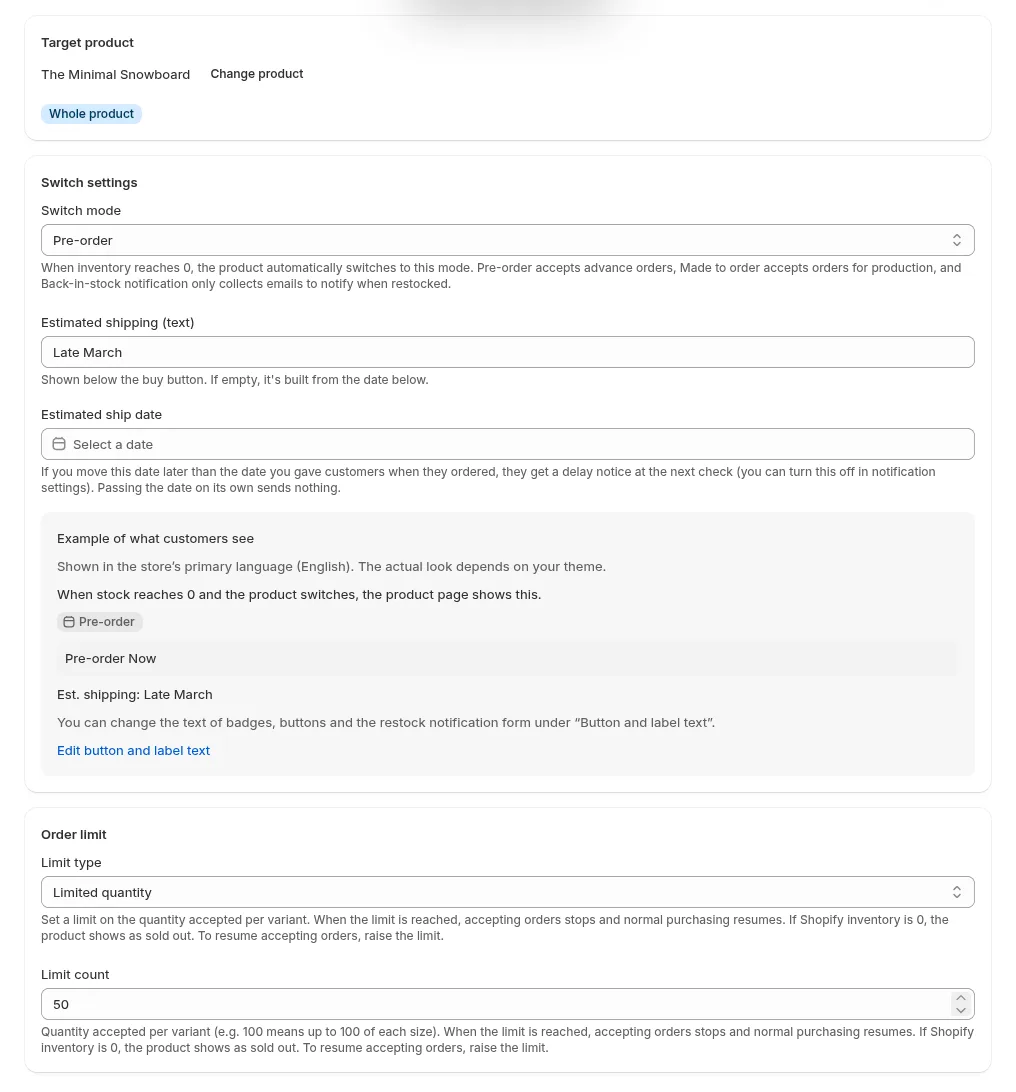
“Example of what customers see” in the middle of the screen uses the store’s primary language (this screenshot is from a store whose primary language is English). The purchase limits fields continue below.
Once the rule exists, test it on a test product before rolling it out to live products. Set inventory to 0 and check that the button or signup form changes on the product page, set it back and check that the normal buy button returns, and for back-in-stock alerts, sign up with your own email address and check that the email arrives. To fine-tune the signup form and the email, see how to set up back-in-stock emails. For screen-by-screen steps, see the SellRules user guide.
If a delivery runs late after you have taken pre-orders, move the “Estimated ship date” to a date later than the one you gave customers, and SellRules sends the pre-order customers a delay notice (you can turn this off in the notification settings). Only orders that had an “Estimated ship date” when they were placed receive this notice. Orders taken with text alone, such as “Late March,” do not receive it, so enter a date too if you want the app to handle delay notices. Nothing is sent just because the date passes, so update the date as soon as you know about the delay.
When the switch does not happen or the page looks wrong
Inventory hit 0 but nothing switched, or the page after the switch is not what you expected? Use this table to find the cause.
| What you see | Likely cause | Where to check | How to fix it |
|---|---|---|---|
| Inventory is 0 but the page stays sold out | The product has a sales schedule you created by hand (pre-order or made to order), including ones that have ended or are paused | Whether the sold-out switch screen shows “This product has a pre-order or made-to-order setting, so the sold-out switch won’t take effect.” | Remove the manually created sales schedule, or take orders through that schedule instead |
| The switch never kicks in | The product does not count inventory (inventory not tracked, a gift card, a product that does not require shipping, and so on) | Whether SellRules shows “Doesn’t track inventory (switch won’t apply)”, and whether inventory is tracked in the Shopify product editor | If it is a product you sell, track its inventory and set it as a product that requires shipping |
| Pre-orders stopped partway and the page went back to sold out | The order limit was reached | The rule's “Order limit” | When the next delivery is larger, raise the limit. Raising it reopens orders |
| On the Free plan, pre-orders or made-to-order orders stopped | Pre-order and made-to-order orders reached the Free plan's total limit | The limit notice shown in the SellRules admin | Moving to Standard or Pro reopens orders (your settings are kept) |
| You turned the rule off, but pre-orders are still being taken | Automatic schedules created before you turned it off stay in place while inventory is 0 | The notice on the rule screen that automatic schedules created by the turned-off rule remain | To stop right away, pause the matching automatic schedule in the sales schedule list, or delete the rule |
| You restocked, but the back-in-stock email did not arrive | Something stopped at signup, sending or delivery. On the Free plan, the email may also be held because the total email limit was reached | “Back-in-stock subscribers” and “Delivery log,” plus any limit notice in the SellRules admin | Work through the steps in what to check when back-in-stock emails don't arrive |
Deleting a rule also deletes the automatic schedules it created, which stops any pre-orders or made-to-order orders being taken. Deleting cannot be undone, so if you only want to stop future automatic switching, turn the rule off instead of deleting it. Turning it off does not stop pre-orders already being taken while inventory is 0, so if you need them to stop right away, pause the matching automatic schedule in the sales schedule list.
What this switch does not decide
The sold-out switch decides what the product page accepts, plus the shipping estimate, the order limit and purchase limits. Decide these separately:
- How you get paid: to split pre-orders or made-to-order orders into a deposit and a balance, use deposit and balance payments on the Pro plan (US$19.90 per month). See how to charge a deposit and the balance separately.
- Whether to offer cash on delivery: if you do not want cash on delivery used for pre-order or made-to-order items, see how to hide cash on delivery for pre-order items.
- What to do if the delivery is smaller than your pre-orders: which customers you ship to first and whether to ask some customers to cancel is your call. Matching the limit to the delivery quantity makes this much less likely (this also covers overlapping orders that slightly exceed the limit).
- In-store sales: according to Shopify's help center, “Continue selling when out of stock” does not apply to orders placed through Shopify POS. If you also sell in a physical store, check in the help center how POS handles it.
If an item needs no cap on orders and the product description is enough to explain shipping, you can start without an app, using Shopify's built-in “Continue selling when out of stock.” If the product originally used that setting and you add a sold-out switch, its original “Continue selling when out of stock” setting is restored when inventory returns and the switch ends. SellRules is useful when you want different handling per product, a cap on how many you take, or no manual work for the switch and the emails when stock returns.
If you are switching from another pre-order app, the old app may have left “Continue selling when out of stock” enabled for the product. If you leave it that way, the product will keep accepting orders even at 0 stock after the sold-out switch ends and normal sales resume. Before creating a rule, see how to switch Shopify pre-order apps for how to check and fix this setting.
Frequently asked questions
Does a back-in-stock alert signup reserve the item for the customer?
No, it does not reserve anything. A back-in-stock alert is a signup to be emailed when stock returns, not an order. When stock comes back, everyone who signed up gets the email, and from then on the stock goes to whoever buys first. If you want to take orders before stock returns, switch the product to pre-orders. Pre-orders are also first come, first served, and stop once the order limit is reached.
Can I take pre-orders before the restock date is known?
The settings allow it: you can switch to pre-orders and leave the estimated shipping field empty. But orders with no delivery date lead to more questions and more cancellations. Collecting signups for back-in-stock alerts until the date is set, then switching to pre-orders once it is, keeps you and your customers on the same page.
What happens to pre-orders once the product is back in stock?
The orders you took stay as they are. When inventory goes back to 1 or more, the pre-order setup that existed only while the product was sold out is removed, and the product page shows the normal buy button again. Pre-orders also reduce inventory, so it only goes back to 1 or more when the incoming quantity exceeds the quantity already pre-ordered. You fulfill the pre-orders from the Shopify Orders page like any other order, in line with the shipping estimate you gave.
Can I use the sold-out switch on the Free plan?
Yes. Switching to pre-orders, made to order or back-in-stock alerts is available from the Free plan. On the Free plan, pre-order and made-to-order orders are capped at 10 in total since installation, and restock and launch emails at 15 in total. Emails over that limit are not sent but held, and once you move to Standard or Pro they go out after the app rechecks inventory and whether recipients have unsubscribed (if the item is out of stock again by then, they are not sent). Taking deposit and balance payments requires the Pro plan.
Pricing and how to try it: start with one sold-out product
The sold-out switch and back-in-stock alerts are available from the Free plan. Pick one product that is sold out right now, use the three questions in this article to decide how to handle it, and create one switch.
SellRules plans and pricing
| Monthly price | LaunchEvery feature included |
|---|---|
| Monthly price | US$7.99 per month |
| Free trial | 10 days |
| Pre-order and made-to-order orders | Unlimited |
| Back-in-stock and sale-start emails (Notify Me) | Unlimited |
| Purchase limits | No limit on products |
| Customizable notification emails | Yes |
| Deposit payments | Yes |
Pre-orders, made-to-order, back-in-stock alerts, purchase limits, stockout switching, deposit payments and order processing are all included in the Launch plan.
The first 10 days are free. If you remove the app during the trial, you are not charged.
Back-in-stock and sale-start emails have no sending cap. The same goes for required messages such as order confirmations, shipping updates and balance reminders.
The Free, Standard, and Pro plans are closed to new sign-ups. Shops already on them keep their current terms.
Standard and Pro have no free trial; the Free plan takes its place. When pre-order and made-to-order orders or alert emails get close to the total limit, or when you want purchase limits on a second product, move to the Standard plan at US$9.90 per month. When you want to take deposit and balance payments, move to the Pro plan.
See SellRules pre-orders and back-in-stock alerts
If you already know which approach you will use, try it on the Free plan from the Shopify App Store.
Features checked on October 25, 2026 (by JizaiDev, the developer of SellRules, against the app's live code and the text shown on the settings screens, product pages and emails as of that date). Shopify's built-in “Continue selling when out of stock” is described from Shopify's help center (checked October 19, 2026). The products and quantities are illustrative examples, not from a real store. For current pricing, check the Shopify App Store listing.