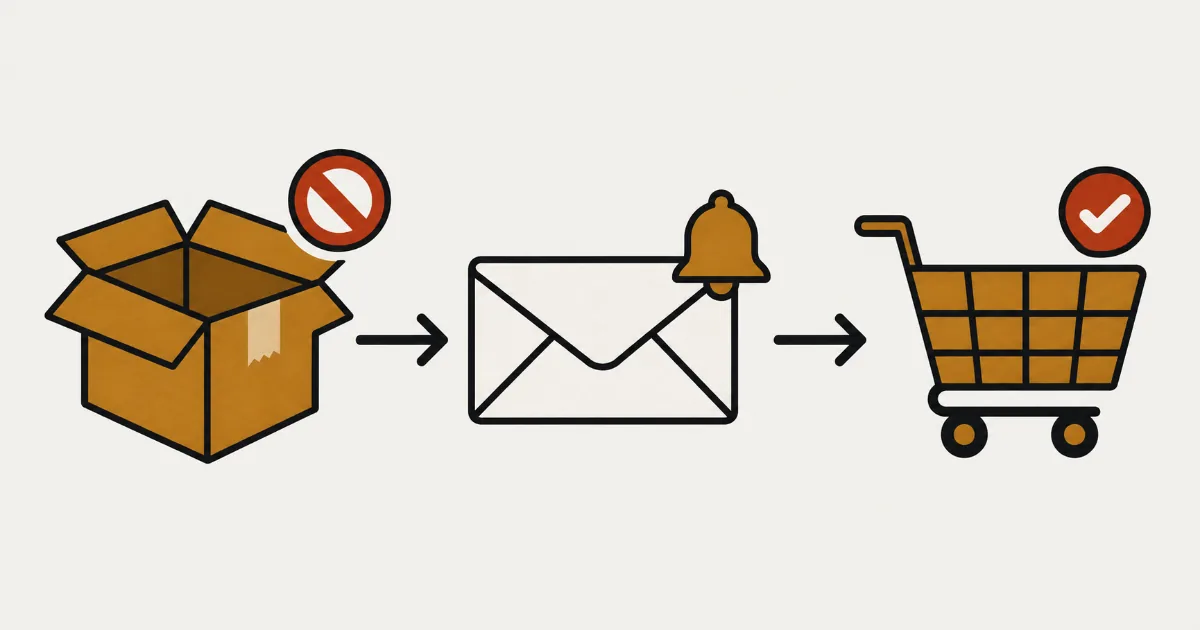
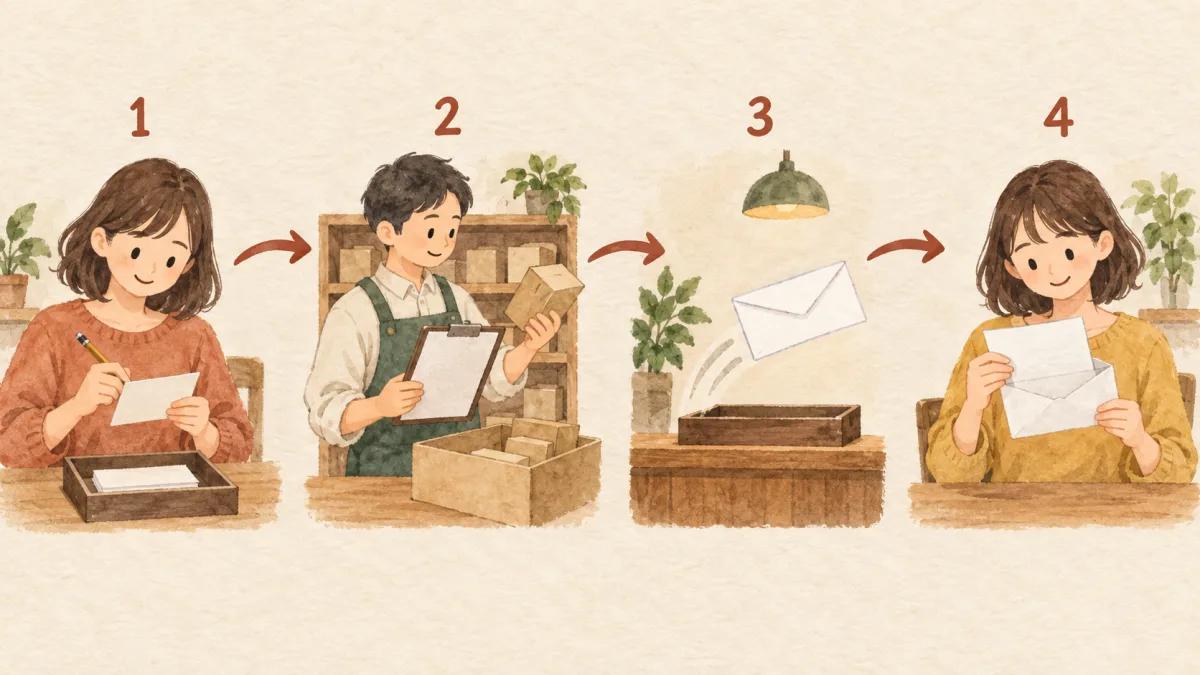
A customer tells you they never heard back about a restock, and suddenly you're unsure what's wrong with your setup and whether it's safe to send the email again. The cause sits at one of four points: signup, stock and the sold-out switch, sending, or receipt. In SellRules you can tell where it stopped by looking at just two screens.
Open “Back-in-stock subscribers” first. If the customer's row says “Waiting to send”, the notification hasn't reached the sending stage yet, so check stock and the sold-out switch. If it says “Sent”, it has been passed on for sending, so the next stop is the “Delivery log”, where you see what happened to the email (the Delivery log is available on Standard and higher plans; on Free, check your own inbox or ask the customer to check theirs). The part that trips people up: “Sent” on the subscriber row only marks that the notification was handed over for sending. Whether the email service actually accepted it is shown by “Sent” in the Delivery log.
This guide is for stores that already use restock notifications and need to find out why one didn't arrive. Placing the signup form and the initial setup are covered in how to set up back-in-stock notifications, and collecting signups before launch with the “pre-order start notification” in the article on pre-launch notification signups.
Find where it stopped from what the screens show
Before reading on, find the row below that matches what you see on screen; it tells you which section you need. “Back-in-stock subscribers” and the “Delivery log” are both in the SellRules left-hand menu. “Back-in-stock subscribers” is available on every plan, but the “Delivery log” requires Standard or higher; opening it on Free takes you to the plan screen. On Free, check the subscriber status, the allowance notices at the top of the admin, and your own inbox.
| What you see | Where it stopped | Likely causes | What to do next |
|---|---|---|---|
| No row for that address in “Back-in-stock subscribers” | Signup | A filter is still applied, the customer signed up for another product or variant, the signup was deleted, or the signup form never appeared | Clear the filters and search again. If it's still missing, check the signup form on the product page |
| The row stays at “Waiting to send” | Stock and the sold-out switch | Stock for the color or size they signed up for hasn't come back, the product has a manual product-wide schedule, or the automatic switch wasn't in place | Compare stock, schedules and the switch settings |
| The row says “Excluded” (with “Unsubscribed by customer” or “Removed manually” below) | Signup | The customer unsubscribed, or the store removed them from sending | Don't send. If the customer wants it, they sign up again |
| The row says “Sent” and the Delivery log shows “Scheduled”, “Retry scheduled” or “Sending” | Sending | Waiting its turn, or a temporary failure waiting for a retry | Wait. Use “Cancel” only if you want to stop it |
| The Delivery log shows “Failed” | Sending | Invalid address, congestion on the sending side, or an outage at the email service | Read the error on the row; if the address is fine, use “Retry” |
| The Delivery log shows “Delivery unconfirmed” | Sending | No response came back from the email service | Don't resend. Ask the customer whether it arrived |
| The Delivery log shows “held” | Sending | The plan's email allowance is used up, so the email is held instead of sent | Check the allowance and the extra-send budget |
| The Delivery log shows “Cancelled” | Sending | The template is turned off, the recipient was removed from sending, or the current subscription can't send notification emails | Read the reason shown on the row |
| The Delivery log shows “Sent by Klaviyo” | Sending | The sender is set to Klaviyo | Check the flow in Klaviyo |
| The Delivery log says “Sent” but nothing arrived | Receipt | A typo in the address, or the email was filtered as spam | Check the inbox side and contact the customer directly if needed |
Find the customer's row in “Back-in-stock subscribers”
Start by checking whether the address in question is still signed up, and in which status. This tells you whether things stopped before sending or after the notification was passed on for sending.
- Open “Back-in-stock subscribers” in SellRules.
- Under “Filters” at the top, enter the email address and search. If you know the product, filter by “Product” as well.
- On the row you find, look at “Status” and “Notices sent”.
There are three statuses:
- Waiting to send: The restock notification hasn't been passed on for sending yet. Go to the next section on stock and the sold-out switch.
- Sent: The notification was handed over for sending, with the date and time shown in small text below. Whether the email service accepted it is something you check in the Delivery log (Standard and higher plans; on Free, check the inbox).
- Excluded: Nothing will be sent. Below the status you'll see either “Unsubscribed by customer” (the customer clicked the unsubscribe link in an email) or “Removed manually” (someone in the store used “Exclude from sending”).
Click an entry such as “Sent 1 time” in the “Notices sent” column and the “Notification history” opens. It lists, round by round (“Round 1”, “Round 2”) for each time the item sold out, which notification went out and when. As the screen itself puts it, “Customers already notified are emailed again the next time stock returns.” So a customer who was already notified will get another email the next time the item sells out and comes back.
For example, say the same customer signed up for both the “Whole product” and size M. When size M comes back, they get one email. Both rows switch to “Sent”, but only the row the email went out for gets a history entry. If “Notices sent” on the other row still shows “—”, nothing was missed.
If you can't find the row, check these in order:
- Click “Clear filters” to remove any status or product filters.
- Search by product name to see whether the customer signed up for a different color or size, or a different product.
- Think back to whether the signup was deleted. As the delete confirmation says, “This cannot be undone.” A deleted signup can't be brought back.
- If the product page doesn't show an email field, signups were never being accepted in the first place. Check the theme's app embed and the switch settings in how to set up back-in-stock notifications.
Still “Waiting to send”? Compare stock with the sold-out switch
A signup that stays at “Waiting to send” means the conditions for sending haven't all been met yet. SellRules sends a restock notification when a variant that automatically switched to “Back-in-stock notification only” on selling out is back to 1 or more in stock.
For example, a T-shirt in S, M and L sells out in every size and switches to “Back-in-stock notification only”. Only M comes back in, and you update the stock. The notification goes to people who signed up for M and to people who signed up for the whole product without picking a size. Anyone who signed up for S or L stays at “Waiting to send” until their size is back in stock.
Go through these in order:
- Is stock for the color or size they chose 1 or more? Check that variant's inventory on the product's screen in the Shopify admin.
- Does the product have a manual product-wide schedule? Look the product up in “Sales schedules”. A manual schedule covering the whole product stops all automatic sold-out switching, so no restock notification goes out even when stock returns.
- Did the product really switch to “Back-in-stock notification only” when it sold out? In “Purchase limits & sold-out”, open “Sold-out switches” and check that the rule is “Enabled” and that “Switch to” is set to “Back-in-stock notification only”. If you deleted the automatically created schedule by hand, or changed it to a different way of selling, before stock came back, no notification goes out when stock returns either.
- Is this a product whose stock isn't counted? Products whose inventory isn't tracked in Shopify, gift cards and products that don't need shipping are left out of sold-out switching by SellRules. The signup form doesn't appear for them either, so turn on inventory tracking first.
- Did you only just update the stock? SellRules learns about stock changes from Shopify's inventory update notifications, and a sync every 5 minutes catches any that didn't arrive. If you've only just restocked, wait about five minutes and reload the screen.
If you restocked through POS, a warehouse integration app or a bulk CSV import, everything depends on Shopify's inventory count reaching SellRules. If Shopify shows the stock back but the row is still at “Waiting to send” after more than five minutes, contact us with the details listed in the support section below.
The sold-out section of the user guide also explains how the conditions fit together.
Use the Delivery log to see whether the email reached the sending service
The Delivery log is available on Standard and higher plans. Once a subscriber shows “Sent”, each restock notification appears as its own row in the Delivery log. The status there tells you whether the email service accepted the email, whether it is still waiting, or whether it failed.
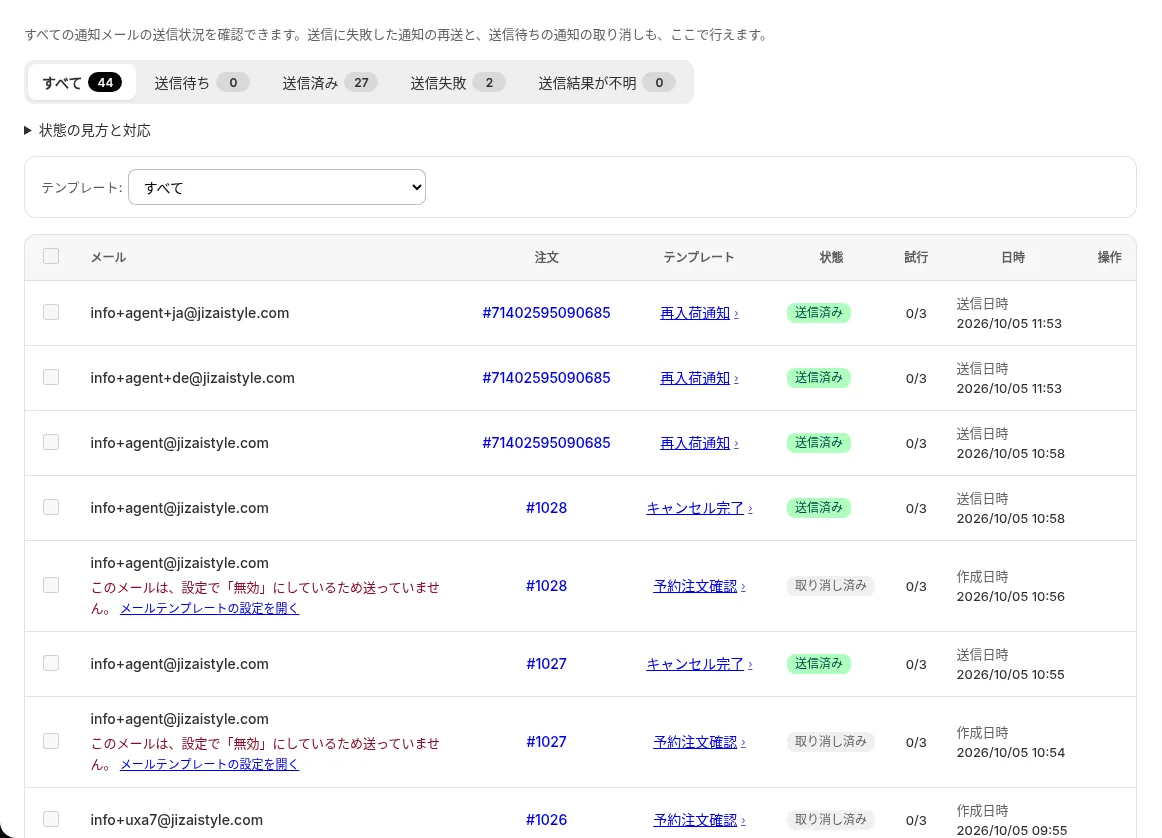
Along the top of the Delivery log are the tabs “All”, “Scheduled”, “Sent”, “Failed” and “Delivery unconfirmed”, each with a count. Choose “Restock notification” under “Template” below them to see only restock emails. Here is what each status means and what to do:
- Scheduled: The email goes out automatically at the “Scheduled for” time. Nothing to do. Only if you want to stop it before it's sent, select it and use “Cancel”.
- Retry scheduled: The email couldn't be sent for a temporary reason and will be resent automatically at the “Scheduled for” time. Again, just wait.
- Sending: It's being sent right now. The status changes shortly.
- Sent: The email service accepted it. If it still hasn't arrived, check the receiving side as described in the next section.
- Failed: Automatic retries ran up to their limit and the email still couldn't be sent. The reason appears under the row (see the table below).
- Delivery unconfirmed: No response came back from the email service, so there's no confirmation that it arrived. To avoid duplicate emails, SellRules doesn't resend it automatically, and there's no retry button.
- Cancelled: It won't be sent. The reason appears under the row.
- held: The plan's email allowance is used up, so the notification is being held rather than sent. This is the only status without a translated name; it appears as the raw word “held”. It has no tab of its own, so look for it under “All”. If it doesn't need to go out, you can also select it and use “Cancel”. See the section “Check whether the allowance is holding emails back” below.
- Sent by Klaviyo: The sender is set to Klaviyo, so SellRules didn't send this email itself. It isn't a failure; the email comes from your Klaviyo flow. The Klaviyo integration is a Pro plan feature (including the former Launch plan).
These are the reasons you may see on a “Failed” row, and what to do:
| Reason shown on the row | What to do |
|---|---|
| The recipient's email address is invalid, so it couldn't be sent | Resending will give the same result. Ask the customer to sign up again with the correct address |
| Sending was temporarily busy | Wait a while, then use “Retry” |
| The sending service had a temporary problem | Wait a while, then use “Retry” |
| It couldn't be sent because of an email sending configuration problem | Let us know via “Bug report” at the bottom of the screen |
A “Cancelled” row that says “This email wasn’t sent because it is turned off in your settings.” was stopped because its email template was turned off. Use “Open email template settings” on the row and check whether the restock notification template shows “Stopped”. Turning the template back on doesn't send the emails that were stopped while it was off. Sending resumes with the notifications for the next restock.
A row that says “This wasn’t sent because the recipient was removed from the send list or unsubscribed.” belongs to a signup where the customer unsubscribed just before sending, or the store removed them from sending. Not sending is the correct outcome. A row that says “This wasn’t sent because your current subscription doesn’t include notification emails. Please check your plan.” is caused by the state of your subscription. Check your current plan under “Plan & billing”.
Click the template name on a row to open the recipient, subject, language and a preview of the email body. This preview is not a saved copy of the email that was sent. It is generated again using the current template and the admin display language. If you changed the template's subject or body after sending, the preview will differ from what the customer received. To check which language the email was sent in, look at “Locale”. The first value is the language used for the preview. Only when the language used at sending differs will you see something like “(Sent as: en)” after it. If that is absent, the email was sent in the language currently displayed. Before asking a customer to search for a particular subject line, check that you have not changed the template's subject since sending. The notification email section of the user guide also explains how to read the Delivery log.
Delivery log says “Sent” but nothing arrived? Check the receiving side
“Sent” in the Delivery log means the email service accepted the email, and that's as far as it goes. It doesn't tell you the email landed in the customer's inbox, so from here you look at the receiving side.
- Compare the recipient in the Delivery log with the address the customer gives you. If there's a typo, ask them to sign up again with the correct address.
- Ask the customer to check their spam folder and other inbox tabs such as Promotions. The sender name is your store name, so searching for the store name makes it easier to find.
- Check which language the email went out in. A restock notification is sent in the language of the product page the customer was viewing when they signed up. If that language isn't known, it goes out in the email default language set in “Settings”. How to align the wording is covered in the article on aligning notifications across languages.
The “Contact email address” in Settings is used as the reply-to address when a customer replies to an email, and as the address for warning emails sent to your store. It isn't the address the email is sent from, so changing it doesn't affect deliverability. As the screen says, a free email address is fine. Just avoid a noreply@ address that can't receive replies.
When you can resend, and when you shouldn't
Once you know where it stopped, decide whether to send again. There are two things to avoid: sending a second copy to someone who already received it, and sending to someone who unsubscribed.
- Only “Failed” can be resent: In the Delivery log, select the “Failed” rows and use “Retry”. You can select several and resend them in one go. When you see “Resend scheduled. It will be sent shortly.”, they're queued to be sent again.
- Don't resend “Delivery unconfirmed”: Check the address and ask the customer whether it arrived, including in their spam folder. If it didn't, email the customer directly.
- “Sent” notifications can't be resent: If the customer says it never arrived, check the receiving side, then contact them directly.
- Never send to “Unsubscribed by customer”: The store has no way to send to them. If they want notifications again, they sign up again from the product page.
To pull together the people you need to contact directly, use “Export CSV” in “Back-in-stock subscribers”. The status column in the CSV has three values, “Waiting to send”, “Sent” and “Excluded”, and doesn't distinguish “Unsubscribed by customer” from “Removed manually”. To make sure you don't email anyone who unsubscribed, leave the “Excluded” rows out of your contact list. The CSV is UTF-8 encoded, so in Excel import it with “Data → From Text/CSV” and choose UTF-8.
Check whether the allowance is holding emails back
Back-in-stock and sale-start emails (Notify Me) have a sending allowance that depends on your plan. Once it's used up, further restock notifications are held instead of sent, and the Delivery log (Standard and higher plans) shows “held”. On Free, you cannot open the Delivery log, so look for the notice at the top of the admin described below. The subscriber row may say “Sent”, but the email hasn't gone out yet.
- Free plan: Up to 15 emails in total since you installed the app; it doesn't reset each month. Switching to Standard or Pro resumes the held emails.
- Standard and Pro: Standard includes 1,000 emails per month and Pro includes 5,000 per month. If you've approved an “Extra-send budget” under “Plan & billing”, emails over the allowance are sent up to that amount and you're billed for what's sent. If you haven't, they're held and resume when the next period starts or when you approve a budget. Emails beyond an approved budget that's been used up are held too. The reason and the number held are shown in “Plan & billing”.
At 80% of the allowance, a banner at the top of the admin says “Restock and launch emails have reached 80% of the allowance.”, and at the limit, “Restock and launch emails have reached the allowance limit.” An email notice is also sent to your store. On Standard and Pro, the “Extra-send budget” section in “Plan & billing” shows the count, for example “N notifications are on hold.”
Before held emails go out, SellRules checks stock, sales status and unsubscribes again. If that color or size has sold out again by then, the notification is cancelled and the signup goes back to “Waiting to send” to wait for the next restock.
Cases this guide can't fix, and how to contact us
If these checks don't reveal the cause, or the cause lies outside SellRules, narrow it down like this:
- The stock count itself is wrong: SellRules works from the inventory count recorded in Shopify. If stock was changed some other way, such as through POS, a warehouse integration or a CSV import, first correct the count on the product's screen in the Shopify admin.
- Emails from Klaviyo don't arrive: If the Delivery log says “Sent by Klaviyo”, the email is sent by your Klaviyo flow. Check in Klaviyo that the flow is running.
- It's stuck in the customer's email setup: Inbox sorting and filters at the customer's email provider can't be checked from SellRules. Only the customer can confirm whether the email arrived.
If SellRules seems to be misbehaving, contact us through “Bug report” at the bottom of the admin screen or the contact form, with the details below. The more information we have to reproduce the issue, the faster we can pin down the cause.
- Your store URL (your-store.myshopify.com)
- The product name and the variant the customer signed up for (color, size)
- The date and time you restocked
- The row's status in “Back-in-stock subscribers” and its notification history
- On Standard and higher plans, the status, date and time, template name and any reason shown under the matching Delivery log row
The “Troubleshooting” section of the guide also lists checks by symptom.
Once it's fixed, keep it from happening on the next restock
Once you've found the cause, check just two things before the next restock. First, make sure no manual product-wide schedule is left on products that use restock notifications. Second, make sure the restock notification template isn't “Stopped”. Both are causes you tend not to notice until you restock.
If you use Standard or a higher plan, open the Delivery log on restock days on the “Failed” and “Delivery unconfirmed” tabs and check that both counts are 0, and look under “All” for any “held” rows. That way you'll notice problems before customers tell you. When there are “Delivery unconfirmed” notifications, a message such as “N notifications need a delivery check” appears at the top of the Delivery log.
When your restock notification volume starts to grow, it's time to review your plan. Free counts emails in total since install; Standard and Pro count per month. On Standard and Pro, approving an extra-send budget means emails beyond the monthly allowance are also sent, up to the approved amount.
SellRules plans and pricing
| Monthly price | LaunchEvery feature included |
|---|---|
| Monthly price | US$7.99 per month |
| Free trial | 10 days |
| Pre-order and made-to-order orders | Unlimited |
| Back-in-stock and sale-start emails (Notify Me) | Unlimited |
| Purchase limits | No limit on products |
| Customizable notification emails | Yes |
| Deposit payments | Yes |
Pre-orders, made-to-order, back-in-stock alerts, purchase limits, stockout switching, deposit payments and order processing are all included in the Launch plan.
The first 10 days are free. If you remove the app during the trial, you are not charged.
Back-in-stock and sale-start emails have no sending cap. The same goes for required messages such as order confirmations, shipping updates and balance reminders.
The Free, Standard, and Pro plans are closed to new sign-ups. Shops already on them keep their current terms.
Frequently Asked Questions
I restocked but the restock notification never arrived. What should I check first?
Search for the customer's email address in “Back-in-stock subscribers” in SellRules. If it's still “Waiting to send”, check that stock for the color or size they chose is back to 1 or more, and that the product doesn't have a manual schedule. If it's “Sent” and you're on Standard or a higher plan, check the status of the restock notification to that address in the Delivery log. On Free, ask the customer to look for the email, including in their spam folder. If you can't find the row, clear the filters and check whether they signed up for another variant or the whole product.
The Delivery log says “Sent”, but the customer says nothing arrived. What now?
“Sent” in the Delivery log means the email service accepted the email. Check the address for typos, and ask the customer to search their spam folder and other tabs such as Promotions for your store name. If it still doesn't turn up, email the customer directly.
Can I resend a restock notification that didn't arrive?
On Standard and higher plans, only notifications marked “Failed” in the Delivery log can be selected and resent with “Retry”. You can also select several and resend them in one go. Notifications marked “Sent” or “Delivery unconfirmed” have no retry button. If they didn't arrive, email the customer directly, except for anyone who unsubscribed.
A customer unsubscribed from restock notifications. Can I still send them one?
Not from the store's side. When a customer clicks the unsubscribe link in an email, their signup becomes “Excluded” with “Unsubscribed by customer” shown below. Both automatic sending and resending from the Delivery log stop. If they want notifications again, ask them to sign up again from the product page.
How can I test restock notification delivery myself?
On a product whose sold-out switch is set to “Back-in-stock notification only”, set stock to 0, and once the signup form appears on the product page, sign up with your own email address. Then bring stock back to 1 or more, check whether your row in “Back-in-stock subscribers” changes to “Sent”, and look for the email in your inbox. On Standard and higher plans, also check the status of the row for that address in the Delivery log. On the Free plan, restock notifications to yourself also count toward the email allowance.
Subscriber status and the Delivery log show where it stopped
When a restock notification doesn't arrive, check the row's status in “Back-in-stock subscribers”. If it's “Waiting to send”, look at stock and the sold-out switch; if it's “Sent”, look at the Delivery log; and if the Delivery log also says “Sent”, look at the receiving side. Following that order gets you to where it stopped. Checking the status before sending again also prevents duplicate emails and emails to people who unsubscribed.
SellRules lets you collect restock signups and send notifications automatically from the Free plan. Start with one product and use your own address to walk through everything from signup to receiving the email. The Delivery log, where you can check the result for each email, is available from Standard. How to decide on your overall sales rules is covered in the overview of advance and limited sales.
Features checked on October 19, 2026 by JizaiDev, the developer of SellRules, against the code of the app published at that date and the wording on the “Back-in-stock subscribers”, Delivery log and Settings screens. The plans that include the Delivery log and the way its email previews are generated were checked again on October 25, 2026 against the code of the published app. Pricing and email limits follow the pricing table in this article (the new pricing published on October 18, 2026). For current pricing, see the Shopify App Store listing.