You want to change pre-order apps, but what happens to the orders you have already taken and the customers waiting for restock emails? The biggest risk is disrupting orders and promises you have already made.
The safer approach is to finish handling existing orders in the old app and use the new app only for new pre-orders. Notification subscribers and settings held in the app do not transfer automatically. And if the old app leaves “Continue selling when out of stock” enabled, customers may still be able to buy unavailable stock after pre-orders close.
Below, we cover what to export, what will and will not carry over, how to reset settings left by the old app, how to test a new pre-order setup, how to choose a switch date and a way back, and what to check before uninstalling. The approach is the same whether you are moving to SellRules or leaving it for another app.
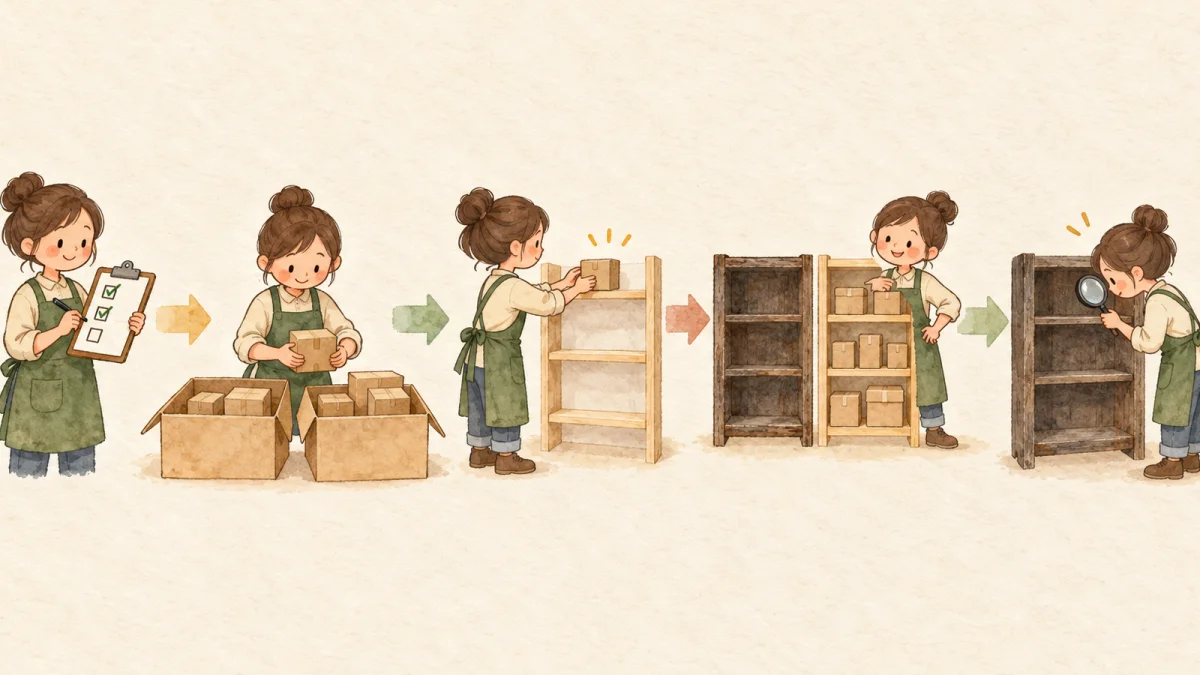
Start by recording existing orders and customer promises
Before changing any settings, record what you have promised customers. Once you uninstall the app, you can no longer open its screens. You will be left with your Shopify orders and whatever records you saved.
Save these 4 things:
- Unshipped pre-orders: Order numbers, products, the shipping estimates customers received and payment status (paid in full, deposit only, or when the balance is due).
- Settings for products currently taking pre-orders: Products and variants, opening and closing dates and times, order limits and the shipping estimate shown on the product page.
- Notification subscribers: Lists of customers waiting for restock or launch emails, if the app lets you export them.
- Planned notifications: Emails due to go out when pre-orders open or stock arrives, including their wording.
For example, you might have 23 open pre-orders: 15 customers were told “Ships late this month” and 8 were told “Ships early next month.” Another 41 people signed up for a restock email. Organize your records by both counts and promises, as in this example (the numbers are illustrative).
Export orders from Shopify's order list. Copy the app settings or take screenshots. These records will help you check which app should handle each order through to shipment and whether everyone has been notified.
What carries over when you switch pre-order apps?
Whether data carries over depends on where it lives: in Shopify or inside the app. Shopify data remains after you remove an app; data held inside the app is no longer available through it once it is removed.
| Data | Where it is stored | What happens after the switch |
|---|---|---|
| The pre-orders themselves | Shopify orders | They remain. You can still fulfill and refund them from the Shopify order page |
| Shipping-date management, balance collection and notifications | Old app | These stop when you uninstall. Finish handling existing orders in the old app |
| Notification subscriber lists | Old app | They do not transfer automatically. Export them if possible and contact customers from your store |
| Pre-order schedules and wording | Old app | They do not transfer. Recreate them in the new app |
| “Continue selling when out of stock” | Shopify products | The old app may leave it on. Check and correct it yourself |
| Order tags and fulfillment holds | Shopify orders | These may remain. Remove them from the order page if no longer needed |
Pre-orders are normally recorded as Shopify orders, rather than being stored only in the app. SellRules also creates regular Shopify orders for pre-order and made-to-order purchases, with tags and fulfillment holds attached (the user guide's section on handling orders).
Data stored only in the app, however, is deleted after removal. Shopify's help center says that uninstalling a pre-order app deletes the pre-order data it created, excluding customers' payment information, after 48 hours. If the old app manages shipping dates or collects balances for existing orders, keep it installed until those orders have shipped.
Do not assume everything can move together. SellRules has no feature for importing subscribers or settings from another app. For other apps, check their instructions for exporting data and what happens to it after uninstalling.
Reset “Continue selling when out of stock” left by the old app
Shopify's “Continue selling when out of stock” setting is easy to miss during a switch. Many pre-order apps enable it so a product can accept orders with 0 inventory. Because it is a Shopify product setting, uninstalling the app may not reset it automatically. Uninstalling SellRules does not restore this setting either.
If it stays on, orders can keep coming in for products with 0 stock after pre-orders close. You may end up selling more than you can supply.
There is another detail to watch when moving to SellRules. SellRules remembers variants that had this setting enabled before you created a pre-order schedule as settings chosen by your store. When you delete the schedule, it turns those settings back on. During pre-orders and regular sales, SellRules turns the setting on or off to match the current sales stage, so this does not cause a problem then. The problem comes when pre-orders end and you delete the schedule: the setting left by the old app is restored.
Correct it in this order:
- In your Shopify admin, open the product under “Products” and check “Continue selling when out of stock” for each variant you are moving.
- Once the old app has stopped taking pre-orders for that product, turn the setting off and save for any variant you do not want to sell with 0 stock.
- Then create the sales schedule in SellRules.
If you notice the problem after creating a SellRules schedule, turning the setting off on the Shopify product page will not fix it. While SellRules manages the product, saving, scheduled syncs and sales-stage changes overwrite it with the setting required by the schedule. Delete the schedule first, turn off the variants that reverted to on in Shopify and save, then recreate the schedule.
If you intend to keep taking orders while out of stock, such as for a made-to-order product you can always produce, leaving it on is the right choice. Only turn off settings the old app enabled specifically for pre-orders.
Test the new app with just 1 new pre-order setup
Start with 1 product whose pre-orders have not opened yet, rather than switching every product at once. Keep products already taking pre-orders running in the old app during the test.
- Choose 1 product to test. Use a product you will open for pre-orders next, or a test product, rather than one currently taking pre-orders through the old app.
- Enter the same conditions in the new app. Refer to your records for opening and closing dates and times, limits and shipping estimates. In SellRules, enable the SellRules app embed in your theme customizer, then create a pre-order under “Schedules”.
- Check what customers see. Open the product page on your actual storefront, not the theme editor preview, and check the button, shipping estimate and signup form. If they are missing, follow what to check when the pre-order button does not appear.
- Place 1 test order. Check that it is recorded as a pre-order and that the confirmation email arrives.
The main rule is never take pre-orders for the same product through 2 apps at once. If both are active, customers may see 2 buttons or signup forms, or receive duplicate emails. SellRules does not automatically detect whether another pre-order app manages the same product.
On the SellRules Free plan, you can accept a total of 10 pre-order and made-to-order orders since installation, including test orders. Reinstalling does not reset the count, so 1 test order is enough. Notification emails also have a total allowance of 15 since installation. For the test steps, see trying SellRules on Free with 1 product.
Contact customers waiting for notifications yourself
Customers who signed up for restock or launch emails in the old app do not move to the new app. Your store needs to contact them directly.
- Export the subscriber list if the old app has an export feature.
- Once you know when stock will arrive or pre-orders will open, notify that list through your store's email or another channel. Exclude anyone who has unsubscribed.
- Add a short request to the email asking customers to sign up again on the product page for future alerts. The new app can then notify them about the next restock.
There is also a detail to watch for products collecting signups through SellRules. If you change a sold-out switch from “Back-in-stock notification only” to “Pre-order” and save, existing subscribers do not automatically receive a pre-order launch email. Export them as a CSV from “Back-in-stock subscribers” and send the announcement yourself. Unsubscribed customers remain in the CSV, so exclude rows with the status “Excluded”. For choosing between the options, see pre-orders or back-in-stock alerts for sold-out products.
Set a switch date and decide how to switch back
Once the test works, you can move the remaining products. Before doing that, choose the date and decide how you will return to the old app if needed.
- Switch date: Choose a quiet day or a time just before a new pre-order window opens. Avoid the run-up to a major launch or a week with many orders due to ship.
- How to switch back: If the new app does not work as expected, delete the schedules you created in it and recreate the pre-order setup in the old app. In SellRules, deleting a schedule stops pre-orders for that product and turns off “Continue selling when out of stock” where SellRules enabled it (settings your store had enabled before creating the schedule are restored to on). Keep the old app installed until the new setup is settled.
You can also disable the theme app embed, but do not rely on that as your way back. It restores the normal buy button on the product page, but leaves Shopify's “Continue selling when out of stock” setting in place. Customers can still order with 0 stock.
Assign responsibility for each order too. Track orders taken through the old app there, or in Shopify's order pages, until they ship. Track new-app orders in the new app. For handling orders after they arrive, see managing made-to-order orders through to shipment.
What to check before uninstalling the old app
Remove the old app once you have finished handling its orders and the new app is taking orders as expected. Before uninstalling, check the following.
- Have outstanding orders shipped and balances been collected? If the old app took deposit and balance payments, finish collecting the balances before removing it. Automatic collection stops when you uninstall. Check the old app's instructions for how to collect any remaining balances after removal.
- Have you exported the data you need? Save subscriber lists and settings. Shopify's help center also advises exporting important data before removing an app.
- Will billing stop? For apps billed through Shopify, uninstalling stops future recurring charges, but you may still be charged for the current billing cycle. Apps billed outside Shopify need a separate cancellation; uninstalling does not stop those charges.
- Will code be left in your theme? If the app added theme code, uninstalling may not remove it automatically. Check its instructions or ask its developer.
- Is only the intended app sending notifications? Check that notifications planned in the old app have stopped and are not duplicating emails from the new app.
After uninstalling, deal with anything left in Shopify. Fulfillment holds placed by the old app may remain on orders; remove them with “Release hold” on the Shopify order page. Order tags remain too, but you can remove unwanted tags there.
Moving from SellRules to another app
When leaving SellRules, follow this order:
- Keep SellRules installed until its existing orders have shipped. Finish collecting balances on deposit and balance orders.
- Delete the sales schedules you created in SellRules. This turns off “Continue selling when out of stock” where SellRules enabled it for pre-orders.
- If you want to keep back-in-stock subscribers, export them as a CSV from “Back-in-stock subscribers”.
- In SellRules Settings, open “Before you uninstall the app” to check which data will be deleted, what will remain in Shopify and which orders have outstanding balances.
- Uninstall from “Settings” → “Apps” in your Shopify admin.
SellRules data, including selling settings, back-in-stock subscribers, order progress and balance collection records, is deleted 48 hours after uninstalling. Reinstall within 48 hours and it is restored. Shopify automatically removes the deposit purchase option, so customers cannot place deposit orders after removal. Outstanding balances are no longer collected automatically, but you can collect them manually with “Collect payment” on the Shopify order page. Order tags, fulfillment holds and “Continue selling when out of stock” remain as they were at uninstall, so correct anything you no longer need in Shopify. For the hold removal steps, see how to release fulfillment holds on pre-orders.
Pre-order app migration checklist: where and when to check
This table puts the checks above in order, with where to look and when. Wherever it says “old app's instructions”, check that app's documentation or ask its developer.
| What to check | Where to look or who to ask | When |
|---|---|---|
| Have you exported unshipped pre-orders and recorded the shipping estimates and payment terms customers received? | Shopify order list and product-page wording | Before switching |
| Can you export notification subscribers, and have you done so? | Old app's screens and instructions | Before switching |
| Have you recorded settings for products currently taking pre-orders? | Old app's settings | Before switching |
| Have you turned off “Continue selling when out of stock” where the old app enabled it? | Shopify product page | Before creating the new pre-order setup |
| Have you checked the product page and a test order with 1 new pre-order setup? | Live storefront product page and test order | During testing |
| Are any products taking pre-orders through 2 apps at once? | Settings in both apps | From testing through the switch |
| Have you decided how to switch back by deleting the new app's schedules? | Your store | Before switching |
| Have you assigned each order to the app that will handle it? | Your store's operating procedures | When switching |
| Have you checked balance collection, cancellation of billing and leftover theme code? | Old app, Shopify billing page and old app's instructions | Before uninstalling |
| Have you cleared unwanted fulfillment holds and tags, and checked for duplicate notifications? | Shopify order pages and received emails | After uninstalling |
When to wait, and what to do if something goes wrong
- There is no urgent reason to switch: If your current app is working for you, consider waiting when many orders are still unshipped or a major launch is approaching. A quieter period makes it easier to keep your customer promises.
- You use a particular payment arrangement: If the old app takes a deposit up front or charges the full amount on a due date with no deposit, check first that the new app supports the same arrangement. SellRules offers deposit and balance payments, including no-deposit payments, only on Pro.
- Problems appear while the new app is taking orders: Delete its schedules to stop new pre-orders, then recreate the setup in the old app. Orders already received remain in Shopify; contact those customers again with their shipping estimates and handle the orders. Keep the new app installed until its orders have shipped, because their fulfillment holds and planned notifications remain with that app. If duplicate notifications have already gone out, you cannot recall them. Follow up with an apology and the correct information.
- You discover overselling after uninstalling: Turn off “Continue selling when out of stock” on the Shopify product page. For orders you cannot supply, contact the customers to discuss a refund or a later shipping date.
Frequently asked questions
Will I lose existing pre-orders if I change apps?
The orders remain in Shopify, so you can still fulfill or refund them from the Shopify order page. But shipping-date management, balance collection and customer notifications are app features and stop when you uninstall the old app. Shopify's help center also says that an app's pre-order data, excluding payment information, is deleted 48 hours after you remove the app. Keep the old app installed until you have finished handling its orders.
Can I move back-in-stock subscribers to the new app?
Do not assume the list can be transferred. SellRules does not import subscribers from other apps either. If the old app offers an export, save the list and notify customers directly through your store's email or another channel when stock arrives or pre-orders open. Ask them to sign up again in the new app so it can notify them about the next restock.
Can I keep 2 pre-order apps installed at once?
You can keep them installed, but do not take orders for the same product through 2 apps. Customers may see 2 buttons or signup forms, or receive duplicate notifications. SellRules does not automatically detect other installed pre-order apps. Divide products between the apps: keep current pre-orders in the old app and start new pre-orders in the new one.
Why can customers still buy products with 0 stock after I uninstall the old app?
The old app may have left Shopify's 'Continue selling when out of stock' setting turned on for pre-orders. This setting belongs to the Shopify product, so uninstalling the app may not reset it. Turn it off on the Shopify product page for variants you do not want to sell on pre-order. For products you are setting up in SellRules, turn it off before creating the schedule.
Can I switch back if the new app does not work out?
Deleting the schedules you created in the new app stops it from taking pre-orders for those products. You can then recreate the pre-order setup in the old app to return to your previous arrangement. However, notification emails already delivered cannot be recalled, and once 48 hours have passed after uninstalling, you cannot recover the old app's data unless it has a backup feature. Decide how you will switch back before making the change, and keep the old app installed until the new setup is settled.
Test the switch with 1 upcoming pre-order product
You can change pre-order apps without confusing customers by keeping existing orders and promises in the old app and starting only new pre-orders in the new one. Exporting your records, deciding how to switch back and checking “Continue selling when out of stock” before the change give you the best protection against mistakes.
If you are considering SellRules, stay on Free and set up pre-orders for 1 product you plan to launch next, checking everything from the product page to 1 test order. Standard and Pro have no free trial; Free is how you try the app. When order or notification volumes grow, you can choose Standard (US$9.90 per month), or Pro (US$19.90 per month) if you need deposit and balance payments.
See SellRules features and pricing
If you want to compare apps again, see how to choose a pre-order app, which compares payment timing and sales rules.
Features checked on October 25, 2026: JizaiDev, the developer of SellRules, checked the live app's code and settings-screen wording as of that date. Information about removing pre-order apps and uninstalling is based on Shopify's help center, checked on October 25, 2026. Order counts and similar examples are illustrative. For current pricing, check the Shopify App Store listing.
Related article: Planning early-access and limited sales