You've been taking pre-orders paid in full, but for pricier items, or pre-orders with a long wait before they ship, you'd now rather collect just a deposit up front. When you get to that point, two questions usually come up: what happens to the pre-orders you're taking right now, and will switching cause trouble for customers who already bought?
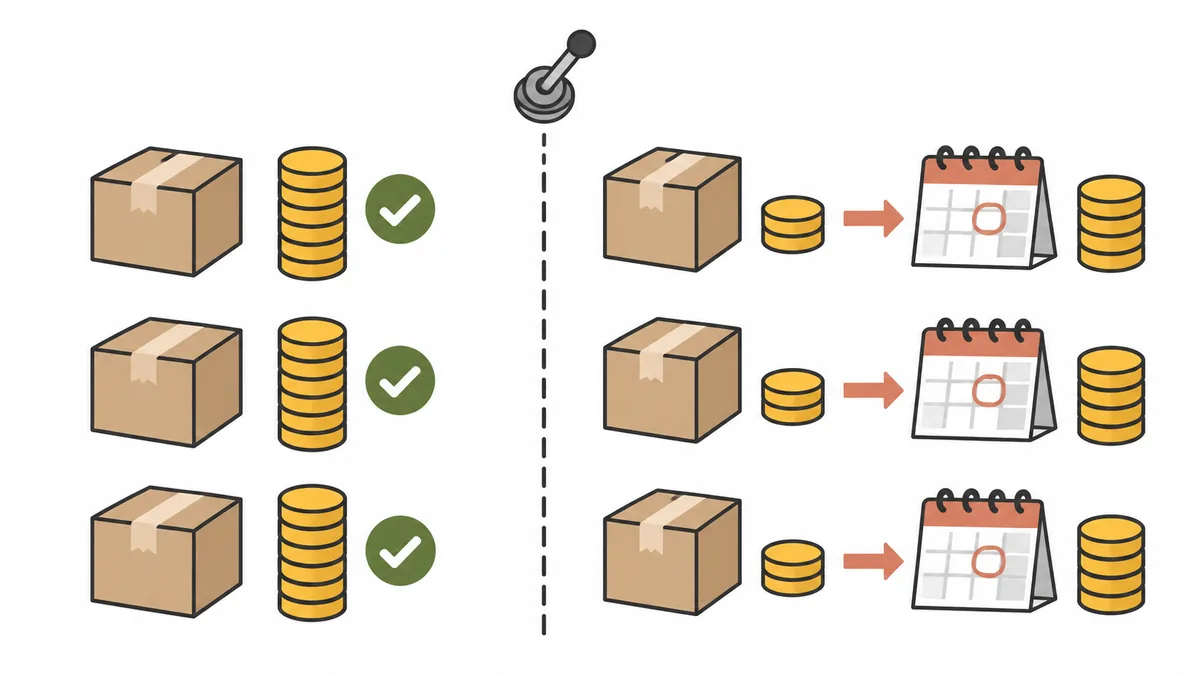
The short answer: switching to a deposit in SellRules changes only the orders placed after the switch. Orders already paid in full stay as they are, and there is no feature for turning them into deposit and balance orders afterwards. Deposit and balance payments are a Pro plan feature (US$19.90 per month), so stores on Free or Standard move to Pro before setting them up. Stores on Launch, the old plan, can use them without changing plans.
How deposit and balance payments work in general (what customers receive and when the balance is charged) is covered in how to take a deposit on Shopify pre-orders. This article is about the decisions and checks involved when a store that's taking fully prepaid pre-orders makes the switch.
What happens to open pre-orders when you switch to a deposit?
Nothing changes for the pre-orders you've already accepted. Whether an order is a deposit order is decided order by order, by whether the customer chose the deposit purchase option at checkout. SellRules also only records orders bought with the deposit purchase option as having a balance to collect.
| Order | What happens after the switch |
|---|---|
| Orders paid in full before the switch | Stay paid in full. No balance is charged and no collection is scheduled. The fulfillment hold (until you start preparing the shipment for pre-orders, or until production starts for made-to-order) was already on them before the switch and stays as it was. There is no action for turning them into deposit orders afterwards |
| Orders placed after the switch | Only the deposit is paid at purchase. The balance is charged automatically on the due date you set, to the payment method the customer saved, and the order is on a fulfillment hold until it's paid |
| Customers who added the product to their cart before the switch | Checkout shows “This product requires a deposit payment plan. Please remove it and add it again from the product page”. Once they add it again, they can buy with a deposit |
| You change the percentage or due date after taking deposits | Deposit orders already placed keep the deposit and due date from when they were bought. The new terms apply to orders placed after that |
After you save, it takes a little while for the change to reach the product page and checkout. The SellRules settings screen says it takes effect “within about 5 minutes”. Customers who arrive in the meantime either buy with full payment as before, or are stopped at checkout with “The payment plan for this product is being prepared. Please try again shortly”. Switching outside your busiest hours makes it easier to tell afterwards which orders were paid in full and which were deposits.
What should you do on your current plan?
Deposits are available on the Pro plan and on Launch (the old plan). On Free and Standard, the “Payment” section of the schedule screen shows “Deposit and balance payments (collect a deposit first and charge the balance later) are available on the Pro plan.” and you can't select a deposit.
| Current plan | What to do to use deposits | What else changes |
|---|---|---|
| Free | Move to Pro | The cap of 10 pre-order and made-to-order orders in total goes away. Back-in-stock and launch emails go from 15 in total to 5,000 a month. The limits of 1 products each for purchase limits and coming soon go away, and you can edit the wording of notification emails. You also get the Klaviyo integration |
| Standard | Move to Pro | Back-in-stock and launch emails go from 1,000 a month to 5,000 a month, and you get the Klaviyo integration. Your other features stay the same |
| Launch (old plan) | Don't change plans. Enable deposits for your store | Nothing |
| Pro | Enable deposits for your store (skip if already done) | Nothing |
If you're on Launch, stop here. The user guide describes deposit and balance payments as a Pro-only feature and doesn't mention Launch, the old plan. In the app's code, Launch stores can use deposits too. As the app's plan screen also says, once you switch to a new plan you can't go back to your current terms (Launch's price and all features). Launch stores can use deposits without changing plans, so after the checks in the next section, start from the second step.
Standard and Pro have no free trial. What you're billed when you change plans follows what Shopify's approval screen shows.
Three things to check before you switch
Before moving to Pro, get three checks out of the way. They cost nothing. If any of them trips you up, you either can't use deposits even on Pro, or you run into trouble after you start.
- Whether your store's payments support deposits. Deposit and balance payments only work with payment providers that can save the customer's payment method at purchase. The SellRules settings screen lists supported providers as “Shopify Payments, PayPal Express, Adyen, Stripe (only for some stores), etc.” and unsupported ones as “manual payments such as cash on delivery or bank transfer, and local payment methods”. That's because it relies on Shopify's pre-order mechanism, which saves the payment method at purchase and charges the rest later. If many of your customers pay by cash on delivery or bank transfer, they won't be able to use those methods for products switched to a deposit. How to check the payment methods on recent orders is covered in which payments work with deposits, and how to remove cash on delivery from pre-order products in how to turn off cash on delivery for pre-order products.
- How many pre-orders are open, and when they ship. After the switch, the same product will have both fully paid orders and deposit orders. Write down the number of accepted orders and the shipping dates for the products concerned, from Shopify's order list or SellRules' “Order progress”. You'll use them for the decision in the next section.
- How to change what you tell customers. If your product descriptions or FAQ say “paid in full at purchase”, update them at the same time as you switch. With a deposit, customers receive the “Balance payment reminder” email from 3 days before the due date, and the balance is charged to their saved payment method on the due date. The customer's side of the flow is summarized in deposits from the customer's point of view.
Switch mid-run, or wait for the next pre-order window?
What decides it is how you'll handle the difference with customers who already bought. Switching mid-run means that for the same product, earlier buyers paid in full while later buyers paid only a deposit. If you can explain that difference to each customer, switch mid-run. If you can't, switch from the next window.
| Your situation | Way to switch | Why |
|---|---|---|
| The window has just opened and only a few orders are in | Switch mid-run | Few customers are affected, and you can explain it to each of them |
| The window is in its later stages and many orders are in | From the next window (next product or next restock) | Many customers are affected, and answering their questions takes more work |
| Made to order, with production starting per order | Either works | Each order has its own shipping date, so customers are less likely to compare |
| No room to put the balance due date before shipping | From the next window | With the due date right before shipping, if the balance charge fails there's no time for the customer to fix their payment method |
For example, say you've been taking fully prepaid pre-orders since October for a wool coat (¥48,000) that ships in mid-December, and 15 orders are already in. If you switch to a 30% deposit now, customers from the 16th order on can reserve it by paying ¥14,400, while the first 15 have paid ¥48,000. If one of those earlier customers asks for a deposit too, there's no action for turning their order into a deposit order.
For this store, the easy route is to close this window on full payment and start deposits with the next color or the next restock. If you do switch mid-run, decide in advance how you'll answer questions. The basic answer is that orders paid in full ship as they are. For customers who really want to buy again with a deposit, you can also cancel the order, refund it in full, and have them buy again with a deposit. When you cancel, though, you choose whether to restock the items (by default they're restocked), so you need to check that your inventory counts are right. And as Shopify Help on canceling orders explains, credit card processing fees aren't returned when you refund, so this doesn't suit a large number of orders.
If you switch mid-run, “Specific date” is the better choice for the balance due date. With “Days after checkout”, the later an order comes in, the later its due date, and it can end up after the shipping date. Set the date after the day the window closes. Orders that come in after the due date has passed go to the balance charge right after the order. Choosing the percentage and due date is covered in more detail in how to set the deposit percentage and balance due date.
Steps to move to Pro and switch a schedule to a deposit
There are three stages: change your plan, enable deposits for your store, and change how the schedule collects payment. Stores on Launch or already on Pro start from step 2.
- Move to Pro. Open the schedule you want to switch to a deposit. The “Payment” section shows the note that deposits are available on the Pro plan, with a “View plans” link (on the screen for creating a new schedule, it appears after you click “Show extra settings”). The link opens the “Plan & billing” screen (you can also open it from “Plan & billing” in the app's left menu). On that screen, click “Change plan in Shopify” (or “Choose a plan” if your store hasn't picked one yet), then select Pro on Shopify's plan screen and approve. You're done when the “Plan & billing” screen shows Pro as your current plan. It can take a while after approval for this to update, so if it hasn't changed, wait a moment and reopen it.
- Enable deposits for your store. In “Settings → Deposits and balance payments”, click “Enable” and approve on Shopify's permissions screen. You're done when the status shows “Enabled”. If you close the screen without approving, deposits aren't enabled, so click “Enable” again. You can also enable them with the “Enable deposit payments” button that appears when you choose a deposit on the schedule screen.
- Change how the schedule collects payment. Open a pre-order or made-to-order schedule, and in the “Payment” section change “Payment collection” from “Full payment at checkout” to “Deposit now, balance later (partial payment)”.
- Enter the deposit and the balance due date. Set the deposit as a “Percentage of product price” (0.01–99.99%) or a “Fixed amount”, and the balance due date as “Days after checkout” (1–365 days later) or a “Specific date”. A fixed amount is per item and must be less than the product price.
- Save. The change reaches the product page and checkout within about 5 minutes.
To change several schedules at once, you can also use bulk edit on schedules: tick the “Payment” row and change it there. If you use a rule that switches products to pre-order when they sell out, that rule's screen has the same section, so change it too. If you leave the rule on full payment, products that sell out and switch to pre-order will be sold fully prepaid.
Check the storefront and orders right after the switch
Once you've saved, place one test order yourself before real orders come in. For a while, fully paid orders and deposit orders will be mixed, so it helps to see how each one looks first.
- Wait about 5 minutes, open the product page, and check that the deposit and the balance due date are shown, for example “30% deposit, balance charged 30 days after purchase”.
- Go to checkout and confirm that the amount due today and the balance to pay later are shown separately. Also look at how payment methods that don't work with deposits, such as cash on delivery or bank transfer, appear on the payment step (this depends on your store's payment settings).
- After completing the purchase, check in SellRules' “Order progress” that the order's “Payment” column shows “Scheduled” and a due date.
- In Shopify's order page, check that the test order's payment status is “Partially paid” and that fulfillment is on hold.
You can't tell fully paid orders from deposit orders by the fulfillment hold. Pre-order and made-to-order orders get a fulfillment hold even when paid in full (pre-orders until you start preparing the shipment, made-to-order until production starts). There are two things to look at: a fully paid order has the Shopify payment status “Paid”, and Order progress shows no scheduled balance collection for it. How to release the hold is covered in why pre-orders are “On hold” and how to release them.
If the product page doesn't show a deposit, check that “Settings → Deposits and balance payments” is “Enabled” and that about 5 minutes have passed since you saved. For a closer look at the test order, see the test purchase section of how to take a deposit on Shopify pre-orders.
What SellRules settings can't change
Some problems you may hit when switching can't be solved however much you look through the app's settings. Knowing them in advance saves you wondering who to contact.
- The payment method of orders paid in full. SellRules has no action for turning an accepted order into a deposit and balance order. If you want to change one, the only way is to cancel and refund it as described above, and have the customer buy again.
- Which payment methods are supported. Whether you can use deposits depends on the payment provider your store uses and on whether Shopify can save the payment method. If a provider you want to use isn't supported, check with that provider or Shopify Support.
- Refund fees and what you're billed for a plan change. Whether processing fees come back on a refund depends on your payment provider's terms, and what you're billed for a plan change follows Shopify's approval screen.
- Moving over from another pre-order app. Carrying over pre-orders taken in another app is a separate job from this switch. See what to check before switching pre-order apps.
If it doesn't suit you, go back to full payment or Standard
If you find deposits don't suit you, you can go back to full payment at any time. Even then, the balance on orders already taken with a deposit is collected on the due date, so you won't lose track of orders in progress.
| How to go back | What to do | Orders after that |
|---|---|---|
| Per product | Set the schedule's “Payment collection” to “Full payment at checkout” | That product goes back to full payment |
| Stop for the whole store | Click “Disable” in “Settings → Deposits and balance payments” | All affected products go back to full payment |
| Go back to Standard or Free | Open “Plan & billing” in the app's left menu, click “Change plan in Shopify”, then select Standard or Free on Shopify's plan screen and approve. If the app won't open, you can reach the same plan screen by opening admin.shopify.com/store/(your store handle)/charges/sellrules/pricing_plans in the Shopify admin (your store handle is the part after /store/ in the admin URL) | Deposits come off the products and they go back to full payment. Your deposit settings are kept, so if you move back to Pro, they sell with the same deposit again |
After you downgrade, opening a schedule shows “Your current plan can't set up new deposit payments.” Your saved deposit settings are kept, you can still edit the other settings, and you can switch it to full payment with “Switch back to full payment”.
When you downgrade, also check what else you lose besides deposits. The Klaviyo integration is only on Pro and on Launch, the old plan, so if you had emails to customers set to send from Klaviyo, they will be sent from SellRules after you go back to Standard or Free. Free has an allowance of 10 pre-order and made-to-order orders in total, and that total also counts orders placed while you were on a paid plan. If your store has taken a lot of pre-orders, you may already be over the allowance the moment you go back to Free, and pre-order and made-to-order sales can stop. If you want to keep taking pre-orders, go back to Standard instead.
Next steps after switching
Once you're taking deposits, the job runs all the way until the balance is collected. Get these two things done before your first balance due date so you're not caught off guard.
- Decide what happens when a balance can't be collected. If the card doesn't go through on the due date, the charge isn't retried automatically and the order shows “Collection failed”. The customer gets an email with a payment link, and you get a notification. What to do next is covered in what to do when a balance isn't paid.
- Read through the balance reminder email. The “Balance payment reminder” sent from 3 days before the due date can be edited under “Settings → Email templates”, like your other notifications. Adding the expected shipping date and how to contact you in your own words helps put customers at ease.
Frequently asked questions
Can I turn a pre-order that's already been paid in full into a deposit order?
No. Whether an order is a deposit order is decided order by order, by whether the customer chose the deposit purchase option at checkout. SellRules has no feature for turning an accepted order into a deposit and balance order afterwards. Orders already placed stay paid in full all the way to shipping.
If I switch to a deposit partway through a pre-order window, will earlier customers receive anything?
If all you change is the payment setting, SellRules sends no email to customers who already bought, because nothing changes on the orders you've already accepted. Some may still get in touch once they learn that later buyers only paid a deposit, so decide how you'll answer before you switch.
If I change the deposit percentage or the balance due date later, what happens to orders already taken with a deposit?
Orders already taken with a deposit are collected with the deposit and due date that applied when they were bought. Your new terms only apply to orders placed after the change. To push back the due date for a single order, open “Balance collection details” in “Order progress”, enter a “New due date” and click “Change due date”. The customer receives an email about the new due date. Choosing the percentage and due date is covered in how to set the deposit percentage and balance due date.
I'm on Launch, the old plan. Do I need to move to Pro to take deposits?
No. Stores on Launch can use deposit payments on their current plan. Once you switch to a new plan, you can't go back to Launch's terms. Keep your plan and start by enabling deposits under “Settings → Deposits and balance payments”.
If I move to Pro and deposits don't work for me, how do I switch back?
There are three ways: set the schedule's payment collection back to full payment, disable deposit payments for your whole store, or go back to Standard or Free. Whichever you choose, the balance on orders already taken with a deposit is still collected on its due date. The steps are in the table in “If it doesn't suit you, go back to full payment or Standard” above.
Start with one product in your next pre-order window
Switch just one product to a deposit at first: one with few accepted orders, or one whose window hasn't opened yet. Use a test order to check the product page, checkout and Order progress, and once you know how to tell deposit orders from fully paid ones, roll it out to other products. That way your open pre-orders don't get mixed up.
SellRules plans and pricing
| Monthly price | FreeStart with one product | StandardRun it at full scale | ProAdd deposit and balance payments |
|---|---|---|---|
| Monthly price | Free | US$9.90 per month | US$19.90 per month |
| Pre-order and made-to-order orders | Up to 10 in total | Unlimited | Unlimited |
| Back-in-stock and sale-start emails (Notify Me) | Up to 15 in total (not refilled monthly) | 1,000 per month | 5,000 per month |
| Purchase limits | Up to 1 product | No limit on products | No limit on products |
| Customizable notification emails | No | Yes | Yes |
| Deposit and balance payments | No | No | Yes |
| Extra sends (email) | No | Yes (within the budget you approve) | Yes (within the budget you approve) |
Pre-orders, made-to-order, back-in-stock sign-ups, purchase limits, stockout switching and order processing are available from the Free plan.
Standard and Pro have no free trial; the Free plan takes its place.
The Free plan counts are totals since you installed the app. Required messages such as order confirmations, shipping and balance reminders are not counted.
The earlier Launch plan is closed to new sign-ups, but if you are on it your current terms stay as they are.
Pro costs US$19.90 per month and has no free trial. If deposits don't suit you, you can go back to Standard or Free as shown in the table above. For the bigger picture on planning pre-orders and sales windows, see how to plan early-access and limited sales, and for the settings screens, see the SellRules user guide.
Features checked on: October 19, 2026 (checked by JizaiDev, the developer of SellRules, against the code of the app running in production and the user guide). We also used a development store running the pre-release test build (it has a small difference in how deposits are imported, which doesn't affect the flow described here) to try, on the real screens and with test-payment orders, taking an order paid in full, switching to a deposit, and taking the next order. We also tried, on screen, moving back to Standard with deposits still set and then back to Pro. No orders were placed during that part, so the fact that balances on deposit orders are still collected after a downgrade was confirmed from the app's code and the wording on the settings screen. The message shown to customers who had added the product to their cart before the switch, and the “payment plan is being prepared” message right after saving, couldn't be triggered in this test, so they were confirmed from the app's code. The Shopify mechanism for saving a payment method and charging it later is based on Shopify Help (pre-orders). Prices reflect the new pricing of October 18, 2026 (Free, Standard, Pro). For the latest information, see the SellRules changelog and the Shopify App Store listing.