Once you start taking pre-orders with SellRules, orders marked "On hold" start appearing in your Shopify order list. You try to fulfill them and the button won't work, and they don't show up in the Unfulfilled list.
SellRules places a Shopify fulfillment hold only on pre-order and made-to-order items, to stop you from accidentally shipping something before launch or before it's been made. When everything is ready, press "Start shipment preparation" ("Start production" for made-to-order) in SellRules' "Order progress", and the hold is released so you can fulfill the order in Shopify. Since the October 1, 2026 update (1.2.0), regular items in the same order aren't held, so they can ship first.
This article covers why the hold is placed and what it covers, how to release it, how shipping regular items first works, how to spot orders where the hold couldn't be placed, how deposit and balance orders are handled, and what to watch for when uninstalling the app.
A fulfillment hold stops pre-order and made-to-order items from shipping "too early"
A fulfillment hold temporarily stops fulfillment on a Shopify order. Items on hold can't be fulfilled until the hold is released (Shopify Help Center: Holding fulfillments).
When a pre-order or made-to-order order comes in, SellRules places a fulfillment hold on those items. This prevents pre-order items before their launch date, or made-to-order items you haven't made yet, from going into fulfillment along with other orders. The Shopify order page shows the reason for the hold like this:
- Pre-orders: "Pre-order: on hold until you start preparing shipment"
- Made-to-order: "Made to order: on hold until production starts"
The reason is shown with Japanese text first, followed by the English shown above; the Japanese part adds that the hold is released when you start shipment preparation or start production in SellRules' "Order progress". You can also tell from the reason which kind of order it is.
Which items are held
| What's in the order | Fulfillment hold | When it can be fulfilled |
|---|---|---|
| Pre-order items only | Placed | After you press "Start shipment preparation" |
| Made-to-order items only | Placed | After you press "Start production" |
| Pre-order or made-to-order items plus regular items | Placed only on the pre-order or made-to-order items | Regular items right away; pre-order or made-to-order items after you act |
| Deposit and balance, with the balance unpaid | Placed on the whole order, regular items included | After the balance is paid. Pre-order and made-to-order items also need "Start shipment preparation" or "Start production". What to check is explained in the deposit and balance section |
| Regular items only | Not placed | Right away |
Release the hold in "Order progress" once you're ready
You release the hold from SellRules' "Order progress". The button name differs for pre-orders and made-to-order, but either one releases the fulfillment hold in Shopify so the order can be fulfilled.
Pre-order orders
- Open SellRules' "Order progress" and filter the order type to "Pre-order". Orders whose progress is "Not started" are the ones you haven't started preparing yet (orders where a hold couldn't be placed are listed here too).
- Press "Start shipment preparation" on an order that's ready to ship.
- A confirmation appears: "This starts shipment preparation for this pre-order. The shipping hold in Shopify is released and the order can be fulfilled. Continue?" Go ahead.
- You're done when you see "The order can now be fulfilled in Shopify" and the progress changes to "Preparing to ship".
When you're handling many pre-orders at once on launch day, select the orders and press "Start production / prepare shipment" to release the holds in one go. A confirmation appears before it runs.
Made-to-order orders
- In "Order progress", filter the order type to "Made to order" and select orders that are "Not started".
- Press "Start production" for a single order, or select several and press "Start production / prepare shipment".
- The progress changes to "In production", and the fulfillment hold in Shopify is released. When you act on several orders at once, a confirmation appears before it runs.
With made-to-order, keep in mind that the hold is released as soon as you start production. The order can be fulfilled in Shopify even before the item is finished, so check against the progress in "Order progress" before fulfilling, so that you don't ship an unfinished order by mistake. Managing production order and lead times is covered in our article on managing made-to-order orders through shipping.
Be careful with orders that contain items with different launch dates
Releasing a hold works per order. If one order contains two pre-order items with different launch dates, or a pre-order item and a made-to-order item together, pressing "Start shipment preparation" (or "Start production") on any one line releases every hold SellRules placed on that order. The other item still shows as "Not started" in "Order progress", so what you see no longer matches the actual state.
For orders like these, either wait until every item is ready before acting, or if you release early, tell whoever handles shipping, "don't ship the remaining items in this order yet."
Fulfill
Once the hold is released, fulfill the order with "Bulk fulfill in Shopify" or from the Shopify order page. When the fulfillment is recorded, SellRules sends the "Shipped notice" email, and the order drops off the "Order progress" list.
Regular items in the same order can ship first without releasing the hold
When a pre-order item and a regular item are in the same order, SellRules moves the pre-order or made-to-order items into a separate fulfillment on the Shopify order page and places the hold only on that one. The regular items stay outside the hold, so you can ship them first without waiting for the pre-order's ship date. These orders also show as "Unfulfilled" in Shopify's order list.
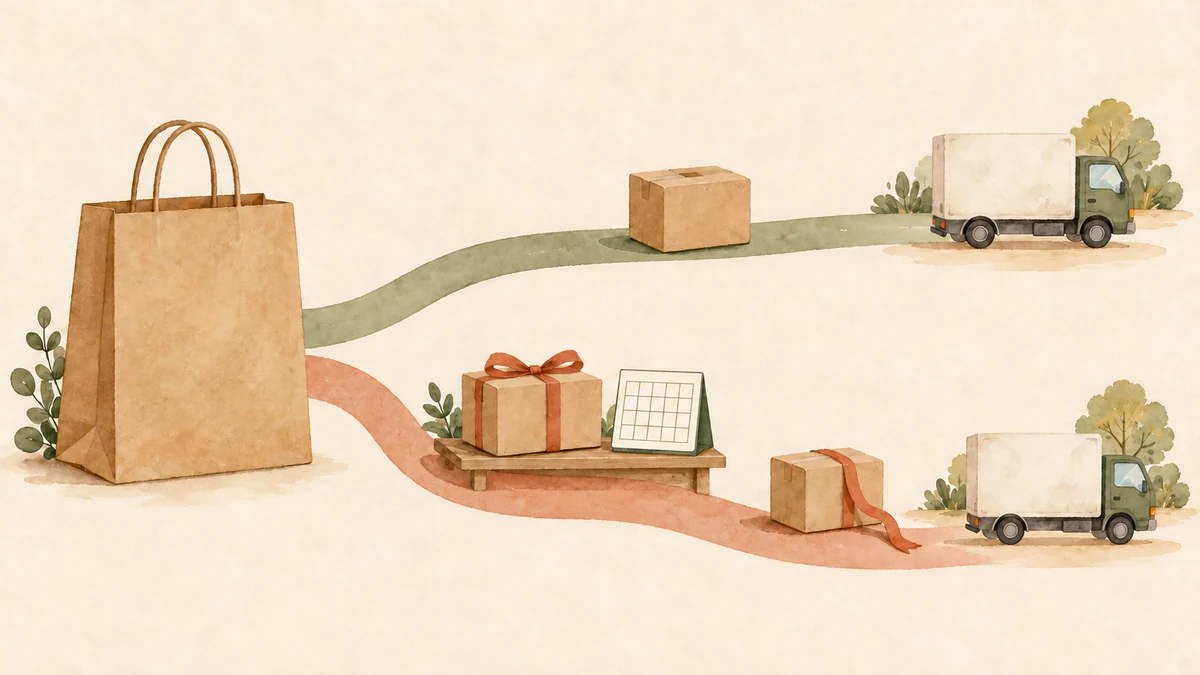
For example, say one order contains pre-order item A, launching December 10, and regular item B, which is in stock.
- When the order comes in, only A is placed on a fulfillment hold. B is unfulfilled and can ship right away.
- When you fulfill B on the Shopify order page, the order becomes "Partially fulfilled".
- As December 10 approaches, press "Start shipment preparation" on this order in "Order progress" to release A's hold.
- Once you ship A, the whole order is fulfilled.
Shipping regular items first does split the delivery into two parcels, with the extra postage that comes with it. The customer paid shipping once at checkout, so decide in advance whether your store absorbs the cost of the second parcel. How to choose between shipping together and shipping separately, with sample pre-purchase wording, is in our article on pre-order and regular items bought together.
Spot orders where the hold couldn't be placed by their order tag
For some orders, the pre-order items and regular items can't be split into separate fulfillments. In that case, so that it doesn't end up holding back the regular items too, SellRules doesn't place a hold and flags the order with an order tag instead.
The tag is "SellRules: 通常商品と同梱のため出荷保留できず(要手動保留)". It's added in Japanese exactly as shown, and means "couldn't place a fulfillment hold because the item shares a fulfillment with regular items (manual hold needed)". Orders with this tag have no hold on the pre-order items either, so as things stand they could be fulfilled even before launch.
When you find one, here's what to do:
- Filter Shopify's order list by this tag.
- To avoid shipping the pre-order item early, either place a hold on the pre-order item manually from the order page, or tell whoever handles shipping, "don't ship this order until the pre-order item's launch date."
- When the launch date comes, release the hold you placed manually and fulfill the order.
While you're new to pre-orders, filter orders by this tag once a week to check whether any have appeared.
What to check, in order, when a hold couldn't be released or won't release
If the hold isn't released after you press "Start shipment preparation", check what SellRules' screen showed and whether any other holds remain.
| What's happening | Cause | What to do |
|---|---|---|
| You saw a message that the shipping hold in Shopify could not be released | A failed connection to Shopify or similar | Release it with "Release hold" on the Shopify order page |
| You pressed it, but the Shopify order is still on hold | A balance hold is in place (it isn't in place for a few minutes right after you release the pre-order or made-to-order hold, and is applied again afterwards) | Wait for the balance to be paid. The hold is released automatically once it is. The balance can still be unpaid even if the hold is gone, so check "Payment" before fulfilling |
| SellRules' hold was released, but the order is still on hold | A hold placed by another app or by your staff remains | Check the reason for the hold on the order page, and have whoever placed it release it |
SellRules only releases holds that SellRules placed. Holds placed by other apps or by your staff are left as they are. If there are several holds, check the reason for each one on the Shopify order page before releasing it.
Deposit and balance orders aren't fulfilled until the balance is paid
Deposit and balance orders get an "unpaid balance" hold, separate from the pre-order or made-to-order hold. Its purpose is to keep anything, regular items included, from shipping until the balance is paid.
The fulfillment of a pre-order or made-to-order item gets the pre-order or made-to-order hold first when the order is placed, so no balance hold is attached at that point. When you release that hold with an action such as "Start shipment preparation", the order can be fulfilled even with the balance unpaid until the next automatic reconciliation (every few minutes) applies the balance hold. Always check before fulfilling that the "Payment" column in "Order progress" shows "Paid".
The two holds are managed separately:
- You can press "Start shipment preparation" and "Start production" without waiting for the balance to be paid. Right after you press them, the order can be fulfilled even with the balance unpaid until the next automatic reconciliation applies the balance hold. For deposit and balance orders, always check that the "Payment" column in "Order progress" shows "Paid" before you fulfill the order in Shopify.
- The balance hold is released automatically when the balance is paid or the order is cancelled. Your store doesn't need to do anything.
That means when a deposit product is bought together with a regular product, the regular product can't ship first. For customers who want something urgently, ask them on the product page to place separate orders. How to choose the deposit and due date, and what to do when the balance can't be collected, are explained in how to take a deposit on pre-orders and collect the balance.
Before uninstalling the app, check which holds will remain
Uninstalling SellRules doesn't remove the fulfillment holds it placed; they stay on the orders. After uninstalling, release them one by one with "Release hold" on the Shopify order page.
Before uninstalling, open "Before you uninstall the app" on the settings screen to see what data is deleted right away, what stays in Shopify (fulfillment holds and the settings stored on products), and how many orders have an uncollected balance and the total. If you have many orders on hold, starting shipment preparation in "Order progress" before uninstalling saves you releasing them one by one later. If you're switching to another pre-order app, the caveats are collected in our checklist for switching pre-order apps.
Frequently Asked Questions
Can I release the hold from the Shopify order page?
You can. However, SellRules' Order progress will still show the order's progress as Not started, so it will no longer match your shipping schedule. Normally, release it with Start shipment preparation or Start production in Order progress, and only release it from the Shopify order page when SellRules couldn't release it or after you've uninstalled the app.
Orders on hold don't show up in Shopify's Unfulfilled list.
In Shopify, an order whose only items are on hold drops out of the Unfulfilled list. An order that also contains regular items still shows as Unfulfilled, because the regular items haven't shipped. You can find orders on hold by filtering Shopify's order list by fulfillment status. SellRules' Order progress also lists pre-order and made-to-order orders that are on hold.
Is the hold released automatically on the ship date?
No. Pre-order and made-to-order holds are released when you press Start shipment preparation or Start production in Order progress. Passing the ship date alone doesn't mark an order as Delayed, so check the ship dates in Order progress and act from there. The only hold released automatically is the balance hold on deposit orders, which is released when the balance is paid or the order is cancelled.
What happens to the holds if I uninstall the app?
Fulfillment holds placed by SellRules stay on the orders. After uninstalling the app, remove them with Release hold on the Shopify order page.
Pricing and what we checked for this article
Fulfillment holds and managing them in "Order progress" are included in SellRules' Launch plan (US$7.99 per month, introductory price), with no extra charge per feature. Pricing may change, so check the Shopify App Store listing for the current amount. There's a 10-day free trial, and charges appear on your Shopify bill.
If you want to try it, put one test pre-order product and one regular product in a cart and place the order, then check on the Shopify order page that only the pre-order item is on hold and that "Start shipment preparation" releases it. That makes it easy to judge whether it fits your store. For the overall decisions on pre-orders and intake, see how to plan advance and limited sales, and the Order progress screen is explained in the SellRules user guide (the guide's screenshots and tables predate the October 1, 2026 update: "Awaiting" is now shown as "Not started", and "Phase" as "Progress").
Features and pricing checked: October 9, 2026. Based on SellRules' What's new, the user guide, the FAQ, the Shopify App Store listing and the Shopify Help Center (Holding fulfillments).