Taking pre-orders with a deposit asks customers to pay in a way they're not used to: they pay part of the price now, and the rest is charged automatically later. With SellRules, customers first see the deposit and the balance due date on the product page, then pay only the deposit at checkout. Once the due date is less than 3 days away, a balance reminder email arrives, and on the due date another email tells them the result of the charge.
The built-in wording leaves some gaps, though. The Pre-order confirmation email sent right after ordering doesn't mention the deposit, and if you set the deposit as a percentage, the product page shows no amount. This article lists the screens and emails customers see in the order they arrive, and for each one covers what it says, where customers tend to get confused and what your store should add.
Deposit and balance payments are a Pro plan feature (US$19.90 per month). Setup and day-to-day running are covered in setting up deposits and collecting the balance, and choosing the deposit percentage and due date in choosing the deposit percentage and balance charge date.
Every message customers get, from purchase to balance payment
Customers learn about the deposit and balance on the product page, at checkout, in emails (up to 6 types, depending on what happens) and on the cancellation page. Looking at the whole sequence first shows where the explanation runs short.
| When | What the customer sees | What it says about the deposit and balance | Can your store change the wording? |
|---|---|---|---|
| Before buying | Product page (just below the buy button) | Today's deposit, and the date the balance is charged automatically | No (cover it in the product description) |
| At purchase | Checkout | The deposit and balance charge date, as the purchase option's name | No |
| Right after ordering | Pre-order confirmation email (Made to order confirmation for made-to-order items) | Not covered in the built-in wording | Yes |
| When the due date is less than 3 days away | Balance payment reminder email | The balance amount, the scheduled payment date, that it's charged automatically on the due date, a link to pay early and a link to cancel | Yes |
| On the due date (after the charge) | Balance payment received email, or Balance payment failed email | That payment is complete, or that it couldn't be charged plus a payment link | Yes |
| When no payment method was saved | "Please pay the balance for your order" email | That the balance couldn't be paid automatically, plus a payment link | No |
| When the balance due date changes | Balance due date changed email | The old and new due dates, and a link to cancel | Yes |
| When the customer cancels | Cancellation page | The estimated refund, and the balance that will no longer be charged | No |
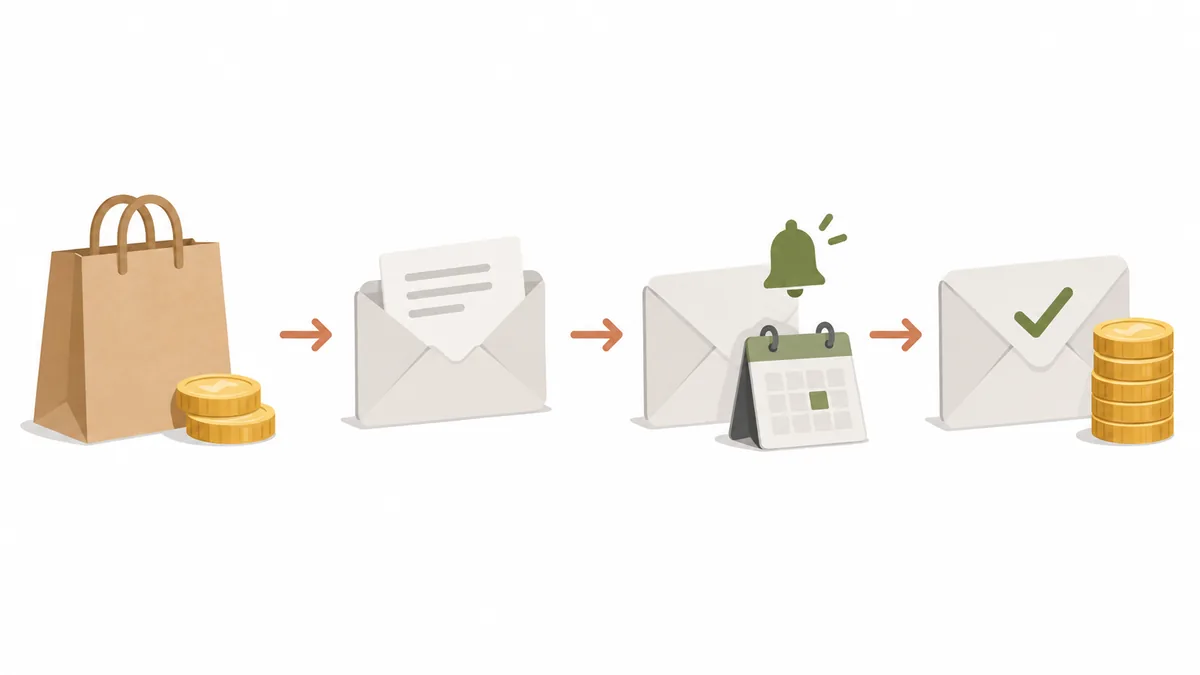
Emails are sent in the customer's language. For the emails marked "Yes" in the table, you can rewrite the subject and body under "Settings → Email templates", and you can also choose whether each type is sent at all. The balance emails are treated as transactional messages, so they don't count toward your plan's email allowance.
The row to watch is "Right after ordering". If the deposit isn't explained there, the next time customers hear about the balance is the reminder that arrives 3 days before the due date. With pre-orders where months pass between ordering and the due date, some customers may have forgotten they only paid a deposit.
Product page: a "Pay today" line appears under the buy button
On products set up for deposit and balance payments, a single line showing today's amount and the balance due date appears just below the pre-order or made-to-order button. This line is where customers first learn that the product is paid by deposit.
Customers shopping in English see it like this:
- With the deposit set as a percentage: "Pay today: 30% deposit · The balance is charged automatically 14 days after your order, using the payment method you used"
- With the deposit set as a fixed amount: "Pay today: ¥5,000 deposit · The balance is charged automatically on December 1, 2026, using the payment method you used"
If the due date is set as a date, it's shown in your shop's time zone; if it's set as a number of days, the line reads "N days after your order".
The thing to know is that with a percentage, only the percentage is shown, not the amount. For a ¥36,000 bag with a 30% deposit, customers have to work out for themselves that they're paying ¥10,800. If you'd rather state the amounts, add something like "You pay a ¥10,800 deposit when you order, and the ¥25,200 balance on December 1" to the product description.
You can't change the wording of this line. SellRules' "Button and label text" lets you change the text of 14 items, such as badges, buttons and the back-in-stock form, but the "Pay today" line isn't one of them. Anything you want to say in your own words goes in the product description.
While the payment settings haven't reached Shopify yet, for example right after you save them, the button can't be pressed and the page shows "This payment plan is being prepared, so it can’t be purchased yet. Please reload the page in a few minutes." The settings screen says changes take effect "within about 5 minutes", so wait about 5 minutes after saving, check that the line has switched to "Pay today", and only then announce the product.
Three things that confuse customers at checkout
The checkout screen belongs to Shopify, and SellRules doesn't add any text of its own there. Shopify shows how the deposit and balance are split based on the "purchase option" SellRules attaches to the product. According to Shopify's help (Setting up pre-orders), customers are asked at the payment step to confirm that they're buying a product with a purchase option, and they can't complete the purchase unless they agree. Three things tend to confuse customers.
1. The purchase option name appears in Japanese. SellRules builds the name so that the deposit and the charge date can be read from it.
- Deposit as a percentage, due date as a date: a Japanese name meaning "30% deposit, balance charged on 2026/12/1"
- Deposit as a percentage, due date as a number of days: a Japanese name meaning "30% deposit, balance charged 14 days after purchase"
- Deposit as a fixed amount: a Japanese name meaning "¥5,000 deposit (per item), balance …"
This name is in Japanese whatever language the customer uses. The "Pay today" line on the product page appears in the customer's language, in any of 9 languages, so international customers read their own language on the product page and Japanese at checkout. If you sell abroad, explain the deposit in that language in your product description, and customers won't lose track of the terms when Japanese shows up at checkout.
2. Customers can't pay the way they usually do. Deposit products can only be bought with payments that can save the payment method at purchase. The SellRules settings screen lists manual payments such as cash on delivery or bank transfer, and local payment methods, as "Not supported". For cash on delivery, the settings screen explains that Shopify automatically makes it unavailable. How bank transfer and other manual payments appear at the payment step depends on your payment settings, but whichever one a customer picks, they can't buy a deposit product with it. The same Shopify help also says pre-order products can't be bought through the Shop Pay, Apple Pay or Google Pay accelerated checkout buttons, so customers go through the standard checkout and enter their card details. In none of these cases does checkout tell customers why they can't pay. If many of your customers usually pay cash on delivery or by bank transfer, write "This item can only be paid by credit card or similar" in the product description. The details of which payments work are in which payments work with deposits.
3. Customers may be asked to add the item to their cart again. Products that were already in a cart before you switched them to deposit payments, or that went into the cart without passing through the product page, don't carry the deposit purchase option. In that case checkout shows "This product requires a deposit payment plan. Please remove it and add it again from the product page", so the item is never bought at the full price. The message appears in the customer's language. Right after you switch a product to deposit payments, customers who had it in their cart from before may run into this.
Right after ordering: the built-in confirmation email doesn't mention the deposit
With the built-in wording, SellRules' Pre-order confirmation email tells customers that their pre-order was received, gives the order number and estimated shipping date, and says they'll be notified when the item is ready to ship. It doesn't say that a deposit was received or when the balance will be charged. The Made to order confirmation email is the same.
If you use deposit and balance payments, adding a short paragraph to this confirmation email does the most good. It reminds customers about the balance at the moment they've just paid the deposit.
Email templates are set per email type, not per product, so write something that fits every deposit product. For example:
If you ordered a product paid by deposit and balance, today's payment was the deposit. The balance will be charged automatically on the due date shown on the product page, using the payment method you used for your order. About 3 days before the due date, we'll email you the balance amount and the due date.
If your store sells both fully paid pre-orders and deposit products, add a condition like "If you ordered a product paid by deposit and balance" so that customers who paid in full aren't confused. Template content is saved separately for each language, so put the same text in for every language you sell in (see the article on multilingual pre-order messages for keeping languages in line).
If you've set "Who sends emails to customers" to send the Pre-order confirmation from Klaviyo, SellRules' confirmation email isn't sent and the customer gets the email from your Klaviyo flow instead. In that case, put the same paragraph in the Klaviyo email (the Klaviyo integration is also a Pro plan feature).
How Shopify's own order confirmation email shows the deposit and balance depends on your Shopify notification settings. Before launch, place a test order, receive both the SellRules email and the Shopify email, and read what each one says.
When does the balance reminder email arrive, and what does it say?
For each order whose due date is less than 3 days away, SellRules sends one "Balance payment reminder" email. It's the central message that keeps the balance from looking like an unknown charge.
The subject reads "[Balance Due] Your balance for order #1001", and the body contains:
- The balance amount and the scheduled payment date
- The line "The balance will be automatically charged to your original payment method on the due date."
- A "Pay balance" link for customers who want to pay early (it leads to Shopify's payment page)
- A "Cancel this order" link
In this email, "Pay balance" is a text link, not a button. The email's main job is to say that the charge will happen automatically; paying early is offered as a secondary option.
Three things are worth knowing about the timing.
- If there are 3 days or fewer between the order and the due date, it arrives right after the order. SellRules checks due dates on a schedule and sends the reminder to orders that are less than 3 days away. If the balance is due "2 days after the order", customers get the reminder as soon as they've paid the deposit. If you want a gap between the reminder and the charge, set the due date 4 or more days after the order.
- A due date set as a date is treated as midnight at the start of that day (in your shop's time zone). With December 1 as the due date, the reminder goes out in the first check after midnight on November 28, and the charge is made after midnight on December 1. Customers were told "charged on December 1", so nothing contradicts that, but the time the email arrives has nothing to do with your business hours.
- Only one email per due date. Customers who have already paid the balance before the due date don't receive it. If the due date changes, the customer gets a "Balance due date changed" email, and once the new due date is less than 3 days away, a new reminder is sent.
If SellRules couldn't get a payment page link from Shopify, the link is replaced by the line "If the charge hasn't gone through after the due date, please contact the store.", followed by a "View order status" link if there's an order status page. In that case customers can't pay early, so having a reply ready for their questions saves you scrambling.
After the due date, customers get one of three emails
On the due date, SellRules charges the balance to the payment method saved at purchase. Customers don't need to do anything. Depending on the result, they receive one of three emails.
| Result | Email received | Subject | Key points of the body |
|---|---|---|---|
| Charged | Balance payment received | [Payment Complete] We received your balance payment for order #1001 | The balance was received, the order is fully paid, and the store will be in touch when the items are ready to ship |
| Couldn't be charged | Balance payment failed | [Action Needed] The balance payment for order #1001 could not be completed | Possible causes, that the charge won't be retried automatically, and a "Pay balance" button |
| No saved payment method | Please pay the balance for your order | Balance payment for your order #1001 | That the balance couldn't be paid automatically, a "Pay the balance" button, and a link in case the button doesn't open |
Customers who pay early through the link receive the same Balance payment received email.
The Balance payment failed email lists possible causes, "an expired card, insufficient funds, or incomplete card authentication", and says "This charge will not be retried automatically." Customers can use the "Pay balance" button to go to Shopify's payment page and pay again, with a different card for example. If a link couldn't be prepared, the button is replaced by "For questions about payment, please contact the store." and a "View order status" button (if there's a page). From the customer's side, their card won't be charged again and again after a failure. If you charge again with "Retry collection", they receive the Balance payment received or Balance payment failed email, depending on the result.
The "Please pay the balance for your order" email goes to orders that can't be charged automatically because no payment method was saved (shown as "Can't auto-charge" on SellRules' order screen). Since it isn't a case where "the charge failed", it's a separate email from Balance payment failed. It isn't a template you edit and it doesn't appear in the list under "Settings → Email templates". It's sent whenever the customer has an email address, regardless of whether your email templates are switched on or off.
What your store does after a failed charge (noticing it, contacting the customer, deciding how long to wait, cancelling) is covered in what to do when the balance isn't paid.
When you change the due date, or a customer wants to cancel
If production runs late and you push back the balance due date, customers receive an email with the subject "[Due Date Changed] The balance due date for order #1001 has changed". The body shows the old due date struck through next to the new one, says the balance will be charged automatically on the new date, and includes a cancellation link. As long as this email is switched on, the charge date never moves without the customer knowing. How to extend the due date for each order is in setting up deposits and collecting the balance.
Customers can open the cancellation page from the "Cancel this order" link in the Balance payment reminder and Balance due date changed emails. The cancellation page shows:
- The heading "Cancel this order?" and the explanation "You are about to cancel this pre-order. The amount you have already paid will be refunded to your original payment method, and the remaining balance will not be charged."
- The "Estimated refund" and "Remaining balance (will not be charged)" amounts
- A "Cancel this order" button and the note "This action cannot be undone. If the store has already started preparing your order, please contact the store instead."
Opening the page doesn't cancel anything. When the customer presses the button, the order is cancelled and the amount already paid is refunded to the original payment method. The link stays valid for 365 days, and the cancellation can be completed from this page even after the balance has been paid. Once the order is cancelled, Shopify sends its cancellation email. To avoid two emails, SellRules' "Cancellation confirmation" email isn't sent in this case. If a balance payment is being processed at that moment, the page shows "The order will be cancelled once the payment result is confirmed." and the order is cancelled after processing ends. If a customer opens a link after the 365 days have passed, they see "This link has expired. Please contact the store to cancel this order."
Orders that contain a deposit product alongside other products can't be cancelled from this page. Customers see "This order cannot be cancelled from this page because it contains other items. Please contact the store." and have to contact you.
The thing to watch here is the gap between the note and what the page actually does. The note says to contact the store if it has started preparing the order, but the cancellation itself still goes through even after production has started. SellRules has no setting to turn this cancellation page off for a product or for the whole store. Even after the balance has been paid, if the customer presses the button, the amount paid is refunded. If your policy is not to accept cancellations once made-to-order production has started or once the balance is paid, state those terms in your product description and in the Balance payment reminder email. If you want to remove the option for customers to cancel on their own, take the "Cancellation URL" variable described in the next section out of the emails. Links in emails you've already sent still work for 365 days, though.
The parts you mustn't delete when rewriting the emails
When you rewrite the balance emails under "Settings → Email templates", be careful not to delete the variables in the body. Two in particular stop customers from taking action if they're removed.
| Variable (name on screen) | Emails it's in | What happens if you delete it |
|---|---|---|
Balance payment section ({{balancePaymentBlock}}) | Balance payment reminder, Balance payment failed | The "Pay balance" link or button disappears, and customers can't pay on their own |
Cancellation URL ({{cancelUrl}}) | Balance payment reminder, Balance due date changed | The "Cancel this order" link disappears, and customers can only cancel by contacting you (stores that don't want to accept cancellations can remove it on purpose) |
The editor lists "Available variables (click to copy)", so if you delete one by accident you can copy it from there and put it back. You can also go back to the built-in wording with "Reset to default template".
After rewriting, check how it looks in the editor's preview ("Displaying with sample data"), then use "Send test" to send it to yourself and see whether it reads well in a phone email app too. Test emails have "[Test]" at the start of the subject.
There's one more thing to watch when you turn an email off. When it's off, any of those emails waiting to be sent are dropped, and they aren't sent later even if you switch it back on. The Balance payment reminder and Balance payment failed emails are among the few messages that let customers notice a due date or a card problem in advance, so keep them switched on while you're using deposits.
The wording your store should prepare so the balance never looks like an unknown charge
Put into actions for your store, everything above comes down to 4 things. Each one only means adding text in a few places.
- State the deposit and balance as amounts in the product description. With a percentage, the product page shows only the percentage, so write the deposit amount, the balance amount and the balance charge date. Put the accepted payment methods and your cancellation terms here too. If you sell abroad, write it in those languages as well.
- Add a paragraph about the balance to the Pre-order confirmation email (Made to order confirmation for made-to-order items). The built-in wording doesn't mention the deposit, so this is where the explanation most often goes missing.
- Add your store's policy and a card check to the Balance payment reminder email. If you have a policy such as not accepting cancellations once production has started, write it here. A short "Please check your card's expiry date" helps customers spot an expired card before the due date.
- Prepare replies to customer questions. "Can I pay before the due date?", "I want to change my card" and "I want to cancel" can all be answered with the links in the emails. For cases where the links don't work (no payment page link, or cancelling an order that includes other products), also decide where customers should contact you.
Here's an example product description (the product and figures are made up).
This item is paid by deposit and balance. You pay a ¥10,800 deposit (30%) when you order, and the ¥25,200 balance is charged automatically on December 1 to the payment method you used for your order. About 3 days before the due date, we'll email you the balance amount and the due date. Payment is limited to credit cards and similar methods; cash on delivery and bank transfer aren't available. Orders can't be cancelled once production has started.
SellRules sends the reminder before the due date automatically, but with pre-orders where months pass between ordering and the due date, a reminder 3 days ahead isn't always enough for customers to remember what the charge is for. If you tell them the balance amount and date when they order, the reminder reads as confirmation of something they already knew.
Before launch, receive everything customers will get
Before launch, place a test order with your own email address and receive what customers will get, in order. The test purchase in the setup article checks the display and the order status; here the aim is to read the wording customers see.
- On a test product, set the balance due date to "1 day after the order". The due date is less than 3 days away, so the Balance payment reminder arrives right after the order.
- On the product page, read the "Pay today" line under the buy button. Check that it doesn't contradict the amounts in your product description.
- At checkout, look at the purchase option name and how today's payment and the balance are split. If your store accepts cash on delivery or bank transfer, also check that customers can't choose them.
- Check that the Pre-order confirmation email includes the balance paragraph you added. Look at Shopify's order confirmation email too.
- Read the amount and due date in the Balance payment reminder email, and open the "Pay balance" and "Cancel this order" links. Opening the cancellation page doesn't cancel the order.
- Pay through "Pay balance" and check that the Balance payment received email arrives.
When you're done, set the product's due date back to your real settings, and cancel the test order on Shopify's order screen.
What SellRules' messages don't cover
SellRules' emails and display cover the deposit and balance amounts, the due date, the fact that the charge is automatic, and links to pay and to cancel. Your store has to communicate the following itself.
- The deposit amount (when set as a percentage): the product page shows only the percentage.
- A non-Japanese explanation of the purchase option at checkout: the name is in Japanese only.
- Why some payment methods can't be used: checkout gives no explanation.
- The terms on which you accept cancellations: the note on the cancellation page is generic and doesn't include your store's policy.
- What happens if the balance isn't paid: how long to wait and whether to cancel afterwards is something only your store can decide.
Note that the checkout screen and Shopify's order confirmation email belong to Shopify, so SellRules can't change their wording. Their appearance can change when Shopify updates its screens, so check them with a test purchase.
Frequently asked questions
Does the balance reminder email always arrive 3 days before the due date?
SellRules' scheduled check sends one email to each order whose due date is less than 3 days away. If there are 3 days or fewer between the order and the due date, it arrives right after the order. For example, if the balance is due "2 days after the order", customers get the balance reminder as soon as they've paid the deposit. Customers who have already paid the balance before the due date don't receive it.
Can customers pay the balance before the due date?
Yes. The Balance payment reminder email has a "Pay balance" link that takes them to Shopify's payment page, so they can pay without waiting for the due date. Once they've paid, they receive the Balance payment received email.
Can I change the wording of the "Pay today" line on the product page?
No. This line isn't among the 14 items you can change in SellRules' "Button and label text". If you want to state the deposit amount or your cancellation terms, add them to the product description.
Which language do international customers see?
The "Pay today" line on the product page and the balance emails appear in the customer's language, in any of the 9 languages SellRules supports. Only the purchase option name shown at checkout is in Japanese, whatever the customer's language. If you sell abroad, explain the deposit in that language in your product description.
Is it OK to turn off the balance emails?
You can turn each type off under "Settings → Email templates", but it's safer to keep the Balance payment reminder and Balance payment failed emails switched on. When an email is off, any that are waiting to be sent are dropped, and they aren't sent later even if you switch it back on. Customers could then be charged without knowing the due date, or miss a failed charge, leaving the balance unpaid so the fulfillment hold stays in place and you can't ship.
Prepare your customer messages before you start taking deposits
With deposit and balance payments, SellRules automatically covers the essentials on the product page, at checkout, in the reminder before the due date and in the result emails. What your store adds is a paragraph in the confirmation email sent right after ordering, and the amounts, payment methods and cancellation terms in the product description. Prepare these two places first, and the balance charge won't come to customers as an unknown charge.
Deposit and balance payments are available on the Pro plan. Set them up on one product first, run a test purchase to receive the whole flow above yourself, and then roll them out to other products.
SellRules plans and pricing
| Monthly price | FreeStart with one product | StandardRun it at full scale | ProAdd deposit and balance payments |
|---|---|---|---|
| Monthly price | Free | US$9.90 per month | US$19.90 per month |
| Pre-order and made-to-order orders | Up to 10 in total | Unlimited | Unlimited |
| Back-in-stock and sale-start emails (Notify Me) | Up to 15 in total (not refilled monthly) | 1,000 per month | 5,000 per month |
| Purchase limits | Up to 1 product | No limit on products | No limit on products |
| Customizable notification emails | No | Yes | Yes |
| Deposit and balance payments | No | No | Yes |
| Extra sends (email) | No | Yes (within the budget you approve) | Yes (within the budget you approve) |
Pre-orders, made-to-order, back-in-stock sign-ups, purchase limits, stockout switching and order processing are available from the Free plan.
Standard and Pro have no free trial; the Free plan takes its place.
The Free plan counts are totals since you installed the app. Required messages such as order confirmations, shipping and balance reminders are not counted.
The earlier Launch plan is closed to new sign-ups, but if you are on it your current terms stay as they are.
Setting up deposits is covered in setting up deposits and collecting the balance, choosing the deposit percentage and due date in choosing the deposit percentage and balance charge date, the payments that work in which payments work with deposits, and what to do when the balance can't be collected in what to do when the balance isn't paid. For planning pre-orders and order intake as a whole, see our overview of advance and limited sales, and for holding fulfillment until the balance is paid, see releasing the fulfillment hold on pre-orders. The settings screen is explained in the SellRules guide.
Features checked on October 19, 2026 by JizaiDev, the developer of SellRules, against the live app's code and the wording shown on the product page, in the checkout messages, in the emails and on the cancellation page. For the latest information, see SellRules updates and the Shopify App Store listing.