When you start looking into taking deposits on pre-orders, the first question is usually whether it works with the payments your store already takes. If many of your customers pay by cash on delivery or bank transfer, that's something you want to know up front.
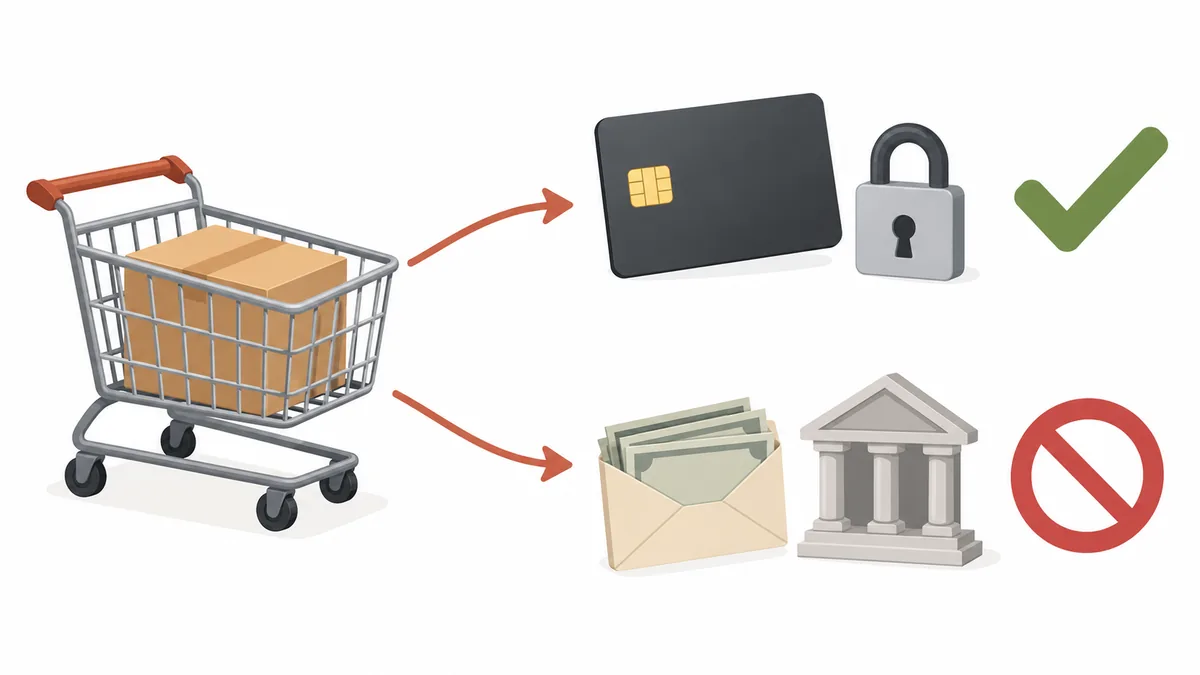
The short answer: on Shopify, deposits and balance payments work with four payment providers, Shopify Payments, PayPal Express, Adyen and Stripe (Stripe for some stores only). Each of them lets Shopify save the payment method used at purchase and charge the balance to it on the due date. When a deposit product is in the cart, manual payment methods such as cash on delivery and bank transfer disappear from the list of payment options, and the Shop Pay, Apple Pay and Google Pay buttons can't be used either.
Deposits and balance payments in SellRules are part of the Pro plan (US$19.90 per month), and Pro has no free trial. This article covers which payments work and which don't, what changes at checkout once you sell deposit products, how to check your own store before switching to Pro, and what you can do instead if your payments aren't supported. For the full deposit setup, see How to take deposits on Shopify pre-orders.
Which payments work with deposits and which don't
Whether a payment works with deposits depends on one thing: can it save the payment method used at purchase so the balance can be charged later? Shopify saves the customer's payment method when the deposit is paid, and on the due date SellRules asks Shopify to charge the balance to that method. If the payment method can't be saved, there's nothing to charge the balance to.
| Payment provider or method | For deposit products | Notes |
|---|---|---|
| Shopify Payments (credit cards) | Works | The customer enters card details in the regular checkout |
| PayPal Express | Works | The PayPal button at checkout and PayPal in the payment method list both stay |
| Adyen | Works | Only available to businesses already approved by Adyen |
| Stripe | Some stores only | The conditions for which stores can use it aren't published |
| Manual payment methods such as cash on delivery and bank transfer | Doesn't work | No longer shown at checkout, including manual payment methods your store created itself |
| Local payment methods such as Klarna | Doesn't work | Shopify Help says they can't be used to buy pre-orders |
| Shop Pay, Apple Pay and Google Pay (express checkout) | Doesn't work | These are the one-tap payment buttons. Entering a card in the regular checkout is separate |
| Payment providers other than the four above | Doesn't work (as of October 2026) | Shopify's developer documentation lists only the four above as payment providers for deposit and deferred purchase options |
This list is based on Shopify's developer documentation (Deferred purchase options), Shopify Help (Pre-orders, Setting up pre-orders, Adyen on Shopify) and the notes in the SellRules settings screen. Note that the Shopify Help page on pre-orders names only two supported payments, Shopify Payments and PayPal Express. Adyen and Stripe are the ones listed in the developer documentation.
Shopify holds the saved payment details, and your store can't see full card numbers. SellRules doesn't receive card numbers either. It charges the balance by pointing to the payment method Shopify saved. Shopify's rules for developers also say a saved payment method may only be used for deferred charges such as the balance (Model deferred purchase solutions).
How checkout changes when a deposit product is in the cart
With even one deposit product in the cart, checkout shows fewer payment options. The image below shows the same store's checkout side by side: one cart with only regular products, and one cart with a deposit product.
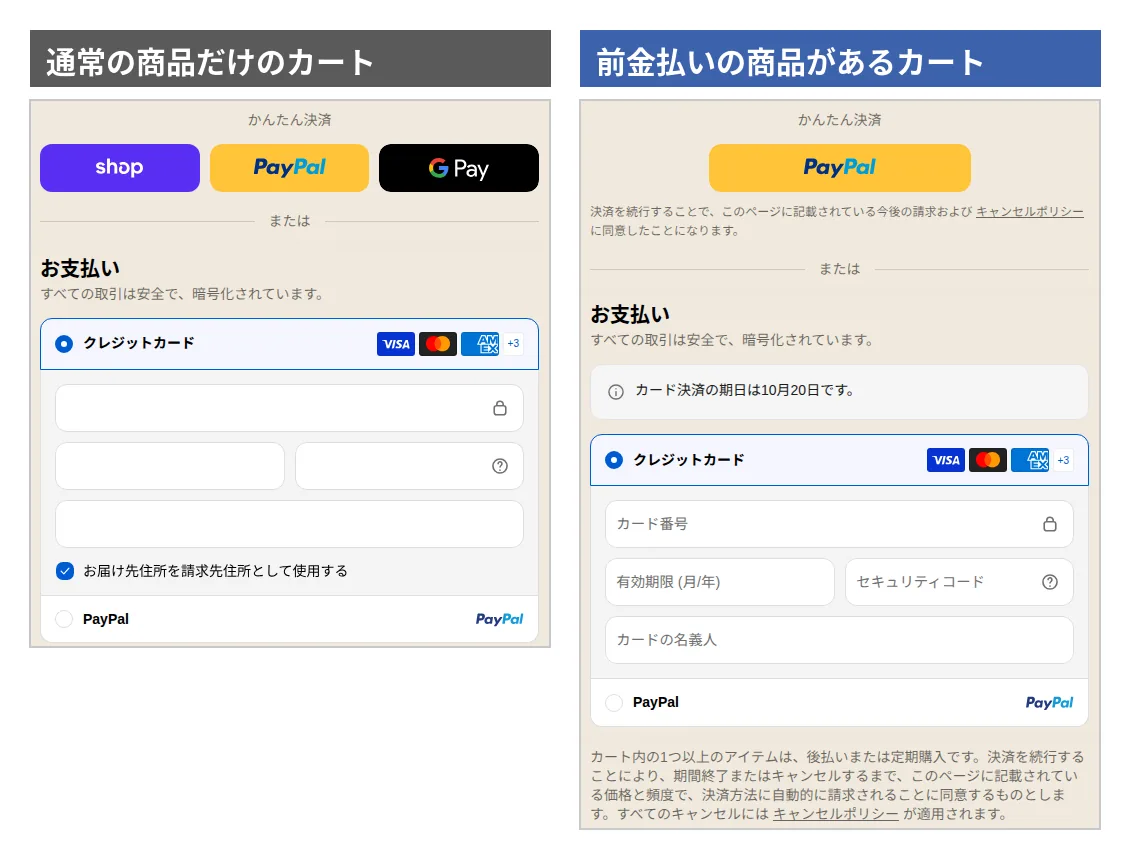
For the customer, four things change:
- Fewer express checkout buttons. Even in a store that normally shows Shop Pay, PayPal and Google Pay, the Shop Pay and Google Pay buttons disappear when a deposit product is in the cart. If PayPal Express is turned on, only the PayPal button remains. Shopify Help also says pre-order products can't be bought with Shop Pay, Apple Pay or Google Pay.
- Manual payment methods disappear from the payment list. Cash on delivery, bank transfer and any manual payment method your store created itself (with a name like "Pay by …") no longer appear at checkout. They disappear even if the "Hide cash on delivery" setting in SellRules is off. The SellRules settings screen says so too: "For products paid with a deposit and balance, Shopify automatically makes cash on delivery unavailable."
- What's paid now and what's paid later are shown separately. Above the payment section, a notice tells the customer when the card payment is due (in the example, October 20). In the order summary, the amount due today (the deposit) and the amount due on a later date (the balance) are listed separately.
- A consent statement for deferred charges appears. Below the pay button, a statement says that one or more items in the cart are deferred or recurring purchases and that, by continuing with the payment, the customer agrees that their payment method will be charged automatically. There's no checkbox: reading this statement and pressing the pay button is the consent. A short line agreeing to future charges also appears below the PayPal button. According to Shopify Help, customers can't complete the purchase without giving this consent (Shopify Help page on setting up pre-orders).
The point where customers tend to get stuck is when a deposit product and a regular product are in the same cart. The restriction applies to the whole cart, so even the regular products can no longer be paid by bank transfer or cash on delivery. A customer used to paying by bank transfer may only notice this at the payment step and give up on the purchase there. On the product page of each deposit product, state which payments work, for example: "This item can only be paid by credit card or PayPal. The same applies when you buy it together with other items."
SellRules shows the deposit and the balance due date on the product page, but it doesn't add a note about payment methods, so add that yourself. For everything customers see on the product page and in emails, see Deposit payments from the customer's side.
Where deposit products can't be sold, and what they can't be combined with
Even with a supported payment provider, some sales channels and discount combinations can't handle deposit products. These are the restrictions in Shopify's documentation (checked on October 19, 2026):
| Situation | Deposit products | Source |
|---|---|---|
| Sales channels other than the online store and custom storefronts | Not supported | Shopify Help page on setting up pre-orders |
| In-store checkout (Shopify POS) | Not supported | Deferred purchase options |
| Draft orders created in the admin | Not supported | Same as above |
| B2B (wholesale) orders | Not supported | Same as above |
| "Buy X get Y" discounts | Can't be used | Same as above and Shopify Help |
| Cart permalinks (links that open checkout with products already in the cart) | Can't be used | Deferred purchase options |
| Stores that customize checkout the old way (checkout.liquid) | Can't be used | Same as above |
| Shop Promise | Not supported | Shopify Help page on setting up pre-orders |
The one that's easy to miss is cart permalinks. If you share links on social media or in newsletters that jump straight to a checkout with the product already in the cart, those links won't work for deposit products. Switch them to links to the product page.
How to check your store's payments before switching to Pro
You can tell whether deposits will work from the Shopify admin and your recent orders. It costs nothing, so do it before you switch to Pro.
- Open Settings > Payments. In the Shopify admin, go to Settings and then Payments, and see which payment provider handles your card payments. If Shopify Payments is active, customers who pay by card can buy deposit products.
- List your other active payment methods. On the same screen, write down every payment method you have turned on: PayPal, cash on delivery, bank transfer, convenience store payment, buy now pay later and so on. Sort them into works and doesn't work using the list in the first section.
- Look at how customers actually pay. Open about 10 recent orders and check the payment method. How many customers pay by cash on delivery, bank transfer or convenience store payment gives you a rough idea of how many would no longer be able to buy once a product takes deposits.
- Check whether any sales restriction applies to you. In the table in the previous section, see whether the ways you normally sell, such as in-store checkout, draft orders or cart permalinks, are on the list.
For example, say a store selling handmade jewelry has Shopify Payments and bank transfer turned on under Settings > Payments, and of its 10 most recent orders, 8 were paid by card and the other two by bank transfer. Deposits will work for this store, but products switched to deposits can no longer be bought by bank transfer. Use the table in the next section to decide what to do about the customers who paid by bank transfer, roughly one in five.
Decide whether to use deposits based on the payments your store takes
Match what you found against the table below. If your store has no supported payment provider, we don't recommend SellRules deposits: switching to Pro won't let you take orders with a deposit.
| Your store's payments | Deposits | Recommended next step |
|---|---|---|
| Shopify Payments, and almost all customers pay by card | Work | Switch to Pro and start with deposits on products that take a long time to arrive |
| Shopify Payments, plus cash on delivery or bank transfer | Work (customers paying by cash on delivery or bank transfer can't buy deposit products) | Put deposits on a single product first and see how orders come in. Keep products often paid by bank transfer on full payment |
| PayPal Express only | Work | Customers who pay with PayPal can buy with a deposit. Check the checkout after enabling |
| Stripe or Adyen | Stripe for some stores only, Adyen works | Stripe's conditions aren't published, so also check whether you can use another supported provider |
| Card payments through a provider other than the four above | Don't work | Hold off on switching to Pro until you can use a supported provider |
| Cash on delivery, bank transfer or convenience store payment only | Don't work | Don't use deposits. Pick one of the alternatives below |
The row that's hardest to decide is the second one. Once a product takes deposits, customers who want to pay by cash on delivery or bank transfer can't buy it. If you put deposits on products that many customers pay for by bank transfer, you'll lose those sales. On the other hand, for expensive items that take a long time to arrive, paying only a deposit by card can make it easier for customers to commit. You choose deposits per pre-order setting, so you don't have to treat every product the same way. For how to set the deposit percentage and the balance due date, see How to set the deposit percentage and the balance charge date.
Alternatives for stores and customers that can't use deposits
If your store has no supported payment provider, or you don't want to lose customers who pay by cash on delivery or bank transfer, you have these options.
| Option | Suits stores that | Watch out for |
|---|---|---|
| Take pre-orders with full payment | Mostly sell low-priced items, or items that arrive soon | SellRules pre-orders and made-to-order products are available from the Free plan. To stop cash on delivery, use the setting that hides it |
| Create a separate deposit product and send an invoice for the balance | Want to take a deposit on only a handful of orders a month | You create an invoice for each order, confirm each payment, and make sure yourself that unpaid orders don't ship |
| Add a supported payment provider | Have many card-paying customers and want to keep taking deposits | Decide on switching to Pro once the provider is available |
If you take pre-orders with full payment, you can also stop cash on delivery from appearing when pre-order products are in the cart. The steps are in How to disable cash on delivery for pre-order products. The same setting can also block bank transfer if you enter its payment method name (in that case, enter the cash on delivery payment method name as well).
A separate deposit product plus an invoice takes more work, but it also lets you serve customers who pay by bank transfer. While order numbers are small, this works fine. When volume grows and you start worrying about missing unpaid orders, consider adding a supported payment provider and moving to Pro deposits. For deciding how to take pre-orders overall, see How to set up advance and limited-edition sales.
The extra permissions you approve when enabling deposits
When you enable deposits in SellRules, you approve extra permissions on a Shopify approval screen. These permissions aren't requested when you install the app. They're requested only when you press "Enable" under "Deposits and balance payments" in SellRules "Settings".
| Task that needs a permission | What it's used for |
|---|---|
| Creating purchase options | Adding a "deposit now, balance later" purchase option to products |
| Reading payment schedules | Checking each order's balance amount and due date, and whether it has been paid |
| Reading all orders | Making it possible to check the balance on pre-orders placed more than 60 days ago |
| Reading and using saved payment methods | Charging the balance to the payment method saved at purchase |
If you close the screen without approving, deposits won't be enabled. Press "Enable" again and approve. If a "Grant permissions" button appears on the settings screen after you've enabled deposits, the balance may not be collected as things stand, so press it and approve again.
In addition, if you later push back the balance due date on an order you've already accepted and haven't yet approved the separate permission for this (changing payment schedules), you'll be asked to approve it on the spot. SellRules uses these permissions to create purchase options, check balances and due dates, charge the balance on the due date, run "Retry collection" (which you press after a failed charge), and change due dates.
After enabling, make one purchase yourself before real orders come in
Once you've switched to Pro and enabled deposits, buy one deposit product yourself before customer orders come in, and look at the checkout. Check these four things:
- Add the deposit product to the cart and go to checkout. Check that no Shop Pay or Google Pay button appears under express checkout.
- Check that the payment method list shows only supported payments (card or PayPal), with no cash on delivery, bank transfer or the like.
- In the order summary, check that the deposit paid now and the balance due date and amount match your pre-order settings.
- Check that the consent statement for deferred charges appears below the pay button.
To use Shopify Payments test mode, you need to be on a paid plan and have finished setting up Shopify Payments. Shopify Help also advises against turning on test mode in a store that's already open for business (Shopify Help page on testing Shopify Payments). If your store is open or you only use PayPal Express, skip test mode and buy one deposit product for real with your own card or PayPal account.
After the purchase, open "Order progress" in SellRules, open that order's "Details" and cancel it with "Cancel this order". The deposit already received is refunded to the original payment method, and the balance isn't charged. How transaction fees are handled on refunds depends on your payment provider's terms, so check them. For how to review a test purchase including the product page and order status, and how inventory is handled when you cancel, see the article on taking deposits.
What this article doesn't cover
This article focuses on which payments work with deposits and how to check them. The following topics have their own articles:
- What to do when the balance can't be charged on the due date (expired card, insufficient funds and so on): What to do when a balance payment fails
- How to set the deposit percentage and the balance due date: How to set the deposit percentage and the balance charge date
- What customers see on the product page, at checkout and in emails: Deposit payments from the customer's side
One more note: deposit orders paid by card or PayPal have a saved payment method. Any deposit order that still ends up without a saved payment method is marked "Can't auto-charge" in SellRules "Order progress", and its balance can't be charged automatically. In that case SellRules sends the customer an email with a payment link, and if they pay, the order completes automatically. If they don't, charge the balance from the order page in Shopify or cancel the order.
Frequently asked questions
Can I take a deposit or balance by convenience store payment or bank transfer?
No. With deposits, Shopify saves the payment method used at purchase and charges the balance to that method on the due date. Methods where the customer goes and pays later on their own, such as convenience store payment or bank transfer, can't be saved, so they can't be used for deposit products.
Can customers who use Shop Pay still buy deposit products?
Not through the Shop Pay, Apple Pay or Google Pay buttons (express checkout). If your store uses Shopify Payments, they can still buy by entering their card details in the regular checkout. If you have PayPal Express turned on, the PayPal button stays.
What happens to payment options if a deposit product and a regular product are in the same cart?
The whole cart follows the deposit rules. With even one deposit product in the cart, manual payment methods such as cash on delivery and bank transfer can't be selected, including for the regular products. On the product page, ask customers who want to pay for regular products by bank transfer to place a separate order.
Can stores that use Stripe take deposits?
Some can and some can't. Shopify's developer documentation says Stripe is available only to some stores, and the conditions aren't published. Check whether you can also use Shopify Payments or PayPal Express before you decide to switch to Pro.
Why do I have to approve extra permissions when I enable deposits?
Shopify requires extra permissions to add the deposit purchase option to products, check each order's balance and due date, and charge the balance to the saved payment method. Only stores that enable deposits are asked to approve them, and deposits can't be enabled without that approval.
Check your payments, then start deposits on Pro
If Shopify Payments or PayPal Express is active under Settings > Payments, you can start taking deposits (Adyen only for approved businesses, Stripe only for some stores). Deposits and balance payments are a Pro plan feature, and Standard and Pro have no free trial. You can try the pre-order and made-to-order display and the order flow on the Free plan, so we recommend this order: first check how pre-orders work for you on Free, and once you decide to take deposits, switch to Pro from "Plan & billing" in the SellRules left menu.
SellRules plans and pricing
| Monthly price | FreeStart with one product | StandardRun it at full scale | ProAdd deposit and balance payments |
|---|---|---|---|
| Monthly price | Free | US$9.90 per month | US$19.90 per month |
| Pre-order and made-to-order orders | Up to 10 in total | Unlimited | Unlimited |
| Back-in-stock and sale-start emails (Notify Me) | Up to 15 in total (not refilled monthly) | 1,000 per month | 5,000 per month |
| Purchase limits | Up to 1 product | No limit on products | No limit on products |
| Customizable notification emails | No | Yes | Yes |
| Deposit and balance payments | No | No | Yes |
| Extra sends (email) | No | Yes (within the budget you approve) | Yes (within the budget you approve) |
Pre-orders, made-to-order, back-in-stock sign-ups, purchase limits, stockout switching and order processing are available from the Free plan.
Standard and Pro have no free trial; the Free plan takes its place.
The Free plan counts are totals since you installed the app. Required messages such as order confirmations, shipping and balance reminders are not counted.
The earlier Launch plan is closed to new sign-ups, but if you are on it your current terms stay as they are.
The setup steps after switching are explained in How to take deposits on Shopify pre-orders. The settings screen is described in the SellRules guide.
Checked on October 19, 2026. JizaiDev, the developer of SellRules, checked this against the code of the app as published on that date (the list of permissions deposits need, the supported and unsupported payment notes in the settings screen, and the cancellation screen in order progress) and against what Shopify checkout shows with a deposit product in the cart. Shopify's conditions are based on Shopify's developer documentation (Deferred purchase options) and Shopify Help (Pre-orders, Setting up pre-orders, Adyen on Shopify). Payment provider support can change, so also check the SellRules changelog and the Shopify App Store listing for the latest information.