You expected the balance on a pre-order or made-to-order item to be collected automatically on the due date, but instead SellRules sent you a notification saying it couldn't collect it. Here's what to do next, step by step.
The short answer first. With SellRules deposits, a failed balance charge is not retried automatically, and the order is not cancelled automatically either. The order stays on hold for fulfillment until the balance is paid. The customer receives an email with a payment link, but deciding "by when they need to pay, and what happens if they don't" is up to you, and you have to tell them.
Work through these 5 steps in order:
- Check the status in "Order progress" (Collection failed, Action required or Can't auto-charge)
- Give the customer a deadline
- Wait for them to pay, or charge again
- If it isn't paid by the deadline, cancel the order and refund the deposit
- Once it's paid, confirm it shows "Paid" and ship
How deposits work and how to set them up is covered in How to charge a deposit now and the balance later, and what your customer sees on screen and in their inbox is in Deposits from the customer's side. This article sticks to what you do after a charge fails. Deposits are a feature of the SellRules Pro plan (US$19.90 per month).
What happens automatically when a balance can't be collected, and what doesn't
When a charge fails, SellRules does two things automatically: it emails the customer and your store, and it keeps fulfillment on hold. It doesn't charge again, cancel the order or extend the due date. If you do nothing, the order just stays "balance unpaid, can't ship".
| Happens automatically | Doesn't happen automatically |
|---|---|
| The customer gets an email with a link to pay the balance | Charging again after a few days |
| A notification goes to your "Contact email address" | Cancelling orders past the due date |
| The fulfillment hold stays in place until the balance is paid | Refunding the deposit (it's refunded when you cancel) |
| If the customer pays through the link, the order becomes paid and the hold is released | Extending the due date on an order whose charge failed |
Notifications go to the "Contact email address" in SellRules "Settings". If it's empty, they go to the store email address registered in Shopify. If that's an inbox you rarely check, you'll notice late, and you'll have fewer days left to sort things out with the customer.
Pick your first step from the status in "Order progress"
An order whose balance couldn't be collected shows up in the "Payment" column of "Order progress" with one of three main statuses. Each one sends different emails to the customer and to you, and gives you different buttons.
| Payment status | What it means | Emails sent | Actions in "Details" | What to do first |
|---|---|---|---|---|
| Collection failed (red) | SellRules tried to charge the balance, but the payment didn't go through | "Balance payment failed" to the customer; "We couldn't collect the balance" to you | "Retry collection", "Cancel this order" | Give the customer a deadline and ask them to pay through the link |
| Action required (yellow) | SellRules sent the balance charge, but it can't be confirmed that the payment went through, or the customer needs to do something | "Balance payment failed" to the customer; "Balance is waiting on the customer" to you (when the cause is a mismatch between records, neither is sent) | "Retry collection", "Cancel this order" | Check the order in Shopify first to see whether the balance is really unpaid |
| Can't auto-charge (red) | The customer has no saved payment method, so nothing has been charged yet | "Balance payment request" to the customer; "Balance can't be charged automatically (no payment method)" to you | "Change due date", "Cancel this order" | Have them pay through the link, or charge the balance from the order in Shopify |
You may also see "Needs review" (yellow). This means SellRules hasn't received the result of the charge from Shopify yet; it reconciles automatically and updates the status. It's a pause to avoid charging the same balance twice, so "Retry collection" isn't available at this stage. If it doesn't change after a while, check the payment status on the order in Shopify.
The "Collection failed" details don't show the card-side reason
Opening "Details" takes you to the "Balance collection details" screen, which shows the cause and what to do next. For "Collection failed" it reads "The balance could not be collected, and the cause is unknown." followed by "Check the payment status on the order in Shopify. If needed, contact the customer, then select “Retry balance collection”."
This screen won't tell you whether it was insufficient funds or an expired card. The "Balance payment failed" email the customer receives says "This may be due to an expired card, insufficient funds, or incomplete card authentication." When you contact the customer, don't try to guess the reason. Just state the fact: "The payment couldn't be completed with the card on file."
With "Action required", first check whether it's actually unpaid
"Action required" also appears when the card was declined. If the order still has a balance outstanding an hour after SellRules sends the balance charge to Shopify, SellRules sets it to "Action required" instead of charging again automatically, so it can't charge twice. In that case "Details" reads "We could not confirm whether the balance payment went through in Shopify." and, as the next step, "Check the payment status on the order in Shopify, and if it is unpaid, select “Retry balance collection”." The notification you receive has a subject saying the balance "is waiting on the customer", but it covers declined cards like this too. Don't read the subject and assume the customer only needs to authenticate; check first whether the order is unpaid.
An order can also become "Action required" when Shopify's records and SellRules' records don't match. Because the customer didn't cause this, no email goes to the customer or to you. If you see an "Action required" order with no notification anywhere, not even in spam, this is the case. Confirm in Shopify that the order is unpaid, then press "Retry collection".
"Can't auto-charge" stops before any charge is made
"Can't auto-charge" means SellRules couldn't charge the balance on the due date because the customer has no saved payment method. Nothing has been charged yet. The customer is sent a "Balance payment request" email with a link to pay the balance, where they can enter a card and pay.
Orders with this status don't get a "Retry collection" button, because there's no saved payment method to charge again. If the customer doesn't pay, charge the balance from the order in Shopify, or cancel the order. If a payment method is added to that order later, SellRules resumes collection automatically.
If the details say "This order has no customer email address, so we couldn't send a payment link." or "We couldn't send the customer a payment link email (for example, the link could not be created).", the customer hasn't received anything. You need to contact them first.
Missed the notification? "Order progress" still shows it
The notification email is the fastest way to find out, but it can land in spam. Checking "Order progress" once a week as well means fewer orders slip through.
- "Can't auto-charge" has a filter: "Order progress" has a "Can't auto-charge" filter that lists just those orders.
- "Collection failed" and "Action required" can't be filtered: scan the "Payment" column for the red "Collection failed" and yellow "Action required". If you have lots of deposit orders, starting with the ones past their due date makes them easier to find.
If you already review pre-orders weekly, add one line for "uncollected balances" to your checklist and it gets done with everything else. The full review is covered in A weekly review for pre-orders.
Contacting the customer: add the deadline the automatic email leaves out
The automatic email tells the customer that the payment didn't go through. It doesn't say by when they must pay or what happens to the order if they don't. Only you can decide that, so send the customer one short message yourself.
Before you write, check in the SellRules "Delivery log" that the email to the customer was actually sent. If it shows "Failed", you can check the address and resend it. A "Delivery unconfirmed" email has no resend button, to avoid sending it twice, so cover it with your own message.
Your message should include these 4 things:
- That the balance hasn't been paid (with the order number and balance amount)
- How to pay (through the link in the email from SellRules)
- The deadline date, and that you'll cancel the order and refund the deposit if it isn't paid by then
- How to tell you if they'd rather cancel
For a "Collection failed" order, for example, it could read like this. Replace the parts in [brackets] with the details of your order.
Hi [name], We weren't able to complete payment of the balance ([balance amount]) for your pre-order of "[product name]" (order [order number]) with the card on file. You can pay using the link in the email we sent you, titled "Your balance payment could not be completed". If we haven't received payment by [deadline date], we'll cancel the order and refund your deposit to the original payment method. If you'd like to cancel the pre-order instead, just reply to this email.
For a "Can't auto-charge" order, change the second line to "Because there was no payment method on file, the balance couldn't be paid automatically." and the email name in the third line to "Please pay the balance for your order". If the customer never received an email, replace the third line with details of the invoice you'll send from Shopify, or of the payment method you've agreed with them.
Press "Retry collection" only after something has changed on the customer's side
"Retry collection" charges the saved payment method again, right away. It's only available on "Collection failed" and "Action required" orders, and there's no confirmation screen: the charge starts as soon as you press it.
If nothing has changed on the customer's side, you'd just be charging the same card the same amount again, so the result is unlikely to be different. Press it when the customer tells you they've replaced their card or added funds.
- In "Order progress", open "Details" in the "Payment" column for the order
- On the "Balance collection details" screen, press "Retry collection"
- When "Balance collection retried" appears, wait a moment, reload the list and check whether "Payment" has changed to "Paid"
Even if you press it right after the customer paid with another card through the link, or right after you collected the balance in Shopify, the paid balance won't be charged again. That's because SellRules rechecks the outstanding amount on the Shopify order before charging.
If you and the customer agree on another way to pay, you can also collect the balance from the order in Shopify. Shopify's help article "Managing pre-orders" explains how to charge the stored card from the payment section of the order page ("Collect payment"), and warns that a charge the customer isn't expecting can lead to a chargeback, so tell them first. If you collect in Shopify, SellRules reconciles the order as paid and won't charge the same balance.
How long to wait: the due date can't be extended after a failure
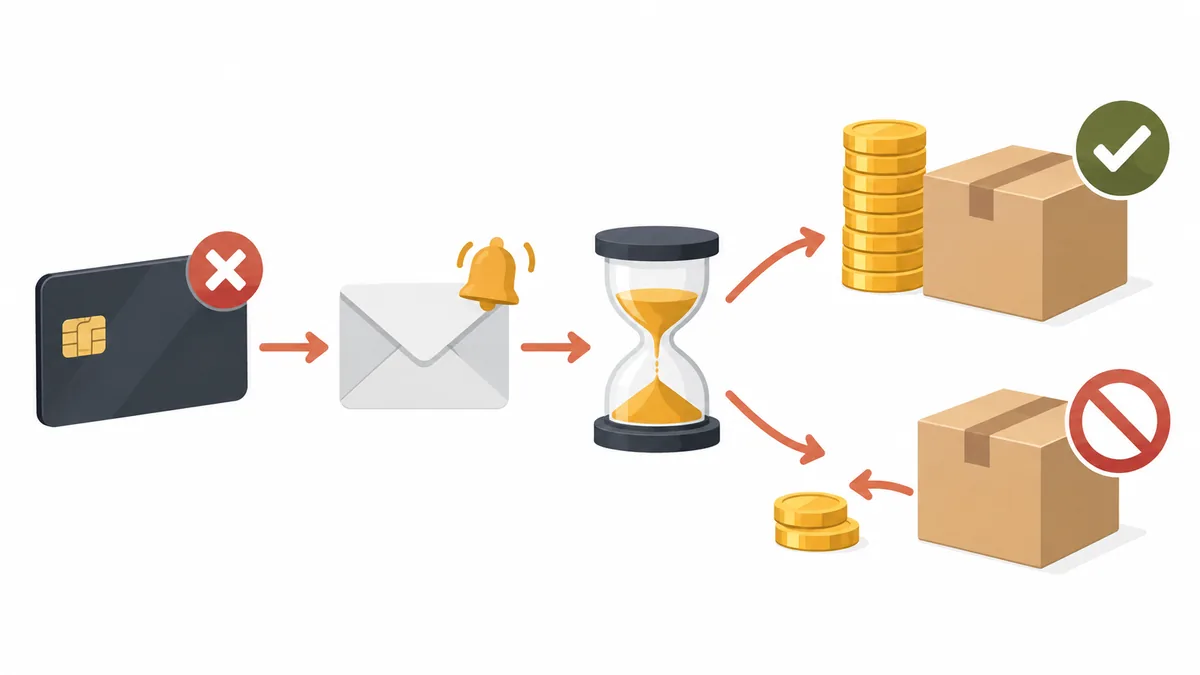
SellRules has "Change due date" for moving a balance due date later, but it only works on payments that haven't started collecting yet (such as "Scheduled"). Once a charge has been attempted, "Collection failed" and "Action required" orders can't be extended. So after a failure, "how long to wait" isn't an app setting; it's a deadline you set and tell the customer.
It's easier to decide if you think about what's happening with the product.
| Product situation | How to think about the deadline |
|---|---|
| Pre-order item you can pass to the next customer once it arrives | The longer you wait, the more chances you lose to sell it to someone else. Keep it short, for example until the expected ship date |
| Made-to-order, not started yet | Make the deadline the day you'd start making it, so you don't use materials on an unpaid order |
| Made-to-order, already in production | Cancelling won't bring the materials back. Follow up again and wait longer, aiming to get it paid |
| Limited quantity with customers on a waitlist | Once the deadline passes, cancel and offer it to the next person |
Whatever the case, tell the customer the deadline once, clearly, as a date. If you only write "We're waiting for your payment", they won't know by when to pay, and you'll have no clear point at which to cancel. While you wait, the customer can still pay through the link in the email, and the hold is released as soon as they do. You don't need to do anything until the deadline.
Past the deadline: cancel and refund the deposit
If the deadline passes without payment and you can't reach the customer, cancel the order. When you cancel, the deposit is refunded to the original payment method and the balance isn't charged. SellRules cancellation has no option to keep the deposit, so think of it as "refund the deposit and close the order".
- In "Order progress", open "Details" for the order and press "Cancel this order"
- Under "Confirm cancellation", check the "Estimated refund (received − refunded)" amount
- Check the "Return the cancelled items to stock" option (it's ticked by default)
- Press "Cancel order". This can't be undone
Cancellation applies to the whole order. If the customer bought other items in the same order, those are cancelled too. Shopify sends the customer a cancellation email, and SellRules doesn't send anything extra. A short note from you with the refund amount and the reason for cancelling helps avoid misunderstandings.
Whether to restock depends on the product. For a pre-order item you can sell to the next customer, leave the box ticked. For a made-to-order item where you've already used the materials and can't pass the same item on, untick it before you cancel.
Customers can also cancel on their own. The "Balance payment reminder" email that arrives three days before the due date includes a link to cancel the order, and cancelling there refunds the deposit to the original payment method. That route doesn't restock automatically, so if you want to offer the item to the next customer, adjust the inventory in Shopify. Orders that include other items can't be cancelled through this link; the customer sees "Please contact the store." In that case, cancel it yourself from "Order progress".
Once it's paid, confirm it shows "Paid" before shipping
When the balance is paid, the fulfillment hold SellRules placed for the balance is released automatically. You don't need to release it yourself. Still, before shipping, check that the "Payment" column in "Order progress" shows "Paid".
Pre-order and made-to-order orders also have a separate hold for the pre-order or made-to-order itself, apart from the balance hold. "Start shipment preparation" on a pre-order and "Start production" on a made-to-order only release that one. The two are placed separately, and releasing one doesn't release the other. If you judge whether an order can ship only from the holds on the Shopify order page, you might find the hold that was released was the other one. Releasing holds is covered in How to release fulfillment holds on pre-orders.
If you have a reason to ship before the balance is paid, you can release the hold on the Shopify order page and ship. But if the customer then doesn't pay, your only way to collect is contacting them. Do it as your own decision, knowing you may not get paid.
What this article won't solve
SellRules' job ends at telling you about the failure, holding fulfillment until it's paid, and preventing double charges. The following can't be solved with the steps here or with anything in the app.
- Why the card is declined: insufficient funds, credit limits or a blocked card are between the customer and their card issuer. Ask the customer to check with their issuer, or to pay another way.
- Keeping the deposit as a cancellation fee: SellRules cancellation always refunds the deposit to the original payment method. If you want to keep it, check your store policy and payment terms before cancelling.
- Cancelling for your own reasons, such as a delayed or cancelled release: how you tell customers and handle refunds is different. This article covers balances left unpaid for reasons on the customer's side.
- The details of charging or managing holds on the Shopify order page: for collecting the balance from the order, see Shopify Help: Managing pre-orders; for holds, see Shopify Help: Marking your order as on hold.
Fewer failures on your next pre-order
You can't bring failed charges to zero, but you can reduce them. Expired cards and low balances can be sorted out in advance if the customer remembers the due date. SellRules automatically sends a "Balance payment reminder" email three days before the due date, with the balance amount, the due date, a payment link and a cancellation link. On top of that, prepare the following.
- Add a line about checking the card to the "Balance payment reminder": you can edit the text under "Settings → Email templates". Adding "Please check the expiry date of the card on file" makes it more likely customers catch an expired card.
- If a customer asks for more time, extend the due date before it arrives: before collection starts, you can move the due date for each order with "Change due date". It can't be extended after a failure, so do it as soon as they ask. The steps are in How to charge a deposit now and the balance later.
- Leave some days between the due date and the expected ship date: if a charge fails, the customer has time to fix their payment method. How much to leave is covered in How to set the deposit percentage and balance due date.
- Say on the product page what happens if the balance isn't paid: something like "The balance will be charged to your card on file on [due date]. If we can't confirm payment, we'll contact you, cancel the order and refund the deposit." Spelling out the deadline logic up front makes the later conversation go smoothly.
If you downgrade from Pro to Standard or Free, collection and cancellation of balances on orders you've already taken with a deposit keep working. You can no longer take new deposit orders, though, so if your next pre-order will use a deposit too, stay on Pro.
Before uninstalling the app, clear up uncollected balances
If you uninstall SellRules while balances are still outstanding, automatic collection stops, and orders whose charge failed stay unpaid. The "Before you uninstall the app" section in "Settings" shows how many orders have uncollected balances and the total. Get them paid or cancelled before uninstalling, and you'll have less manual work later. How to collect balances after uninstalling is covered in the "Cancellations, turning it off, and before you uninstall the app" section of How to charge a deposit now and the balance later.
Frequently asked questions
After a failed charge, does SellRules automatically try again every few days?
No. An order marked "Collection failed" or "Action required" stays unpaid until the customer pays through the link in the email, you press "Retry collection", or you collect the balance from the order in Shopify. The customer's email also says "This charge will not be retried automatically."
When is an order cancelled if the balance still isn't paid after the due date?
Never automatically. You decide how long to wait, and you cancel the order yourself from "Details" in "Order progress". When you cancel, the deposit is refunded to the original payment method and the balance is not charged.
Can I extend the due date on an order whose balance charge failed?
No. "Change due date" is only available for payments that haven't started collecting yet (such as "Scheduled"). If you want to wait after a failure, tell the customer a deadline and don't cancel before that date. They can still pay through the link in the email in the meantime.
Can pressing "Retry collection" charge the customer twice?
It won't charge a balance that's already been paid. SellRules rechecks the outstanding amount on the Shopify order before charging. An "Action required" order, though, can be one where it's unclear whether the payment went through in Shopify, so check the order in Shopify to confirm it's unpaid before you press it.
Where can I see why the charge failed, such as insufficient funds or an expired card?
The "Balance collection details" screen in SellRules doesn't show the card-side reason. For "Collection failed" it says "The balance could not be collected, and the cause is unknown." Ask the customer to check with their card issuer, and charge again once you know they've fixed their payment method.
If you sell with deposits, plan what happens when the balance isn't paid
Deposits make buying easier for customers, but because you receive the balance later, you take on the extra work of "it might not get paid". SellRules tells you about failures, holds fulfillment until payment, and prevents double charges. Everything after that, contacting the customer, setting the deadline and cancelling, is your call. If you decide the number of days and the message in advance, you can act the same day the notification arrives.
Deposits are available on the Pro plan.
SellRules plans and pricing
| Monthly price | FreeStart with one product | StandardRun it at full scale | ProAdd deposit and balance payments |
|---|---|---|---|
| Monthly price | Free | US$9.90 per month | US$19.90 per month |
| Pre-order and made-to-order orders | Up to 10 in total | Unlimited | Unlimited |
| Back-in-stock and sale-start emails (Notify Me) | Up to 15 in total (not refilled monthly) | 1,000 per month | 5,000 per month |
| Purchase limits | Up to 1 product | No limit on products | No limit on products |
| Customizable notification emails | No | Yes | Yes |
| Deposit and balance payments | No | No | Yes |
| Extra sends (email) | No | Yes (within the budget you approve) | Yes (within the budget you approve) |
Pre-orders, made-to-order, back-in-stock sign-ups, purchase limits, stockout switching and order processing are available from the Free plan.
Standard and Pro have no free trial; the Free plan takes its place.
The Free plan counts are totals since you installed the app. Required messages such as order confirmations, shipping and balance reminders are not counted.
The earlier Launch plan is closed to new sign-ups, but if you are on it your current terms stay as they are.
Standard and Pro have no free trial. A natural order is to use the Free plan to check how pre-order and made-to-order display and order flow work, and once you decide to take deposits, switch to Pro from "Plan & billing" in the SellRules left menu. The full picture of deposits is in How to charge a deposit now and the balance later, and how to set up pre-orders and sales windows overall is in How to plan advance and limited sales. The settings screens are explained in the SellRules guide.
The screen names, email subjects and button behavior in this article were checked by JizaiDev, the developer of SellRules, against the app's interface text and processing as of October 19, 2026. You can find the latest changes in the SellRules changelog.