You release a limited product, only to find that the same customer has bought several. Now you are telling other customers it has sold out while contacting bulk buyers individually to cancel their orders. The cleanup can feel harder than the launch itself.
Shopify’s built-in “Add-to-cart limit” is enough if you just want to cap quantities within a single cart across all products. To limit a particular product to 1 per customer and stop repeat purchases in separate orders, you need an app with purchase limits. In SellRules, set a per-order limit, set the cumulative limit per customer to 1 and choose “Login required” for purchase eligibility. The cumulative limit is not checked when someone proceeds to checkout as a guest.
Below, we cover the 3 meanings of “limit 1”, how to decide whether Shopify’s setting is enough, the SellRules setup, what customers see and what to check if a limit does not work. For sales restricted to members, read the guide to members-only sales and customer tags. For the full plan from before launch to after sellout, see planning early-access and limited sales.
Limit 1 per customer: which of the 3 limits do you need?
“Limit 1” can mean different things. The right setting depends on what you want to cap. SellRules offers the following 3 purchase limits. Fill in only the ones you need; a blank field means no limit.
| Limit | What it counts | With the limit set to 1 | What it does not stop on its own |
|---|---|---|---|
| Max per order | Quantity in a single order | A customer cannot buy 2 in one order | Placing 2 separate orders for 1 each |
| Max per customer (cumulative) | Total quantity across the same customer’s orders | Someone who bought 1 cannot buy another 1 on a different day | Buying as a guest |
| Max purchase times per customer | Number of orders, regardless of quantity | Someone who placed 1 order cannot place a 2nd | Buying several in a single order |
For a limited-edition mug sold with a limit of 1 per customer, set the per-order limit to 1 and the cumulative limit to 1. With only a per-order cap, the same customer can split the purchase into 2 orders and buy 2 mugs. A purchase-count limit suits offers such as a members’ benefit available once per person, where the number of purchases matters more than the quantity.
Make sure “limit 1 per customer” in your product description matches the scope of your settings. If the wording suggests a total limit of 1 but you have only set a per-order limit, you may end up cancelling a 2nd order after accepting it.
When Shopify’s Add-to-cart limit is enough
Shopify has a built-in “Add-to-cart limit” under “Settings” → “Checkout” in the admin. It caps how many of each product a customer can put in a single cart (Shopify Help: Add-to-cart limit, checked October 25, 2026).
The help page describes these conditions:
- The same limit applies to every product and customer: you cannot choose a different limit for each product.
- Each variant is counted separately: for a product in 3 colors, red, blue and green, a limit of 1 allows 1 of each color, or 3 items in a single cart.
- Only the current cart is counted: the same customer can keep buying through separate orders.
- There are exceptions: it does not apply to POS, draft orders, B2B quantity rules or B2B customers, products without inventory tracking, or products with “Continue selling when out of stock” enabled.
- It is on by default: stores with fewer than 250 sales see a recommended limit of 50.
| What you want to do | Built-in Add-to-cart limit | Purchase-limit app |
|---|---|---|
| Stop customers adding unusually large quantities of any product in one go | Enough for this | Not needed |
| Limit only the limited-edition product to 1 and sell other products normally | Not possible: the same limit applies to all products | Needed |
| Stop the same customer’s 2nd order | Not possible: it only checks the cart | Needed: cumulative or purchase-count limit |
| Limit all colors and sizes combined to 1 | Not possible: variants are counted separately | Needed: count the whole product together |
| Limit made-to-order products without inventory tracking | Does not apply | Needed |
Check the built-in setting first. An app becomes useful when the requirement is “only this product” or “the total bought by this customer”.
How to set a limit of 1 per customer in SellRules
Create a purchase-limit rule for each product in the “Purchase limits” tab under “Purchase limits & sold-out” in SellRules. Each product can have one product-wide rule. The Free plan supports purchase limits for up to 1 product.
Before you start, go to “Settings” → “Checkout” in Shopify admin and check that “Purchase limits (SellRules)” is enabled under “Checkout rules”. This is the rule that blocks orders at checkout.
- Open “Purchase limits & sold-out” → “Purchase limits” and click “Create rule” (if there are no rules yet, you can also use “Create rule” in the middle of the screen).
- Select 1 product from the list and click “Next”. The “Create purchase limit” screen opens.
- Choose what the rule applies to. It starts with “Whole product”. Choose “Specific variants” if you only want to limit particular colors or sizes.
- Enter 1 in “Max per order” and 1 in “Max per customer (cumulative)”. The per-order limit must not exceed the cumulative limit, or you cannot save.
- For purchase eligibility, select “Login required (guests cannot purchase)”. This stops customers placing separate repeat orders as guests and lets every buyer count toward the cumulative limit.
- Leave the quantity counting method on “Combined across variants (recommended)”.
- Click “Save” at the top of the screen. The change can take about 1 minute to appear on the product page, in the cart and at checkout.
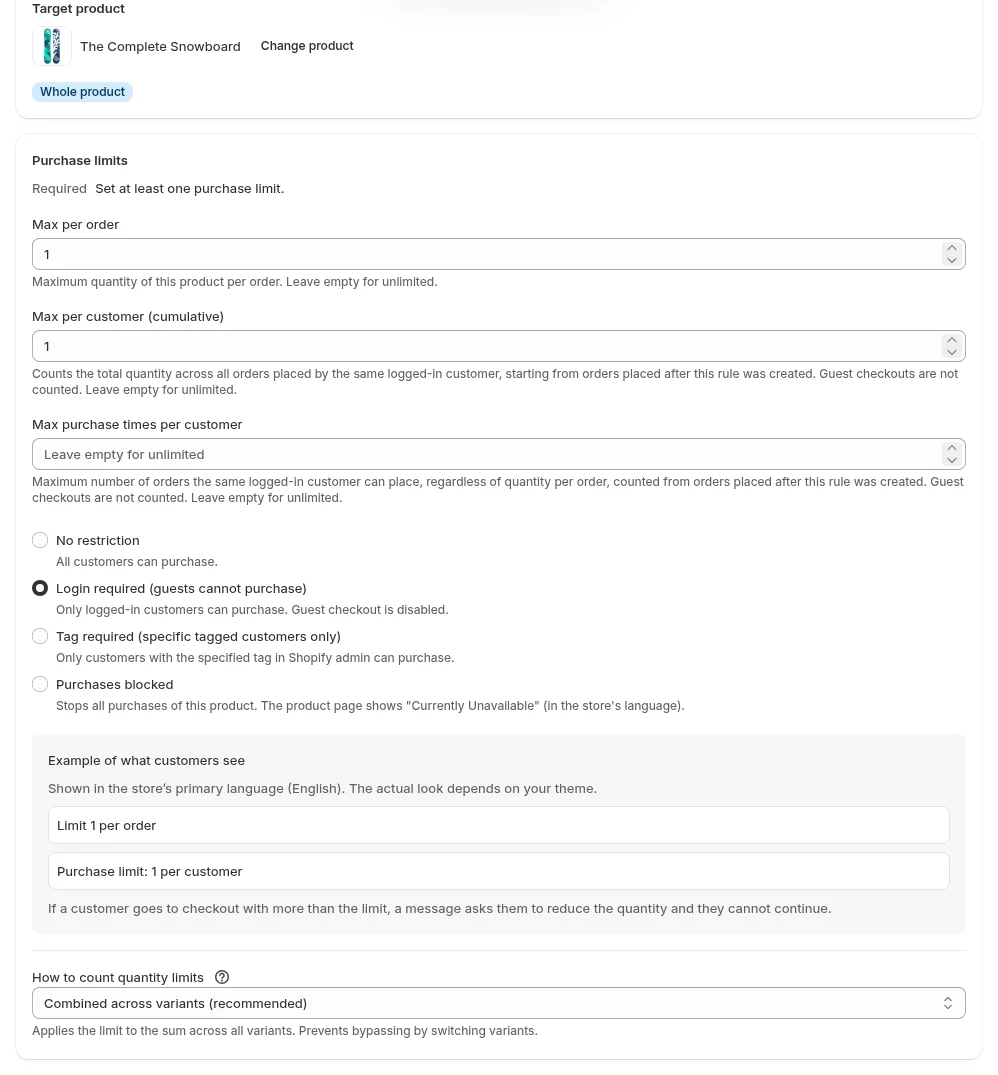
“Example of what customers see” at the bottom uses the store’s primary language (the screenshot shows a store whose primary language is English).
The counting method matters when a product comes in different colors or sizes. As the screen’s example explains, with a limit of 2 per order, putting 2 size S items and 1 size M item in the cart is blocked as a total of 3 under “Combined across variants”, but allowed under “Per variant”. Choose “Per variant (independent)” only if you want a separate allowance for each color.
You can edit an existing rule from the list and check the customer-facing text with “Preview on product page” in the edit screen. To remove the limit temporarily, use “Disable” instead of deleting it. If you delete and recreate a rule, purchases made before the new rule no longer count toward its cumulative limit. Orders placed while the rule is disabled do not count either, so keeping it enabled throughout a limited sale is the safer choice.
What customers see on the product page and at checkout
Orders are blocked at checkout. The product page only shows the limit below the buy button; the button still works. Customers who add more than the limit see the reason when they reach checkout and need to adjust the quantity there.
| Where | Text in an English store (example: 1 per order, 1 in total, login required) |
|---|---|
| Product page, below the buy button | “Limit 1 per order / Purchase limit: 1 per customer” |
| Product page, customer not logged in | “You must be logged in to purchase this product.” and a login link |
| Checkout, not logged in | “You must be logged in to purchase this product” |
| Checkout, 2 items in one order | “Limit 1 per order (in cart: 2). Please reduce the quantity to 1 or fewer.” |
| Checkout, someone who bought 1 tries to buy another 1 | “Purchase limit: 1 per customer (purchased: 1, remaining: 0)” |
Only the “Purchases blocked” purchase eligibility disables the buy button itself on the product page. With that setting, the button changes to “Currently Unavailable” and nobody can buy. It is for periods before launch or temporary sales pauses, so it serves a different purpose from a limit of 1.
When you add a limit, also write “Limit 1 per customer (login required)” in the product description. Knowing before they buy is less frustrating for customers than first discovering the restriction at checkout.
Cumulative and purchase-count limits only apply to logged-in customers
SellRules checks cumulative and purchase-count limits only for customers who are logged in when they reach checkout. These 2 limits do not stop guest checkouts. The admin explains that counting starts with orders placed after the rule was created and does not apply to guest purchases.
That has 3 practical consequences:
- If guest purchases are allowed, separate repeat orders are not stopped: choose “Login required” for products that must stay at 1 per customer.
- Orders placed before the rule was created do not count: adding a rule after launch does not bring earlier purchases into the cumulative total. Create the rule before releasing a limited product.
- Cancelled orders are deducted: cancelling an order returns that quantity to the customer’s remaining allowance.
Requiring login may sound like extra work for customers. But Shopify customer accounts can use a 6-digit code sent by email, with no password needed (Shopify Help: Sign-in options, checked October 25, 2026). The experience depends on your store’s account settings, so try signing in with a test account first.
Before launch, test orders that should pass and fail
Once you have created the rule, go through the ordering process. Test both an order that should be accepted and one that should be blocked.
- With a logged-in test account, add only 1 item to the cart and proceed to checkout. Check that there is no error.
- Using the same account, add 2 items and check that checkout shows the “Limit 1 per order” error.
- Complete an order for 1 item. Once it appears in the admin’s order list, wait a little and try to buy another 1 with the same account. Check that the cumulative limit blocks it.
- Log out and proceed as a guest. Check that you are asked to log in.
- For a product with colors or sizes, add 1 of each of different variants and check that the combined quantity is blocked.
Cancel the test orders from the orders screen when you are done. Cancelled quantities are deducted from the cumulative total, so you can test again with the same account.
What to check when a purchase limit does not work
Start with what you can see going wrong, then narrow down the cause.
| What happens | Possible cause | Where to check | How to fix it |
|---|---|---|---|
| Checkout allows more than the limit | The “Purchase limits (SellRules)” checkout rule is not enabled | Shopify admin → “Settings” → “Checkout” → “Checkout rules” | Enable the rule |
| Checkout allows more than the limit | The rule is “Disabled”, or was just created | Status in “Purchase limits & sold-out” → “Purchase limits” | Click “Enable”, wait about 1 minute and try again |
| A 2nd order goes through | The buyer is a guest, or the first order was placed before rule creation or while it was disabled | The order’s customer details, plus the rule’s purchase eligibility and status | Set purchase eligibility to “Login required” and keep the rule enabled during the sale |
| Different sizes combined can exceed the limit | Counting is set to “Per variant (independent)” | The rule’s “How to count quantity limits” setting | Change to “Combined across variants (recommended)” |
| The rule will not save | The per-order limit exceeds the cumulative limit, or neither a limit nor purchase eligibility is set | Errors on the rule creation screen | Keep the per-order limit at or below the cumulative limit. Set at least one limit or purchase eligibility condition |
| Customers can still add items on the product page | Expected behavior: the product page only displays text | Below the buy button on the product page | Blocking happens at checkout. Run the 5 checks above |
The “Purchase limits (optional)” fields in the sales schedule edit screen are saved as the same product’s purchase-limit rule. Both screens edit the same rule. However, saving a product-wide sales schedule with every purchase-limit field blank deletes that rule, and earlier purchases no longer count toward its cumulative limit. Limits entered in the sold-out switch screen are separate: they apply only while a sold-out product has switched to pre-order or made-to-order sales. If the product already has a rule in the purchase-limits screen, that rule takes priority. See the FAQ in planning early-access and limited sales for details.
What these settings cannot prevent
Purchase limits work within the orders counted under the same Shopify customer account. Settings alone cannot stop these cases:
- Another account created with a different email address: it is counted as a different customer.
- Orders before rule creation, before a deleted rule was recreated (including deletion by saving blank fields in a sales schedule), or while the rule was disabled: these are not included in the cumulative total.
- Guest purchases, unless login is required: cumulative and purchase-count limits do not block customers who proceed to checkout as guests.
For any duplicates that remain, review orders for matching delivery addresses or names and cancel them at your store’s discretion. Treat purchase limits as a way to reduce the number of orders you need to cancel manually.
Frequently asked questions
Can Shopify alone limit a product to 1 per customer?
You can limit the quantity in a single cart with Shopify’s built-in “Add-to-cart limit”. However, the same limit applies to every product and customer, and each color or size is counted separately. It does not count repeat purchases in separate orders. If you want to limit only a particular product to 1, or stop the same customer’s 2nd order, you need an app with purchase limits.
Do cumulative limits apply to guest purchases?
No. SellRules only checks cumulative and purchase-count limits for customers who are logged in when they reach checkout. Separate guest orders cannot be stopped by those limits, so choose “Login required” for products limited to 1 per customer. Only orders placed after the rule was created are counted.
Does exceeding the limit stop customers adding items on the product page?
No, they can still add items. The product page shows text such as “Limit 1 per order” below the buy button, but the button remains clickable. The order is blocked at checkout, where an error explains the exceeded limit. For a cumulative limit, it also shows the quantity already purchased and the remaining allowance. Only the “Purchases blocked” purchase eligibility disables the buy button itself on the product page.
Can the limit stop someone ordering with another account?
No. Cumulative and purchase-count limits count orders under the same Shopify customer account, so an account created with a different email address is treated as a different customer. Requiring login stops repeat orders placed as a guest. Review delivery details and other order information for any duplicates that remain, and cancel them at your store’s discretion.
Pricing and trying it out: start with 1 limited product
The Free plan includes purchase limits for up to 1 product. Choose 1 product from your next limited release, create a rule using the steps above and test orders that should pass and fail.
SellRules plans and pricing
| Monthly price | LaunchEvery feature included |
|---|---|
| Monthly price | US$7.99 per month |
| Free trial | 10 days |
| Pre-order and made-to-order orders | Unlimited |
| Back-in-stock and sale-start emails (Notify Me) | Unlimited |
| Purchase limits | No limit on products |
| Customizable notification emails | Yes |
| Deposit payments | Yes |
Pre-orders, made-to-order, back-in-stock alerts, purchase limits, stockout switching, deposit payments and order processing are all included in the Launch plan.
The first 10 days are free. If you remove the app during the trial, you are not charged.
Back-in-stock and sale-start emails have no sending cap. The same goes for required messages such as order confirmations, shipping updates and balance reminders.
The Free, Standard, and Pro plans are closed to new sign-ups. Shops already on them keep their current terms.
Standard and Pro have no free trial; the Free plan is how you try the app. When you want to add limits to a 2nd product, switch to Standard at US$9.90 per month, with no product-count limit. For what to check while trying the app, see the SellRules trial checklist.
If you already know how you want to set things up, try the Free plan from the Shopify App Store.
Features checked on October 25, 2026 by JizaiDev, the developer of SellRules, against the app code in production at that date and the text on the purchase-limit creation screen, product page and checkout. Information about Shopify’s built-in Add-to-cart limit and sign-in options is based on the Shopify Help pages linked above, checked October 25, 2026. Product and quantity examples are hypothetical. Check the Shopify App Store listing for current prices.