You may have carefully explained shipping dates and cancellations on the English product page, while customers browsing in German still cannot find the same information. For a store taking pre-orders in several languages, those gaps can lead to questions about when an order will arrive or whether it can be cancelled.
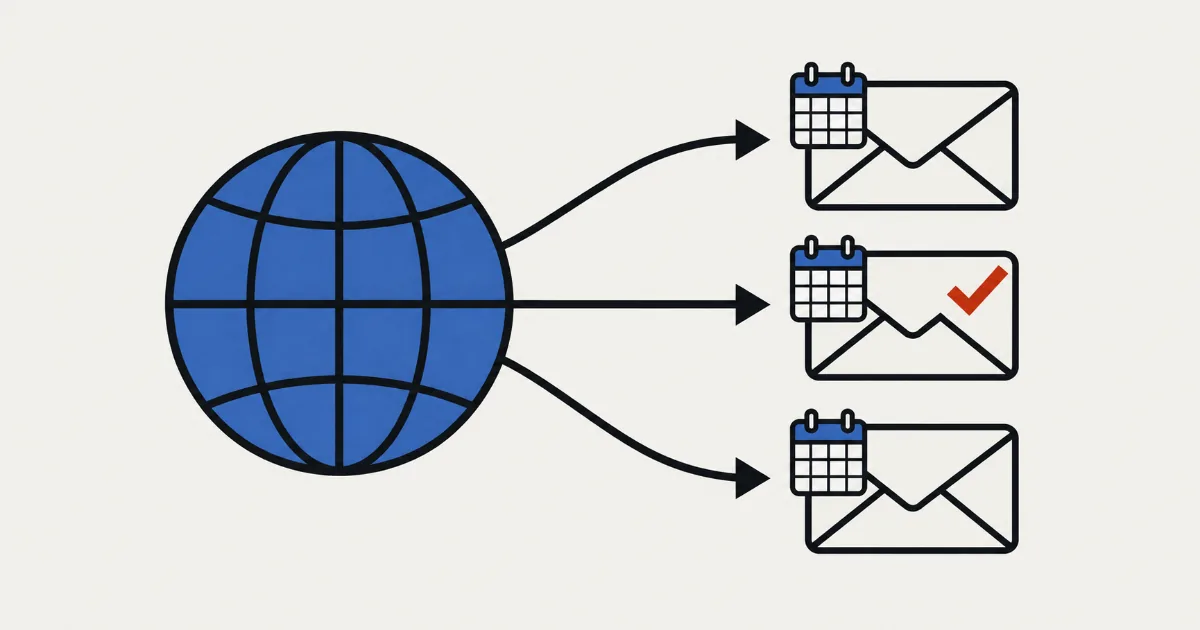
SellRules automatically shows its pre-order buttons, badges and back-in-stock sign-up text in the customer's language for its 9 built-in languages. You mainly need to check 3 places. Use “Button and label text” for wording you want to change in each language, make the single “Estimated shipping (text)” value readable across languages, and check each language's notification email templates.
This guide first explains where each piece of information comes from and how its language is chosen, then walks through setting it up and checking it in each language. If you haven't set up pre-orders yet, start with the pre-order launch checklist. For the wider plan covering pre-orders, back-in-stock alerts and sales windows, see the guide to early-access and limited sales.
What customers see, and how its language is chosen
Pre-order text and emails are managed in several places. They do not all use the same translation system. Here is how the language is chosen for each.
| What customers see | Where you manage it | Which language appears |
|---|---|---|
| Pre-order buttons, badges, back-in-stock sign-up text and cart line item labels | SellRules “Button and label text” | Automatically uses the customer's language for the 9 built-in languages. You can edit individual fields per language |
| Shipping estimate wording, deposit and balance payment information, and purchase-limit text | Built into SellRules; cannot be edited | Uses the customer's language for the 9 built-in languages |
| The sales schedule's “Estimated shipping (text)” | SellRules sales schedules and sold-out switches | Exactly what you enter appears in every language |
| Product titles, descriptions and policies | Shopify, with translations in Translate & Adapt or another translation app | Without a translation, the store's main language appears |
| SellRules notification emails | SellRules Settings → Email templates | Separate templates per language; standard text for the 9 built-in languages if you haven't edited them |
| Shopify order confirmation emails | Shopify notification settings | Sent by Shopify, separately from any pre-order confirmation you have enabled in SellRules |
Product page text follows the language Shopify is using to display that page. For example, a customer browsing an English page sees SellRules buttons in English. Regional variants such as Brazilian Portuguese use the built-in Portuguese text.
According to Shopify's languages and translations help, publishing a language lets customers use checkout and receive Shopify email notifications in that language; untranslated content appears in the store's main language. Translate product descriptions and policies separately with Translate & Adapt or another translation app.
Before you start, compare your published languages with the 9 built-in languages
Customers can choose the languages you publish in Shopify under Settings → Languages (see Shopify's language management help). SellRules has no separate field for adding languages: its language tabs match the languages published in Shopify.
SellRules has built-in text for 9 languages: Japanese, English, German, Spanish, French, Italian, Dutch, Portuguese and Swedish. What you need to do depends on whether all your published languages are on that list.
- All are among the 9 languages (for example, English, German and French): buttons and sign-up forms already appear in each language. Check the shipping estimate, translated product descriptions and notification emails.
- You also publish other languages (for example, Korean or Chinese): those customers see text in the store's main language. Enter their language's text yourself under “Button and label text” and create email templates for it too.
Check your plan as well. You can edit “Button and label text” on every plan, but editing email subjects and bodies, sending tests and viewing the delivery log require Standard or above. Free still sends notification emails using the standard text in the 9 built-in languages (back-in-stock, pre-order start and sale start emails are limited to 15 in total on Free).
The SellRules admin language, under Settings → Language settings → Admin interface language, is a separate setting from customer-facing text. You can keep the admin in English while customers see their own languages.
Change button and sign-up text for each language
To change wording, open “Edit and translate text” under “Button and label text” at the top of SellRules Settings, then select “Texts”. The screen has language tabs, with “Default” marking the store's main language.
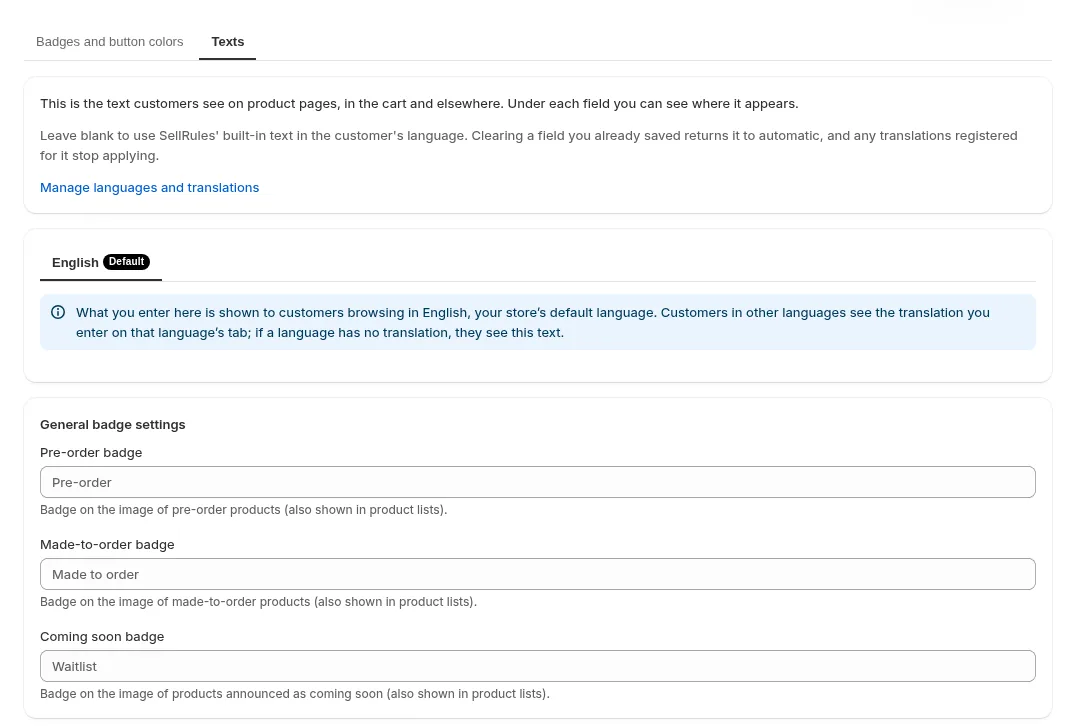
You can edit these 14 items.
| Group | Fields | Default text in English |
|---|---|---|
| General badge settings | Pre-order badge / Made-to-order badge / Coming soon badge | Pre-order / Made to order / Waitlist |
| Product page buttons | Pre-order button / Made-to-order button / Get notified button | Pre-order Now / Order Made to Order / Get Notified |
| Back-in-stock sign-up form | Email input placeholder / Sign-up complete message / Intro text above the form | Enter your email / You're signed up! We'll notify you when available. / We'll email you as soon as it's available. |
| Cart and checkout labels | Pre-order line item label / Made-to-order line item label | Pre-order / Made to order |
| Other | Sales ended message / Coming soon message / Cart: not on sale yet warning | Sold Out / Coming soon / Not on sale yet. You can't check out with this item until sales start. |
Open the language tab you want, fill only the fields you want to change and save. Blank fields use the built-in text in the customer's language. The save button only appears after you change a field. After saving, open the other language tabs to check that the affected fields contain their built-in text.
For example, suppose you change the built-in English button text from “Pre-order Now” to “Reserve in advance” and save. “Reserve in advance” is a custom example chosen by the merchant. Blank tabs for German, French and the other built-in languages are then filled with their own default pre-order button text. German-speaking customers still see “Jetzt vorbestellen”, not your English text “Reserve in advance”. To change the German wording too, edit the German tab.
There are 2 cases where fields are not filled automatically. In both, leaving them blank means customers see text from the store's main-language tab.
- A language without built-in text, such as Korean: its tab shows a notice explaining that SellRules has no built-in wording for that language and will use the default language if fields are blank. Enter the text yourself in the fields you want customers to see in that language.
- A language published in Shopify after you saved: even for a built-in language such as German or French, its tab is initially blank, so it shows the wording you changed in the main language. The faint text in the fields is only an example; customers won't see it until you save. There are 2 ways to fix this. Open that tab, enter the faint built-in text or your own wording, and save. Alternatively, edit any field and save: this fills blank fields in that tab with built-in text for any fields already customized in other languages.
If you change the main-language text after translating another language, that language's tab shows: “You changed the default language text after translating this language. Shopify still shows these translations — review them if the wording no longer matches.” The translation remains visible, so check that it still says what you intend. Clear a field to restore automatic text. If any fields contain text, “Reset all to automatic” appears and lets you reset them together.
Text for languages other than the main language is registered as Shopify translations.
One shipping estimate for every language
You cannot enter a separate shipping estimate for each language. A sales schedule has just one “Estimated shipping (text)” field; every customer sees exactly what you enter. Only the surrounding wording changes with the language. Sold-out switches have a field with the same name, also limited to one value.
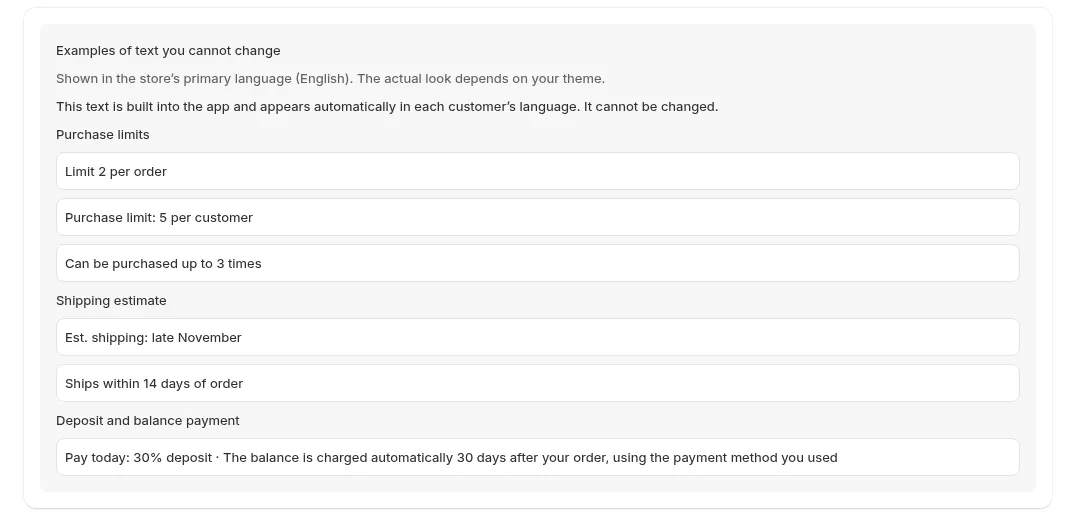
For a store whose main language is English, the following appears under the buy button. The entries are examples; the wording around them comes from the built-in language versions.
| What you enter | What customers browsing in English see | What customers browsing in German see |
|---|---|---|
| “early December” in the text field | Est. shipping: early December | 📦 Voraussichtlicher Versand: early December |
| “2026/12/10” in the text field | Est. shipping: 2026/12/10 | 📦 Voraussichtlicher Versand: 2026/12/10 |
| Text left blank; December 10, 2026 in “Estimated ship date” | Est. shipping: December 10, 2026 | 📦 Voraussichtlicher Versand: December 10, 2026 |
As the third row shows, leaving the text blank and filling only “Estimated ship date” still produces a date formatted in the store's main language. A store with English as its main language shows that English date format to German-speaking customers too.
If you sell in English and German or other combinations of languages, use numbers and symbols only, such as “2026/12/10”, so everyone can read the date. If you need a range such as early or late in the month, explain “Expected to ship in early December” in each translated product description. The same text is attached to the line item when a customer adds the product to their cart, in the form “pre-order line item label: shipping estimate”. For example, an English-speaking customer sees “Pre-order: Est. shipping: 2026/12/10”, while a German-speaking customer sees “Vorbestellung: 📦 Voraussichtlicher Versand: 2026/12/10”.
Check notification emails in each language
In SellRules Settings → Email templates, you can edit the subject and body by email type and language. There are 12 editable types: pre-order confirmation, made-to-order confirmation, delay notice, shipped notice, pre-order start notification, sale start notification, cancellation confirmation and restock notification, plus the deposit and balance emails: balance payment reminder, balance payment received, balance payment failed and balance due date changed.
The email language is chosen as follows.
- Order emails (pre-order and made-to-order confirmations, delay and shipped notices, cancellation confirmations and balance emails) use the checkout language when the order was placed. Back-in-stock, pre-order start and sale start emails use the product page language at sign-up. Earlier sign-ups with no recorded language use the default language.
- SellRules uses the template you edited in that language, or the standard text for its 9 built-in languages if you haven't edited it.
- For orders with an unknown language, such as staff-created orders, or languages outside those 9 with no template of their own, SellRules uses “Email default language (when the customer's language is unknown)”. You can choose any of the 9 built-in languages. If you have never chosen one, it uses the store's main language, or English if the main language is not among those 9.
Templates are separate for each language. Changing the English template still leaves German-speaking customers receiving the standard German text. For a language outside the 9, such as Korean, creating a template on that language's tab makes it available to those customers. If a Pro store connected to Klaviyo is set to send pre-order confirmations from Klaviyo, SellRules does not send those confirmations itself.
Template editing and test sending require Standard or above. Use “Send test” in the editor to send to your own address. The subject starts with “[Test]” for both the English and German tabs. A test send fills variables such as {{deliveryDate}} with sample data, though. To see how the actual shipping estimate appears for an order, switch languages and place a test order.
As Shopify's customer notifications help explains, Shopify sends an order confirmation when a customer orders. SellRules does not change Shopify's order confirmation settings. If you enable SellRules pre-order confirmations, customers therefore receive both that email and Shopify's separate order confirmation. Decide which details belong in each email before translating the pre-order conditions.
Changing and saving a sold-out switch from back-in-stock notifications only to pre-orders does not send a pre-order start email to existing subscribers. The guide to choosing pre-orders or back-in-stock alerts for sold-out products explains how to notify them in that situation.
Switch languages and check the customer's journey
Once the settings are ready, go through each published language the way a customer would.
- Use the store's language selector or a language-specific URL to open a product currently accepting pre-orders.
- Check the button, badge and shipping estimate in that language. Pay particular attention to languages outside the 9 built-in ones: are they showing main-language text?
- Check that the translated product description and policies include the payment, shipping and cancellation conditions.
- While still in that language, place a test order (the pre-order launch checklist explains how to place and cancel one). Check the cart line item label, the language of the pre-order confirmation you receive and the format of the shipping date.
Here is where to check each condition you want to communicate.
| Condition | Where to check on the product page | Where to check in emails |
|---|---|---|
| Shipping estimate | Estimate below the button, cart line item and product description | Pre-order confirmation and delay notice (the shipped notice does not include the estimated date) |
| When payment is taken: deposit and balance | Built-in payment information and product description | Balance emails such as the payment reminder (pre-order confirmations do not include payment information) |
| Cancellation and refund terms | Each translated product description and policy | Cancellation confirmation |
The guide to what deposit-paying customers see walks through the product page payment information and balance emails in order.
On Standard or above, you can inspect individual sent emails in “Delivery log”. However, “Email body” is not a stored copy of the body as sent: it is recreated using the current template and admin display language. Check the “Locale” field on the same screen to see which language was sent to the customer.
If the wrong language appears
| What you see | Possible cause | What to do |
|---|---|---|
| Customers browsing in German or French see an English button | You published that language in Shopify after saving the text | Open its tab in “Button and label text”, fill the fields changed in English with the faint built-in wording or your own text, and save. Or change any field and save |
| Customers browsing in Korean or a similar language see an English button | SellRules has no built-in text for that language | Enter and save the wording in the fields you want to show on that language's tab |
| Only the shipping estimate stays in English | “Estimated shipping (text)” contains English, or you left it blank and entered only a date, which uses the main language's date format | Use numbers and symbols only; put explanations in words in each translated product description |
| The product description stays in English | It has no translation | Add the translated description with Translate & Adapt or another translation app |
| An email arrives in a language you didn't expect | The order used another checkout language, the order's language is unknown, or the language is outside the 9 and has no template | Check the language used for the test order. Set the email default language to your main customers' language. Create a template for the language concerned |
| Editing the English template does not change German emails | Templates are separate for each language | Make the corresponding changes on the German tab |
What this guide does not cover
This guide covers making pre-order information consistent across languages. For the following tasks, use the related guides or Shopify help.
- Publishing languages in Shopify and translating product descriptions: see Shopify's language management help and Translate & Adapt help.
- A pre-order button that does not appear at all: troubleshoot a missing pre-order button by cause.
- Emails that should have been sent but have not arrived: troubleshoot missing back-in-stock emails by delivery-log status.
- Setting up the back-in-stock sign-up form itself: the back-in-stock setup guide explains how to try it with one product.
What to do once the languages are ready
Once the page text and emails agree, check 1 product accepting pre-orders in every published language before extending the setup to other products. Whenever you publish another language in Shopify, open its tab in “Button and label text”, fill the customized fields and save, then review its email templates. Making that your routine helps avoid missing a step when adding a language.
Frequently asked questions
If I only change the English text, will German-speaking customers see English?
Not for customers using German, French or another of the 9 built-in languages. When you save “Button and label text”, any blank tabs for those languages are automatically filled with their built-in text for the fields you changed. English can appear for customers using a language without built-in text, such as Korean, or a language published in Shopify after you saved. For a language published later, open its tab, fill the affected fields with the faint built-in examples or your own wording, and save.
Can I write a different shipping estimate for each language?
No. A sales schedule has just one “Estimated shipping (text)” field, and everyone sees exactly what you enter. Only the wording around it, such as “Est. shipping:”, changes to the customer's language. If you sell in several languages, use only numbers and symbols so everyone can read it.
Which language are notification emails sent in?
Order emails use the checkout language at the time of the order. Back-in-stock, pre-order start and sale start emails use the product page language when the customer signed up. If you haven't edited the template in that language, SellRules uses the standard text for its 9 built-in languages. If the language is unknown, or it is outside those 9 and has no template, SellRules sends the email in your selected email default language.
Can I set up multiple languages on the Free plan?
Yes. Editing “Button and label text” is available on every plan, and even the Free plan sends notification emails using the standard text in the 9 built-in languages. Back-in-stock, pre-order start and sale start emails are limited to 15 in total on Free. Editing email subjects and bodies, sending test emails and viewing the delivery log require Standard or above.
Pricing and how to try it: one product in every language
You can change button and sign-up text per language from the Free plan. Start with 1 product accepting pre-orders and check its page as you switch between your published languages.
SellRules plans and pricing
| Monthly price | LaunchEvery feature included |
|---|---|
| Monthly price | US$7.99 per month |
| Free trial | 10 days |
| Pre-order and made-to-order orders | Unlimited |
| Back-in-stock and sale-start emails (Notify Me) | Unlimited |
| Purchase limits | No limit on products |
| Customizable notification emails | Yes |
| Deposit payments | Yes |
Pre-orders, made-to-order, back-in-stock alerts, purchase limits, stockout switching, deposit payments and order processing are all included in the Launch plan.
The first 10 days are free. If you remove the app during the trial, you are not charged.
Back-in-stock and sale-start emails have no sending cap. The same goes for required messages such as order confirmations, shipping updates and balance reminders.
The Free, Standard, and Pro plans are closed to new sign-ups. Shops already on them keep their current terms.
To write notification emails in your store's own words for each language, move to Standard at US$9.90 per month. Deposit and balance payments require Pro (US$19.90 per month). Standard and Pro have no free trial; the Free plan is how you try SellRules.
Ready to try it? Install the Free plan from the Shopify App Store.
Features checked on October 25, 2026 by JizaiDev, the developer of SellRules, against the app code and wording in production that day and the “Button and label text” admin screen. The table entries are made-up examples for explanation. Shopify behavior is based on its help pages for languages and translations, managing languages, Translate & Adapt and customer notifications, checked on October 25, 2026. Check the Shopify App Store listing for current pricing.