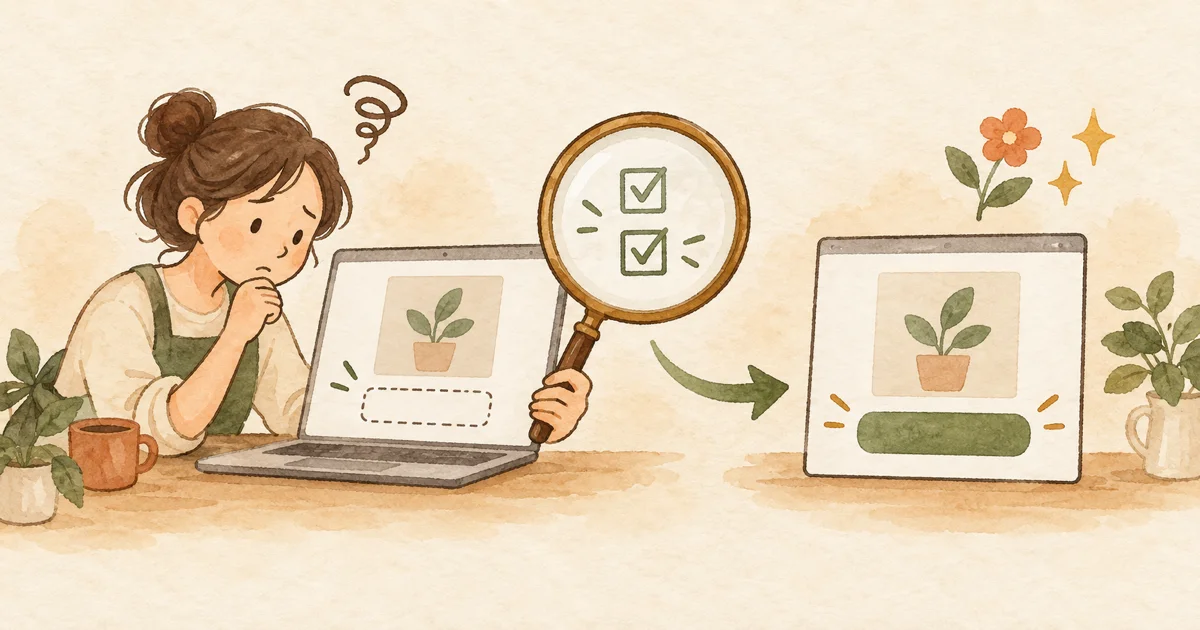
When the pre-order button doesn't show up, start by checking what the product page shows right now, as a customer would see it. If every product still says Add to cart, check the app embed on your published theme. If it's only one product, check that product's schedule status and dates. If a product that was taking pre-orders has switched back, look at the order limit and the free quota.
If you see Get Notified, Coming soon, or Sales ended where the pre-order button should be, it's usually not a malfunction. The page is simply showing what the current phase calls for. Use the table below and start from the row that looks most like your screen.
Quick reference: find the cause from what the product page shows
SellRules swaps the buy button on the product page to match the product's current phase. That makes the customer's screen the best clue: it gets you to the cause faster than opening every settings screen one by one.
| What the product page shows | Likely cause | Where to check | Fix |
|---|---|---|---|
| Every product still shows the regular Add to cart | The SellRules app embed is off on the published theme (also happens right after a theme change) | App embeds in the theme editor | Turn it on and save |
| One product, or only some variants, show the regular button | No schedule, pre-orders not started yet, or the selected variant has a different setting | That product's row in Sales schedules | Fix the products or variants and the dates |
| Get Notified with an email field instead of the button | The announcement period of a pre-order (working as intended) | The list shows the status Coming soon | Wait for the pre-order start, or move the dates earlier |
| A disabled Coming soon | A Coming soon schedule, which has no pre-order period | The Coming soon tab in Sales schedules | To take pre-orders, create a pre-order instead |
| Some of your Coming soon products don't change | On the Free plan, Coming soon goes live only on the first product you created | "Not shown on the product page on the Free plan" in the Coming soon tab | Keep the one product you need, or switch to Standard or Pro |
| A disabled Sales ended | The schedule is paused, or the date to end sales has passed | The Paused label in the schedule details and the end setting | Resume it, or fix the date |
| A disabled Currently Unavailable | A purchase limit rule is blocking sales | Purchase limits & sold-out | Review the rule |
| A product that was taking pre-orders went back to the regular button or sold out | The order limit was reached, or the end date passed (when Switch to regular sales is selected) | Order limit and When the pre-order ends in the schedule | Raise the limit, or fix the date |
| Pre-order and made-to-order products all stopped taking orders | The Free plan's lifetime order quota is used up | The banner at the top of the app and Plan & billing | Switch to Standard or Pro |
| The pre-order button appears but can't be clicked, with "This product can't be purchased yet because payment setup is still in progress" | Payment terms for a deposit and balance are still being set up | The message on the product page | Wait a little and reload |
| A page that was already open still shows Get Notified after the pre-order start time | A page opened during the announcement does not update automatically when the start time passes | The product page | Reload it |
Working through it in this order saves you from opening the same screens again and again.
- Note what the product page shows. Open it on your live store and write down which product and variant are affected
- Check the app embed on the published theme. If every product still shows the regular button, this is the cause
- Compare the schedule status and dates. If it's just one product, look at that product's row
- Check the limit, end setting, pause, and free quota. Do this when a product that was taking pre-orders has switched back
- Rule out the theme and other apps, then recheck. This is the last step for when the settings are right but the button still doesn't appear
Missing on every product? Check the app embed on your published theme
If every product page still shows Add to cart, the first suspect is the theme's app embed. The SellRules user guide says that when the app embed is off, "entering dates will not change the buy button." Right after you switch themes, the embed is also off on the new theme.
Following the Shopify Help Center, here's how to check it:
- In the Shopify admin, go to Online Store → Themes and click Edit theme on your published theme (some admins label it Customize)
- If you sell in several markets, choose the affected market from Markets at the top. If you don't, the change applies to your store's default settings
- Open App embeds in the left sidebar
- Switch SellRules on
- Click Save, then reopen the product page on your live store
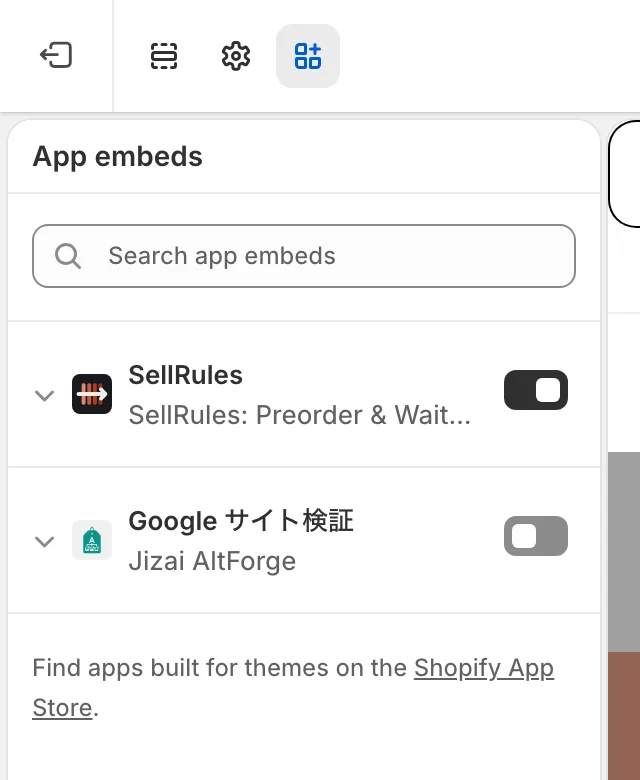
Step 5, Save, is where people most often slip. The theme editor preview shows the embed as on even before you save. It can look fixed, but nothing changes for customers until you save.
You can also confirm the fix in the Setup guide on the SellRules Home screen. The "Turn on SellRules in your theme" item changes to "It's on: SellRules was confirmed working on a product page." once someone opens a product page on your live store and SellRules switches the display. Previews in the theme editor and previews of unpublished themes don't count toward this check. If it doesn't get confirmed, the app asks you to check these 4 things:
- You opened the product page in your actual store, not in the theme editor preview
- The theme with SellRules turned on is your published theme
- The product is published
- If it still isn't confirmed after opening the product page, the app proxy URL under Shopify Settings → Apps → SellRules is
/apps/smart-preorder
Even after it has been confirmed once, if SellRules hasn't been seen on a product page in the last 7 days, the Home screen shows a notice with an Open app embeds button. It's there so you don't reach launch day without noticing that a theme swap turned the embed off. If you see it, check the embed first.
The official SellRules guide assumes a theme that supports app embeds (Online Store 2.0). You don't need to edit any theme code.
Missing on one product? Compare its schedule status and dates
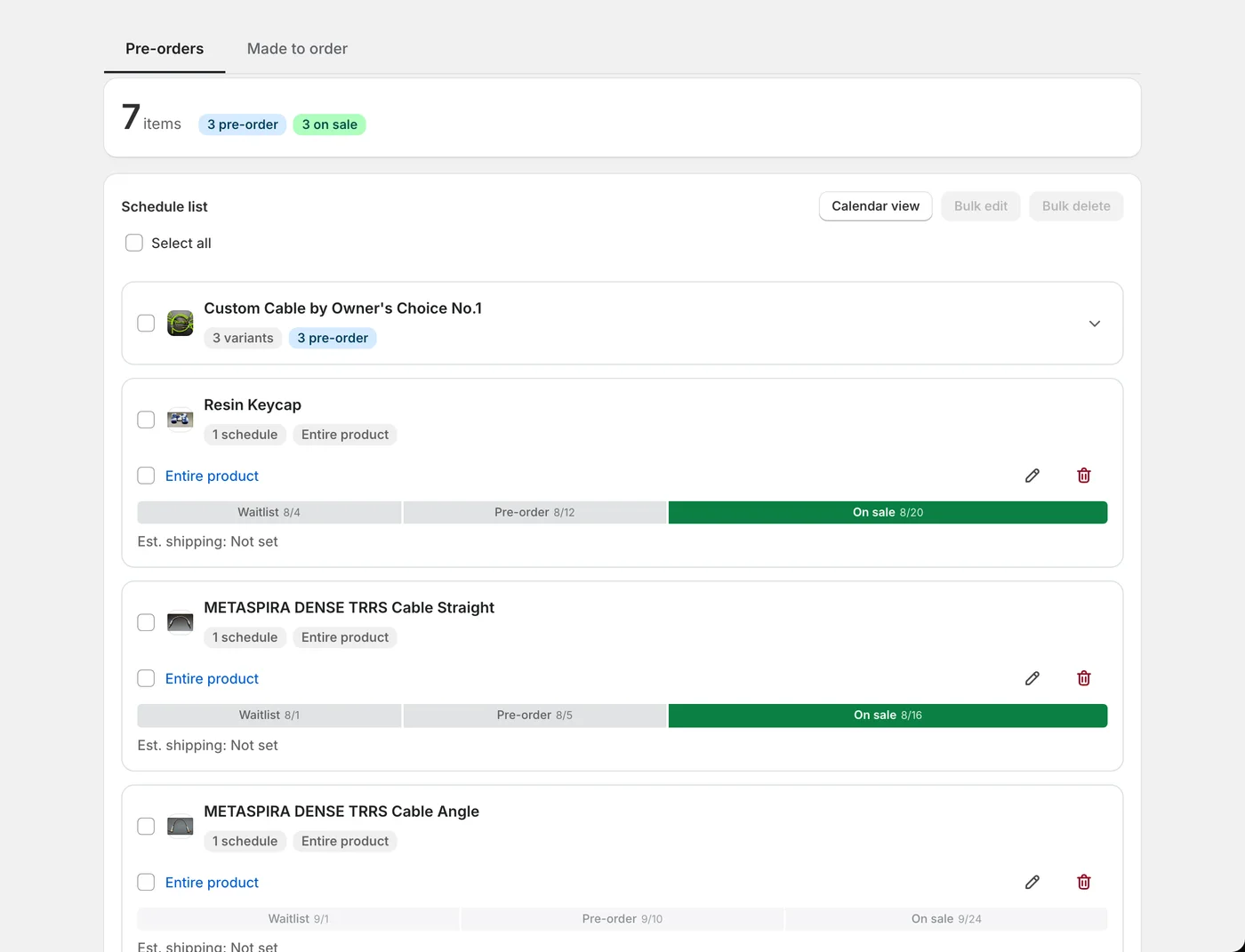
If only certain products still show the regular button, find the product's row under Sales schedules in SellRules. If there is a row, its current status decides what the product page shows.
| Status in the list | What the product page shows (default text) |
|---|---|
| Coming soon | A Get Notified button and an email field (a disabled Coming soon for a Coming soon schedule) |
| Pre-order | A Pre-order Now button |
| Made to order | An Order Made to Order button |
| On sale | Your theme's own buy button (regular sales) |
| Sold out | A disabled Sales ended |
You can change the button and field text under Settings → Button and label text. If you've changed it, read the table above with your own wording in mind.
If the pre-order schedule is in the Announcement phase, nothing is wrong with the display. The announcement period is the phase where you collect sign-ups before launch, so an email sign-up field appears instead of a pre-order button. Once the pre-order start time arrives, newly opened pages show the pre-order button.
If the product has no row, you haven't created a schedule for it yet. In Sales schedules, use Create pre-order, enter the product and dates, and save.
If there is a row but no pre-order button, open the edit screen and review these points:
- Pre-orders haven't started yet: if you skipped the announcement period and the pre-order start is still in the future, the product sells normally until then
- Order of the dates: if the dates don't run announcement, pre-order start, switch to regular sales, the timeline bar on the edit screen shows "Dates are out of order." If you try to save anyway, you get an error such as "Coming-soon start must be before pre-order start", and the schedule won't save
- Time zone: compare the "Dates and times are saved in your store's time zone (…)" note on the create screen with the time zone under Shopify Settings → General. If the store is still set to a time zone other than your own, the switch happens out of step with your local time
- Variant-level settings: SellRules uses a variant's own schedule if there is one, and otherwise falls back to the product-level schedule. If you created only variant-level schedules and no product-level one, the variants without a schedule keep selling normally
- Product availability: draft products, or products not published to the Online Store, don't appear to customers in the first place
For example, say you created a variant-level pre-order only for the Black / M variant of a T-shirt. When a customer selects White / M, the page goes back to the regular Add to cart, and when they switch to Black / M it becomes Pre-order Now. That is exactly what the settings say. If you want pre-orders on every color, create a product-level schedule.
The fields and their order are covered with screenshots in "Start selling pre-orders" in the SellRules user guide. If you want to check everything from the initial setup, see how to start taking pre-orders.
Why did the button disappear from a product that was taking pre-orders?
If a product that was taking pre-orders yesterday is back to the regular button or shows as sold out, it has probably hit one of the conditions that stop pre-orders, rather than being misconfigured. SellRules stops taking pre-orders under 4 conditions.
The order limit was reached. If you set an order limit on the schedule, SellRules stops taking pre-orders and returns to regular purchasing as soon as the total quantity ordered (an order for 2 units counts as 2) reaches the limit. If Shopify inventory is at 0, the page shows the regular sold-out state. To start taking pre-orders again, raise the limit.
The pre-order reached its end. What the page shows after the end date depends on what you chose under When the pre-order ends on the edit screen.
| When the pre-order ends choice | Product page after it ends |
|---|---|
| Switch to regular sales | Your theme's own buy button |
| End sales with a sold-out display | A disabled Sales ended. It does not go back to regular sales |
| No deadline (keep taking pre-orders) | The pre-order button stays until you stop it yourself |
The schedule is paused. Pause sales in the schedule details stops purchases without deleting the settings. While it's paused, customers see Sales ended. The timeline keeps moving during the pause, so when you resume, SellRules works out the phase again from the date and time at that moment.
The Free plan's lifetime order quota was used up. On the Free plan you can take up to 10 pre-order and made-to-order orders in total since you installed the app. Once you hit that, a banner appears at the top of the app starting with "Pre-order and made-to-order orders have reached the free limit (10)." Pre-order and made-to-order product pages stop taking orders, including ones that were open for orders. Your settings are kept, and switching to Standard or Pro brings them back.
One more thing: during the pre-order and made-to-order phases, SellRules sets the target variants' inventory policy to "Continue selling when out of stock." Inventory reaching 0 does not, by itself, make the pre-order button disappear. If the button vanished at 0 inventory, suspect one of the 4 conditions above.
What if nothing changes after the pre-order start time?
If the start time has passed and nothing has changed, reload the product page first. If that doesn't help, check the dates and time zone, and whether the change has reached the product page.
SellRules rewrites the product page data at the 4 switch times: announcement start, pre-order start, switch to regular sales, and end. Even if a rewrite doesn't happen on time, a regular sync picks it up again. Whether an already-open page updates automatically depends on the schedule type.
- Pre-orders and made-to-order sales: An open page does not update automatically when the start time passes. Customers waiting on the page for pre-orders to start need to reload it to see the pre-order button (or the order button for made-to-order products). The same applies when switching to regular sales or ending sales: reloading brings up the new display.
- Coming soon: If sales start within 24 hours of the page being opened, the open page switches back to the buy button at that time. If the customer opened the page more than 24 hours before sales start and left it open, they need to reload it to see the buy button.
Adding “Please reload the page at the start time” to your launch announcement helps waiting customers know what to do.
When you check on your own screen, go in this order so that no old display sticks around:
- Reload without the cache (Ctrl+F5 on Windows, Command+Shift+R on Mac)
- Open the product page in a private window or another browser to see it the way customers do
- Open it on a smartphone too, and check that it matches the desktop
- Compare it with another product that has the same dates. If that one has switched, focus on this product's settings
If it still hasn't changed, think back to whether you saw "Created successfully, but updating the product page failed" after creating the schedule. In that case, the app retries automatically every few minutes. To update it right away, open the edit screen and save again.
How to pick a launch time, and how to put together the announcement, pre-order, and switch to regular sales, is covered in the article on automatic switching at launch time.
Settings are right but the button is missing or broken? Rule out the theme and other apps
If the embed and the schedule are both correct and the page still shows the regular button, or the button is duplicated or out of place, suspect the theme's purchase form and other apps.
SellRules finds the buy button in your theme's product form and replaces it. If your theme has been customized so that its purchase form is built differently from the standard one, SellRules may not find the button. If it still can't find it after a set amount of time, it puts your theme's own button back and steps aside, so customers aren't left unable to buy. When that happens, your browser's developer tools console logs an entry starting with [SellRules] Fail-open recovery. Including it when you contact us makes it easier to narrow down the cause.
Another app rewriting the same buy button can also cause a clash. To compare without touching your published theme, go in this order:
- In Shopify, go to Online Store → Themes and duplicate your published theme
- In the preview of the unpublished duplicate, open the same product and the same variant
- Turn off the embeds of other apps that change the buy button or product form one at a time, and compare the display
- When the behavior changes, note the theme name, that app's name, the product and variant, and take screenshots
If you turn off every app at once, you won't know which one caused it. Compare them one at a time.
When this article won't fix it, and who to contact
If you've checked everything above and it still isn't fixed, it needs a closer look rather than a settings check. The cause may also lie outside SellRules.
- A purchase form with custom-edited theme code: SellRules doesn't modify your theme's code. Ask the theme developer or the agency that built it about the form's structure
- Overlap with another app: tell the support team of the app you identified in the previous section about the symptoms too
- Problems with Shopify's own display or checkout: for issues that happen at checkout rather than on the product page, Shopify Support is the place to go
- The product isn't published: fix sales channels and availability in Shopify's product editor
When you contact SellRules, the following information helps us reproduce the situation:
- Your store URL (your-store.myshopify.com)
- The name of your published theme and, if you sell in several markets, the affected market
- The product name and the affected variant
- When it happened (in your store's time zone)
- What you expected to see and what actually appeared (for example, "the status is Pre-order but the page still shows Add to cart")
- Screenshots of the product page and the Sales schedules screen
- The names of any other apps you use that change the buy button
- The text of any console entry starting with
[SellRules]
You can reach us through the contact page, or use the Feature request or Bug report link at the bottom of the app screen. You don't need to send your customers' personal details (names or addresses).
Frequently Asked Questions
The app embed is on, so why isn't the pre-order button showing?
Most likely the product has no schedule, pre-orders haven't started yet, or the variant being viewed has a different setting. Check that product's row and its current status in SellRules under Sales schedules. Also remember that turning the embed on in the theme editor does nothing for customers until you save.
My pre-order button disappeared after I changed themes. Are my settings gone?
No, your settings are still there. The app embed is a per-theme switch, so open App embeds in the theme editor of your newly published theme, turn SellRules on, and save again. Your schedules in the app keep working as they are.
The pre-order start time has passed, but the customer's page hasn't changed
For pre-orders and made-to-order sales, a product page a customer already has open does not update automatically when the start time passes. Reloading brings up the pre-order button (or the order button for made-to-order products). With Coming soon, an open page switches back to the buy button only if sales start within 24 hours of the page being opened. Pages opened earlier need to be reloaded. If reloading doesn't help, check that the dates were entered in the store's time zone and look at the status in the list.
I see Get Notified or Coming soon instead of a pre-order button
Both are working as configured. Get Notified is what the announcement period shows, and it turns into an order button at the pre-order start (or the made-to-order start). Coming soon comes from a Coming soon schedule, which has no pre-order period: at the sales start the page goes back to the regular buy button, and no pre-orders are taken. If you want to take pre-orders, create the schedule as a pre-order instead.
A product that was taking pre-orders suddenly went back to the regular button or sold out
One of these is the likely cause: the order limit was reached, the end date passed, the schedule was paused, or the Free plan's lifetime order quota was used up. When the limit is reached, SellRules stops taking pre-orders and returns to regular purchasing, and if Shopify inventory is at 0 the page shows as sold out. While paused, the page shows Sales ended. After the end date, the page follows your When the pre-order ends choice, and only End sales with a sold-out display turns it into Sales ended.
After the fix: make sure it doesn't happen again on launch day
Once it's fixed, build 2 habits so the same thing doesn't happen at your next launch.
The first is to check the app embed on the same day whenever you change themes. The app embed's on/off setting belongs to each theme, so when you swap themes or switch to a sale theme, the setting of the theme you switch to is what counts. Also check that the Setup guide on the Home screen still shows it as confirmed.
The second is to run the same schedule once on a test product, no later than the day before launch. Give a published test product an announcement start and a pre-order start a short time apart, and check both the announcement display and the Pre-order Now button after the start on your live store. That way you can confirm it works with your theme without touching the real product.
Check your plan as well. Automatic pre-order switching and notification sign-ups during the announcement period are available from the Free plan. The Free plan covers up to 10 pre-order and made-to-order orders in total since installation, so if every launch brings in a steady stream of orders, Standard (US$9.90 per month) is the plan to look at. If you want to take pre-orders with a deposit and balance payment, choose Pro (US$19.90 per month). The paid plans have no free trial; the Free plan takes the place of a trial. Deposit setup is covered in how to charge a deposit and the balance separately, and the order to try things in is in the article on running a trial.
Screens and on-screen text are based on the live SellRules app (as of October 19, 2026) and the user guide; the theme editor steps are based on the Shopify Help Center article "Extend your theme with apps" (checked October 19, 2026). Pricing is the same 3 plans, Free, Standard, and Pro, as on the Shopify App Store listing.
Related articles: How to decide the overall rules for advance and limited sales / How to start taking pre-orders on Shopify / Automatic switching so you don't have to wait up for launch time / Collecting notification sign-ups before launch / Setting a "limit 1 per customer"