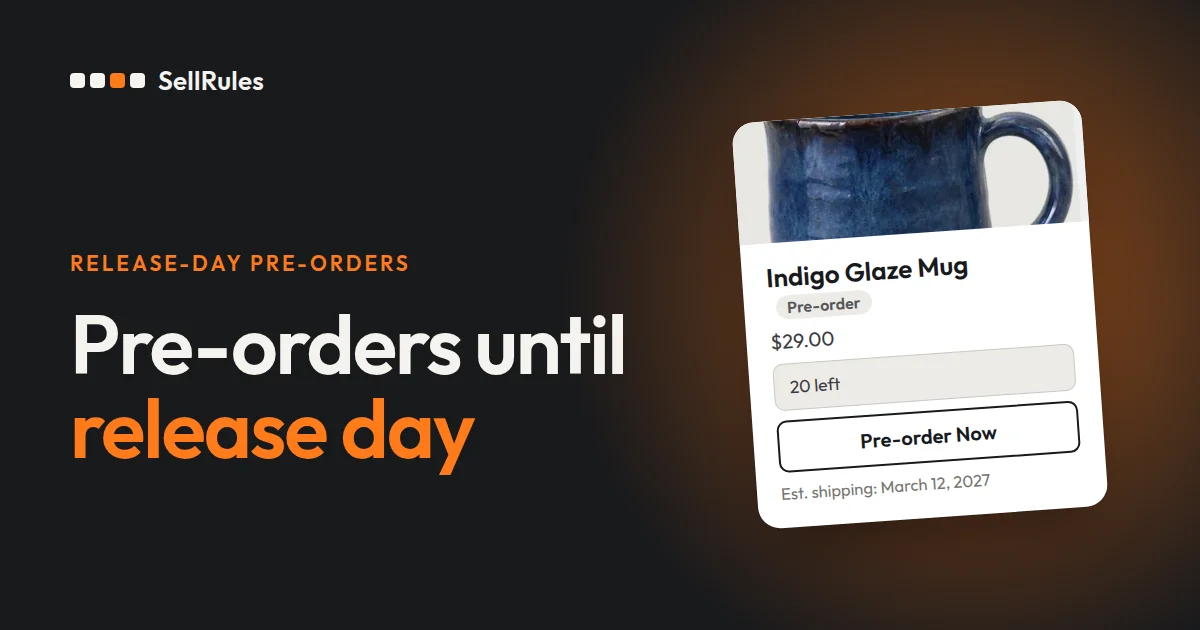
When you take pre-orders for a CD, book or video on Shopify until release day, show the release date as the estimated ship date and take the first-come pre-order bonus up to a set number. You'll want pre-orders without the bonus to continue after the bonus runs out.
With the Shopify app SellRules, you split the product into “With bonus” and “Standard” variants and set three things in the sales schedule:
- The bonus variant: the number of bonuses under “Limit for this variant only”
- “When the pre-order ends”: “Switch to regular sales”
- “Sale start”: the release date
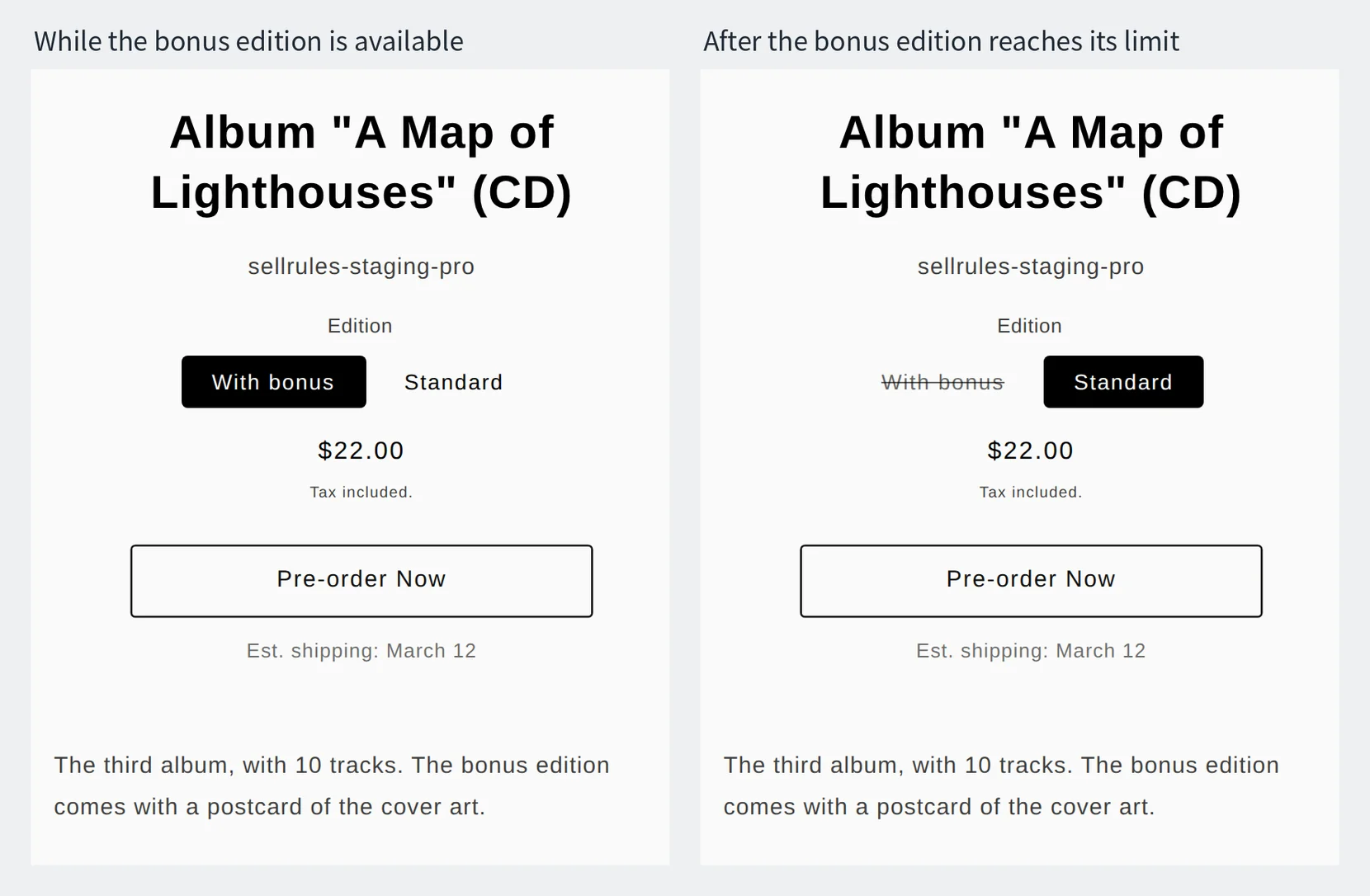
When the number of bonuses is reached, the bonus variant sells out and can no longer be selected, and pre-orders continue on the standard variant. On release day, the pre-order button goes back to the regular buy button.
What the customer sees
Below is the product page for an album that is on pre-order before its release. Customers can choose “With bonus” or “Standard”, and the shipping estimate appears under the pre-order button. Once the bonus variant reaches its limit, it can no longer be selected, and the standard variant can still be pre-ordered.
How it differs from Shopify's built-in way to take pre-orders
Shopify's built-in option and the SellRules sales schedule
Shopify built-in
SellRules sales schedule
In Shopify alone, you can set the bonus variant's inventory to the number of bonuses and it will sell out at that number. Those orders come in as regular purchases, so you have to say in the product description that it's a pre-order and when it releases.
The per-variant limit in SellRules counts quantities, so two copies in one order count as two, and it stops pre-orders for that variant as soon as the limit is reached.
How to set it up in SellRules
How to take pre-orders with a limited bonus for CDs and books in SellRules
- 1. Create the bonus and standard variants
- 2. Create the sales schedule
- 3. Put a limit on the bonus variant only
- 4. Add inventory on release day
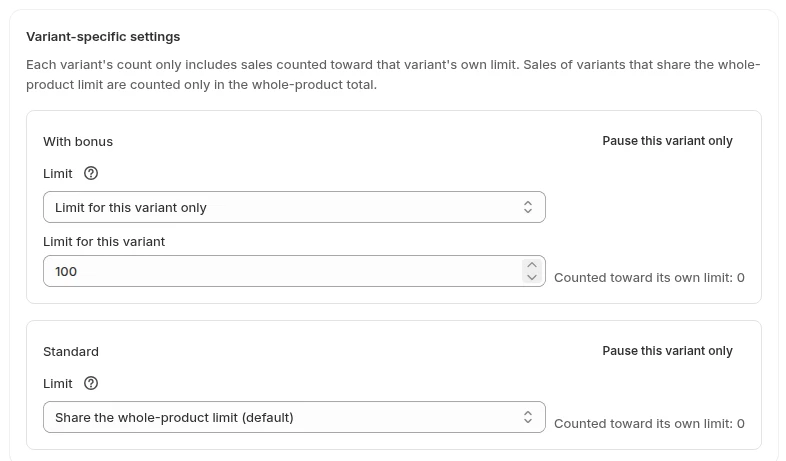
Before you start, add “With bonus” and “Standard” variants to the product under “Products” in Shopify admin, track inventory on both, and set their quantities to 0. While pre-orders are open, SellRules replaces the bonus variant's inventory with the number of bonuses left, and it shows as sold out when that reaches 0. Don't change the bonus variant's inventory in Shopify while pre-orders are open.
- Under “Sales schedules” in SellRules, choose pre-order and pick the product.
- Set “Pre-order start”. For “When the pre-order ends”, choose “Switch to regular sales”, and under “Sale start” enter 12:00 AM on the release date (for a March 12 release, midnight at the start of that day).
- Under “Estimated ship date”, enter the ship date that matches the release, and under “Est. shipping” enter something like “March 12”. When you fill in the text, the text is what appears under the buy button.
- Under “Variant-specific settings”, for the bonus variant, choose “Limit for this variant only” under “Limit” and enter the number of bonuses under “Limit for this variant”. Leave the standard variant on “Share the whole-product limit (default)”, and leave the whole product's “Total quantity limit” blank to take pre-orders with no limit.
- Save. On the product page, switch between the bonus and standard variants and check that the pre-order button appears on both.
On release day, the buy button goes back to normal. Set the standard variant's quantity in Shopify to what you can sell from that day, and customers can buy what is in stock.
When the release date slips
If a release is delayed, change the “Estimated ship date” and “Sale start” in the sales schedule to match the new release date.
When you move the estimated ship date later than the date customers were given, pre-orders that haven't shipped yet get a delay notice email. If you'd rather contact customers yourself without that email, go to “Email templates” in “Settings” and switch the delay notice to “Disable”. That switch is available on the Launch plan.
If several titles are delayed to the same date, select them in the sales schedule list and click “Bulk edit” to change the dates together.
Pricing
Per-variant limits, the release-day switch and delay notices are available from the Free plan. On the Free plan you can take up to 10 pre-order and made-to-order orders in total. On your next release, put a small limit on the bonus variant and check that only that variant shows as sold out when the limit is reached.
To take more pre-orders than that, switch to the Launch plan (US$7.99 per month). You can install SellRules from the Shopify App Store, where you can also check pricing and trial terms.
Frequently asked questions
What if I offer more than one kind of pre-order bonus?
Create a variant for each bonus and set “Limit for this variant only” on each one. With variants such as “With bonus A”, “With bonus B” and “Standard”, each bonus is counted separately and only the one that has run out shows as sold out.
Can I stop one customer from buying many copies with the bonus?
Yes. Enter “Max per order” or “Cumulative quantity limit per customer” in the same sales schedule. Purchase limits apply to the whole product, so the bonus and standard variants are counted together. The cumulative limit counts orders placed while logged in.
Can I keep taking pre-orders after the release date?
Yes. Choose “No deadline (keep taking pre-orders)” under “When the pre-order ends” and pre-orders continue until you stop them yourself. If stock won't arrive by release day, use this option and change the estimated ship date to when you expect the stock.
Related articles:
- Choosing by industry: pre-orders vs. made to order by industry
- Announcing before launch: Switch from pre-order to regular sales automatically at launch time
- Setting a quantity per person: Purchase limits per order and per customer
- Planning dates and quantities for a launch or seasonal sale: Preparing a product launch or seasonal sale
The album, the number of bonuses and the dates are examples.