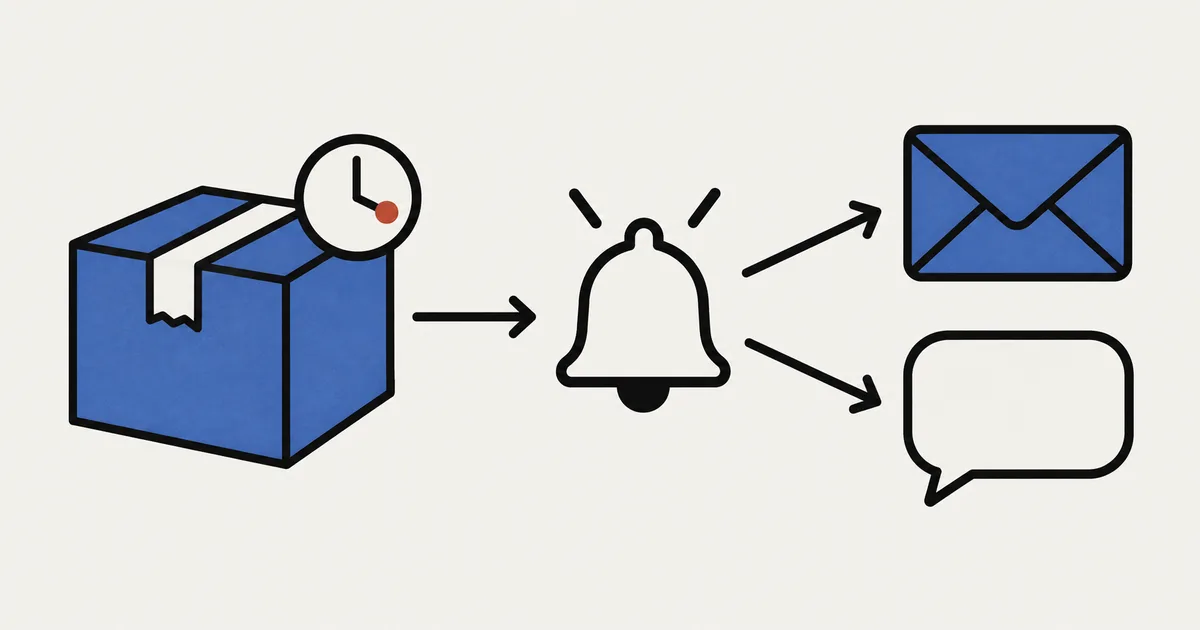
With pre-orders and made-to-order products, there's a wait between taking an order and shipping it. During that wait, a new pre-order might arrive, or late stock might mean moving the ship date back, yet nobody notices until they open SellRules. That gap is especially awkward when someone else handles production or shipping.
SellRules doesn't send emails about new pre-orders or shipping delays to store staff. Most emails from SellRules go to customers; emails to the store are limited to things such as balance collection and usage-limit reminders. Shopify's own free app, Shopify Flow, fills that gap. SellRules can pass 4 events to Flow. Start with a single task: choose 1 event you can't afford to miss and build 1 workflow that sends it by internal email or Slack.
Below, you'll find a table showing when those 4 events run and when they don't, what you need and how to choose a destination, how to build and test a shipping-delay workflow, how to handle duplicates and failures, and which checks to keep doing yourself. For the broader decisions about setting up pre-orders and limited sales, see how to plan advance and limited-edition sales.
Choose 1 event you don't want to miss
Decide what needs a notification first. If you report everything, people may stop reading the notifications themselves. For stores taking pre-orders or making products to order, shipping delays or new pre-order and made-to-order orders are sensible places to start.
SellRules passes the following 4 events, called triggers, to Flow. Flow lists each trigger with its Japanese name followed by its English name. Use the English names below to find them. Setting up a trigger doesn't mean it will always run, so check the cases where it won't run before choosing one.
| Trigger | When it runs | When it doesn't run | Main fields passed along |
|---|---|---|---|
| Delivery delay detected | You move the schedule's fixed ship date later than the date given at checkout, and SellRules' regular check successfully passes the order to the process that sends a customer delay email. Moving it later again triggers it again | The ship date has merely passed. You move an individual order's date using Edit ship date in Order progress. The order has no email address. The order has no fixed ship date | Order number, customer email address, original ship date, new ship date, days delayed |
| Pre-order or made-to-order received | SellRules receives an order containing a pre-order or made-to-order product. Once per order | The order contains no pre-order or made-to-order products | Order number, name of the first pre-order or made-to-order product in the order, whether it's pre-order or made-to-order, ship date (blank if undecided), customer email address |
| Sales phase changed | A product moves between announcement, pre-order, made-to-order, normal sale and ended (at a scheduled time, on saving in the admin, or when a sold-out switch starts or ends pre-order availability) | You switch using Flow's Switch sales phase action. While a product is sold out, you change and save its sold-out switch setting between Back-in-stock notification only and Pre-order | Product, previous and new sales phases, ship estimate (display text and date; blank if unset) |
| Back-in-stock signup | Every time a customer's signup for a restock or launch alert on a product page is saved. Repeat signups by the same person also trigger it | The signup wasn't saved | Product, signed-up email address, selected variant (blank for a product-wide signup), number of waiting subscribers (including this signup) |
Pay particular attention to Delivery delay detected. Its name can sound as though it reports orders that have passed their ship date. It actually responds to orders delayed because you moved the schedule's ship date later. It won't notify you about orders whose ship date has arrived but whose shipping preparation hasn't started. Find those in Order progress, covered later.
For example, suppose mugs sold on pre-order for late March shipping arrive late, and you change the schedule's ship date to April 10. When the regular check finds that change, customers who pre-ordered receive a delay email and Flow's Delivery delay detected trigger runs at the same time. The person receiving the notification can then agree on replies to customer queries or adjust the order in which products are made.
Also decide who should receive it. If you run the shop alone, use your own email address. If someone else makes or ships the products, use the Slack channel they normally check. The message only needs to say what happened and which screen to open. The recipient can make the detailed decisions after opening the order.
What you need and where to send notifications
You need 2 apps: SellRules and Shopify Flow. Triggers provided by an app are available when both that app and Flow are installed in your store.
Shopify's help page for Shopify Flow lists Flow as a free app for Basic, Grow, Advanced and Plus plans (checked October 25, 2026). SellRules doesn't restrict sending events to Flow by plan, so all 4 triggers work on the Free plan too.
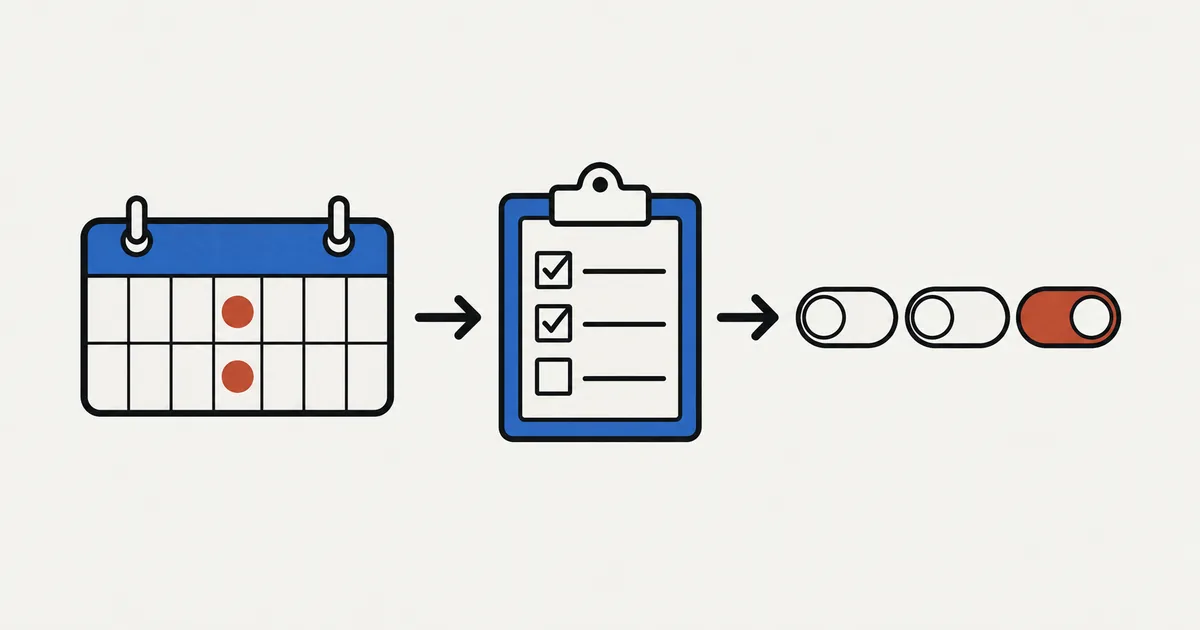
A workflow follows the order “trigger → condition → action.” These are the 2 main actions for notifying staff.
| Destination action | When to use it | Setup and limitations |
|---|---|---|
| Send internal email | You want to reach yourself or a small group of staff | Enter email addresses. Separate multiple recipients with commas; variables aren't supported in the recipient field. This is for store staff, not customer emails |
| Send Slack message | You want to share messages with several people in a channel | Connect your Slack account to Flow and add FlowBot to the destination channel (channel details → Integrations → Add apps) |
Shopify's help pages cover Send internal email and Send Slack message (both checked October 25, 2026). On Grow or higher, Send HTTP request can also connect directly to external services, but these 2 standard actions are enough to start with.
SellRules also provides a Switch sales phase action that accepts instructions from Flow. It switches a product to announcement, pre-order or normal sale; it can't switch to made-to-order. It isn't used to notify staff, so it isn't covered here.
Build a workflow to notify staff of shipping delays
To notify staff of shipping delays, use Delivery delay detected as the trigger and internal email or Slack as the action. The same steps apply to the other triggers.
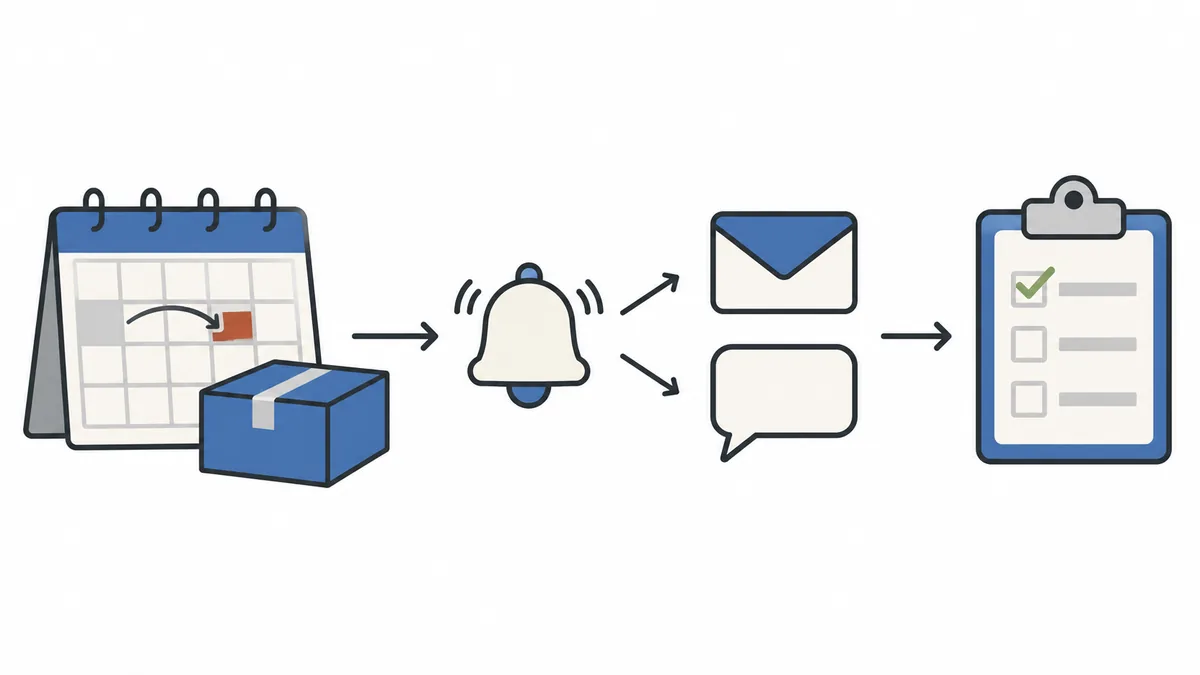
1. Create a workflow and choose the trigger
Open Shopify Flow and create a new workflow. In the trigger picker, choose SellRules' Delivery delay detected.
If SellRules' triggers aren't listed, check that SellRules is installed in your store. This step is complete once you can select the trigger.
2. Add the action for your destination
Add an action after the trigger. Choose Send internal email for email or Send Slack message for Slack. Enter the staff member's email address or select the destination Slack channel.
Use the subject or message to tell the recipient what to do next. For example, “Pre-order ship date delayed” is enough for a subject, with “Please check orders marked Delayed in SellRules' Order progress” as the body.
Use variables if you want to include details such as the order number. Shopify's explanation of variables says that text fields with an Add a variable link accept variables, and the list only shows fields returned by earlier steps such as the trigger (checked October 25, 2026). Open Add a variable below the field and check that the order number or days delayed is listed before adding it.
3. Add conditions if needed
A condition between the trigger and action narrows which notifications get through. For example, you could send a notification only when the delay is 7 days or more.
Starting without conditions and narrowing things down only when there are too many notifications leaves less to troubleshoot. After adding a condition, use the next step to check that it hasn't also blocked notifications you need.
4. Check that the notification arrives
Once the workflow is on, cause the event to happen and check that the notification actually arrives. Saving a workflow and receiving its notification are different things.
Flow has a test feature, but Shopify's workflow testing guide says tests don't perform real actions and test runs don't appear in the run history (checked October 25, 2026). Use a real event to check delivery.
To check Delivery delay detected, follow these steps.
- Create a test product and schedule separate from products on sale. Set a fixed ship date.
- Place 1 order for that product with your own email address. To avoid a real charge, use a test payment method or Shopify Payments test mode as described in Shopify's test order instructions.
- Move the schedule's ship date later and save.
- Wait for SellRules' regular check, then confirm that a run appears in Flow's history and the notification arrives.
Your email address will receive both the order confirmation and, after the date change, the delay email. Test orders aren't excluded, so on the Free plan, this 1 order counts toward your cumulative total of pre-orders and made-to-order orders. Reinstalling the app does not reset that total. Don't test with the schedule of a product that's on sale. Moving its ship date later sends a delay email to every customer who pre-ordered that product.
If you only want to check the destination first, such as a Slack channel or email address, you can create a workflow with the same action and the Back-in-stock signup trigger, then sign up for a restock alert with your own email address. The signup field only appears on sold-out products accepting restock signups, or products accepting signups during a pre-launch announcement. Set your test product's sold-out switch to Back-in-stock notification only, set inventory to 0, then sign up. Signing up alone doesn't send a customer email. However, restoring that product's stock later sends a back-in-stock alert to you and uses 1 email from the Free plan's cumulative notification allowance.
Prevent duplicate notifications and check delivery failures
Once you've automated notifications, decide where you'll check whether they're working. Use Shopify Flow's run history. Shopify's monitoring guide explains that workflow runs are recorded and can be filtered for errors. Records remain for 14 days after a run completes (checked October 25, 2026). Check once a week for runs that stopped with errors.
When the same notification arrives twice
Duplicate notifications mainly occur in these 4 situations.
| What happens | Cause | What to do |
|---|---|---|
| The same delay arrives by both internal email and Slack | Separate workflows use the same trigger | To add destinations, put 2 actions in 1 workflow |
| Retrying a failed run sends the same message again | A retry uses the original run's data | Before retrying, check whether the first notification actually arrived |
| You keep receiving signup notifications for the same customer | Back-in-stock signup also runs when someone signs up again | If you don't need every signup, use the waiting-subscriber count as a condition and notify only at chosen milestones |
| The same order's delay is reported twice | Moving the ship date further back triggers it again | The second notification is a new delay; check the new ship date and act on it |
The retry rules are in Shopify's manual retry guide. The workflow must be on and the run must not be running or waiting. You can't retry if the trigger's contents have changed.
Pre-order or made-to-order received runs once per order. However, if handing the event from SellRules to Flow fails and order import is retried, it may run again. If you receive the same order notification twice, compare the order numbers to check whether it's the same order.
When a notification doesn't arrive
Check in this order.
- Is there a run in Flow's history? If not, check that the workflow is on and the event matches the table's “When it runs” conditions
- Did the run stop with an error? Read the error, fix the cause, then retry
- If the run succeeded but nothing arrived, check the destination. For Slack, make sure FlowBot hasn't been removed from the channel. For internal email, check the address for typos and look in the spam folder
To stop notifications, just turn off the workflow in Flow. This doesn't affect SellRules' settings or customer emails.
Keep a daily Order progress check
A notification draws your attention to an order; it doesn't handle it for you. Even with automation, keep a daily routine where someone looks at the actual orders. For stores on plans without Flow, this is the main way to stay on top of them.
SellRules' Order progress lists unshipped pre-order and made-to-order orders, with counts for Not started, In production and Delayed at the top. Orders found to be delayed get a Delayed flag. Make opening this screen first thing in the morning or before shipping a habit, and you can catch missed orders even on days when no notification arrives.
- Home: If there are delayed orders, it shows a message with their count and a View delayed orders link to Order progress. Low-stock products and sold-out products without a switch set up are also included in the count of items needing attention
- Delivery log: Customer emails are listed by status, such as sent, failed or awaiting sending. Check here to confirm that a delay email really went out
For a weekly review of the numbers and your next actions, see our article on reviewing pre-order sales each week. For production and delay communication after taking an order, see managing made-to-order orders through shipping.
What this article doesn't cover and what Flow won't report
This article focuses on workflows that notify store staff. Use other methods for the following situations.
- Customer notifications: SellRules sends restock and launch emails through its notification emails. See setting up back-in-stock emails for setup and checks
- Changing a sold-out switch setting: While a product is sold out, changing its sold-out switch from Back-in-stock notification only to Pre-order and saving doesn't run Sales phase changed. Subscribers won't receive a pre-order launch email, and they won't receive a subsequent restock alert either. After switching, export subscribers as CSV from Back-in-stock subscribers and announce pre-orders through your store's email or another channel. Unsubscribed people remain in the CSV, so exclude rows marked Excluded before sending. See choosing pre-orders or back-in-stock signups for sold-out products for details
- Orders whose ship date has merely passed: Delivery delay detected won't report them; check Order progress
- Stores on plans without Flow: Use the Order progress and Home checks described above as your daily routine
What to do after your workflow works
Once your first workflow delivers a notification, add a second workflow or build a routine for acting on the messages you receive.
- Tell production when to start: For made-to-order products, send Pre-order or made-to-order received to the production team's channel so the maker knows as soon as an order comes in
- Share sales phase changes: Use Sales phase changed if several people need to know when pre-orders open or normal sales begin. For setting up those scheduled changes, see scheduling sales changes for launch time
- Bring notifications into your weekly review: Look back at how many arrived and what they reported during your weekly review
Frequently Asked Questions
Which Shopify plans include Shopify Flow?
Shopify's help center lists Shopify Flow as a free app for Basic, Grow, Advanced and Plus plans (checked October 25, 2026). Send HTTP request, which connects directly to external services, requires Grow or higher. Internal email and Slack notifications are available on any plan that supports Flow.
Can I use Flow triggers on SellRules' Free plan?
Yes. SellRules doesn't restrict sending events to Flow by plan. On the Free plan, however, pre-order and made-to-order orders have a cumulative limit of 10 from installation, and back-in-stock and sales launch emails have a cumulative limit of 15.
How do customer delay emails differ from Flow notifications?
They go to different people. SellRules sends delay emails to customers even if you don't use Flow. Flow's internal email and Slack messages go to store staff, not customers. Turning Flow off doesn't stop customer emails.
What should I check first if a notification doesn't arrive?
Open the workflow's run history in Shopify Flow first. Check whether there was a run and whether it stopped with an error. If there was no run, check that the workflow is on and the event met the trigger's conditions. If the run succeeded but nothing arrived, check that FlowBot is in the destination Slack channel, or check the internal email address for typos and look in the spam folder.
Pricing and testing: start with 1 delay workflow
SellRules' Flow triggers are available from the Free plan. Start with a test product, build 1 workflow that sends Delivery delay detected by internal email, and check that it arrives.
SellRules plans and pricing
| Monthly price | LaunchEvery feature included |
|---|---|
| Monthly price | US$7.99 per month |
| Free trial | 10 days |
| Pre-order and made-to-order orders | Unlimited |
| Back-in-stock and sale-start emails (Notify Me) | Unlimited |
| Purchase limits | No limit on products |
| Customizable notification emails | Yes |
| Deposit payments | Yes |
Pre-orders, made-to-order, back-in-stock alerts, purchase limits, stockout switching, deposit payments and order processing are all included in the Launch plan.
The first 10 days are free. If you remove the app during the trial, you are not charged.
Back-in-stock and sale-start emails have no sending cap. The same goes for required messages such as order confirmations, shipping updates and balance reminders.
The Free, Standard, and Pro plans are closed to new sign-ups. Shops already on them keep their current terms.
Standard and Pro have no free trial; the Free plan is how you try the app. When cumulative pre-order and made-to-order orders or notification emails approach their limits, move to Standard at US$9.90 per month. If you want to take pre-orders with a deposit and collect the balance later, move to Pro.
See how SellRules manages pre-orders and orders
If you know how you want to use it, try the Free plan from the Shopify App Store.
Features checked October 25, 2026 by JizaiDev, the developer of SellRules, against the code and screen text of the app available on that date. Shopify Flow eligibility, actions, run history, retries and testing are based on Shopify's help center, checked on the same date. Products and dates in the examples are fictional and used for explanation. Check current pricing in the Shopify App Store listing.