As you keep taking pre-orders, order and sales figures build up. But you might still find yourself thinking, “I look at these every week, yet I don't know what to change next,” only to notice that shipping is late or the product has stopped accepting orders.
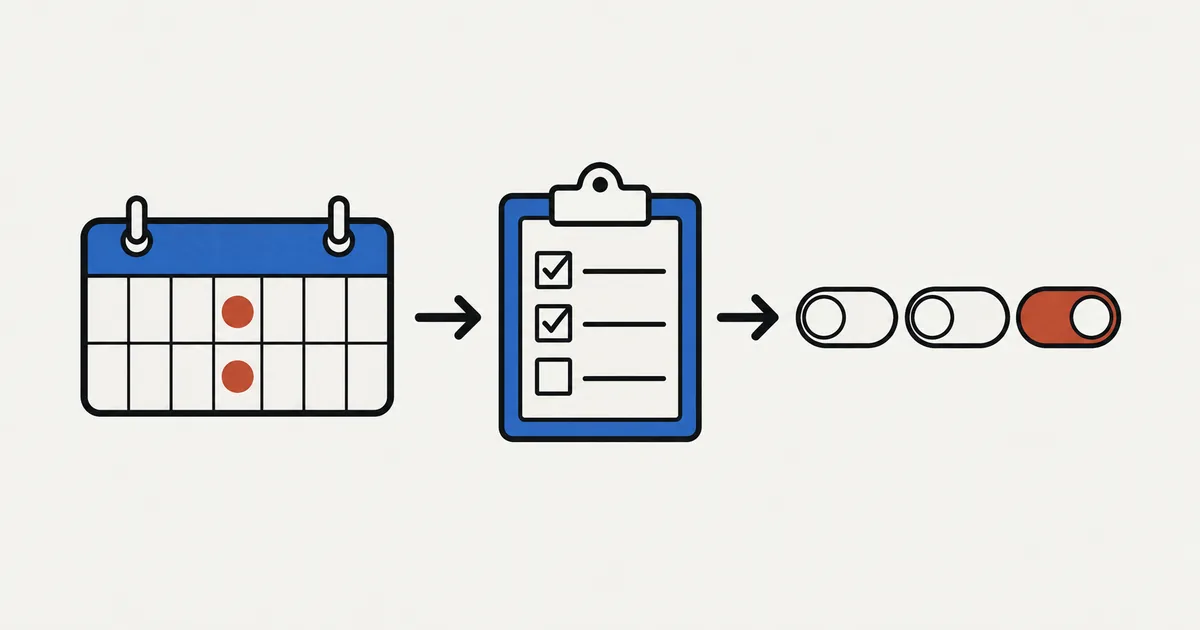
A weekly review follows this process: on the same day each week, record figures covering the same period, check sales, orders still needing work, stock and order caps in that order, then choose just 1 setting to change. Reviewing under the same conditions the following week gives those figures a purpose.
This article focuses on SellRules Home and Order progress. It covers how to compare them with Shopify reports, check stock and order caps, decide what to change, and use a ready-made checklist, in that order. For the broader setup of pre-orders and limited sales, see planning advance and limited sales.
Keep the review day and reporting period consistent
A useful weekly review compares like with like. If the day or reporting period changes each time, you cannot tell whether an increase or decrease reflects sales performance or simply different conditions.
Start by choosing a day and time. Figures can be skewed just after a launch or a weekend event, so a fixed slot such as Monday morning makes comparisons easier.
Next, decide which figures to record. The ‘Pre-orders and made-to-order orders through SellRules (last 30 days)’ section on Home is fixed to the last 30 days; you cannot switch it to 7 days, for example. Only when the previous 30 days contain at least 1 order will you see the comparison with the previous 30 days and changes such as ‘↑◯ (vs previous 30 days)’.
Record these 2 things each week:
- The last 30 days' totals: copy the figures shown on Home. Recording them on the same day each week shows how the 30-day totals are moving
- An indication of the last 7 days: the ‘Pre-order / made-to-order orders’ and ‘Pre-order / made-to-order product value’ rows contain small daily bar charts covering 30 days. Hover over each bar to see its date and count or amount, then add the rightmost 7 bars for an indication of that week's results
For an exact 7-day total, storewide sales or a breakdown by product, open Sales reports under Reports in your Shopify admin and select a date range. Home and Shopify reports count things differently, so do not mix their figures when comparing results.
| What you compare | SellRules Home | Shopify sales reports |
|---|---|---|
| Scope | Only orders containing pre-order or made-to-order line items. Each order number counts as 1 order | Orders across the store |
| Cancellations | Excluded | Pending, unpaid and canceled orders are included; adjustments that reduce an order's value, such as returns, are deducted as Sales reversals |
| Refunds | Not subtracted | Returns appear as negative amounts on the date the return is processed |
| Amount | Product value: unit price × quantity, excluding discounts, taxes and shipping | Gross sales are product price × quantity before taxes, shipping, discounts and sales reversals. Net sales are gross sales minus discounts and sales reversals |
Shopify's definitions come from its sales reports help page, checked on 2026-10-25. Label which figures you recorded, for example ‘Home, last 30 days’ or ‘Shopify net sales, 7 days’, so you can compare the same thing next week.
Check sales and orders that still need work
Once the reporting period is consistent, look through the sales rows, then check orders that still need work. The purpose is to go beyond sales movements and identify orders you need to act on.
The ‘Pre-orders and made-to-order orders through SellRules (last 30 days)’ section on Home contains these rows:
| Row | What it tells you | What to check each week |
|---|---|---|
| Pre-order / made-to-order orders | Number of pre-orders and made-to-order orders, with a ‘Pre-order ◯ · Made to order ◯’ breakdown | Count, breakdown and rightmost 7 bars |
| Pre-order / made-to-order product value | Total product value of pre-orders and made-to-order orders | Remember that discounts, taxes and shipping are not included |
| Orders taken while out of stock | Orders accepted through pre-orders or similar while stock was unavailable | Whether sold-out products are still generating sales |
| Back-in-stock alerts | Counts for ‘Sign-ups → Emails sent → Purchases’ | Where the count drops most between sign-ups, emails and purchases |
| Balance collection | Balances for deposit-and-balance payments. ‘Collected’ covers the last 30 days; ‘Waiting for due date or retry’, ‘Needs action’ and ‘Failed’ show current counts | Whether any ‘Needs action’ or ‘Failed’ items remain (shown only for stores using deposit-and-balance payments) |
Next, open ‘Order progress’ from the left menu. It lists pre-orders and made-to-order orders that have not been canceled and have not yet shipped, with ‘Not started’, ‘In production’ and ‘Delayed’ counts at the top. Each order also has an ‘Estimated ship date’ column.
| Status | Meaning | What to do each week |
|---|---|---|
| Not started | The order is in, but production or shipment preparation has not begun | Starting with the nearest ship dates, select ‘Start shipment preparation’ for pre-orders or ‘Start production’ for made-to-order orders. Use ‘Start production / prepare shipment’ to handle a batch |
| In production | The item is being made or prepared | When an item is ready, use ‘Fulfill’ to continue with fulfillment in Shopify |
| Delayed | The ship date has been moved later than the date communicated to the customer. This flag can appear alongside Not started or In production and stays until the order ships or the ship date is moved back earlier | Check whether you can meet the new ship date |
Start with orders whose ship dates are approaching or have passed but are still Not started or In production. Passing the ship date alone does not add the ‘Delayed’ flag. Use the ‘Estimated ship date’ column to find these orders.
The ‘Delayed’ flag is added in these 2 cases:
- You move the schedule's ship date to a date later than the one given to the customer when they ordered. SellRules' regular check detects the change and adds the flag once it can pass the delay email into the sending process. Orders without an email address do not get the flag
- You move an individual order's ship date later using ‘Edit ship date’ in Order progress. With ‘Notify customer of delay’ left on, the flag is added when the notification can be sent (not for orders without an email address). If you turn it off before moving the date, the flag is added but the customer has not been told
Customers with ‘Delayed’ orders have therefore already been told the new date, except where notifications were turned off. Home also displays ‘◯ orders are delayed’, with ‘Review delayed orders’ linking to Order progress. If you can ship by the new date, focus on production and shipping. Only change the date again if you know you still cannot meet it. Moving it later again with ‘Notify customer of delay’ on sends the customer a 2nd delay notice.
To change a ship date:
- Select the order and open ‘Edit ship date’, or ‘Bulk edit ship date’ for several orders
- Enter the new date and add a reason of up to 500 characters in ‘Reason shown in the customer's email (optional)’
- ‘Notify customer of delay’ is checked by default. A notification is sent only when the new date is later than the previous ship date
- After saving, a message such as ‘Updated ship date for ◯ orders (◯ notified)’ shows how many notifications were sent
Choosing the same date does nothing, so it does not send a duplicate notification. To check whether sending actually succeeded, look in ‘Delivery log’ for ‘Sent’ and make sure it is not ‘Failed’.
Canceled orders leave Order progress and are excluded from Home figures. Record canceled orders separately from new orders in your weekly notes to avoid confusion the following week. For handling the remaining orders and wording delay notices, see managing made-to-order orders through shipping.
Check stock and order caps
After orders, look at the products you will be taking orders for. Check these 3 groups each week: products about to sell out, sold-out products with no setup, and products nearing their order cap.
These sections appear farther down Home:
- Low stock alert: products with stock of at least 1 and no more than the threshold. The default is 10; change ‘Low stock alert threshold’ under ‘Inventory alert settings’ in ‘Settings’ to a value from 1 to 999. For small production runs, a lower value leaves only the products that really need attention
- Out of stock (unconfigured): products with stock of 0 or less and no sold-out switch configured. Use pre-orders when the restock date is known, back-in-stock alerts when it is not, and made-to-order when you will make the item before shipping. See choosing pre-orders or back-in-stock alerts for sold-out products
- Sales status: active pre-order and made-to-order products show ‘Taken ◯ / limit ◯’ if a cap is set, or ‘Active’ without one. Upcoming products show the days remaining, such as ‘Pre-order starts in ◯ days’ or ‘Pre-order starts tomorrow’
The operations overview on Home combines low-stock products, unconfigured sold-out products and delayed orders into ‘◯ items need attention today’. At 0, it says ‘Operations are balanced’. Delayed orders keep counting until they ship or their ship dates move back earlier. The count does not have to reach 0 if you are progressing those orders toward shipment in Order progress.
An order cap, whether for pre-orders or made-to-order orders, is the maximum quantity you will accept. Reaching it stops acceptance and returns the product to normal purchasing; if Shopify stock is 0, the product appears sold out. Raise the cap to reopen orders. However, orders do not stop the instant the order that reaches the cap comes in. The stop takes effect during checks such as SellRules' regular check every 5 minutes, so it may take a few minutes. Orders placed during that time are still accepted, so the cap can be slightly exceeded. If your cap matches your production capacity exactly, leave some room below that capacity.
To see what starts next week and beyond, open the ‘Pre-order / order schedule calendar’. It is not in the left menu; use ‘Calendar view’ in the ‘Sales schedules’ list or ‘View calendar’ on Home. Coming soon is yellow, pre-orders blue, made-to-order purple, normal sales green and ended sales gray.
On SellRules' Free plan, pre-orders and made-to-order orders are limited to a lifetime total of 10 from installation. Test orders count, and reinstalling the app does not reset the total. A notice appears at the top of the screen as you approach the cap; at the cap, pre-order and made-to-order product pages stop accepting orders. Check for this notice during your weekly review too.
Choose just 1 setting to change next
Do not change everything you noticed at once. If you change several settings in the same week, you will not know which made a difference. Choose 1 setting to change before the next review.
| What you noticed last week | A setting you could change | What to watch for |
|---|---|---|
| Orders stopped because the cap was reached | Raise the pre-order cap | Stay within production and shipping capacity. The cap can be slightly exceeded |
| Orders stayed Not started across the week | Set a regular day to start production, or shorten the order window | A shorter window also reduces how many orders you can accept |
| Delays keep happening | Adjust the schedule's ship date to match actual production time | Moving it later sends a delay email to pre-order customers whose orders have an email address |
| Sold-out products remained unconfigured | Set up a sold-out switch | Choose pre-orders or back-in-stock alerts depending on whether a restock date is known |
| A restock date became known for a product using back-in-stock alerts | Change the sold-out switch to ‘Pre-order’ | Subscribers receive neither a pre-order opening email nor subsequent back-in-stock emails. Export a CSV from ‘Back-in-stock subscribers’, exclude rows with ‘Excluded’ status, and contact customers yourself |
| Bulk buying or uneven order distribution is a concern | Add purchase limits per order or per customer | Free allows purchase limits on only 1 product. Do not change the order cap in the same week as adding a purchase limit |
A review does not have to lead to a setting change. Deciding to keep accepting orders for a product as it is next week is a decision too. If you are unsure, start with issues already affecting customers, such as delays or stopped orders.
For example, suppose your review shows the following (these figures are made up for illustration):
- Sales status shows mug pre-orders at ‘Taken 42 / limit 50’
- Order progress shows 1 ‘Delayed’ order, with 10 days until its new ship date
- The last 30 days' order count is roughly the same as the figure you recorded last week
Check production progress for that 1 delayed order against its new ship date. If it will be ready in time, continue production. For the setting to change before next week, record only ‘Raise the mug pre-order cap to 60’. If you also extend the order window that week, an increase in orders next week will not tell you which change caused it.
Review under the same conditions next week
Review your change on the same day the following week using figures covering the same period. Do not assume that a change after 1 week proves the setting worked.
- 30-day totals move slowly: only 7 days of the last 30 days are replaced in 1 week. The rightmost 7 bars show changes sooner after you adjust a setting
- Record events specific to that week: note promotions, social posts, restocking and anything else besides the setting that might affect the figures
- Look at cancellations separately: more orders mean something different if cancellations rise by the same amount
- Cause and effect are not guaranteed: more orders in the week you raise a cap could be due to the season, an announcement or different stock availability. Keep each setting change alongside that week's figures and watch for several weeks before deciding what comes next
A review is not itself a way to increase sales. It helps you reduce orders left unattended and choose your next setting change with evidence.
Weekly pre-order checklist to copy
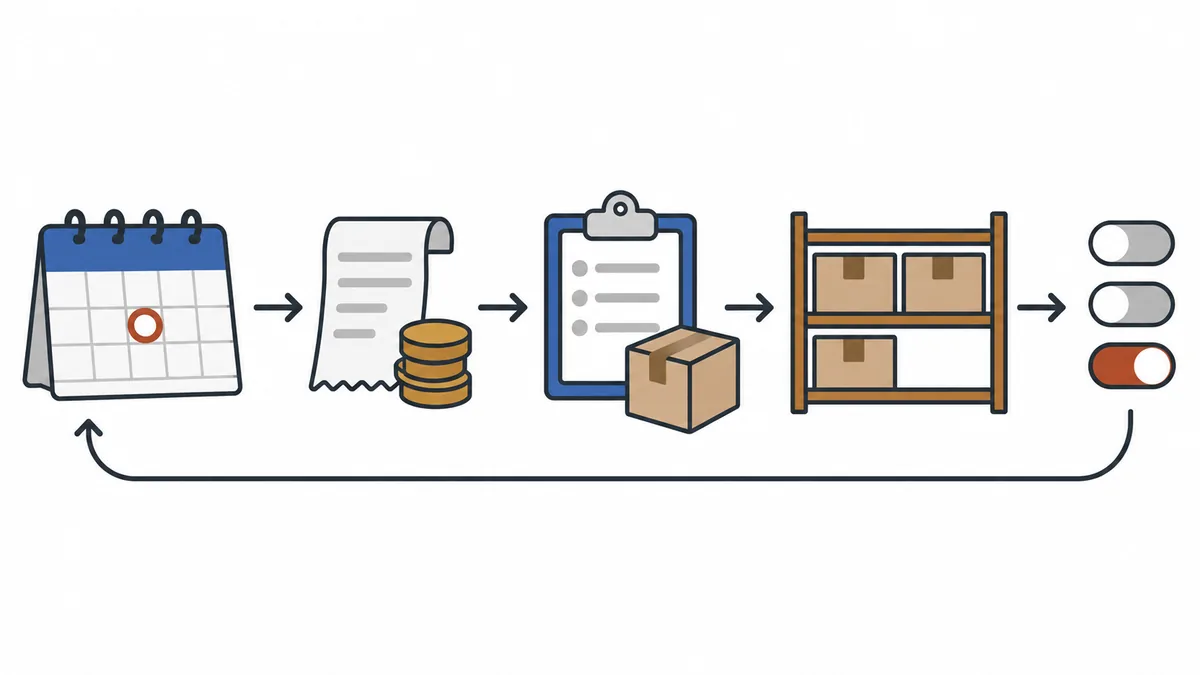
Checking the same things in the same order each week saves you deciding where to start. Copy this table into your notes or a spreadsheet.
| Order | What to check | Where to look | Decision |
|---|---|---|---|
| 1 | Same day and reporting period as last week | Your notes | Record any differences |
| 2 | Orders and product value for the last 30 days, plus the rightmost 7 bars | SellRules Home (Shopify sales reports if needed) | Record the figures and that week's events |
| 3 | Not started, In production and Delayed counts, plus ship dates | Order progress | Start with orders that are not progressing despite an approaching ship date |
| 4 | Low-stock products and unconfigured sold-out products | ‘Low stock alert’ and ‘Out of stock (unconfigured)’ on Home | Decide whether to restock or set a switch |
| 5 | Orders taken, caps and upcoming starts | ‘Sales status’ on Home and the calendar | Change the cap or continue as is |
| 6 | ‘Needs action’ and ‘Failed’ balances, plus failed emails | ‘Balance collection’ on Home and Delivery log | Deal with anything remaining |
| 7 | 1 setting to change before next week | Your notes | Record when you changed it and when to review it |
What this article does not cover
This article focuses on the order of your weekly checks and where to find the information. Use the following articles or methods for other tasks.
- Storewide sales analysis: use Shopify reports for sales including normal purchases and breakdowns by product. SellRules Home counts only pre-orders and made-to-order orders
- Production and shipping for each order: see managing made-to-order orders through shipping
- Choosing pre-orders or back-in-stock alerts for sold-out products: see pre-orders or back-in-stock alerts when a product sells out
- The effect of blogs, social media and other traffic sources: Home does not break down where customers came from
What to do once weekly reviews become routine
After several weeks, once the order of checks feels familiar, reduce the parts you repeat in the same way each time.
- Notify staff about delays and new orders: Shopify Flow can send internal emails or Slack messages when shipping is delayed or a pre-order is received. Delay notifications through Flow apply when a schedule's ship date is moved later, not when an individual order's date is changed in Order progress. See notifying staff with SellRules and Shopify Flow
- Reconsider caps and order windows: once you have several weeks of notes, compare weeks when the cap stopped orders with weeks when it did not, and use that to set the cap for your next sale
- Revisit the pre-order setup itself: to rethink how you use pre-orders, made-to-order sales and back-in-stock alerts, return to planning advance and limited sales
Frequently asked questions
Can SellRules Home show just the last 7 days?
The ‘Pre-orders and made-to-order orders through SellRules (last 30 days)’ section on Home has a fixed 30-day period that you cannot change. The orders and product value rows have small daily bar charts. Hover over a bar to see its date and count or amount; add the rightmost 7 bars for an indication of the last 7 days. For an exact 7-day total, set the date range in a sales report under Reports in your Shopify admin.
Why do sales figures differ between SellRules Home and Shopify reports?
They cover different orders and use different definitions. Home includes only pre-order and made-to-order line items, excludes cancellations, does not subtract refunds, and shows product value before discounts, taxes and shipping. Shopify sales reports cover orders across the store, including pending, unpaid and canceled orders. Adjustments that reduce an order's value, such as returns, are deducted separately as ‘Sales reversals’.
Should I change settings as soon as orders drop from last week?
Check for differences in conditions first. Sales promotions, restocking dates, the day you opened orders and days when a cap stopped orders can all change what a drop means. Changing several settings after just 1 week makes it harder to work out the cause. If you make a change, stick to 1 setting and review it under the same conditions the following week.
Can I do this weekly review without an app?
Yes. You can follow the same review process with Shopify's built-in sales reports, order reports and order list, checking them in the same order each week. If you use SellRules, Home and Order progress bring together pre-order and made-to-order counts, orders not yet started or delayed, low-stock products and sold-out products with no setup.
Pricing and getting started: try Home and Order progress for 1 week
SellRules Home and Order progress are available from the Free plan. Set up 1 pre-order or made-to-order product, then use this article's checklist to review Home and Order progress after 1 week.
SellRules plans and pricing
| Monthly price | LaunchEvery feature included |
|---|---|
| Monthly price | US$7.99 per month |
| Free trial | 10 days |
| Pre-order and made-to-order orders | Unlimited |
| Back-in-stock and sale-start emails (Notify Me) | Unlimited |
| Purchase limits | No limit on products |
| Customizable notification emails | Yes |
| Deposit payments | Yes |
Pre-orders, made-to-order, back-in-stock alerts, purchase limits, stockout switching, deposit payments and order processing are all included in the Launch plan.
The first 10 days are free. If you remove the app during the trial, you are not charged.
Back-in-stock and sale-start emails have no sending cap. The same goes for required messages such as order confirmations, shipping updates and balance reminders.
The Free, Standard, and Pro plans are closed to new sign-ups. Shops already on them keep their current terms.
Standard and Pro have no free trial; the Free plan is how you try the app. When pre-order and made-to-order orders or back-in-stock and sales-opening emails approach their lifetime caps, move to Standard at US$9.90 per month. Choose Pro when you want to take pre-orders with a deposit and collect the balance later.
See SellRules pre-order and order management
If you already know how you want to use it, try the Free plan from the Shopify App Store.
Features checked on 2026-10-25 by JizaiDev, the developer of SellRules, against the code and screen wording of the app publicly available on that date. Shopify sales report definitions follow Shopify Help, checked the same day. Product and numerical examples are fictional illustrations. Check the Shopify App Store listing for current pricing.