Perhaps you want members to get first choice of a new product, or you have offered regular customers early access. You open Shopify’s settings, but can’t find a way to choose who can buy each product.
Shopify’s built-in sign-in requirement applies to every order in your store. To make only selected products members-only, you need an app that sets purchase eligibility per product. In SellRules, give members a shared customer tag, then set that product to “Tag required”. Only customers who are signed in and have the tag can complete checkout.
Non-members can still click the buy button on the product page: the order is stopped at checkout. This article covers choosing between “Login required” and “Tag required”, adding customer tags, setting up SellRules, writing the message non-members will see, and opening sales to everyone. To limit the quantity per customer, see how to set a limit of 1 per customer.
Login required or Tag required: who should be able to buy?
Choose “Login required” if a member means anyone who has created a store account and signed in. Choose “Tag required” if only selected customers should qualify. SellRules purchase limits offer 4 eligibility options, checked at checkout as follows.
| Purchase eligibility | Not signed in | Signed in, without the tag | Signed in, with the tag |
|---|---|---|---|
| No restriction | Can buy | Can buy | Can buy |
| Login required | Cannot buy | Can buy | Can buy |
| Tag required | Cannot buy | Cannot buy | Can buy |
| Purchases blocked | Cannot buy | Cannot buy | Cannot buy |
For example, “Login required” is enough for a member-priced product available to anyone with a store account. Choose “Tag required” for customers you select, such as paid annual members, past buyers or wholesale customers. “Purchases blocked” stops everyone from buying and changes the product page button to “Currently Unavailable”. It serves a different purpose from members-only sales.
Your membership groups need to be identifiable in Shopify’s customer records. If you call newsletter subscribers or LINE friends members, first check that they have customer records in Shopify and can sign in to your store. You cannot add a tag to someone who has no customer record.
What Shopify can and can’t do without an app
Shopify Help’s Editing the checkout form options explains how to require customer account sign-in before checkout (checked October 25, 2026). When enabled, customers must sign in to proceed. There is no product-by-product setting: it applies to every order in the store. You cannot use it to make just a selected product members-only.
Customer tags alone do not stop purchases either. Tags label groups of customers; Shopify’s built-in features do not use them to decide who can buy each product. For that, install an app that checks purchase eligibility. For decisions that also involve launch dates and what happens when stock runs out, see planning early access and limited sales.
Give members a shared customer tag
Start in “Customers” in your Shopify admin and tag the customers you want to sell to. With “Tag required”, you can specify 1 tag in 1 rule. Even if your store has different membership groups, giving everyone who should be able to buy 1 shared tag, such as “member”, lets you cover them with 1 rule.
Choose how to add the tags based on how many members you have and how you manage them.
| Method | When it fits | Where to do it |
|---|---|---|
| Tag customers individually | A small membership list, with customers added by hand | “Tags” on the customer’s profile |
| Add in bulk | Give existing customers membership in bulk | Select customers in the list, then “Add tags” |
| Import a CSV | Your member list is in a spreadsheet | Customer import, using the CSV’s “Tags” column |
| Add automatically | You have a set condition, such as making buyers members | “Add customer tags” in Shopify Flow |
Bulk tagging and the CSV Tags column are covered in Shopify Help’s Managing customers and Importing and exporting customer lists. The Flow action is described in Add customer tags (all checked October 25, 2026). Shopify Flow is a free app available on Basic, Grow, Advanced and Plus. For a workflow example using SellRules notifications, see using SellRules with Shopify Flow.
Tags are not case-sensitive. SellRules treats “VIP” and “vip” as the same tag and ignores spaces at the beginning and end. Customers never see the tag name itself, so use a name that makes sense for your store’s records.
How to create a Tag required rule in SellRules
In SellRules, create purchase limits per product in the “Purchase limits” tab under “Purchase limits & sold-out”. The Free plan includes purchase limits for up to 1 products, including “Tag required”.
Before you start, open “Settings” → “Checkout” in your Shopify admin and check that “Purchase limits (SellRules)” is active under “Checkout rules”. This is the rule that stops non-members’ orders at checkout.
- Open “Purchase limits & sold-out” → “Purchase limits” and click “Create rule”.
- Select the product you want to reserve for members, then click “Next”. The “Create purchase limit” screen opens.
- Leave the target as “Whole product”. To restrict only certain colours or sizes, choose “Specific variants”.
- Enter quantity limits only if you also want to limit how much members can buy. Leave them blank for unlimited quantities.
- Under purchase eligibility, choose “Tag required (specific tagged customers only)”.
- In “Required tag name”, enter the tag you added to members. Existing store tags appear as suggestions below the field. The faint “e.g. VIP, member” text is an example: a comma does not turn the entry into multiple tags.
- In “Message shown to customers (optional)”, enter a message for non-members (the wording is covered below). Click “Save” at the top. Changes may take about 1 minute to appear on the product page, cart and checkout.
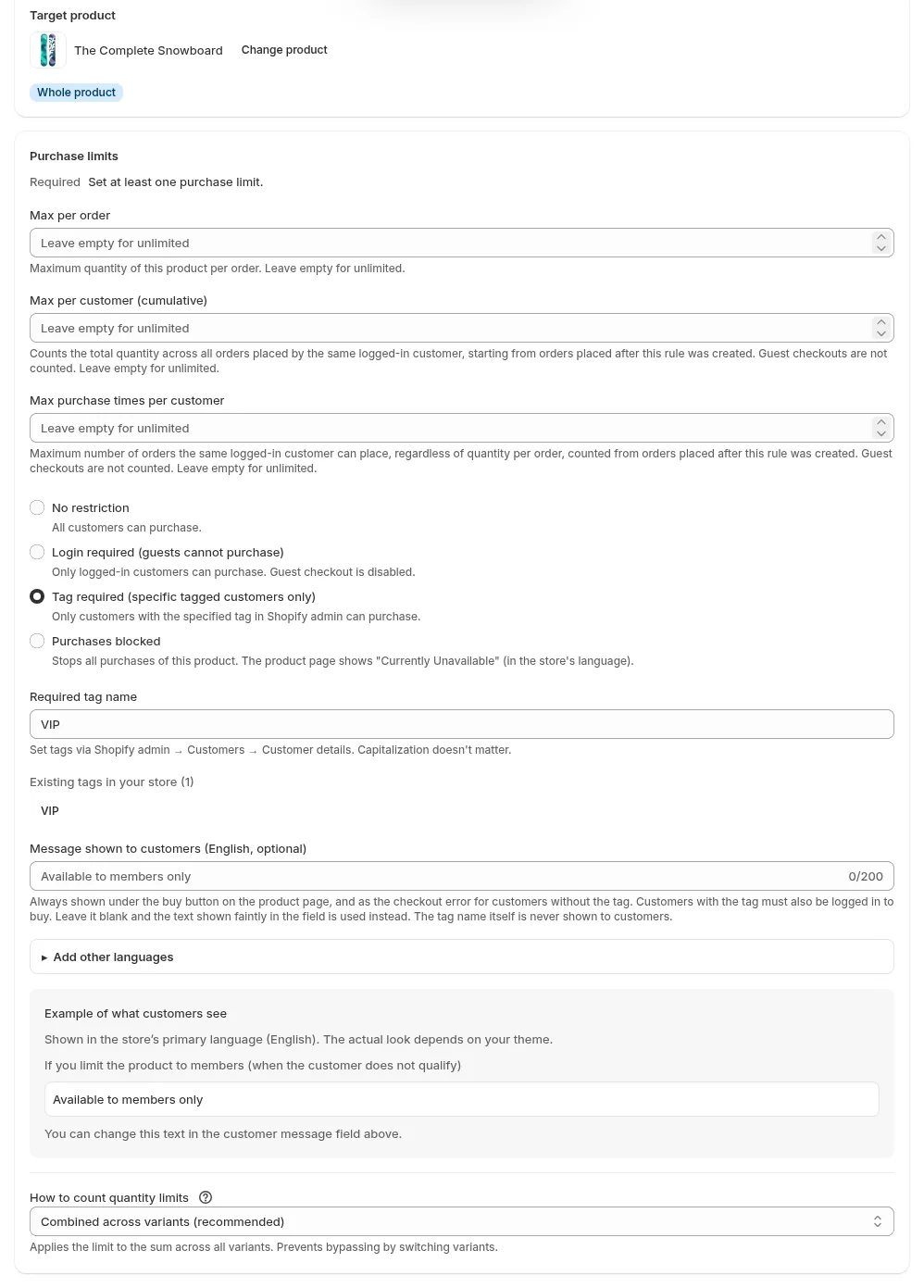
The store in the image has English as its primary language, so the “Message shown to customers (optional)” field and “Example of what customers see” display English text. This field holds the message in the store’s primary language. Use “Add other languages” for your other published languages.
You can use “Tag required” and quantity limits in the same rule. For a new product limited to “members only, 1 per customer”, keep “Tag required” selected and enter 1 in both the per-order and cumulative limits. See how to set a limit of 1 per customer for how the limits are counted and what to watch for.
When does a newly added customer tag take effect?
SellRules keeps a copy of Shopify customer tags and checks that copy at checkout. When you change a customer’s tags in Shopify, the app receives a notification and updates its copy. This may not happen immediately, and there is no guaranteed time in minutes. Wait a little after adding a tag before trying it.
Saving a “Tag required” rule also loads existing customers’ tags automatically. This may take time in a large store, and automatic loading covers up to 5,000 customers. For larger stores, or if a tagged customer still cannot buy, go to the app’s “Settings” and click “Reload customer tags” under “Customer tag loading”. You can run it again as needed. When it finishes, it shows how many customers were loaded and how many failed.
You do not need to reload every time you add a member. Shopify’s notifications automatically update the copy for newly tagged customers. If a member who should qualify is blocked, re-syncing the tags is one way to resolve it.
What non-members see, and what your message should say
A product with “Tag required” still has a public product page and a working buy button. The “Message shown to customers (optional)” appears below the button. Non-members are stopped when they reach checkout, where your custom message appears as an error.
| Where | What appears in an English-language store when the message is blank |
|---|---|
| Product page, below the buy button | “Available to members only”, shown to members, non-members and customers who are not signed in |
| Product page buy button | Still works. “Tag required” alone does not change it |
| Checkout: signed in without the tag | “This product is available to members only” appears as an error and blocks the order |
| Checkout: not signed in | The same “This product is available to members only” error. No prompt to sign in |
| Checkout: signed in with the tag | No error; the order can go through |
There are 2 points to keep in mind. First, members see the message too. Second, members who are not signed in do not get a “Please sign in” prompt. Your message should therefore say both who can buy and that members need to sign in first. The limit is 200 characters.
For example, you could write the following (these are sample messages for illustration).
- “This product is for members only. If you’re a member, please sign in before continuing to your cart.”
- “Available to VIP members only through November 20. General sales start November 21 at 10 am.”
If you plan to open sales to everyone, include the date so customers know when they will be able to buy. Put the same conditions in the product description as well as below the button. That helps customers notice the restriction before reaching checkout.
Try ordering in 3 customer situations before launch
After creating the rule, try ordering both as a customer who qualifies and as one who should be blocked. Set up 2 test accounts, or add and remove the tag on your own customer account.
- Sign in to the tagged account, add the product to the cart and proceed to checkout. Check that no error appears.
- Sign in to an account without the tag and take the same product to checkout. Check that the order stops with the error you entered in “Message shown to customers (optional)”.
- Sign out and continue as a guest. Check that the same error blocks the order.
- Add the tag to the account from step 2, wait a little and check that it can now buy.
Cancel any test orders from the orders screen when you finish checking. If the product page message is missing, check that the app embed is enabled in your theme. See what to check when buttons or messages don’t appear for the order of checks.
How to end members-only access and open general sales
Purchase eligibility does not change automatically at a set time. Purchase limit rules have no date or time field, so you need to change the rule yourself when early access ends. Put the general sales start time in your calendar, then make the appropriate change below.
| How you want to sell | What to change |
|---|---|
| Let anyone buy, with no quantity limits | Choose “Disable” for the rule in the list |
| Let any signed-in customer buy | Change purchase eligibility to “Login required” |
| Let anyone buy, keeping quantity limits | Change purchase eligibility to “No restriction”; saving requires at least 1 limit to remain |
If a rule only requires a tag and has no quantity limits, changing it to “No restriction” leaves nothing to restrict, so it cannot be saved. Use “Disable” instead. The disabled rule stays in the list; choose “Enable” for your next members-only sale to restore the same conditions.
To keep a limit of “1 per customer” after general sales start, leave the rule enabled and change only purchase eligibility to “Login required”. Disabling the rule also removes its quantity limits. Choose “Login required” rather than “No restriction” because cumulative and order-count limits count only orders placed while signed in. Separate guest orders are not stopped by the cumulative limit.
After switching, check that an account without the tag can now buy.
“Purchase limits (optional)” on the sales schedule editing screen refers to the same rule for the same product. However, if you clear all the limits in a whole-product schedule, choose “No restriction” and save, the rule is deleted, not disabled. You would need to create it again for the next members-only sale. When opening general sales, use “Disable” on the purchase limits screen instead.
Troubleshooting: customers can’t buy, or restrictions don’t work
If a member cannot buy, check their sign-in status, tag name and whether the tag has synced. If a non-member can buy, check that both the checkout rule and the product’s purchase limit rule are enabled.
| What happens | Possible cause | Where to check | What to do |
|---|---|---|---|
| A tagged customer can’t buy | Not signed in, or signed in to a different account | Their sign-in status and the tags on their customer profile | Ask them to sign in to the tagged account |
| A tagged customer can’t buy | The tag differs from “Required tag name”, such as “VIP member” versus “VIP” | The customer’s tag and the rule’s required tag | Make the names match |
| A tagged customer can’t buy | The tag was just added and the copy has not updated | Wait a little, then try again | If it still fails, reload under “Settings” → “Customer tag loading” |
| A non-member’s order goes through | The “Purchase limits (SellRules)” checkout rule is not active | Shopify “Settings” → “Checkout” → “Checkout rules” | Activate the rule |
| A non-member’s order goes through | The rule is “Disabled” or was only just created | The list in “Purchase limits & sold-out” → “Purchase limits” | Click “Enable”, wait about 1 minute and try again |
| Some colours are not restricted to members | The target is “Specific variants” and that colour was not selected | The rule’s target | Add the colour you want to restrict |
| No message on the product page | The theme’s app embed is off | App embeds in the theme editor | Turn the embed on |
| Non-members can add the product to their cart | Expected behaviour: the product page only shows a message | Below the product page’s buy button | Orders are stopped at checkout. Check the 3 customer situations above |
What this setting doesn’t do
“Tag required” checks who can buy at checkout. It cannot do the following, so you need to account for these limits in how you run the store.
- Hide the product page or price from non-members: everyone can view the page. This setting is not enough if you want to hide the product itself.
- Accept either of 2 or more tags: each rule takes 1 tag, with 1 tag name to check. Add a shared tag instead.
- Remove the members-only restriction automatically at a set time: change it manually when early access ends.
- Prevent members from sharing their accounts: anyone signed in to a tagged account is treated as a member, whoever is using it.
You also need to explain how to become a member, including account setup and membership requirements, through Shopify and your store’s own guidance. Shopify’s new customer accounts use a 6-digit code emailed to the customer, with no password needed (Customer accounts, checked October 25, 2026). A message such as “Please sign in with your registered email address” helps members know what to do.
Sign-in methods and customer account screens are controlled by Shopify’s settings; SellRules cannot change them. If the troubleshooting table does not resolve the problem, use “Bug report” in the app or contact us. Include the product name, the rule’s purchase eligibility and required tag name, and whether the blocked customer was signed in.
Frequently asked questions
Can Shopify make selected products members-only without an app?
No. Shopify can require customers to sign in before checkout, but that setting applies to every order in the store. Adding a customer tag alone does not block a purchase. To restrict only selected products to members, you need an app that sets purchase eligibility per product.
Why can’t a member buy after I’ve added their customer tag?
Check that the customer is signed in to the account you tagged and that the tag matches the rule’s “Required tag name”. SellRules checks a copy of the tags, so a newly added tag may take time to apply. If the customer still can’t buy after waiting a little, open “Settings” in the app and click “Reload customer tags” under “Customer tag loading”.
What do non-members see on the product page?
Everyone can view the product page and use the buy button. The “Message shown to customers (optional)” appears below it; if left blank, an English-language store shows “Available to members only”. Customers without the tag and customers who are not signed in see a members-only error message at checkout and cannot place the order.
Can I sell to customers with either a “VIP” or a “Gold member” tag?
Each rule accepts 1 tag, so you can specify only 1 tag name. Entering “VIP, Gold member” checks for that entire tag name, not either of the separate tags. Add 1 shared tag, such as “member”, to everyone who should be able to buy, then enter that tag in the rule.
Pricing and getting started: try 1 members-only product
The purchase limits used for members-only sales are available for up to 1 products on the Free plan. Choose 1 product for your next member preview, tag your own account and check the 3 customer situations described above.
SellRules plans and pricing
| Monthly price | LaunchEvery feature included |
|---|---|
| Monthly price | US$7.99 per month |
| Free trial | 10 days |
| Pre-order and made-to-order orders | Unlimited |
| Back-in-stock and sale-start emails (Notify Me) | Unlimited |
| Purchase limits | No limit on products |
| Customizable notification emails | Yes |
| Deposit payments | Yes |
Pre-orders, made-to-order, back-in-stock alerts, purchase limits, stockout switching, deposit payments and order processing are all included in the Launch plan.
The first 10 days are free. If you remove the app during the trial, you are not charged.
Back-in-stock and sale-start emails have no sending cap. The same goes for required messages such as order confirmations, shipping updates and balance reminders.
The Free, Standard, and Pro plans are closed to new sign-ups. Shops already on them keep their current terms.
Standard and Pro have no free trial; the Free plan is how you try the app. When you need more members-only products than Free allows, move to Standard at US$9.90 per month, with no product-count limit. See the SellRules trial checklist for what to check and the SellRules user guide for screen-by-screen instructions.
If you know how you want to set up your sale, start with the Free plan from the Shopify App Store.
Features checked October 25, 2026: JizaiDev, the developer of SellRules, checked the product page and checkout messages and eligibility logic in the code of the app released at that time. The article image shows the actual Create purchase limit screen. Information about Shopify customer tags, Shopify Flow and sign-in settings is based on the Shopify Help pages linked above (checked October 25, 2026). The sample customer messages were written for illustration. Check the Shopify App Store listing for current pricing.