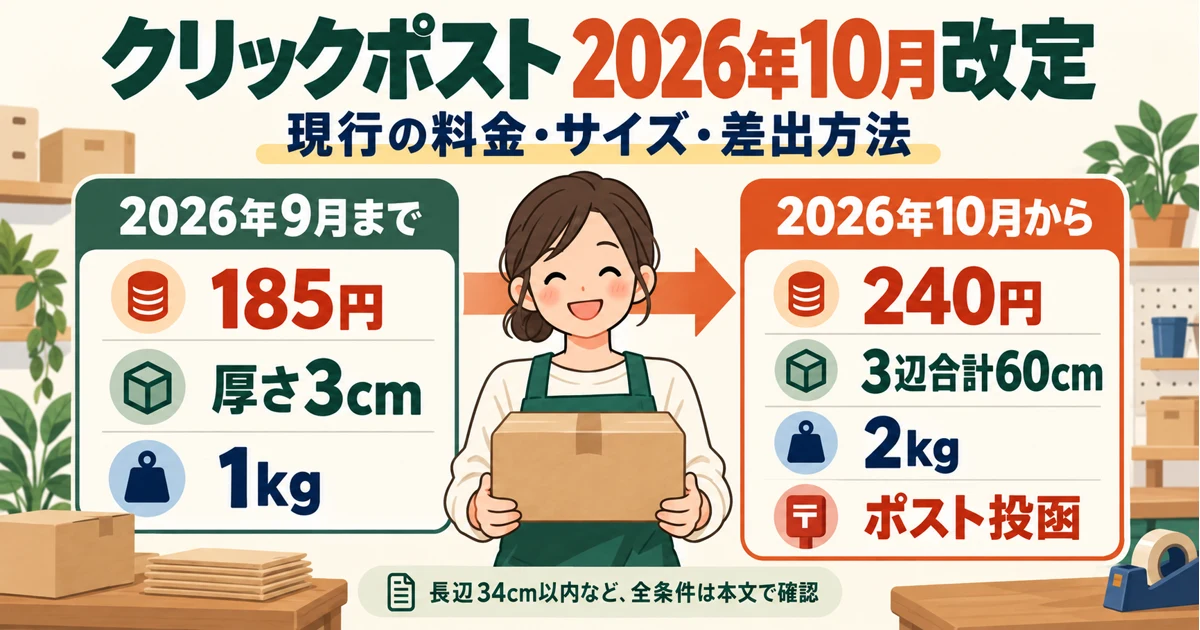

The product has finally arrived, and you want to ship a preorder placed earlier. The order exists in Shopify but cannot be found in the shipping app. Before recreating the order, there are a few things to check.
An order remaining in Shopify and that order being displayable in the shipping app are separate things. Check the order status and the app's display conditions in order; this also helps organize what to include in your support request.
For the full flow, including checks for earlier orders, see the Shopify and Click Post Shipping Guide first.
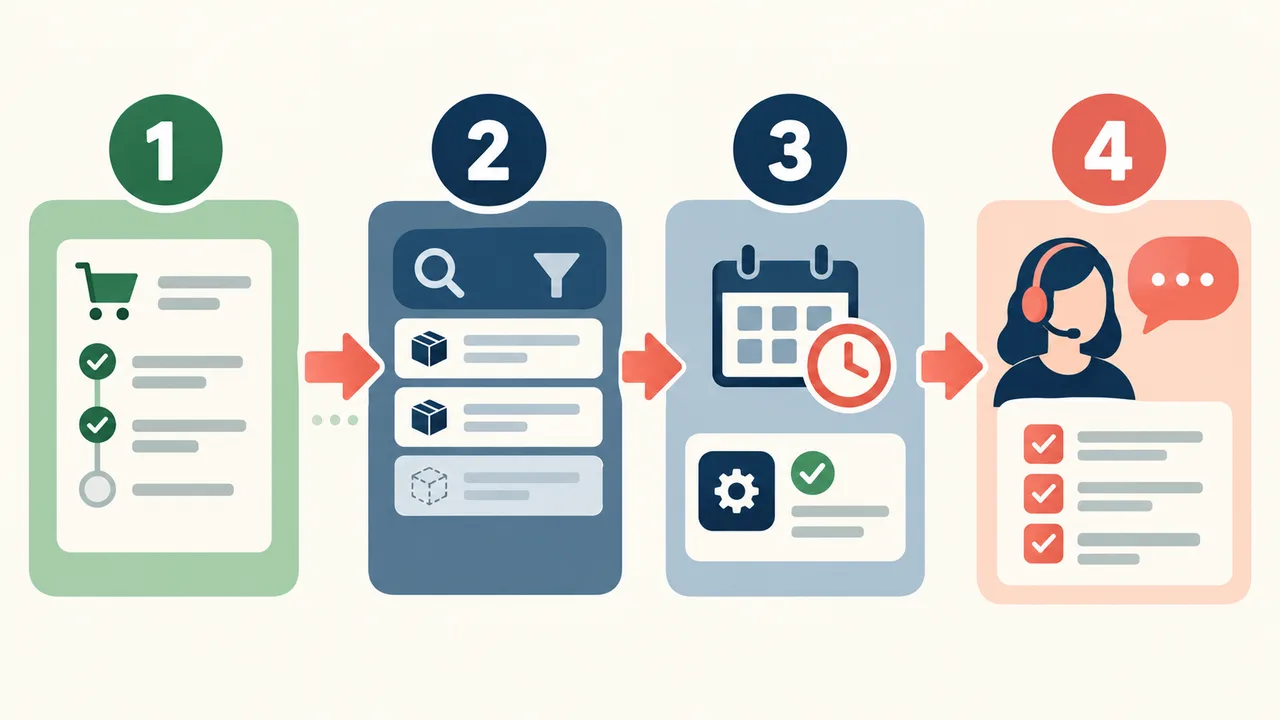
First, open the original order in Shopify
Find the original order in Shopify by its order number or the customer's name. Check whether the order has been canceled, whether any items remain unshipped, and whether the shipping address is registered.
If part of the order has already been shipped, distinguish the remaining items from the items that have shipped. You do not need to duplicate an order the customer paid for at the time of the preorder just because you cannot find it in the app.
First, note the original order number so that everyone handling the store can identify which order is about to be processed.
Review the app's filters for now
Next, check whether filters for the date, payment status, order status, or shipping method remain active in the shipping app.
Conditions such as “this month's orders only” or “this shipping method only” can exclude the order you need. Review the filters and search by order number. If the order list has a next page, check that page as well.
Even if the order still does not appear after you clear the filters, it is too early to ask the customer to place another order. Also check the range of orders that the app can load.
Handling older orders also depends on the app
Shopify order data is normally available within a standard range covering the most recent 60 days, and handling orders older than that may require approval for additional permissions or similar authorization. This does not mean that the store owner needs to change developer settings from scratch. Check whether the app you use supports it.
The App Store page for “瞬時に発送!for クリックポスト” includes a developer notice about support for older unshipped orders. Do not assume from that alone that every order in your store can be displayed; confirm whether the specific order you need can be handled.
When checking support, it is easier to explain the situation if you share not only that the older order does not appear, but also the order date, its unshipped status, and the filters you checked in the app.
You can tell support the following
I want to ship a preorder, but although I can find it in Shopify, it does not appear in the shipping app. The order date is ○ month ○ day, and items remain unshipped. I checked the date and shipping-method filters. Could you tell me whether this order can be handled?
This is an example of a support message. Share the actual order number and other details only as needed with the official support channel, and do not post your name or address in a public place. You do not need to send your password.
If the app shows a permission-confirmation screen, first use the support instructions to confirm what the action is for, then proceed. Avoid repeatedly uninstalling and reinstalling the app without knowing the cause.
Once you find it, start with one shipment
When the order appears, check the shipping address, unshipped items, and any tracking number already registered. Also check whether a label was created previously or another staff member has already shipped it before proceeding; this helps prevent duplicate shipments.
You can export Click Post CSV data and register the label PDF by following the user guide. Do not force an unresolved order to be linked to another order; handle the orders you have confirmed first.
For stores selling products with long wait times
With preorders and made-to-order products, the order date and shipping date can be far apart. When choosing a shipping app, it is reassuring to confirm not only whether it can process the latest orders, but also how it handles older unshipped orders.
Ask whether your store's orders can be handled
The listed price for trying it is US$8 per month, with a 10-day free trial. Continued use is paid. First confirm the range of orders it supports, then view the trial terms.
References: App Store feature information and developer response · Shopify order access range. Checked: 2026-09-14.