Cannot Print Click Post Labels | Checking Display, Scaling, and Reprints
You completed payment, but the shipping label won't print. Encountering roadblocks in the middle of fulfillment—whether clicking "Print" leads to an error screen, the PDF opens but nothing prints, or the label prints so small that it's unreadable—can bring your shipping operations to a grinding halt.
You can pinpoint the root cause of any label printing problem by isolating it across three distinct stages: whether the PDF opens, whether it prints correctly on paper, and whether the printed label is usable. If the PDF won't open, the issue lies in your browser. If it opens but prints too small, it's a print settings issue. If it prints but can't be used, it's a matter of label expiration or reprinting rules. Let's walk through these checks step by step.
Step 1: Pinpoint Where the Process Is Stopping
| Symptom | Likely Cause Layer | Relevant Section |
|---|---|---|
| Error screen or nothing opens after clicking "Print" | Browser / PDF display | Next section |
| PDF opens, but nothing prints onto paper | Printer / OS print settings | Printing section |
| Prints onto paper, but too small, misaligned, or cropped | Print dialog scaling / paper size | Printing section |
| Printed successfully, but unsure if the label is valid to use | Expiration date / reprint rules | Reprinting section |
Even though all these issues fall under "cannot print," the root cause is located at a completely different layer depending on the stage. For instance, tweaking printer settings won't help if the PDF hasn't even opened yet. Use the table above to identify which stage your symptoms match before troubleshooting.
When the PDF Won't Open or Shows an Error Screen
When a PDF fails to open, the issue almost always stems from browser display settings or extensions. The official Click Post website frequently posts notices regarding printing errors caused by browser environments.
One specific issue highlighted in official announcements (posted December 10, 2021) occurs in Google Chrome: when attempting to print an address label, the browser displays a "Page Not Found" error. This occurs in certain environments, and Japan Post notes that disabling the "Adobe Acrobat" browser extension often resolves it.
If you are stuck at this stage, try the following steps in order:
- Temporarily disable PDF-related browser extensions. If you use Chrome, open your settings, go to "Extensions," disable any Adobe Acrobat extensions, and click the "Print" button again. This is the exact fix recommended in official Click Post announcements.
- Check your popup blocker. The label printing screen opens in a separate popup window; if popups are blocked, clicking print will appear to do nothing. Official announcements explicitly advise users to allow popups and accept cookies for the Click Post site.
- Ensure Cookies and JavaScript are enabled. Official troubleshooting notices cite cases where disabling either prevents the website from functioning properly.
- Try a different web browser. If the PDF still refuses to open, try logging in through an alternative browser as suggested in official guidelines. Using a clean browser with no installed extensions is an excellent way to isolate the issue.
- Open the downloaded PDF in a standalone reader app. Instead of viewing the file within your browser's built-in PDF viewer, download the PDF to your computer and open it with a dedicated application like Adobe Acrobat Reader. This separates browser rendering glitches from the file itself.
One caveat to keep in mind: official Click Post documentation (posted April 11, 2025) notes that commercial "form auto-fill tools" or input assistance software can cause system malfunctions. If you have browser extensions running that auto-fill addresses or form fields, they might interfere with screen rendering or page transitions. Try temporarily disabling them while troubleshooting.
When Labels Print Too Small, Misaligned, or Cut Off
If the PDF opens without issues but the physical printout comes out small, misaligned, or cropped, the culprit is almost always in your print dialog settings.
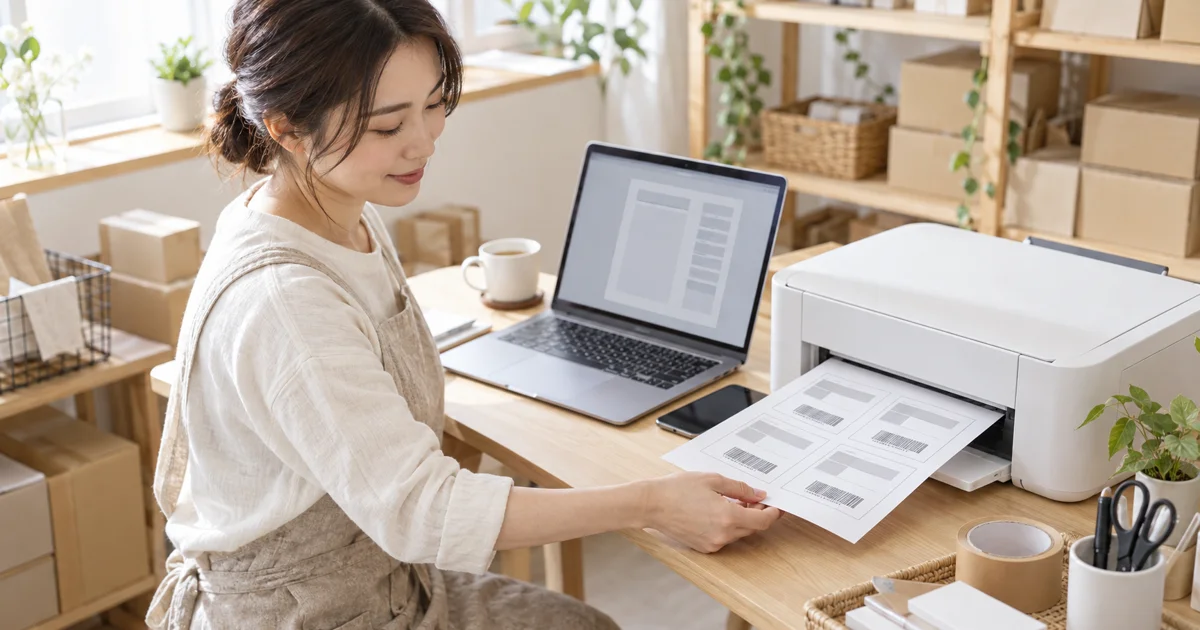
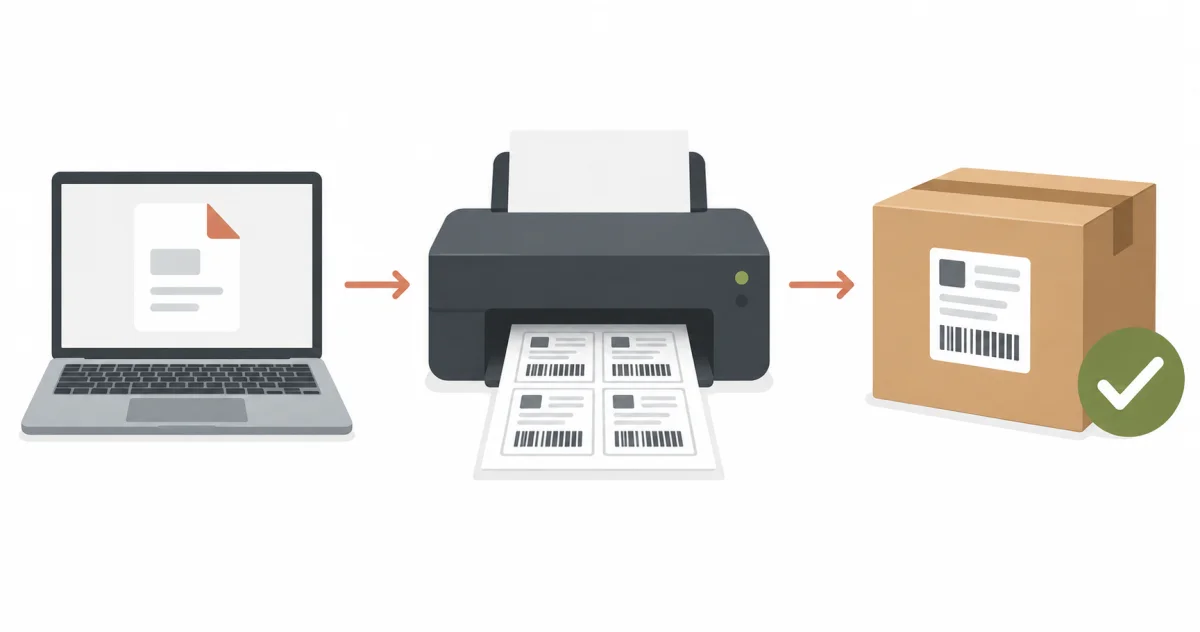
First, keep in mind that labels produced via bulk printing are designed to be compact. Click Post's bulk printing feature ("matome-inji") formats 4 labels per single A4 sheet and can output up to 20 shipments at once. This means each individual label is intended to be one-fourth of an A4 page—roughly A6 in size—engineered to be cut out and attached to packages. If it merely "looks smaller than expected," the label output itself is completely normal.
However, if the labels print even smaller than that or are partially cut off, verify the following settings in your print dialog:
- Set scale to "Actual Size" or "100%". If settings such as "Fit to page" or "Shrink oversized pages" are selected, the PDF page will scale up or down to fit the printable area, throwing off the label's precise dimensions.
- Set the paper size to A4. If the paper size in your print dialog is set to US Letter or another format, margins will shift, leading to clipped edges or distorted proportions.
- Verify in the print preview that barcodes and addresses sit inside the borders. Checking the print preview beforehand to ensure no edges are cropped saves you from wasting paper.
- Print just one test sheet first. Before printing multiple shipments in bulk, print a single sheet first to confirm that everything prints legibly.
While specific menu names and dialog layouts vary by printer model and operating system, mastering these three fundamentals—scaling, paper size, and preview—will resolve the vast majority of printing issues. Hardware malfunctions, such as paper feed failures or depleted ink cartridges, fall outside the scope of this guide.
Checking Whether the Printed Label Is Usable
Once your label is on paper, inspect it to ensure the barcode and text are clearly legible before dropping the parcel into a post box. Japan Post processes shipments by scanning this barcode; if the scanner cannot read it, the post office cannot accept your package.
- Check that the barcode is intact. Make sure it isn't cut off at the edge of the paper and that no lines are broken due to faint ink or streaks.
- Ensure the tracking number digits are legible. If the barcode ever fails to scan mechanically, legible printed digits give postal staff a fallback method to verify the parcel at the counter.
- Check that the recipient's name and address fit neatly inside the frame. If scaling errors caused text to spill outside the designated borders, reprint the label.
- Ensure the barcode won't be obstructed once applied. Affix the label so it doesn't wrap around packaging corners or get obscured by reflective packing tape over the barcode.
Here is some reassuring news. According to the Japan Post FAQ (checked on October 19, 2026), the Click Post fare is fixed when the payment step is completed, and the actual charge is processed when the post office accepts the parcel. The payment step before printing only reserves the amount (a hold on your card limit). The terms of use also state that no fare is owed if the parcel is never handed in. So if a print fails or a label goes unused, you can simply discard the paper and reprint.
"Reprinting" and "Re-applying" Are Two Different Actions
When you need to output a label again, merchants often confuse "reprinting" (re-issuing a label with the same tracking number) with "re-applying" (creating a brand-new application with a fresh number). Understanding this distinction in advance will save you unnecessary trouble:
- Reprinting works only within 30 minutes of pressing Print. During that window you can print the label again with the same inquiry number, but only one of the copies can be handed in. If printer trouble stops you from printing, you cannot reprint once the 30 minutes have passed. To do it, click "Reprint" next to the matching recipient entry in My Page.
- After 30 minutes, apply again and print a new label. Submit the shipment application again to get a label with a new inquiry number. The label itself is valid for 7 days from the day after payment is completed (payment on January 1 means valid through January 8), and Japan Post does not accept an expired label. Details on the 7-day validity are in the official Click Post FAQ and Japan Post's Click Post FAQ.
- Unused labels are not charged. As covered in the previous section, the actual charge is processed when the post office accepts the parcel, and no fare is owed if the parcel is never handed in. There is generally no need to file refund requests for expired labels or shipments you cancelled.
- Duplicating labels for different packages is strictly prohibited. You cannot photocopy a label to use on a second package. Each tracking number corresponds to a single parcel. Every package requires its own separate application and dedicated tracking number.
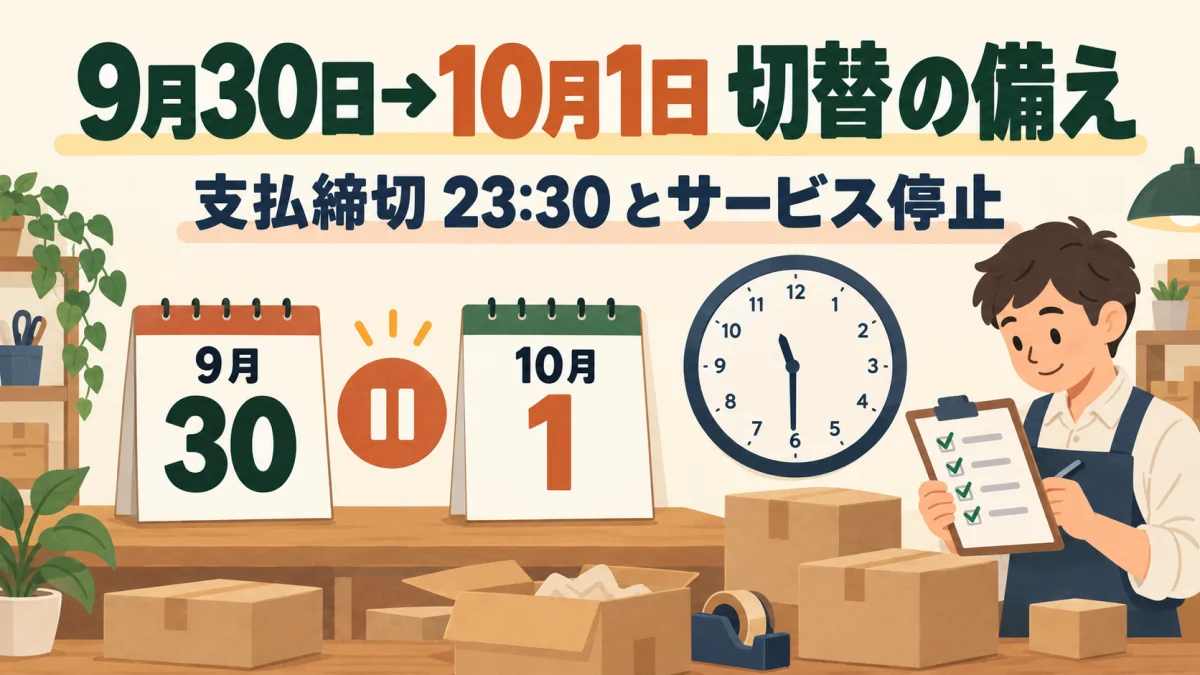
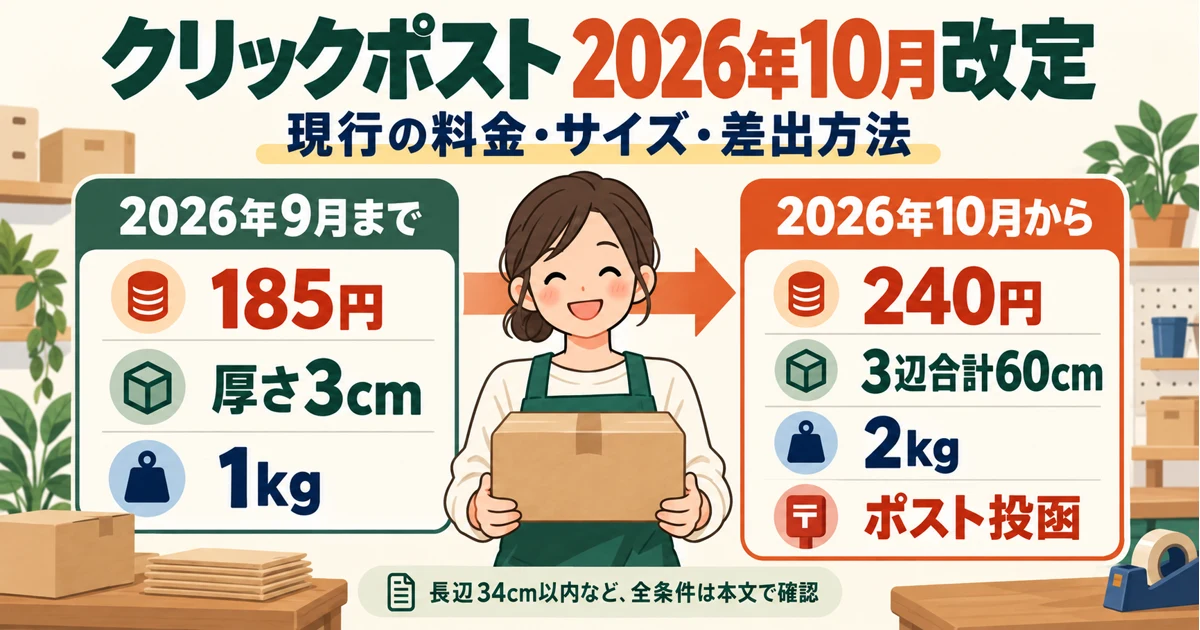
There is also a pricing point to keep in mind: the Click Post fare was revised from 185 yen (tax included) to 240 yen (tax included) on October 1, 2026 (official Click Post notice, posted July 3, 2026; checked October 19, 2026). 185 yen was the old fare valid until September 30, 2026, so do not reuse a 185-yen figure from older articles or notes; budget with the current 240 yen.
Once Printed, Sync Tracking Numbers Back to Shopify
Once your labels are successfully printed, attach them to your packages and drop them into a post box. The remaining task for your store is registering the issued tracking numbers back into Shopify order management and sending shipping confirmation emails to your customers.
The Shopify app "Instant Shipping! for Click Post" simplifies this entire step: just upload the original label PDF saved during printing, and the app automatically extracts the tracking numbers, registers them to their corresponding Shopify orders, and sends out fulfillment notification emails. (This app is developed and provided by JizaiDev, the team behind this site.)
Please note: this article focuses strictly on troubleshooting the "physical label printing" stage. If your PDF prints fine but you encounter issues during app import—such as "unreadable PDF" or "order not found" errors—the root cause is completely different. In that case, please refer to our troubleshooting checklist for importing PDFs into the app. For details on bulk applications, see our bulk application guide, and to learn how tracking sync works under the hood, check out how to automatically register tracking numbers.
Frequently Asked Questions
Q. Why are my labels printing so small?
PDFs generated via bulk printing ("matome-inji") are designed with 4 labels per A4 sheet, meaning each label is naturally one-fourth the size of an A4 page. This is the intended specification since they are meant to be cut out and pasted onto packages. If your labels print even smaller than that, check your printer dialog settings to ensure the scale isn't set to "Fit to page" or "Shrink to fit", and select "Actual Size" or "100%" instead.
Q. How long do I have to reprint a label?
A label can be reprinted within 30 minutes of pressing Print, using the same tracking (inquiry) number, and only one of the printed copies can be handed in. After 30 minutes it can no longer be reprinted: submit a new application and print a label with a new number. Separately, a label itself is valid for 7 days starting the day after payment is completed, and an expired label cannot be handed in.
Q. Am I charged for labels that fail to print?
The fare is fixed when the payment step is completed, but the actual charge is processed when the post office accepts the parcel. Before the label is printed, only a hold on your card limit is made. If you never hand the parcel in, you owe no fare, so you can simply discard a misprinted or unused label.
Q. Can I copy the same label and use it on another package?
No, you cannot. Each tracking number corresponds to a single parcel, and duplicating labels across multiple packages is not supported. You must submit a separate application and issue a new label with a distinct tracking number for each package.
Q. Can I issue labels if I don't have a printer at home?
Yes. Because Click Post labels are generated as PDF files, you can save them to a USB flash drive or mobile device and print them using multi-function copy machines at convenience stores. Since shipments are deposited into post boxes or brought to post office counters, only the printing step needs to be done elsewhere (note: shipments on or after October 1, 2026 must generally be dropped in post boxes, with counter drop-offs limited to exceptional circumstances).
Q. Can I print labels using only a smartphone?
You can operate the Click Post web interface through a mobile browser. The standard approach for printing is sending the PDF from your phone to a convenience store copy machine via a mobile printing app. However, if you need to adjust granular printer driver settings such as print scaling, using a PC is much more reliable.
Summary
By isolating printing troubles across three stages—display, printing, and label validity—you can quickly pinpoint where the issue lies. The compact size of bulk-printed labels is standard design, scaling mismatches come down to print dialog zoom settings, and a reprint works only within 30 minutes of printing, after which you need a fresh application. Keeping these three points in mind will keep fulfillment day running smoothly without panic.
Rates and terms verified as of October 19, 2026, based on information from the official Click Post website and the ClickPost app listing. The app is priced at $8 USD/month with a 10-day free trial; recurring charges apply for ongoing use. Posting rules follow the Click Post terms of use comparison table revised on October 1, 2026 (revised Article 4, which names post boxes, with some exceptions, as the drop-off point). The 30-minute reprint window, the one-label-only rule, the 20-label limit for bulk printing and the A4 output follow the official Click Post FAQ (archived July 2025, checked October 19, 2026). The on-screen layout of the bulk-print labels was confirmed by the site operator in the Click Post bulk-print screen (October 19, 2026).
Review the step-by-step workflow from label generation to tracking sync in our user guide
Related articles: Click Post Shipping Guide (End-to-End Workflow Map), Troubleshooting PDF imports into the app, Bulk application guide, How to automatically register tracking numbers