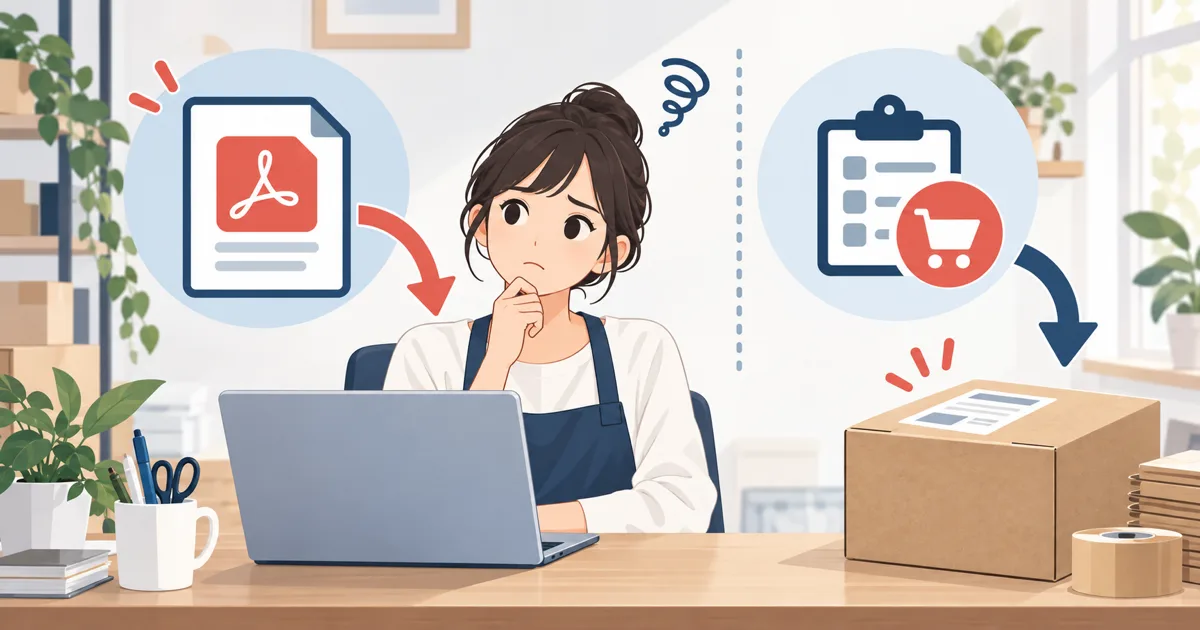
You printed the label, but importing the PDF into the app gets stuck. When you are in a hurry, you may not even know which file to choose.
First, distinguish between “the PDF itself cannot be read” and “a tracking number appeared, but no order was found.” What to try next depends on which situation applies.
This article explains how to import PDFs in “瞬時に発送!for クリックポスト”. It may not apply as-is to files from other shipping apps or carriers.
For the place of PDF import in the full shipping flow, see the Shopify and Click Post Shipping Guide.
Which screen are you stuck on?
| Screen state | First thing to do |
|---|---|
| “PDF could not be read” is displayed | Select the original PDF saved from Click Post |
| A tracking number is displayed, but there are no order candidates | Check the Shopify orders and the orders shown in the app |
| Multiple order candidates are displayed | Compare the label with the order and select the correct one |
Before clicking the registration button repeatedly, check which state applies. It may already have registered partway, so also check whether Shopify already contains the tracking number.
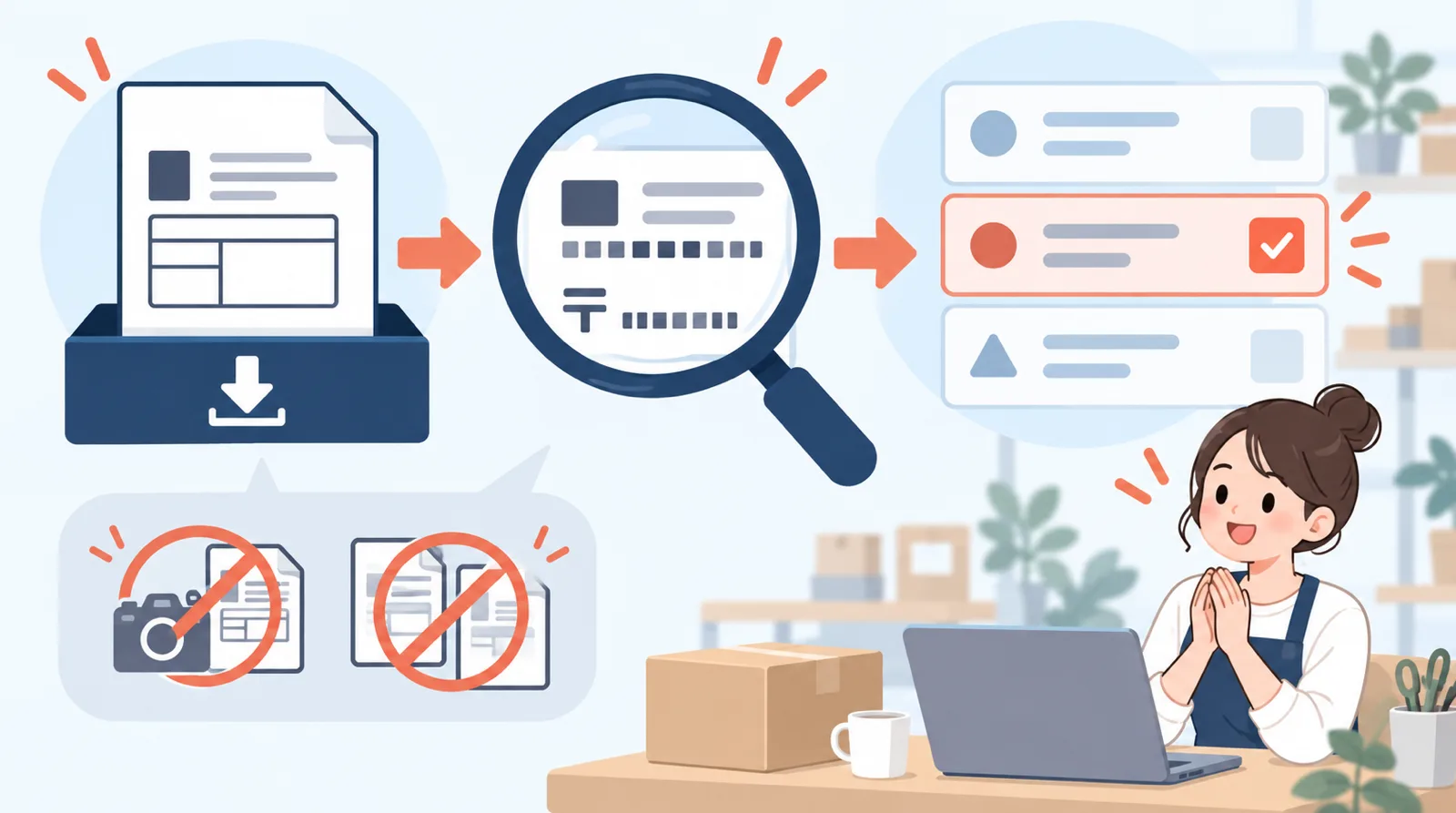
If the PDF cannot be read, retry with the unmodified original file
Use the label PDF downloaded when you completed payment and printing in Click Post.
The official guide says that scanned PDFs of printed labels and PDFs edited or merged with another tool are not supported. Converting a photo taken with a smartphone to PDF does not make it the same as the original label file.
If the original file is still in your Downloads folder, select it again. If it is not, check the instructions on the official Click Post screen to see whether the target label can be displayed and saved again. Do not assume that simply changing the file name will solve the problem.
For future shipments, even if you need a file edited for printing, keep the original PDF separately so you will not have to wonder next time.
If the tracking number appears, confirm which order it belongs to
If the tracking number is displayed on the screen, the situation differs from one where the file cannot be read. Next, confirm which order to register the number to.
The guide describes reading the tracking number and postal code from the PDF and cross-checking them against Shopify orders. When multiple orders have the same postal code, for example, you need to choose a candidate.
Compare the destination on the label with the order details and select the correct order. To avoid registering the number to a different order, do not confirm it immediately just because a candidate is displayed.
For future shipments, the guide says that the “Include the order number in the address” setting during CSV export helps with matching. However, using this setting is not a reason to skip the final check.
If you cannot find the order, start from Shopify
Check in the Shopify admin whether the target order exists. Then clear the app filters and search by order number or date.
Orders that are already marked as shipped, excluded from the displayed scope, or old require additional checks. Do not duplicate an order or recklessly revert its fulfillment status just to find it.
For rows whose correspondence cannot be confirmed, check how skipping is handled in the guide and contact support without registering a number you cannot identify.
Tell support where it stopped and what message appeared
When you contact support, tell them whether the file you used was the original label PDF, which screen you got stuck on, and what error message appeared. Knowing the order number and time of the incident makes it easier to organize the explanation.
Labels contain names and addresses. Do not attach them to public reviews or anywhere anyone can see them; share only the necessary information through the official support channel.
Check the PDF import while following the usage guide
If you have not installed it yet, check the app's features and trial terms in the App Store. It costs 8 US dollars per month and includes a 10-day free trial; continued use is paid.
Feature and pricing reference: official guide · Shopify App Store. Checked: 2026-09-14.