Auto-Sync Click Post Tracking Numbers to Shopify: Turn 50 Minutes of Typing into 10 Seconds
When you ship Shopify orders with Click Post, how are you sending the tracking numbers back to Shopify?
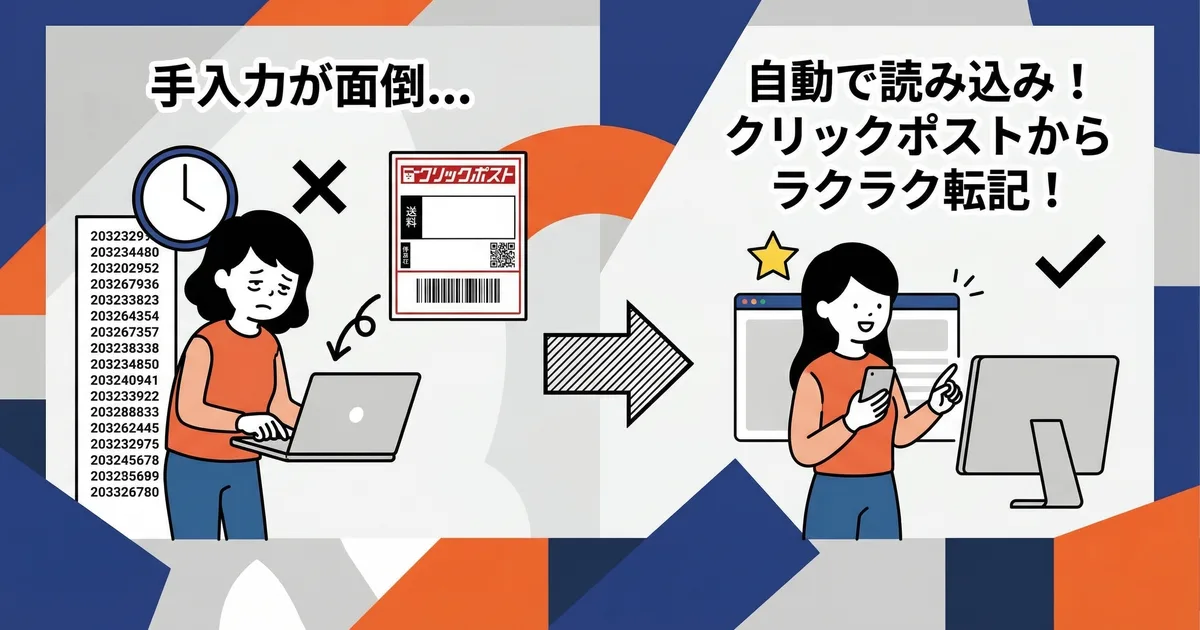
If you use a CSV export app, it is easy to export addresses from Shopify to Click Post. But after you complete payment in Click Post and print labels, one manual task still remains: entering the issued tracking numbers into each Shopify order.
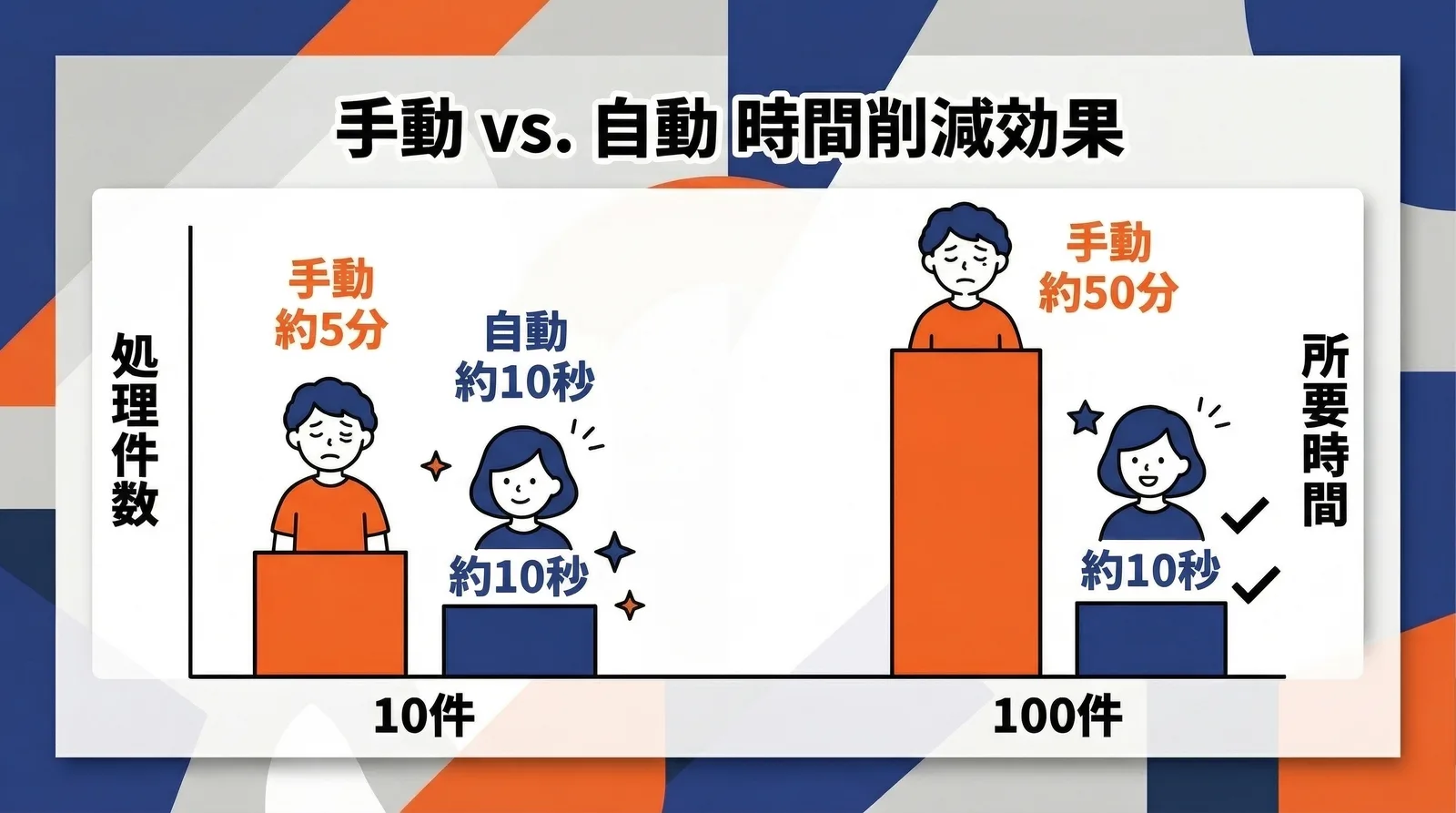
That takes about 30 seconds per order. For 10 orders, that is only 5 minutes. But during busy periods, handling 100 orders means nearly 50 minutes spent on tracking-number entry alone.
This article explains how to extract tracking numbers automatically from shipping labels and sync them to Shopify orders in bulk.
Why Manual Tracking-Number Entry Becomes a Burden
CSV export apps only cover one direction
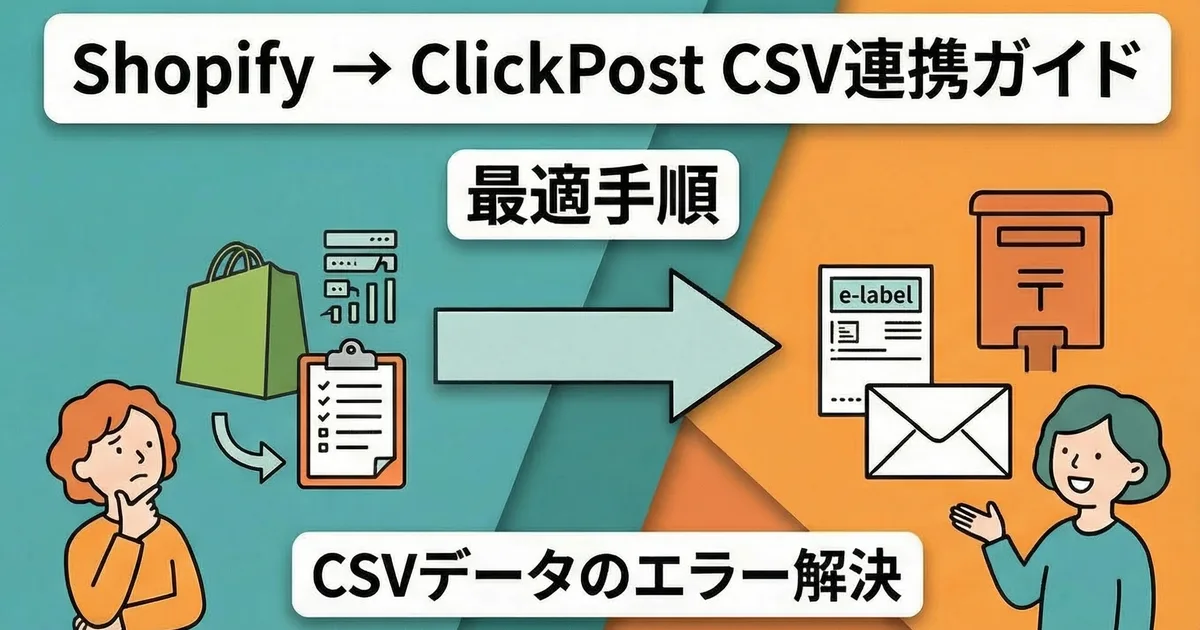
There are several CSV export apps for Click Post. All of them convert Shopify order data into a CSV format that Click Post can accept.
However, those apps only handle the one-way flow from Shopify -> Click Post. Once payment is complete and a tracking number is issued in Click Post, the return process from Click Post -> Shopify is still left to manual work.
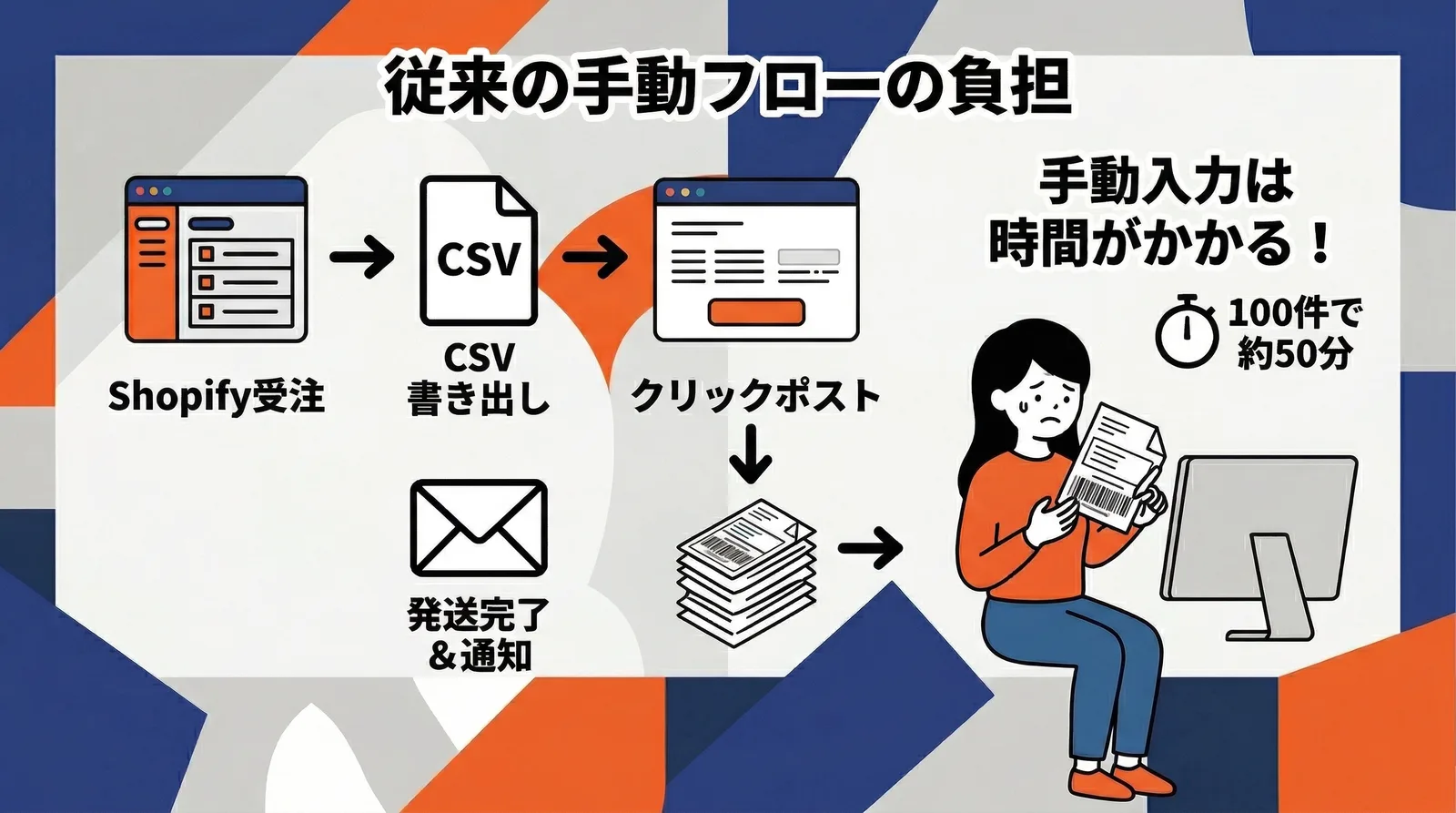
That means the shipping workflow looks like this:
- Export Shopify orders as CSV
- Import the CSV into Click Post, complete payment, and print labels
- Manually type each issued tracking number into the matching Shopify order
- Mark the order as fulfilled
Step 3 is the small but persistent time sink.
The more orders you have, the more it adds up
I have personally been selling handmade products on Shopify for about three years and shipped over 2,200 orders. On an ordinary day with around 10 shipments, tracking-number entry takes only about 5 minutes, so it may not feel like a big problem.
But when orders pile up after an event or a sale, that changes. The day I handled 100 orders, it took about 50 minutes just to enter tracking numbers. Nothing else moved forward during that time. That was when I realized the process needed automation, and it eventually led me to build Instant Shipping! for Click Post.
| Shipment volume | Time with manual entry | Time with automatic extraction |
|---|---|---|
| 10 orders | About 5 minutes | About 10 seconds |
| 50 orders | About 25 minutes | About 10 seconds |
| 100 orders | About 50 minutes | About 10 seconds |
With automatic extraction, importing the labels takes only a few clicks regardless of the number of orders. The more orders you ship, the greater the difference becomes.
How Automatic Extraction from Shipping Labels Works
The shipping label already contains the correct answer
Once you complete payment in Click Post, you download the shipping label file. That label includes the recipient's information and the tracking number issued by Japan Post.
In other words, the answer to "Which tracking number belongs to which order?" is already written on the label. Manual entry is simply copying that information by eye and retyping it into Shopify.
The automation flow
Instant Shipping! for Click Post reads the shipping-label data and automatically performs the following steps:
- Extract the tracking number and identifying order information from the label
- Match it to Shopify unfulfilled orders using the order number as the key
- Automatically register the tracking number to the matched order
- Mark the order as fulfilled and send the shipping confirmation email to the customer
Because matching is based on the order number, even multiple orders going to the same address can be handled without confusion.
Everything needed to reflect a tracking number is already inside the shipping label. The reason this step is easy to automate is that manual work was only re-entering the label contents into Shopify.
The Actual Workflow
With automatic extraction, the entire shipping operation finishes in three steps.
Step 1: Export order data from Shopify as CSV
Select unfulfilled orders in the app and export the CSV. During this step, address data is automatically split into the format Click Post expects.
Click Post CSV imports allow up to four address fields, and each field must be no longer than 20 full-width characters or 40 half-width characters. Long addresses must therefore be divided across multiple fields. I cover the address-splitting logic in more detail elsewhere, but when it is handled properly, CSV import errors largely disappear.
Step 2: Complete payment and print labels in Click Post
Upload the CSV into Click Post's Bulk Application feature and complete payment. After payment, download and print the shipping labels. Batch printing is limited to 20 labels at a time. Up to this point, the workflow is the same as any ordinary CSV export flow.
Step 3: Import the shipping labels and finish
Upload the downloaded shipping-label file into the app. The app automatically extracts the tracking numbers and shows the matching result against Shopify orders.
Once you review the result and click Bulk Register, the process is complete. Tracking numbers are registered, and the shipping confirmation email is automatically sent to the customer at the same time.
For 10 shipments, the entire workflow takes less than 10 minutes, including all steps. You not only remove the 5 minutes of manual entry, but also eliminate the risk of mistyping tracking numbers.
From CSV export to tracking sync, the entire shipping workflow is handled in one app. There is no need to go back to the Shopify admin and enter anything by hand.
Common Questions
Q. Could the tracking-number matching ever be wrong?
Because the matching is based on the order number, accuracy is effectively near 100%. Unlike matching by postal code or customer name, the order number uniquely identifies the order. If anything cannot be matched, it appears as an error on screen, so you only need to handle that specific case manually.
Q. How is this different from the CSV app I already use?
Most CSV export apps only handle the address export step from Shopify -> Click Post. Instant Shipping! for Click Post also handles the return leg from Click Post -> Shopify by syncing tracking numbers automatically. The difference is that both CSV export and tracking sync are completed in one app.
Q. What about Click Post's 40-order limit for bulk application?
Click Post itself limits each bulk application to 40 shipments. If you have 41 or more, you split the CSV and submit multiple rounds. Even so, label import and tracking sync can still be handled efficiently, so there is no comparable increase in effort on the tracking side.
Conclusion
Manual tracking-number entry seems small on a per-order basis, but the total time becomes hard to ignore as order volume grows.
By automatically extracting tracking numbers from shipping labels, matching them by order number, and reflecting them back into Shopify, you can streamline the full shipping workflow from CSV export through fulfillment updates.
For solo merchants, the biggest advantage is that the saved time can be used for product creation and promotion instead.
If you want to remove tracking-number entry from your workflow, try Instant Shipping! for Click Post.