
Shopify Shipping Settings Guide: Setting Rates and Updating for Click Post Price Revisions
Shopify manages shipping configurations through a framework called "Shipping Profiles." Once you understand how these profiles work, you can structure virtually any shipping strategy—from flat nationwide shipping to offering multiple delivery methods side by side—using the exact same mechanics.
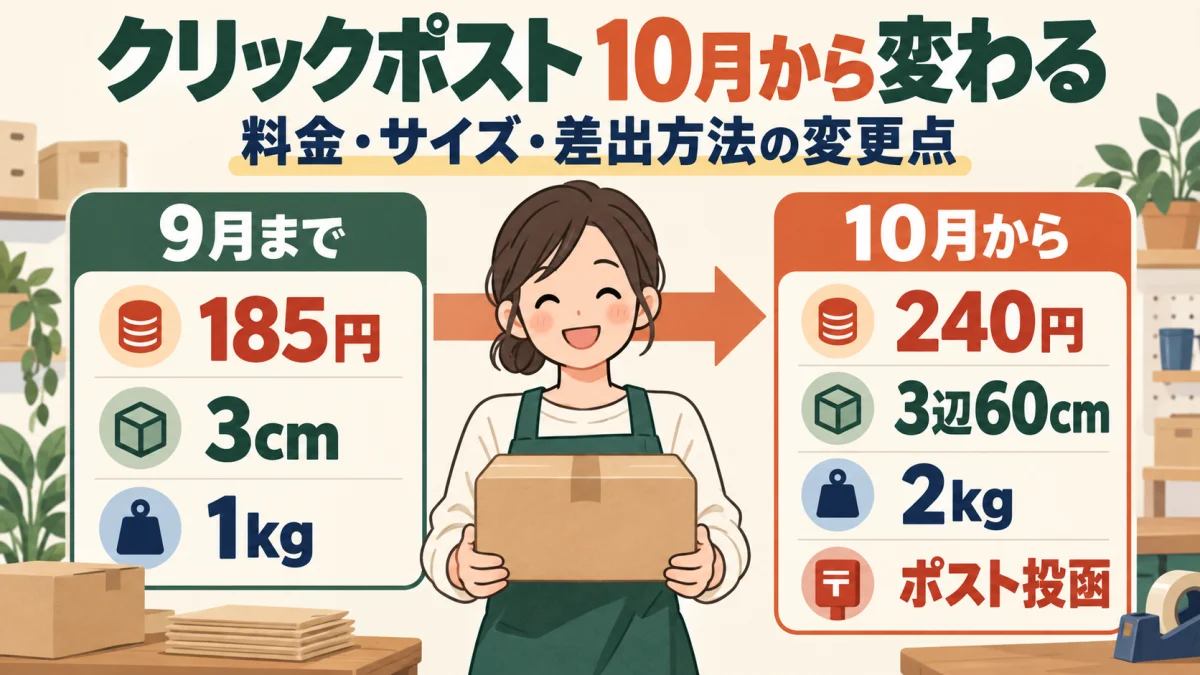
Before tuning your settings, there is a crucial upcoming change to keep in mind: Japan Post has announced that Click Post rates will increase from 185 yen (tax included) to 240 yen (tax included) on October 1, 2026 (based on official announcements as of September 19, 2026; this change is scheduled to take effect in the future). Even when Japan Post updates its postal rates, the shipping fees you charge customers in Shopify will not update automatically. This guide covers how standard shipping settings are structured in Shopify, followed by step-by-step instructions for reviewing and adjusting your rates in response to the price revision.
Distinguishing Postal Rates from Customer Shipping Fees
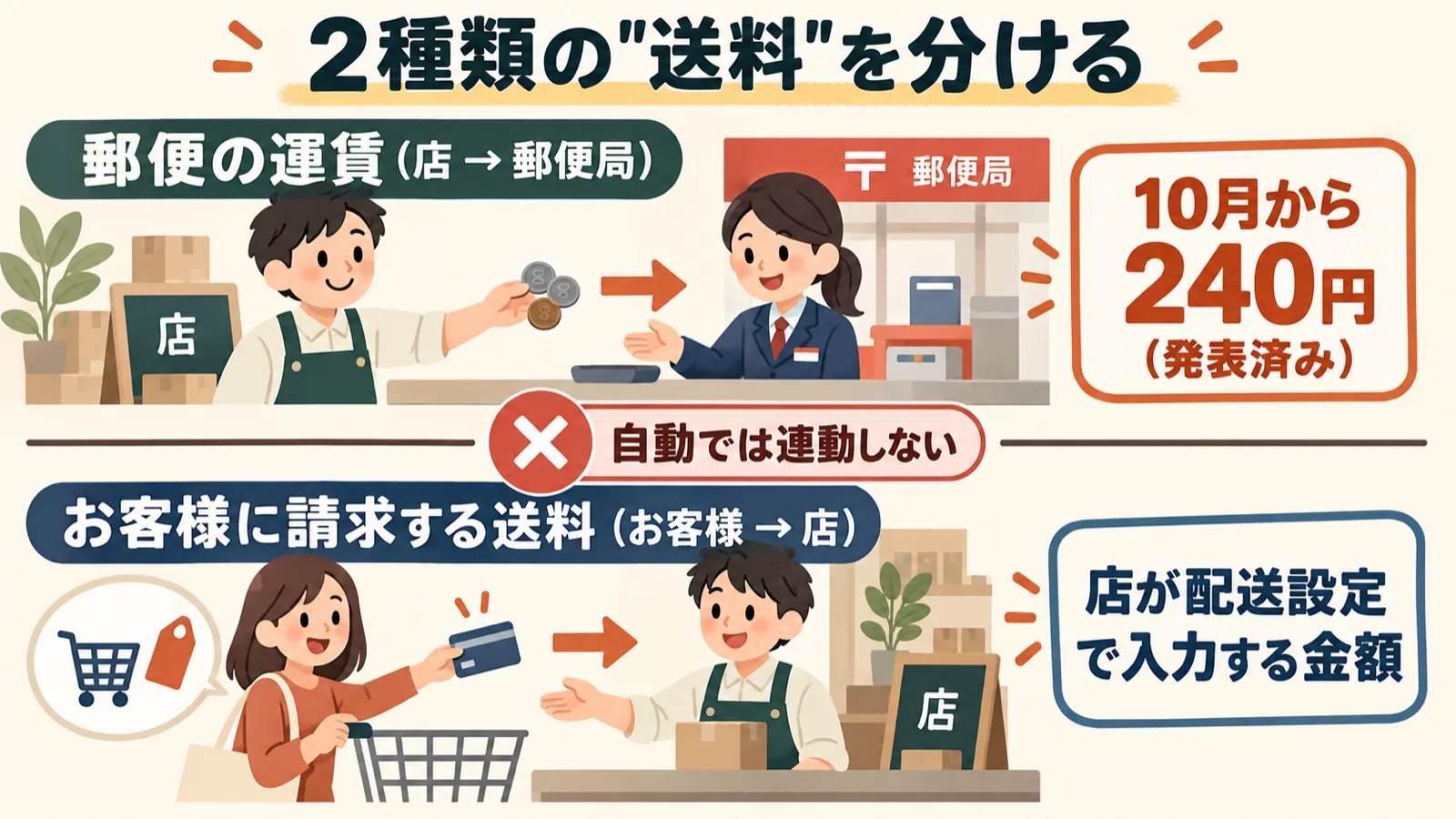
When configuring shipping, the first critical step is separating two distinct concepts often grouped together under "shipping costs."
| Cost Component | Paying Party & Receiving Party | How It Is Determined |
|---|---|---|
| Postal Postage Rate | Store → Japan Post | Determined by Japan Post's official rate tables. Announced to increase from 185 yen to 240 yen on October 1. |
| Customer Shipping Fee | Customer → Store | The amount entered in your Shopify shipping settings. Setting it equal to actual postage, discounting it, or offering free shipping is entirely up to the merchant. |
The announced revision applies strictly to "Postal Postage Rates." The shipping fee entered into your Shopify settings is the price you choose to charge your customers, and it will never update on its own when carrier rates change. Whether you adjust your customer shipping fee to 240 yen, keep it unchanged and absorb the cost, or factor it into a free shipping threshold depends on your store's commercial strategy. For cost-impact simulations and strategic comparisons, see our guide on Preparing for the Click Post Rate Increase before finalizing your rates.
Japan Post has also announced revisions taking effect on the same date for other services: Yu-Packet basic postage will become a flat 360 yen (currently tiered by thickness at 250 yen, 310 yen, or 360 yen), and Yu-Pack parcel rates will increase by an average of roughly 10% (for instance, 840 yen for a size-60 parcel within the same prefecture, according to the attached new rate table). If you offer multiple delivery options, you should re-evaluate the customer fees for those services using this same framework.
Understanding Shipping Profiles and Where to Edit Settings in Shopify Admin
How Shipping Profiles Work
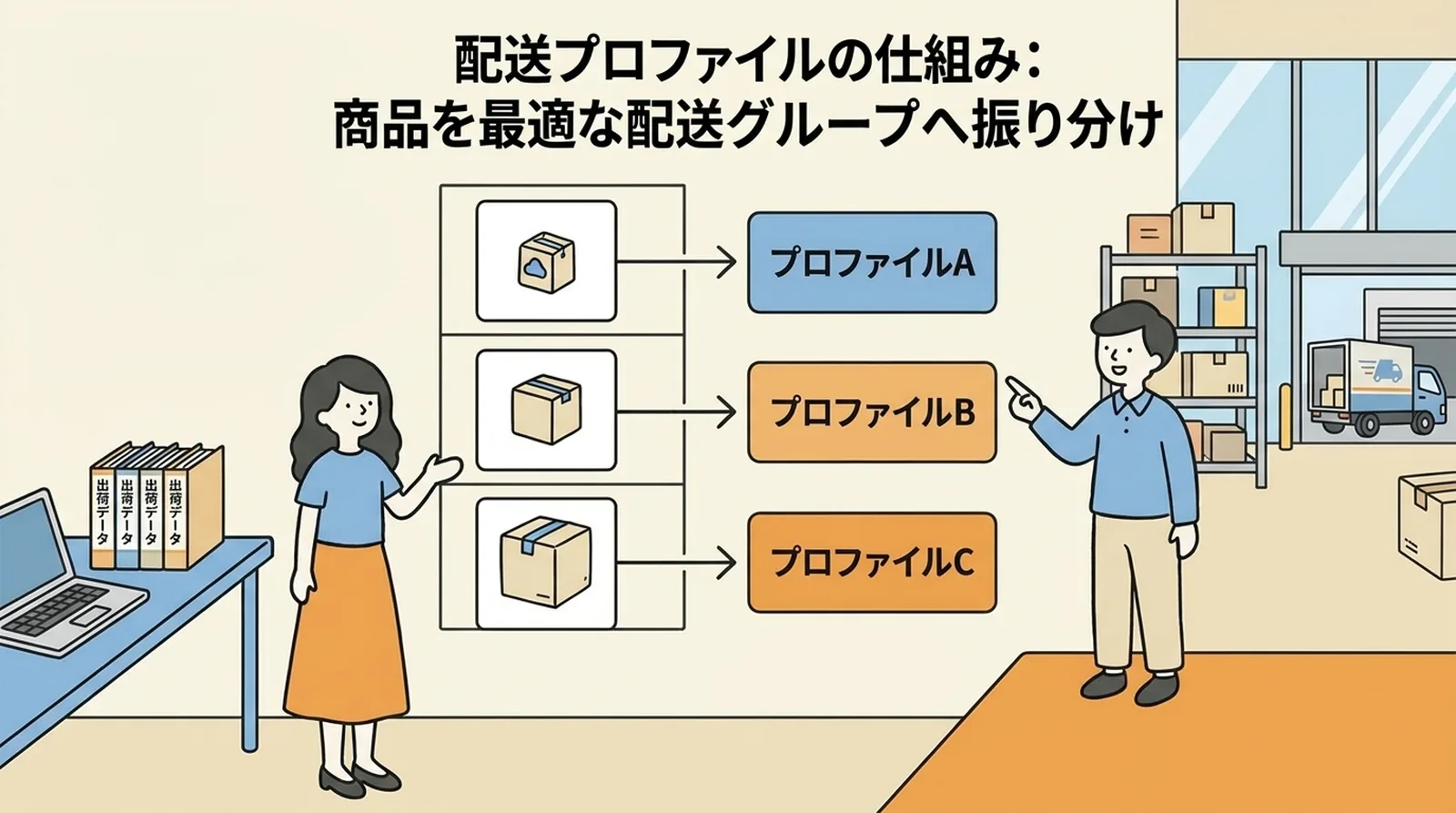
Shopify manages shipping rules through "Shipping Profiles." A shipping profile is a blueprint that defines the rule: "Deliver these products to these zones at these rates."
By default, Shopify provides a single profile called "General shipping rates," which contains all products. In many stores, this single profile is all you will ever need. You only need to create additional custom profiles when different products require different shipping rate structures.
| Store Scenario | Required Profiles | Example |
|---|---|---|
| All products share the same shipping fee | 1 (Default) | Shipping all items via Click Post |
| Shipping rates vary by product dimensions | 2 or more | Click Post for small items, Yu-Pack for bulky items |
| Store sells digital products | 2 | Physical products profile + digital products (no shipping charge) |
Locating Settings in Your Store's Admin
According to official Shopify documentation (such as their blog guides on shipping setup), shipping rates are managed under Settings > Shipping and delivery in the Shopify admin by editing shipping profiles (under General shipping rates). However, Shopify Help documentation also notes that shipping settings are being progressively transitioned toward market-specific options, meaning exact labels and menu layouts may vary depending on your store and when your account was created. The navigation paths referenced in this article follow official documentation rather than live device verification for every store variant. When making actual updates, verify the corresponding sections in your own admin interface.
Before making any changes, verify the following points in your admin:
- Which profile your target products belong to. If you have created custom profiles, products may be distributed across several different profiles.
- Fulfillment locations. If your store ships from multiple locations, shipping rates are configured separately per location.
- Destination shipping zones. Confirm whether your store uses a single "Japan" zone or divides domestic delivery into regional sub-zones.
Reviewing Flat Rates and Free Shipping Conditions
Follow the "Record → Isolate → Modify → Test" Workflow
When modifying shipping rates or conditions, following this sequence makes it easy to verify changes and revert them if necessary:
- Record pre-change values. Write down and save profile names, shipping zones, rate names, prices, and conditions.
- Isolate your target. Touch only the relevant profile and shipping zone, leaving unrelated settings untouched.
- Modify and save. Update the rate amounts and conditions.
- Test in the cart. Follow the testing steps in the next section to ensure rates display as intended.
- Revert if needed. With your pre-change records in hand, you can quickly restore your previous configuration if anything goes wrong.
Official Shopify documentation outlines a workflow where shipping zones are updated via "Edit zone," individual rates are edited via the three-dot ("...") menu on a rate row by selecting "Edit rate," conditions are chosen from "Based on order price" or "Based on item weight," and changes are finalized with "Done" → "Save" (exact UI terms may vary by store).
Common Shipping Rate Patterns
There are three primary rate configuration patterns:
Flat nationwide shipping. The simplest configuration, charging the exact same shipping fee regardless of delivery destination. This is standard when using carrier services that charge nationwide flat postage, such as Click Post. Aligning with post-October 1 rates would mean entering a flat 240 yen rate, for example (though your customer shipping fee remains entirely your choice and does not have to be 240 yen).
Price-tiered shipping (conditional free shipping). Offering "Free shipping on orders over ¥XX" can be configured within the same shipping profile. For example, using "Based on order price," you can add two rates: "240 yen for 0 yen – 2,999 yen" and "0 yen for 3,000 yen and above." For strategic guidance on choosing a viable free shipping threshold, refer to What Is a Realistic Free Shipping Threshold?.
Weight-tiered shipping. Using "Based on item weight," you can configure different shipping rates across weight ranges—for example, "240 yen for lightweight items, separate shipping rate for heavy bundle sets." However, keep in mind that cart calculations rely entirely on the sum of registered product weights, which is distinct from actual packaged weight or outer box dimensions. We examine this distinction in detail in the next section.
Offering Multiple Shipping Methods Concurrently
Adding multiple rates within a single shipping zone allows buyers to select their preferred delivery method at checkout. By configuring non-overlapping weight tiers, you can dynamically switch which shipping options appear based on what is in the cart.
| Example Rate Name | Example Price | Example Condition |
|---|---|---|
| Click Post (Mailbox Delivery) | 240 yen | Specified weight range |
| Letter Pack Plus (In-Person Delivery) | 600 yen | Separate weight range |
| Yu-Pack | Rate per new rate table | Heavier weight range |
The example rates above reflect announcements as of September 19, 2026, using the new 240 yen Click Post rate effective October 1. The 600 yen Letter Pack Plus rate is the current price as of the verification date; Yu-Pack rates vary by package size and destination region, so consult Japan Post's official new rate schedule (attached document) for exact figures. When rate conditions overlap, both options are presented to the buyer at checkout, so giving rates descriptive names—such as "Mailbox Delivery" or "In-Person Delivery"—helps customers clearly understand how their package will arrive.
Do Not Rely Solely on Weight Conditions to Determine Shippability
A critical pitfall with weight-based shipping rules is confusing "conditions that trigger a rate in the cart" with "whether the parcel can physically be shipped via that service."
Shopify calculates cart shipping rates using only the total weight entered on product detail pages. This calculation does not account for packaging materials, final parcel dimensions, total packed weight, or whether the parcel will physically fit through a post box slot. For example, even if you configure a condition for "rates up to 2 kg," that is merely a display condition for your cart—verifying whether the physical parcel meets Click Post standards requires a completely separate check.
The announced Click Post requirements taking effect October 1 specify: "sum of 3 sides within 60 cm, longest side within 34 cm, must fit into a postal collection box, and within 2 kg." This is not a simple expansion of limits. A box using the current maximum dimensions of 34 x 25 x 3 cm totals 62 cm across three sides, which exceeds the new 60 cm total limit. Keep the following operational considerations in mind:
- Decide whether product registration weights should include packaging allowances, and account for how weights aggregate across multi-item orders.
- Even if an order satisfies the weight condition, verify post-packaging dimensions and mailbox fittability separately.
- For detailed steps on verifying post-packaging parcels against the updated standards, see Handling Packages Exceeding the Click Post 3 cm Thickness Limit.
Testing Shipping Rates at Checkout
Once you have modified your settings, verify that the expected shipping rates appear from the buyer's perspective. Because shipping rates are calculated and displayed at checkout before an order is placed, you can test these calculations without completing payments or triggering customer notifications.
When running tests, creating a tracking sheet with columns for "Test Scenario, Configured Condition, Expected Cart Behavior, and Results/Notes" makes it easy to document and review your findings:
| Test Scenario | Configured Condition | Expected Cart Behavior | Results & Notes |
|---|---|---|---|
| Single item purchase | Target profile rate: 240 yen | 240 yen shipping fee displayed | (Record here) |
| Multiple items aggregated | 2 items in same profile | Remains 240 yen (within weight limit) | (Record here) |
| Profile combination | Purchasing items from different profiles simultaneously | Intended combined shipping fee displayed | (Record here) |
| Free shipping threshold | Just below and above threshold (e.g., 2,999 yen vs. 3,000 yen) | Rate switches across the threshold boundary | (Record here) |
| Excluded destination | Region not included in shipping zones | Message indicating purchase cannot be completed or no shipping rate available | (Record here) |
If the checkout displays an unexpected rate, the most common causes are: combined shipping rates across different profiles, discrepancies in registered product weights, or overlapping rate conditions surfacing unexpected options. Check each point systematically against your pre-change records.
Reviewing Existing Orders and Customer-Facing Copy
Shipping rate changes typically apply only to new orders placed after the settings are saved. Existing orders already received by your store will not have their billed amounts automatically recalculated, so your store will need to decide how to handle fulfillment costs for orders accepted at older rates.
In parallel, verify that all customer-facing touchpoints align with your new configuration:
- Shipping policy and shipping information pages. Confirm that stated shipping rates and free shipping terms match your updated setup.
- Product page descriptions. Ensure no legacy references—such as "Shipping: 185 yen"—remain in your product descriptions.
- Order notifications and automated email templates. Update any templates that mention specific shipping costs or delivery methods.
For operational guidance on splitting shipments across multiple packages and managing tracking numbers, refer to our guide on Tracking Number Management for Multi-Package Shipments.
Frequently Asked Questions
Q. Will Shopify's shipping settings update automatically when postal rates are revised?
They will not update automatically. The postage you pay to Japan Post and the shipping fee you collect from customers (the value configured in Shopify shipping settings) operate on two separate tracks. If you wish to change the customer shipping fee, you must manually edit your shipping settings.
Q. Is it okay to leave customer shipping fees at 185 yen?
While your settings allow it, Japan Post has announced that Click Post rates will rise to 240 yen starting October 1, meaning your store will absorb an additional 55 yen in shipping costs per package if fees remain unchanged. Note that 185 yen is the legacy rate applicable only to transactions where payment is completed by September 30 at 23:30 (scheduled).
Q. I updated my settings, but the cart displays an unexpected shipping fee. Why?
The most common causes are combined shipping fees from multiple shipping profiles, discrepancies between registered product weights and your condition ranges, or overlapping conditions causing a different rate tier to be selected. Compare your setup against your recorded pre-change values, checking profiles, weights, and conditions in that order.
Q. Shipping fees double when customers purchase multiple items. Why?
When a customer simultaneously purchases items belonging to different shipping profiles, Shopify may combine the rates from each profile. Check your cart display after consolidating items into the same profile or revising rate conditions to produce the intended total.
Q. If I change my shipping settings, will it affect charges for existing orders?
Generally, updated settings apply only to new orders placed after the modification; they do not retroactively alter the billed amounts on previously accepted orders. Always verify the live calculation in your cart and checkout screens without placing the order.
Summary
Shopify shipping configurations are built by structuring shipping zones and rates within shipping profiles. Because your settings will never update automatically when postal rates change, preparing for the October 1 revision is best approached through a reliable workflow: "Record pre-change values → Isolate target settings → Test in cart → Verify customer-facing copy."
For a complete overview of the fulfillment process and app features, explore the User Guide for "Instant Shipping! for Click Post," developed and provided by JizaiDev (the operator of this site). Please note that shipping settings, parcel dimensions, and customer billing are not modified automatically by the app; they are operational decisions configured directly by the merchant.
Rates and conditions verified as of: September 19, 2026. Announced changes are scheduled to take effect in the future, and administrative UI wording and layout may vary across individual stores. Please confirm the latest details on the Official Click Post Website and Shopify's official documentation.
Related Articles
- Shopify x Click Post Shipping Guide: From CSV Export to Tracking Sync — Pillar article covering the entire fulfillment workflow
- Preparing for the Click Post Rate Increase — Financial simulations to help you determine target shipping fees
- Handling Packages Exceeding the Click Post 3 cm Thickness Limit — Verifying packaged parcels against the updated dimensions
- Tracking Number Management for Multi-Package Shipments — Registration workflows when splitting orders across multiple boxes