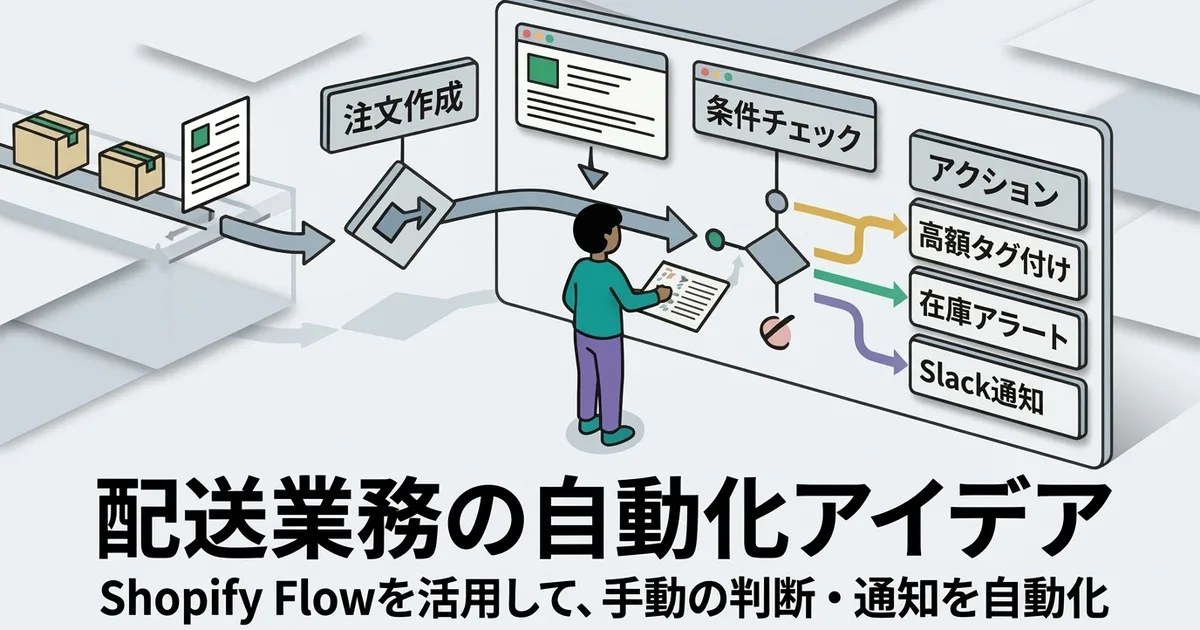
Ideas for Automating Shipping Operations with Shopify Flow
Maybe your shipping procedure itself is already fairly stable. But are you still handling the surrounding tasks manually, such as checking for new orders, tagging special cases, or noticing when inventory is running low?
Shopify Flow can automate exactly those kinds of decisions and notifications. In this article, I share practical ways to use Flow around shipping operations, based on my perspective as a Shopify app developer who works with these systems regularly.
Why Shipping Operations Still Need Automation

Even when the procedure is fixed, judgment still remains
The core shipping flow can be standardized into four steps: CSV export, Click Post payment, packing, and tracking sync. But before and after that flow, there are still decisions to make.
You may want to prioritize high-value orders, apply special handling to certain products, or get notified when a low-stock product sells. If you make those decisions manually each time, the time spent around shipping keeps growing.
Flow is good at condition-based automation
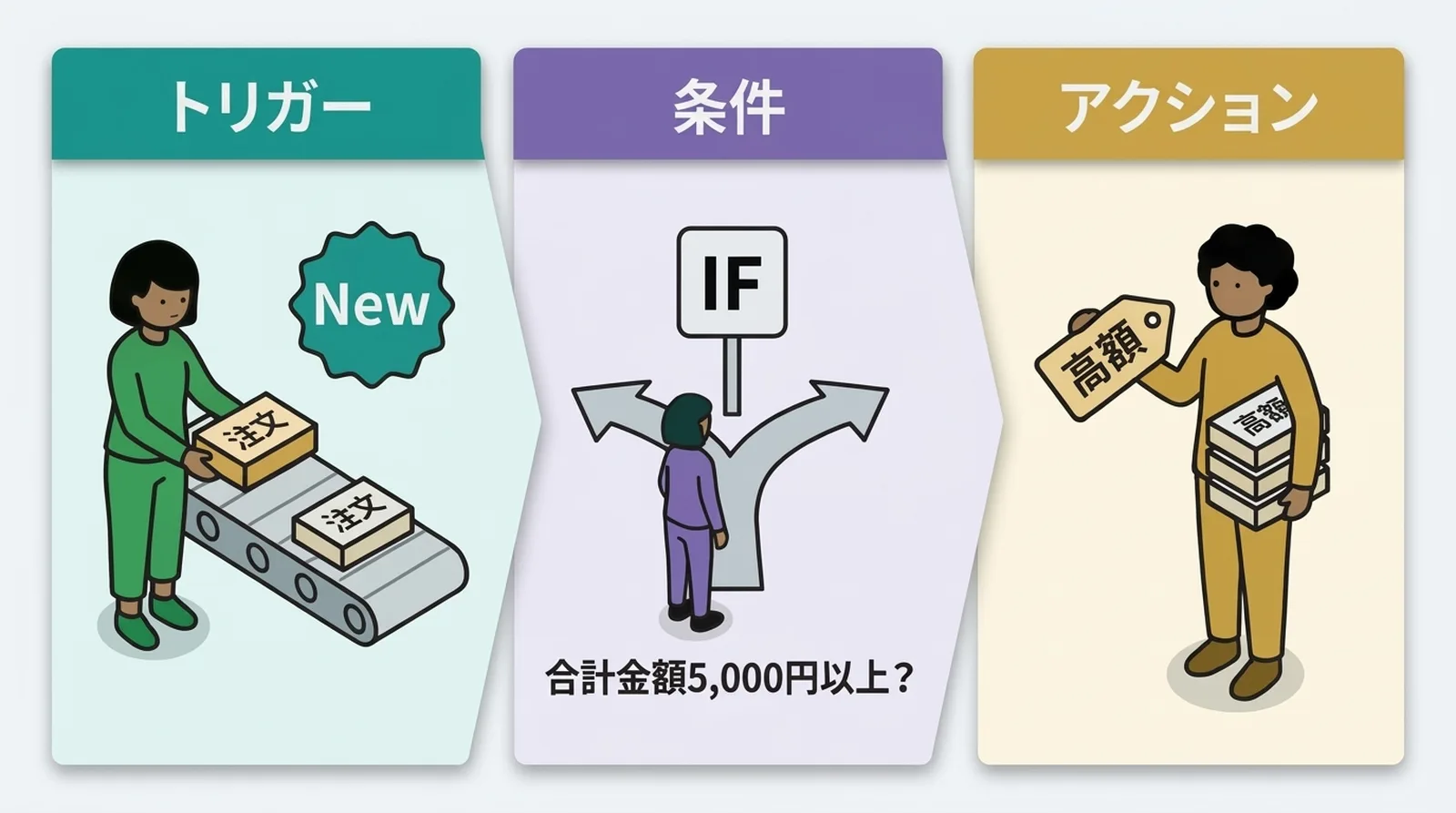
Shopify Flow is a workflow tool built around three elements: Trigger -> Condition -> Action.
When a certain event happens, Flow checks a condition and runs an action if the condition matches. That structure is a very good fit for the decision-making work that surrounds shipping.
| What you want to automate | Best tool | Why |
|---|---|---|
| Tagging and notifications based on conditions | Shopify Flow | It handles rule-based decisions well |
| CSV export and address conversion | Dedicated app | Click Post requires a specific CSV format |
| Tracking-number sync | Dedicated app | It requires extracting data from shipping labels |
| Click Post payment | Manual | Click Post has no public API |
The Basic Structure of Shopify Flow
Trigger, condition, action
A Flow workflow is made up of three parts:
- Trigger: the event that starts the workflow, such as an order being created
- Condition: the rule that decides whether to proceed, such as
order total is 5,000 yen or more - Action: what happens if the condition matches, such as adding a tag
Understanding when triggers fire and what data they carry makes Flow much easier to design and troubleshoot.
Availability
Shopify Flow used to be limited to Shopify Plus, but it is now available on all Shopify plans. You can open it from Settings -> Flow or by searching for Flow in the Shopify admin.
Flow is a built-in Shopify feature. Since there is no extra charge, the easiest way to start is to build one very simple workflow and confirm how it behaves.
Seven Practical Flow Ideas for Shipping Operations
Idea 1: Automatically tag high-value orders
This workflow adds a tag such as high-value to orders above a certain amount.
- Trigger: order created
- Condition: order total is 5,000 yen or more
- Action: add the tag
high-value
This is useful if you want to prioritize certain orders or apply more careful packing.
Idea 2: Add a packing note when a fragile or special product is included
If an order contains a product that needs special handling, add a warning tag automatically.
- Trigger: order created
- Condition: order contains a specific product or collection
- Action: add the tag
fragile
This makes the packing decision visible at a glance and is especially helpful if someone else is helping with fulfillment.
Idea 3: Send a Slack or email notification whenever an order arrives
Instead of checking the Shopify admin over and over, use Flow to notify you when an order comes in.
- Trigger: order created
- Condition: optional, or none at all
- Action: send a Slack message or internal email
The notification can include the order number, product name, and shipping region, which makes it easier to plan your shipping batch in advance.
Idea 4: Alert yourself when stock gets low
This is not shipping itself, but it prevents missed sales caused by stockouts.
- Trigger: inventory quantity changed
- Condition: stock is 5 units or less
- Action: send an email or Slack notification
For small shops that mostly rely on visual stock checks, this can be a very practical safeguard.
Idea 5: Tag orders going to remote regions
Use a regional tag for destinations that may need special communication or handling.
- Trigger: order created
- Condition: shipping prefecture is a specified region, such as Okinawa
- Action: add the tag
remote-area
Click Post has flat nationwide pricing, but transit times can be longer to some areas. Tagging these orders helps prevent missed follow-up.
Idea 6: Notify yourself if an order remains unfulfilled too long
This helps catch missed shipments.
- Trigger: order created
- Condition: after a waiting period, fulfillment status is still unfulfilled
- Action: send an alert by Slack or email
Flow's Wait action makes this possible.
Idea 7: Add an internal note based on order options
If customers select gift wrapping or another special option, add an internal note automatically.
- Trigger: order created
- Condition: order contains a specific tag or note attribute
- Action: append a note such as
Gift wrap required
This reduces the risk of forgetting custom packing steps.
What Flow Cannot Do by Itself
Click Post has no public API
Everything above happens mainly within Shopify. But the core Click Post workflow has hard limits.
Click Post does not provide a public API, so Flow cannot directly upload a CSV, complete payment, or issue labels in Click Post. Those parts still require manual operation on the Click Post website.
| Process | Can Flow automate it? | Why |
|---|---|---|
| Order tagging and notifications | Yes | It stays inside Shopify |
| CSV export | No | It requires generating a Click Post-specific file |
| Click Post payment | No | Manual web operation is required |
| Tracking-number sync to Shopify | No | It requires reading data from shipping labels |
The realistic split between Flow and a dedicated app
Flow is strongest at automating judgment and notifications. Dedicated shipping apps are stronger at file generation and fulfillment updates.
That is why the most practical setup today is to use Flow for the logic around shipping, while leaving CSV export and tracking-number sync to a specialized app.
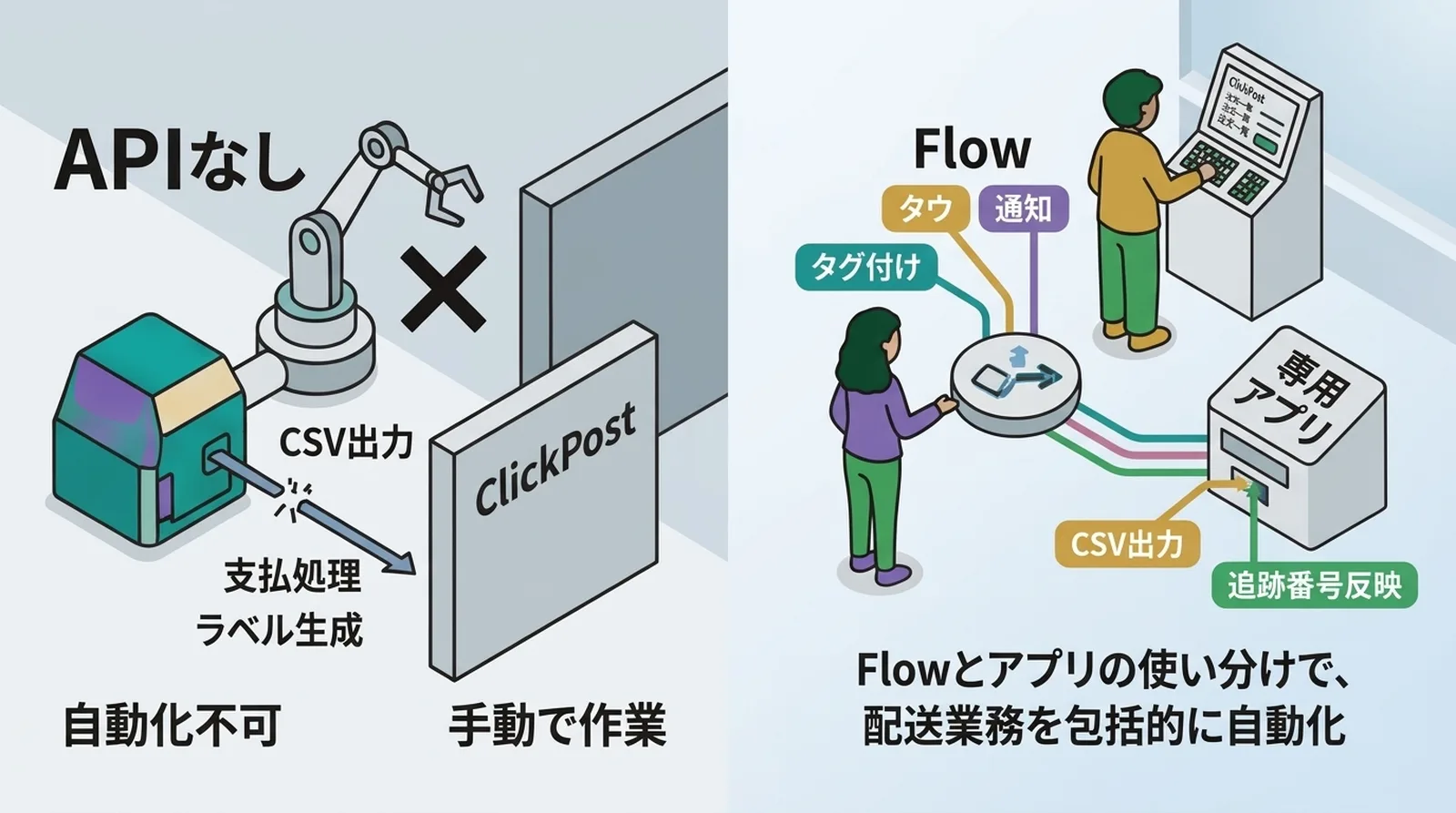
Flow is not a universal automation tool, but even automating the decisions and alerts around shipping can make day-to-day operations much easier.
Tips When Building Flow Workflows
Test with sample orders
After creating a workflow, always test it with a sample order. Flow keeps execution logs, so you can confirm whether the trigger fired, whether the condition evaluated correctly, and whether the action ran.
Be careful with condition settings
A very common mistake is choosing greater than when you meant greater than or equal to. Pay attention to those small differences in the condition builder.
Keep workflows organized
It is easy to keep adding workflows because they are useful, but too many workflows become hard to manage. Disable unused ones and merge similar workflows when possible.
Common Questions
Q. Is Shopify Flow free?
Yes. Shopify Flow is available on all Shopify plans with no extra charge.
Q. Can Flow automate Click Post label issuance?
No. Because Click Post does not offer a public API, Flow cannot directly operate its label creation or CSV upload process.
Q. Do I need programming knowledge?
Not for basic workflows such as tagging and notifications. Most simple flows can be built entirely through the visual editor. More advanced branching or custom actions may require some learning, but you can get real value without coding.
Conclusion
Shopify Flow does not replace the shipping process itself, but it is very useful for automating the decisions and notifications that surround shipping.
By letting Flow handle things like high-value order tags, packing alerts, and unfulfilled-order reminders, you can spend more time on the actual shipping work. For the operational steps, such as CSV export and tracking-number sync, pairing Flow with Instant Shipping! for Click Post gets you much closer to an end-to-end automated workflow.