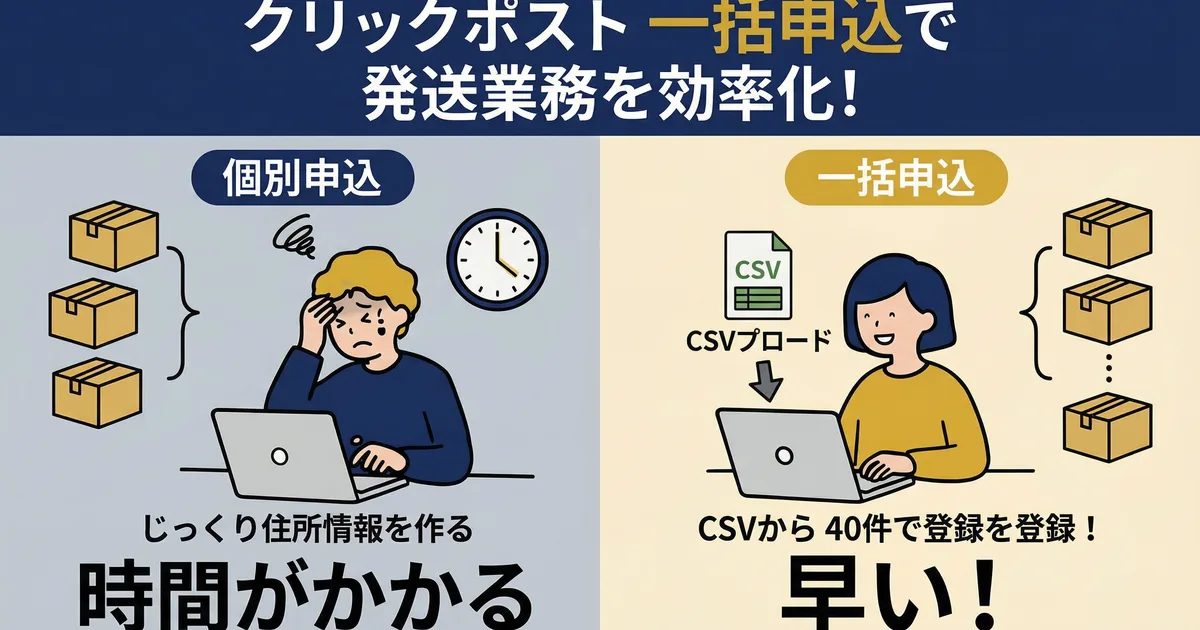
Click Post Bulk Application: 40 Shipments Per Round, Split Your CSV for 41+
The rule is simple: Click Post's bulk application accepts up to 40 shipments in a single upload. If you have 41 or more, split the CSV and upload it in multiple rounds. Batch label printing is also capped at 20 per round, with four labels printed on each A4 sheet.
This article starts by locking in those limits and the splitting pattern, then walks through CSV errors by cause, and finishes with the full bulk-application procedure. I build a Shopify app around the Click Post CSV format and also run my own daily shipments through bulk application.
| Shipments | CSV split | Bulk applications | Label printing |
|---|---|---|---|
| 1 to 40 | Not needed | 1 | 1 to 2 rounds (up to 20 per round) |
| 41 to 80 | Split into 2 | 2 | 2 to 4 rounds |
| 81 to 120 | Split into 3 | 3 | 5 to 6 rounds |
For how to sync all tracking numbers together even after splitting, see the end of this article and the tracking-number auto-sync guide.
One-by-One vs Bulk Application: What Actually Changes
Individual applications scale linearly with volume
In Click Post's standard application screen, you enter the recipient postal code, name, address, and item description one shipment at a time, then complete payment. That takes about 2 to 3 minutes per shipment, so 10 shipments can easily take 20 to 30 minutes.
With bulk application, you upload everything in a CSV and register up to 40 destinations at once. You no longer type addresses by hand. Payment still has to be completed one shipment at a time, because Click Post does not offer bulk payment.
I also began with one-by-one applications, but once my daily shipping volume passed 10 orders, it clearly stopped scaling. Just removing the destination-entry step made a big difference before I optimized anything else.
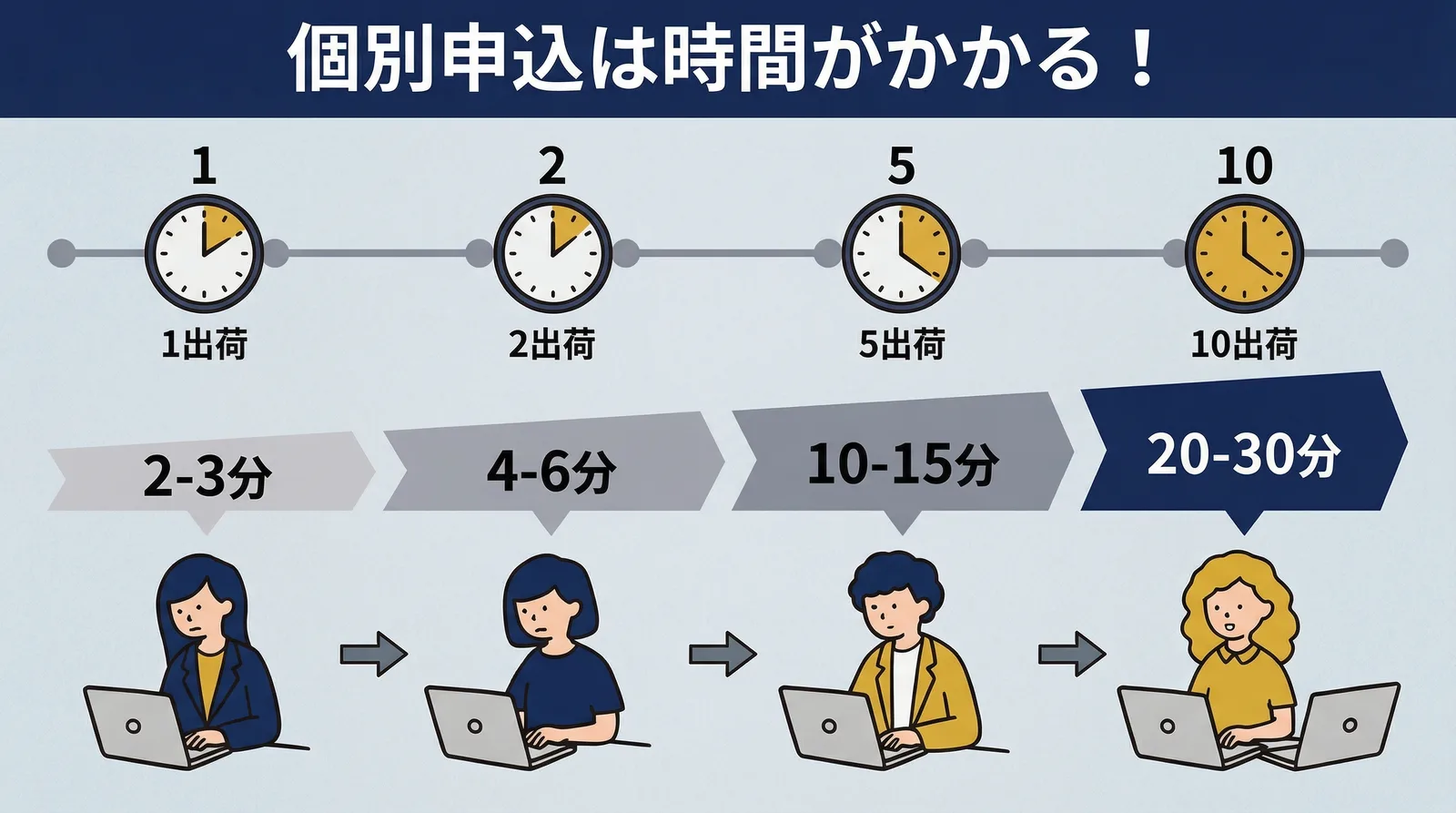
| Application method | Time for 10 orders | Time for 40 orders |
|---|---|---|
| One-by-one application | About 20 to 30 minutes | About 80 to 120 minutes |
| Bulk application by CSV | About 2 to 3 minutes | About 2 to 3 minutes |
The biggest advantage of bulk application is that the processing time stays almost the same even as the number of shipments increases. Once you are shipping more than 5 orders a day, it is worth considering a CSV-based workflow.
How to prepare the CSV
There are two main ways to prepare the CSV required for bulk application:
- Create it manually: download the official template and fill it out in Excel or a spreadsheet
- Generate it automatically with an app: export a CSV directly from Shopify order data
If you create it manually, you must split addresses into up to four fields, each limited to 20 full-width characters. Long addresses need to be divided carefully. With an app, that splitting can be automated together with the rest of the formatting.
Step-by-Step Bulk Application Flow
Step 1: Prepare the CSV file
Start from your Shopify order data and prepare a CSV that matches Click Post's format. You will need at least the following:
- Recipient postal code, 7 half-width digits without hyphens
- Recipient name
- Recipient address, up to four fields with a 20 full-width character limit each
- Item description
If you use Instant Shipping! for Click Post, you can simply select unfulfilled orders and export the CSV. Format conversion, address splitting, and character encoding are all handled automatically.
Step 2: Log in to Click Post and open the Bulk Application screen
Log in to the Click Post dashboard and select Bulk Application from the menu. You will then see the screen where you can upload the CSV file.
Step 3: Upload the CSV
Choose the CSV file and upload it. Click Post reads the contents and shows the import result in a list.
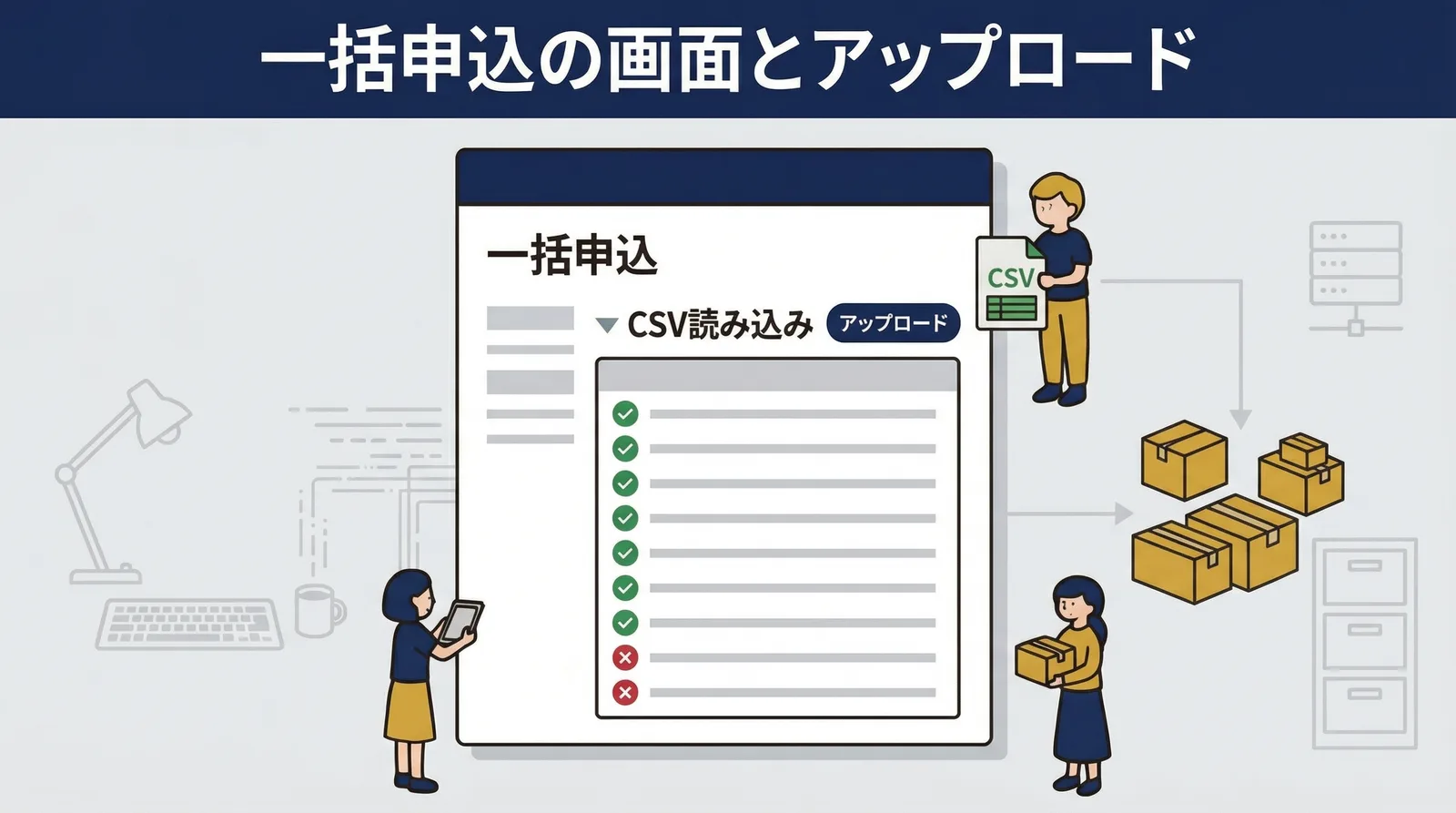
If there is an address or format problem, the affected row appears as an error and will not be processed. You then need to fix the CSV and upload it again, or handle those shipments individually. If the CSV was exported from Instant Shipping! for Click Post, the formatting and address distribution are already handled, so this stage should not produce errors.
Step 4: Review the contents and proceed to payment
If the imported data looks correct, proceed to payment. Payment is made through Yahoo! Wallet or Amazon Pay, but there is no bulk payment feature, so each shipment must still be paid individually.
Step 5: Download and print the shipping labels
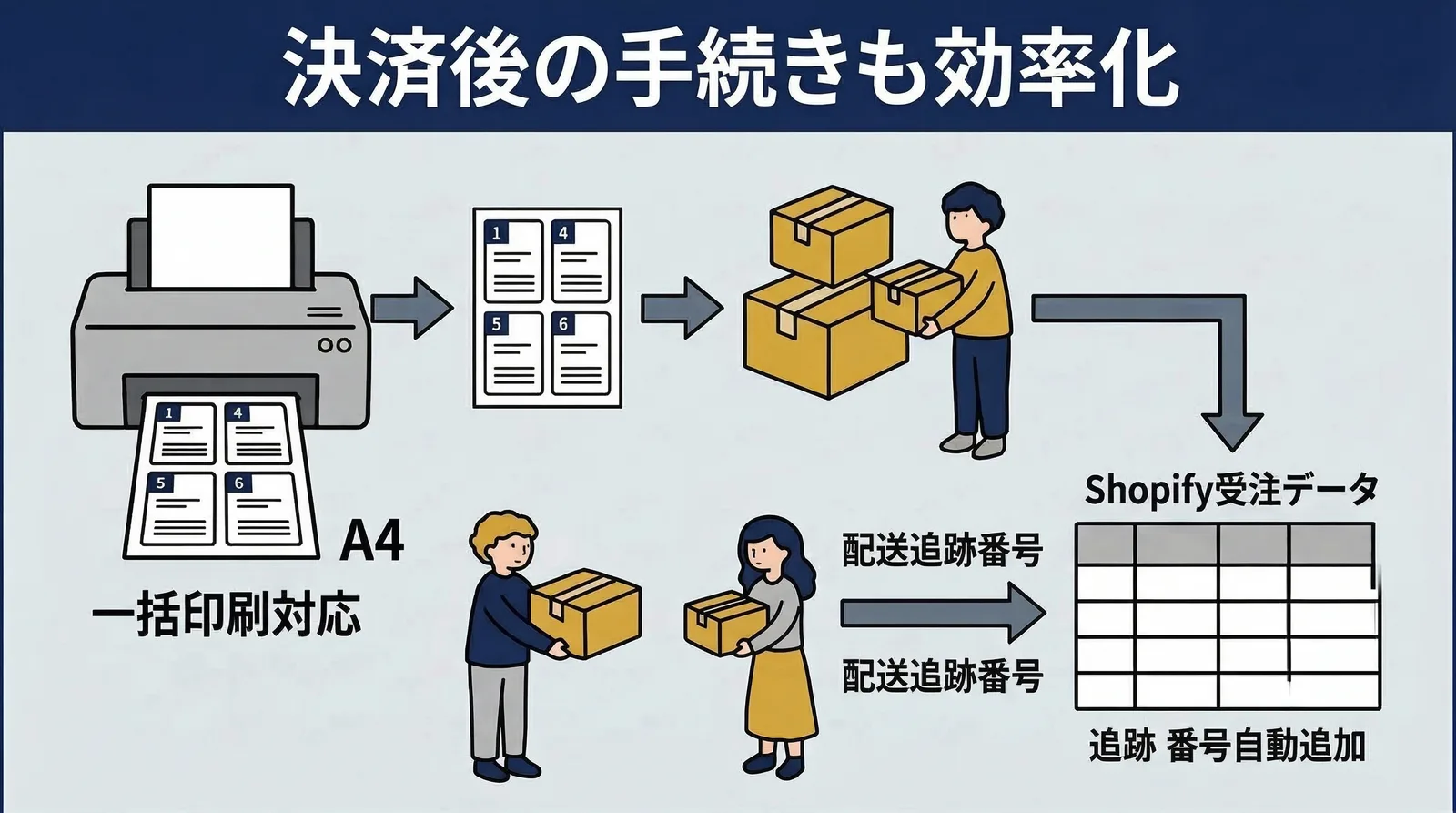
Once payment is complete, you can download the shipping-label PDF. With the Batch Print feature, up to 20 labels can be printed at once on A4 paper with four labels per sheet. If you have 40 shipments, you will download and print them in two rounds.
If you click the normal Print button, each label is generated as a separate PDF. When handling multiple shipments, choose Batch Print instead. After printing, cut the labels apart and attach them to your packed products.
The operation of bulk application itself takes less than five minutes as long as the CSV is ready. The real goal is to keep the application step from becoming the bottleneck so you can spend your time on packing instead.
The 40-Order Limit in Practice: Splitting Does Not Add Downstream Work
As shown in the table at the top of the article, a single bulk application tops out at 40 shipments. That is a Click Post system limit and cannot be changed.
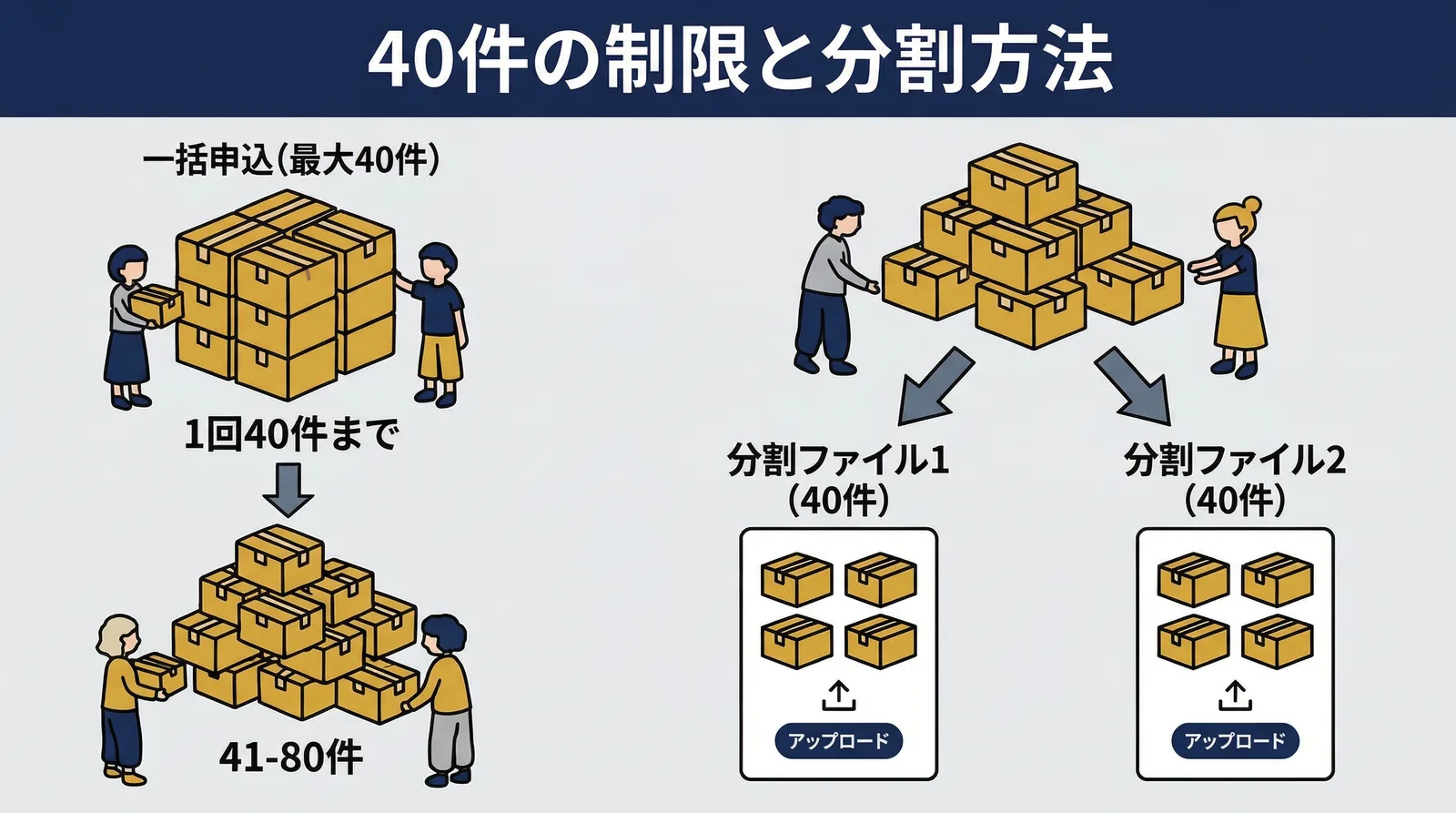
Splitting does not slow down later steps
Even if you split the CSV and repeat the bulk application step, tracking-number sync can still be handled together afterward. Once you import the shipping labels in bulk, tracking numbers are reflected in Shopify regardless of how many separate bulk applications were used.
The only extra work is repeating the upload and payment flow. Since one round takes about 2 to 3 minutes, even splitting 80 shipments into two rounds only adds a few minutes.
Why Errors Happen in Bulk Application and How to Avoid Them
Common causes of errors
| Cause | Example | How to avoid it |
|---|---|---|
| Incorrect address splitting | Prefecture left blank, street number in the wrong field | Use automatic splitting or review the template carefully |
| Postal code format issue | Full-width digits or a hyphen, such as 330−0074 | Use only half-width digits with no hyphen |
| Character encoding mismatch | CSV saved as UTF-8 | Save as Shift_JIS |
| Missing required field | Item description is blank | Set a default value when creating the CSV |
Habits that prevent errors
If you edit the CSV manually, be especially careful about the character encoding used when saving. Click Post bulk application accepts only Shift_JIS. On macOS, Excel or Numbers may save the file as UTF-8, which can lead to garbled text.
The safest method is to use the CSV exported from the app as-is without opening it in Excel on the way.
Common Questions
Q. Is it okay to mix bulk application and individual application on the same day?
Yes. The labels are generated independently, so you can combine both methods. For example, if one urgent order was not included in the CSV, you can still apply for it individually.
Q. Can I cancel a bulk application midway through payment?
Uploading the CSV does not charge anything yet. You review the result before moving to payment, so if there is a problem you can start over before paying. After payment, however, Click Post does not support cancellation.
Q. What if I upload the same CSV twice?
If you upload duplicate data twice, Click Post will create duplicate applications for the same destinations. There is no automatic duplicate detection, so it is important to check the file contents and shipment count before uploading.
Conclusion
Click Post bulk application is a feature that lets you register up to 40 destinations at once from a CSV file. Compared with entering addresses one by one, it dramatically reduces the workload of destination registration.
If you exceed 40 shipments, you need to split the CSV, but that does not significantly affect the later steps because tracking numbers can still be synced in bulk. The three main things that prevent errors are address splitting, postal-code formatting, and correct character encoding.
If you want to streamline everything from CSV preparation through tracking-number sync, try Instant Shipping! for Click Post.