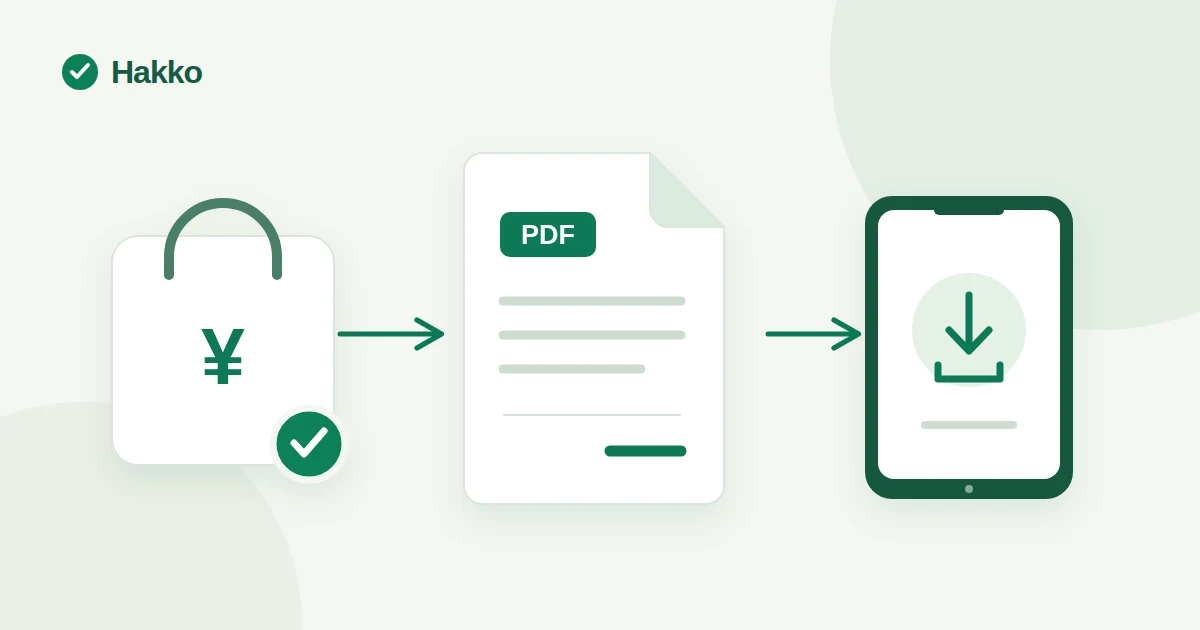
If Shopify's order printout is all you need, start with the standard print feature. If you also want receipts issued after payment and delivered by email or made available for customer download, combine a receipt app with the right store settings.
When receipt requests start taking more time, identify which task is slowing you down: preparing an order record, issuing a document for a customer, or correcting a recipient name. You do not need to move work into an app if Shopify's standard features already cover it.
Choose between an order record and a customer receipt
Shopify admin's order printing may be enough when you only need a copy of the order details. If you need custom documents, automatic issuance after payment, or customer delivery, compare those needs with the standard print feature.
Shopify's order printing guide explains how to print a basic order summary and packing slips from the admin. A printed order page includes the order's Timeline comments, and you must complete a draft order before you can print it as a regular order. If you need a warehouse copy or a record of the order, try this feature first.
| Work you want to reduce | Option to consider | Work or checks that remain |
|---|---|---|
| Keep a paper or PDF copy of one order | Print the order from Shopify admin | Open the order and print it when needed |
| Produce invoices or packing slips for several orders | Shopify Order Printer | Select the orders and documents, then print them |
| Issue a receipt after payment and make it available to the customer | An app that supports issuing and delivery | Set and test issuance rules, delivery mode, and customer-facing pages |
Shopify Order Printer can print invoices, packing slips, and pick lists. It supports up to 50 orders per print run. For larger batches, split the work or consider exporting orders to CSV. It is a good candidate when your main task is putting several orders into one paper or PDF workflow.
Keep receipts for in-person sales separate from receipts for online orders. Shopify POS supports printing, emailing, and texting receipts for POS transactions, and it has a process for reprinting them. See Shopify's guide to managing POS receipts if you are reviewing your in-store receipt process.
Set up company details before automating receipts after payment
If you repeatedly create receipts for paid orders by hand, an app's automatic issuance setting may help. Hakko's product information describes setting up company details, issuing receipts when payment is complete, emailing them, and letting customers download them.
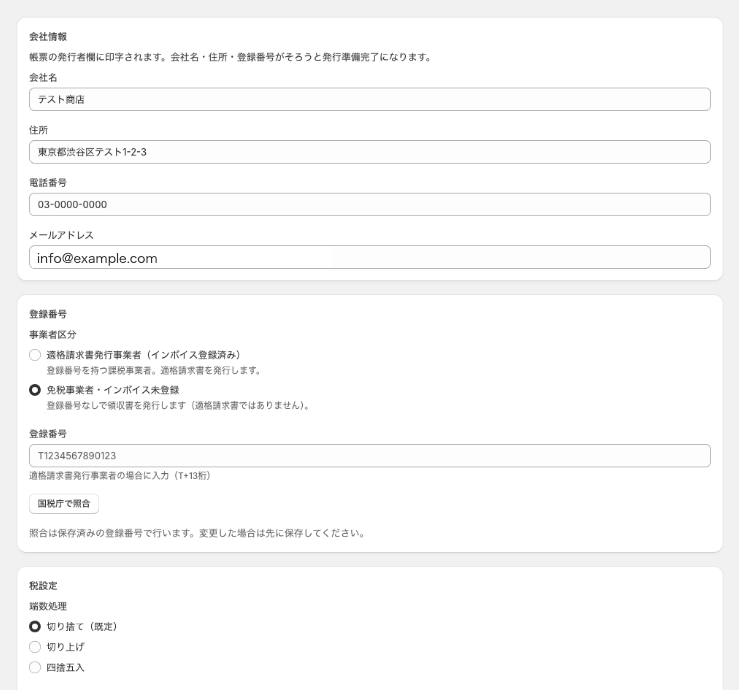
Check the settings in this order:
- Match the company details to your business. Review and save the issuer's name, address, and contact details in Hakko settings. If you use a logo or registration number, make sure it matches your business information. The screenshot is an example to help locate the settings; values visible in the fields do not mean your own store has completed the setup.
- Check automatic issuance after payment. Turn on and save 'Automatically issue when payment is complete'. The order must be paid and the company details must be set up. The receipts covered here are for orders in JPY; orders in other currencies are excluded from automatic and manual issuance. Do not assume earlier orders are issued automatically after you change the setting; search the document list by order number.
- Choose how to send receipt emails. 'Automatic email (default)' sends to the customer email on the order after issuance; no email is sent when the order has no customer email. 'Manual email' sends from the document list. 'Download link only' sends no email and uses the download link in the customer account. For manual email, enter an address in the optional 'Recipient email' field if the order has no customer email or you want to send to a different address. Leave it blank to use the customer email on the order; if neither address exists, nothing is sent. Reopen the settings after saving to confirm your selection.
- Check the pages customers will see. The receipt link appears automatically after the line items on the Thank you page immediately after purchase; you do not need to place it in the editor. To make it available later on the order status page or in customer accounts, add and save the app display using Shopify's checkout editor guide and customer account customization guide.
Settings can differ for other documents, such as an invoice you create by entering a sale amount or a packing slip generated from an order. This article focuses on receipts for Shopify online orders after payment is complete.
Check where customers can download their receipts
To let customers retrieve a receipt without email, choose 'Download link only'. If you also want customers to find a receipt later on the order status page or in customer accounts, add and save the app display in the Shopify editor.
Open Settings > Checkout in Shopify admin to review the current checkout configuration, including the order status page, Thank you page, and customer account surfaces. Hakko's receipt link appears automatically after the line items on the Thank you page immediately after purchase, so the merchant does not need to place it in the editor. To make receipts available later on the order status page or in customer accounts, use Shopify's checkout editor guide and customer account customization guide to add and save the app display on the relevant page. Hakko's FAQ also explains how to set up customer-facing pages.
The Thank you page appears once, immediately after checkout. The order status page can be reopened for an individual order, and customer accounts include order history. Do not stop after confirming that a link appeared immediately after purchase; also test whether customers can return to the receipt later. If the app display is missing, switch pages in the page selector and check the app section, whether it has been added, and whether the editor changes have been saved.
Before testing with an actual order, review the editor preview and open the PDF from a test order. Check that the payment method, customer email, and order status page are close to the conditions you use in production. If your store uses customer accounts, confirm that a customer can sign in and open the relevant order.
Correct the recipient name while keeping the original document
If customers ask you to change a recipient name, decide whether customers can submit change requests or only your store can make corrections. Issuing a corrected document separately instead of overwriting the receipt lets you compare what was sent and when.
If you accept recipient-name changes from customers, they can submit a request from their account. Review and approve it in the admin before issuing the corrected document. If your store handles corrections internally, find the receipt in the document list and use 'Change recipient name / reissue'. Even if customers cannot submit requests, check the manual correction flow before you need it.
For example, a receipt might be issued under an individual's name, and the customer later asks you to replace it with a company name. Match the order number to the customer, confirm the requested company name, and then issue the correction. Check that the updated document appears in the list and the original remains there as replaced. You do not need to delete a document already sent or edit the order itself.
If a customer's request does not appear, check the recipient-name policy in the store settings and whether the app display is available in customer accounts. If your settings require store approval, receiving a request does not mean that Hakko has already issued the corrected receipt.
Diagnose missing receipts, emails, and refund documents separately
When a customer says a receipt did not arrive, first determine whether the document is missing or whether only the email failed. Refund documents have separate settings and conditions from receipts issued after payment.
| Symptom | Check first | What to try next |
|---|---|---|
| A paid order has no receipt in the list | Shopify payment status, automatic issuance setting, saved company details, and whether the order is in JPY | Look for a pending-review or error notice on the app home page, then search the document list by order number. Orders in other currencies are excluded. Do not assume an order from before a settings change was issued automatically; check the list and issue it manually if needed. |
| A receipt is listed as issued, but the email did not arrive | The selected mode—'Automatic email (default)', 'Manual email', or 'Download link only'—and the order's customer email | For automatic email, check that the order has a customer email and look in the inbox and spam folder. For manual email, open the send screen in the list and enter an address in 'Recipient email' only if the order has no email or you want to use a different address. With download-link-only mode, retrieve it from the customer account. |
| The download is missing from a customer-facing page | The order status or customer account page selected in the editor, the app section, and saved state | Open the checkout and customer account editors, then preview the relevant page to confirm the app display has been added. |
| A refund document is missing after a refund | Whether the refund was executed in Shopify admin, the automatic refund setting, the original receipt or invoice, and the minimum amount | Automatic issuance skips refunds below the 'Minimum amount to skip automatic issuance (tax included, JPY)' setting. A value of 0 removes the amount-based exclusion; the maximum is 10,000. A refund with an amount of 0 is still excluded. Manual issuance does not use the minimum. |
Refund documents have a separate setting from automatic receipt issuance. Editing the order total does not complete a refund. Confirm that your store executed the refund in Shopify admin and that it appears in the refund history. Then check that the original receipt or invoice exists and automatic issuance on refund is enabled. Automatic issuance skips refunds below the 'Minimum amount to skip automatic issuance (tax included, JPY)' setting. A value of 0 removes the amount-based exclusion, and the setting is capped at 10,000; a refund with an amount of 0 still does not produce a document. Manual issuance does not use this minimum.
Test the full process with one order
Before telling customers how to get a receipt, test issuance, the PDF, and the delivery route with one test order. Seeing a setting in the app does not prove that email or customer pages work in your store.
- Prepare a test order and note its order number, customer email, and payment status.
- Open company details, automatic issuance, and the email mode. Confirm that they match your store's intended settings. Receipt issuance here applies to orders in JPY.
- Mark the JPY test order as paid and check that the receipt appears in the app's document list.
- Open the issued PDF and confirm that its order number, recipient name, items, and amount match the order. This check alone does not establish whether the document is suitable for tax purposes.
- With 'Automatic email (default)', open the message and follow its link to the PDF. With 'Manual email', open the send screen in the list and enter an address in 'Recipient email' if the order has no customer email or you need a different address. With 'Download link only', sign in to the customer account and retrieve the receipt.
- If you use recipient-name changes, test that a separate corrected document appears and the original remains in the list. If you use refund automation, test its separate settings with a refund on the test order.
Finally, confirm that the receipt was issued, the customer can retrieve it through the selected route, and you can still find the original after a name correction. A sent-email record does not confirm that the customer opened the PDF.
Frequently asked questions
Can I handle receipts with Shopify's standard features alone?
Shopify's order printing may be enough when you only need a copy of the order details. Shopify Order Printer is another option for printing custom invoices and packing slips in batches. Decide separately whether you also need receipts issued automatically after payment, customer self-service downloads, or recipient-name changes.
What should I check if a receipt is missing for a paid order?
Check the payment status, whether Hakko's 'Automatically issue when payment is complete' setting is on, and whether your company details are saved. The online-order receipts covered here are for orders in JPY; orders in other currencies are excluded from both automatic and manual issuance. If you changed the setting later, do not assume earlier orders were issued automatically. Search the document list by order number to check whether a receipt exists.
What should I do if the receipt email does not reach the customer?
First check whether an issued receipt appears in the document list and which mode is selected: 'Automatic email (default)', 'Manual email', or 'Download link only'. If the order has no customer email address, automatic email is not sent. With manual email, enter an address in the optional 'Recipient email' field on the send screen when the order has no customer email or you want to use a different address. Leave it blank to use the order's customer email; if neither address is available, nothing is sent. 'Download link only' sends no email; the customer uses the link in their customer account. For automatic email, also check the inbox and spam folder.
Will the original receipt disappear if I issued it with the wrong recipient name?
The original document is not overwritten; issuing a corrected recipient name creates a separate document. If you accept change requests from customers, review the request in the admin and approve it before reissuing. If the request or download screen does not appear for the customer, check the app settings and Shopify's checkout and customer account editors.
What happens to the original receipt when I refund an order?
The refund document is issued separately while the original receipt remains in place. Check that you executed the refund in Shopify admin, that automatic issuance on refund is enabled, and that an original receipt or invoice exists. If you set a 'Minimum amount to skip automatic issuance (tax included, JPY)', refunds below that amount are not issued automatically. A value of 0 removes the amount-based exclusion, but a refund with an amount of 0 still does not produce a document. Manual issuance does not use this minimum.
Can I print documents for multiple orders at once?
Yes. Shopify Order Printer can print invoices, packing slips, and pick lists for up to 50 orders at a time. In Hakko, select issued documents from the list to create a combined PDF, print them together, or export them in a ZIP file. Both options still require you to select the documents, so they serve a different purpose from automatic issuance after payment.
Choose the method that matches the work
If Shopify's standard order printing gives you the records you need, you can keep using it. Consider Order Printer when you want to batch-print documents, and an automatic-issuance app when you want to reduce the steps from payment to customer access. Test the order conditions and customer-facing pages before using any method in your regular workflow.
JizaiDev develops and provides Hakko. This is not an independent review of the product; it compares Hakko's described functions with Shopify's standard printing options so you can choose what fits. See Hakko's features and setup information and its FAQ. To try the app, start the 10-day free trial on the Shopify App Store and review the terms shown on the listing.
We checked Shopify's order printing, Order Printer, checkout and customer account editor, POS receipt guidance, and Hakko's public product information on 2026-10-15. The steps in this article are not a record of test orders run in each store. For tax or legal treatment and how to use a document in your business, consult a qualified professional or public authority based on your transactions. See the JizaiDev blog for more Shopify operations articles.