What “Instant Ship! for Click Post” Can Do: A Feature Overview
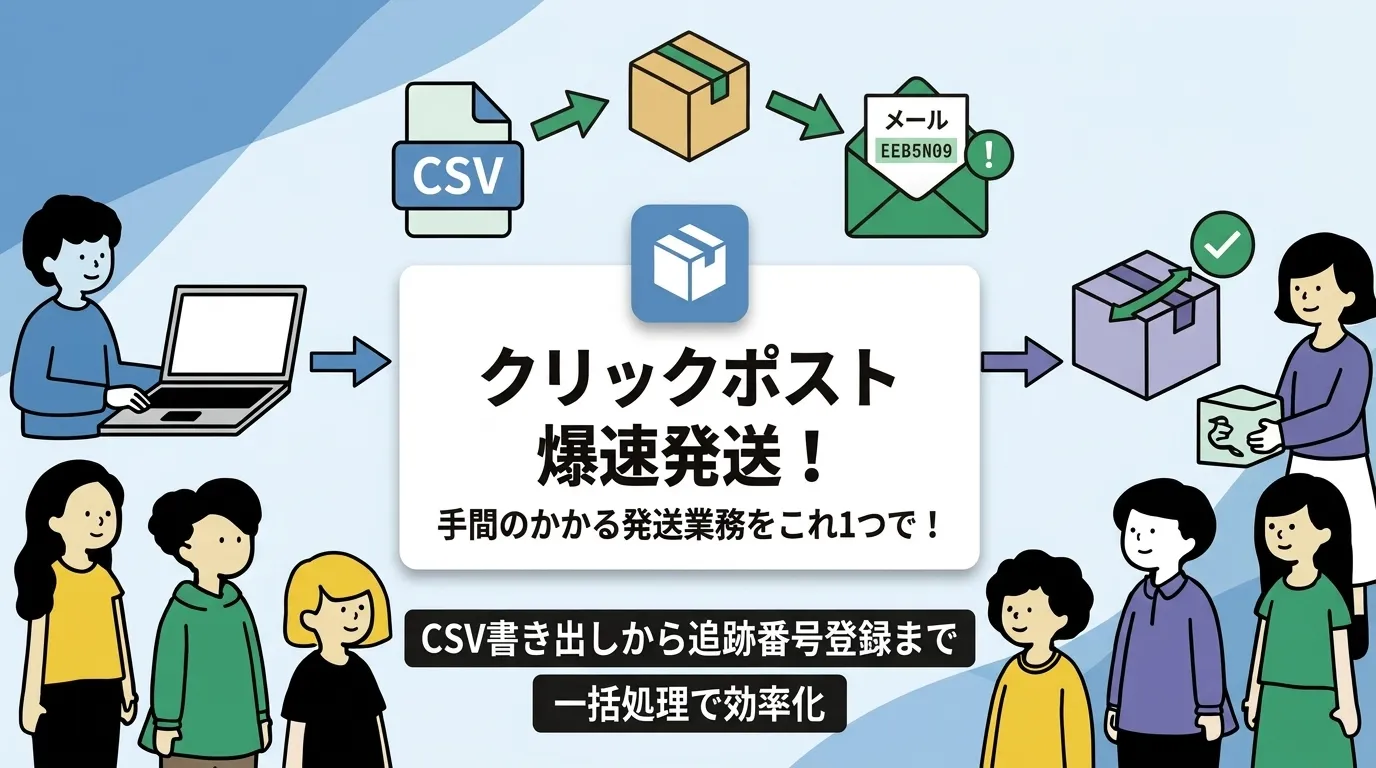
“Instant Ship! for Click Post” is an app that creates a Click Post CSV from your Shopify orders and, once you have issued labels in Click Post, registers the tracking numbers from the original PDF on those orders. Applying, paying, printing labels, and posting parcels stay with you, on the Japan Post site, just as before.
It is built for small online shops and handmade sellers who ship with Click Post every day.
Why we built it
A CSV export app can already produce the addresses you import into Click Post. But once you have paid in Click Post, there is still the job of copying each tracking number back into the matching Shopify order by hand.
The more orders pile up, the more time that return trip takes, because you compare each label with its order and type the number in. We built this app to cut down that work.
The shipping workflow at a glance
The app handles the first step, creating the CSV, and the last, registering tracking numbers. The Click Post work in the middle is yours.
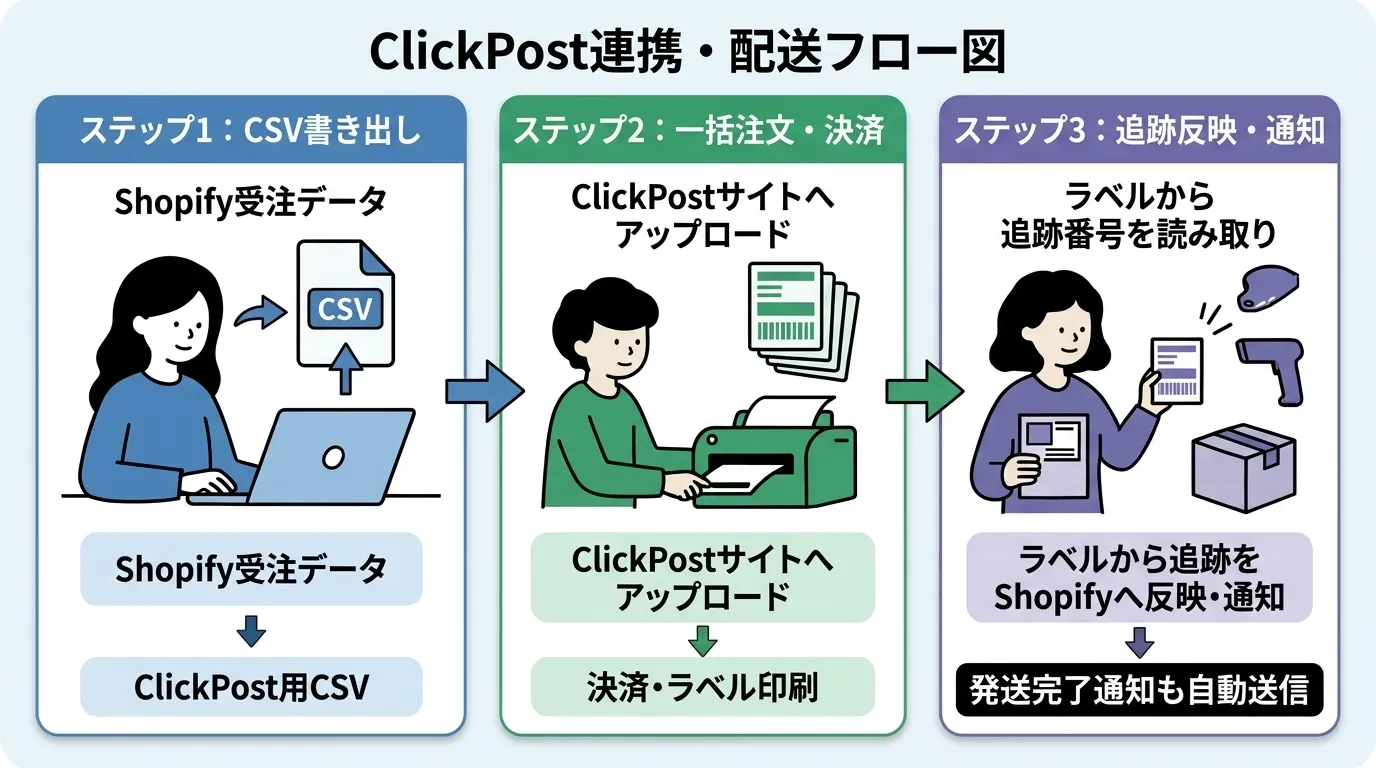
- Create the CSV (app): Select 1 to 40 unfulfilled orders and download a CSV that Click Post can import. The order list shows up to the 250 newest unfulfilled orders, so older unfulfilled orders may not all appear.
- Apply, pay, and print (you): Import the CSV into Click Post's “Bulk Application,” pay the postage, and print the labels to stick on your parcels. Keep the label PDF as the original file.
- Register the tracking numbers (app): Upload the saved original PDF to the app. It shows the tracking numbers it read alongside suggested orders, and you check them and run the registration. Registering sends a shipping confirmation email to the customer.
Automatic address splitting
A Click Post CSV takes the recipient's address on four lines, each holding up to 20 full-width characters. An address pasted straight from a Shopify order may not fit that format.
“Instant Ship!” splits the address into four lines when it writes the CSV. Each line holds up to about 20 full-width characters, and any text that does not fit at the end may be truncated. Item descriptions beyond the limit are truncated too. Characters that Shift_JIS cannot represent may be replaced, so check the downloaded CSV before you import it.
Registering tracking numbers and the shipping notification
Putting tracking numbers back on orders changes from “compare and type in each one” to “check the suggestions and register.” Nothing is registered automatically; you do the checking.
The app reads the original PDF downloaded from Click Post and matches the tracking numbers to your orders. If an order number is present, it looks for an exact match; if not, it suggests orders by postal code. When there are several suggestions, you choose one.
Only original Click Post PDFs can be imported. Scanned PDFs and PDFs that have been edited or merged are not supported. You can import 1 or 2 files at a time, up to 10 MB each, with a total of up to 80 labels.
When you run the registration, the tracking numbers are added to the Shopify orders and a shipping confirmation email goes out to the customers, who can then follow the delivery status. There is no setting to turn this notification off, so confirm that each number matches its order before you register. Re-registering orders that have already shipped is not supported.
Click Post specifications
For reference, here are the main Click Post specifications. They reflect the revision effective October 1, 2026, and were checked on October 14, 2026.
| Item | Details |
|---|---|
| Postage | Flat 240 yen nationwide (tax included). Revised from 185 yen on October 1 |
| Size | Must fit in a mailbox, with the three sides totaling 60 cm or less and the longest side 34 cm or less. Minimum 14 cm long × 9 cm wide |
| Weight limit | Up to 2 kg |
| How to send | Posted in a mailbox in principle. The counter is only for items 3 cm thick or less that meet the exceptions |
| Bulk Application (CSV) | Up to 40 entries per upload |
| Payment | On the Bulk Application screen, select “Proceed to payment” for each recipient whose postage you want to pay |
Pricing and how to try it
The app costs US$8 per month and includes a 10-day free trial. Japan Post postage is charged separately from the app fee. Check the latest pricing on the Shopify App Store listing.
During the free trial, take a few of your usual shipments through the whole process, from creating the CSV to registering the tracking numbers. That makes it easier to judge whether the app suits your own work.
Related links:
- About jizai.dev: Meet the Developer --- Introducing the operator and developer
- App Store (Instant Ship! for Click Post)
- Shopify × Click Post Shipping Guide --- The whole process, from applying to registering tracking numbers
- How Much Easier Can Shipping Be for US$8 a Month? --- How to run your free trial
Sources: Shopify App Store, Click Post, Japan Post's Click Post guide, Sending methods from October 1 (Japan Post), Bulk Application detailed flow (Click Post). Checked: October 14, 2026.