A Shipping Check Flow to Prevent Accidentally Sending Cancelled Orders
Have you ever cancelled an order in Shopify and then realized later that the already-packed parcel was still shipped anyway?
This kind of mistake usually comes from timing, not from lack of effort. When CSV export, packing, and shipping happen at different times of day, cancelled orders can stay mixed into an older export file unless you have a simple checkpoint.
This article explains the three-step flow I use to keep cancelled orders out of Click Post shipments.
Why Cancelled Orders Still Get Shipped
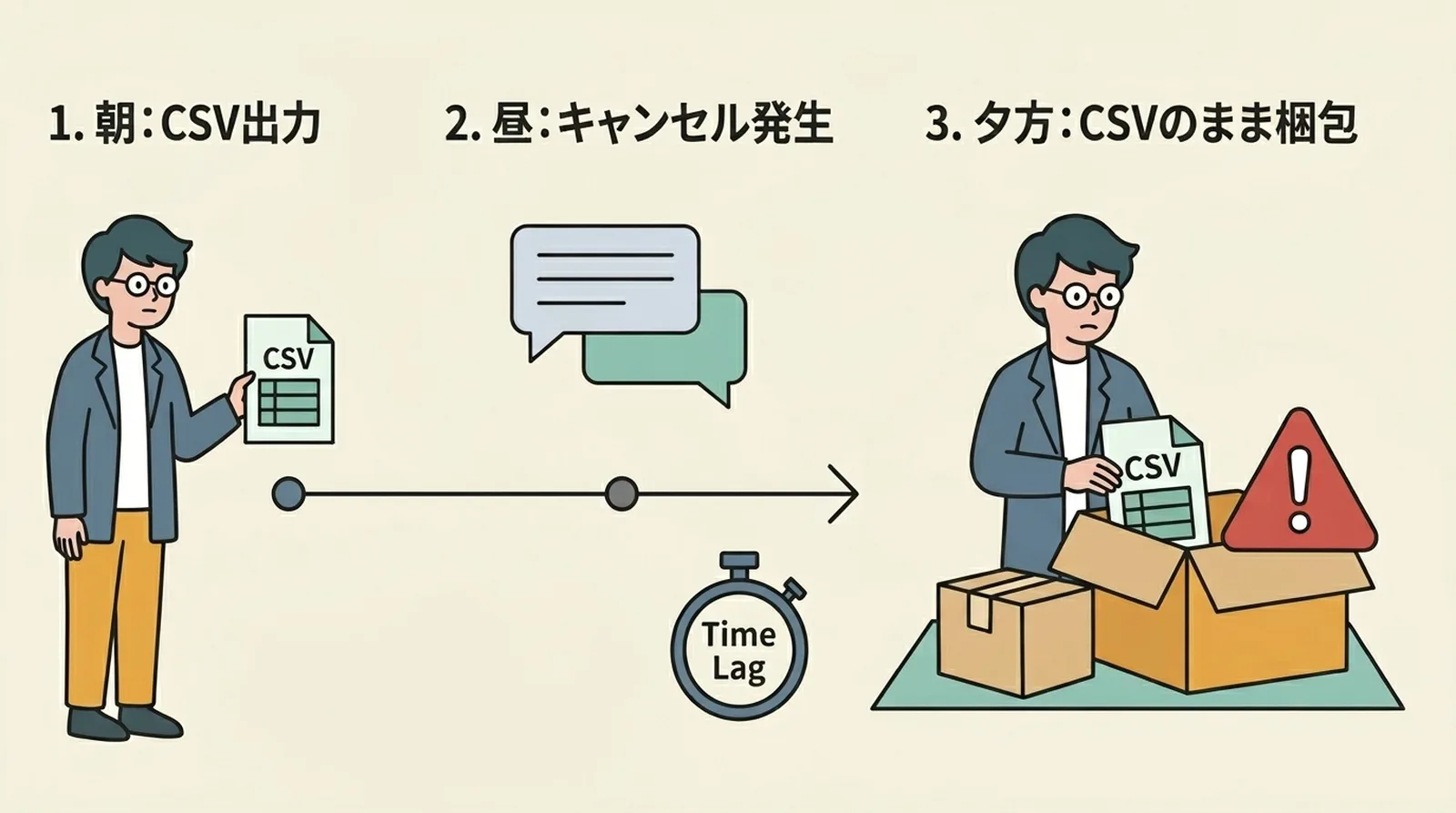
The export file can become outdated
The most common pattern looks like this:
- Export the CSV in the morning
- A customer asks to cancel at noon
- Cancel the order in Shopify
- Start packing later using the CSV exported before the cancellation
At the moment the CSV was created, the order was still active, so it remains in the file.
Pre-packed parcels make the risk worse
If you pre-pack envelopes before final drop-off, the cancelled order may already be sitting in the "ready to ship" pile. On busy days, it is easy to grab that parcel without checking again.
This risk grows during heavy shipping periods. If you process large batches, How to Handle Busy-Season Click Post Shipping is worth reading too.
The Three-Step Flow
Here is the full check flow in one view.
| Step | Timing | What to do |
|---|---|---|
| 1. Filter | Before CSV export | Limit Shopify to unfulfilled and paid orders |
| 2. Visual check | Right before export | Scan for cancellation requests, hold tags, or duplicates |
| 3. Final count check | Right before packing | Confirm the current order count still matches the CSV |
Each step takes less than a minute. The real value comes from doing them every time, not from making them complicated.
Step 1: Filter Orders Before Exporting the CSV
Use Shopify status filters first
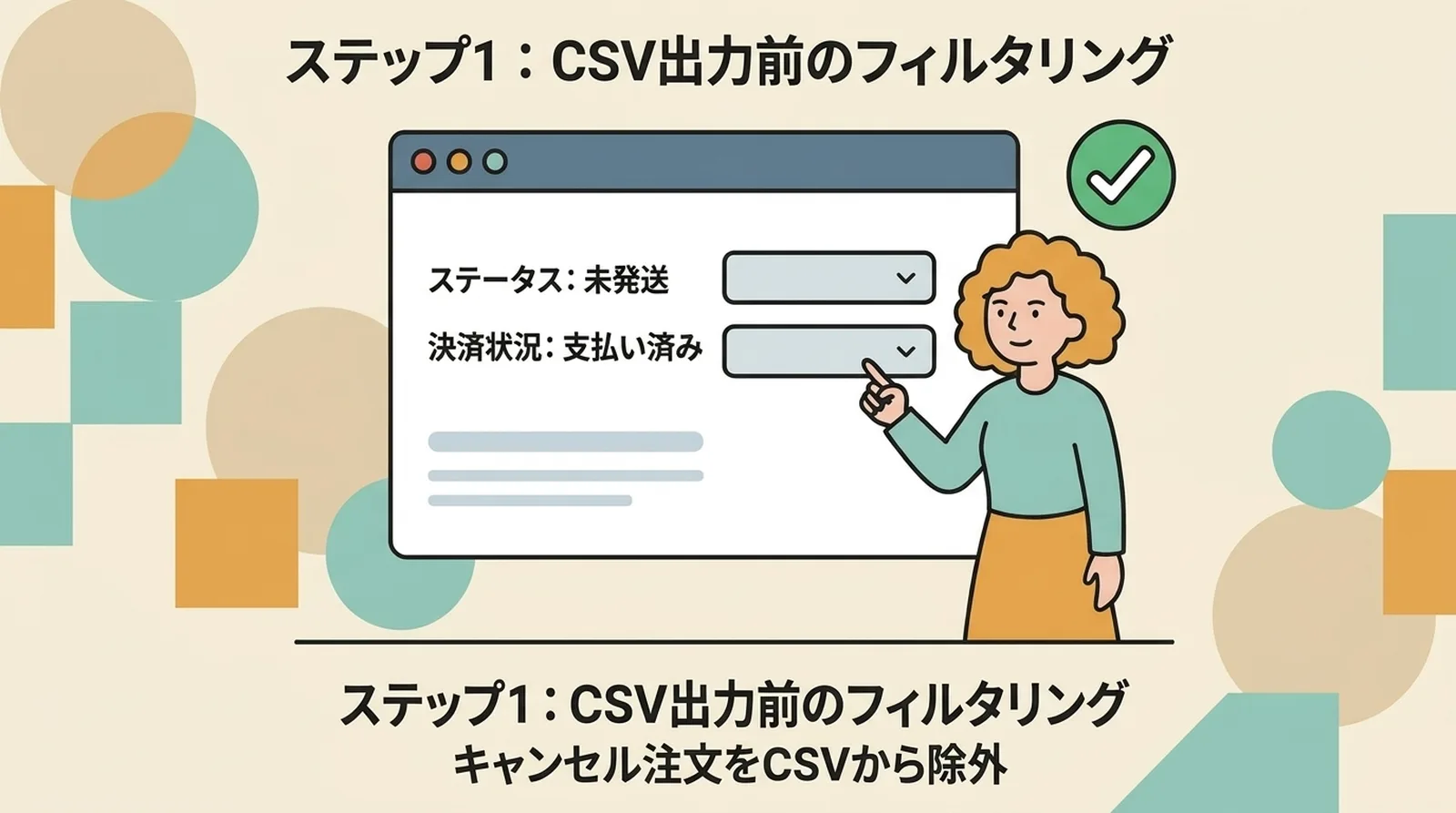
Before exporting, narrow the order list with these filters:
- Fulfillment status:
Unfulfilled - Payment status:
Paid
That alone removes many cancelled or invalid orders from the export target.
Save the filtering rule if your app supports it
If you export through an app, save those filters as the default. The less manual setup you need on each shipping day, the lower the chance of forgetting a step.
If you always export only paid and unfulfilled orders, cancelled orders are far less likely to enter your shipping CSV in the first place.

Step 2: Do a Quick Visual Check Before Export
Look for the few signs filters cannot fully catch
Before you click export, scan the order list and check:
- Whether order notes mention cancellation or special handling
- Whether tags such as
holdorreviewingare attached - Whether the same customer placed multiple similar orders
Order notes are especially easy to miss. Sometimes customers type cancellation requests or correction messages during checkout, and those messages do not stand out enough in a busy order list.
What to do on high-volume days
If you have more than 50 orders, you probably will not inspect each one deeply. In that case, trust the filters, but still check:
- Orders created very recently
- Recent customer emails asking for cancellation or changes

Step 3: Check the Count Again Right Before Packing
Why the final check matters
A cancellation can arrive after you export but before you begin packing. That is exactly the gap this last check is designed to catch.
Open the filtered Shopify order list again just before packing starts. Compare the current order count with the number of rows in your CSV.
If the numbers match, you can proceed with confidence.
If the numbers do not match
When the counts differ:
- Find which order changed after export
- Remove that order from the packing batch
- If a Click Post label was already created, do not use it
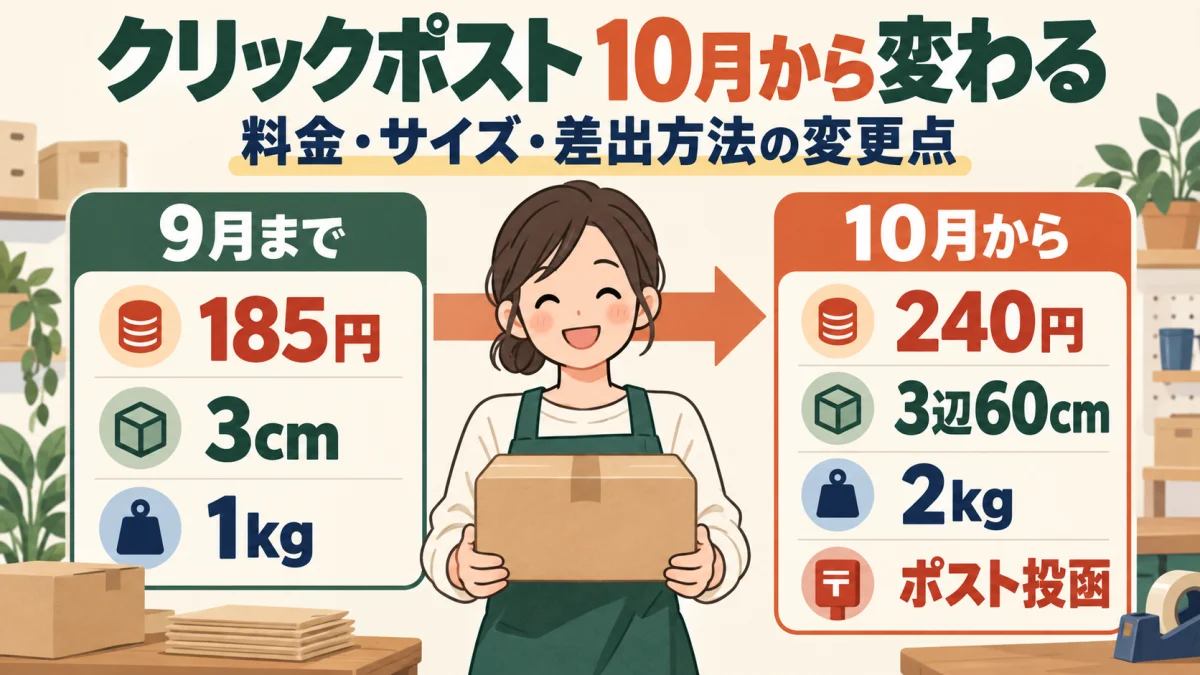
Losing 185 yen on an unused label is minor compared with the cost of shipping a cancelled order and handling the aftermath.
Turn the Check into a System
Put the checklist where packing happens
Do not keep this flow only in your head. Write it down and leave it near the packing space.
Shipping checklist
- Filtered Shopify to unfulfilled and paid orders
- Checked notes and hold tags
- Recorded the CSV order count
- Confirmed the count again before packing
If someone else helps with shipping, add the same checklist to your manual. A repeatable process works better than relying on memory.
What to Do If a Cancelled Order Was Shipped Anyway
Mistakes still happen, so it helps to have a response flow ready.
1. Contact the customer quickly
Explain honestly that the cancelled order was shipped by mistake and tell them what happens next.
2. Guide the return or refusal flow
Depending on the situation, you may ask the customer to refuse the parcel, return it, or wait for it to come back as undeliverable.
3. Confirm refund handling
If the refund was not completed yet, decide whether to refund immediately or after return according to your policy.
4. Review which checkpoint failed
Was the export outdated? Was the order note missed? Was the final count check skipped? Improving that one step matters more than blaming the person who made the mistake.
For other post-shipping exceptions, How to Handle Address Changes After Shipping is another helpful reference.
Common Questions
Can I cancel a Click Post label after it is created?
No. Once payment is completed, the label itself cannot be cancelled. If you do not use it, the shipment does not move, but the fee is still incurred.
Is there a way to automatically exclude cancelled orders from the CSV?
Yes, in practice the safest method is filtering to unfulfilled and paid orders before export. Some export apps also let you save that rule so it is applied every time.
What if I want to hold an order instead of cancelling it?
Use a tag such as hold and exclude those tagged orders from your export flow.
Is this check flow realistic during busy periods?
Yes. Even during busy periods, the three steps usually take only a few minutes total, and those few minutes prevent much more expensive mistakes.
Summary
Most accidental shipments of cancelled orders happen because the order state changed after the shipping batch was prepared. The fix is not a complex system. It is a short routine.
Filter first, visually scan once, and compare the order count again right before packing. That is usually enough to keep cancelled orders out of the outgoing pile.
If you also want to reduce the rest of the manual work around Click Post shipping, including CSV export and tracking sync, you can try Instant Shipping for Click Post.